00198178-04_GS_FeederManager_3.3_R18-1_EN.pdf - 第14页
SIPLACE Feeder Ma nager 3.3 (R18 -1) / Getting S tarted 08/2018 Edition 14 4 Program Overv i ew 4.1 Input elements an d controls Keyboard The keyboard acts as th e standard i nput tool to operat e the Feeder Ma nager. …
SIPLACE Feeder Manager 3.3 (R18-1) / Getting Started 08/2018 Edition
13
3.3 Starting the Feeder Manager Line Console
To start the FM Line Console, do one of the following
Start the ASM Studio from the Windows Start menu Start – All Programs – ASM Studio or
with the icon on the Windows desktop
Start the Feeder Manager Client by clicking on the FM Client icon on the ASM Studio
desktop.
Or
Start FM Line Console directly from the Windows Start menu.
3.4 Terminating the Feeder Manager Line Console
Same as the way FM Client is terminated. See section 3.2 for details.

SIPLACE Feeder Manager 3.3 (R18-1) / Getting Started 08/2018 Edition
14
4 Program Overview
4.1 Input elements and controls
Keyboard
The keyboard acts as the standard input tool to operate the Feeder Manager.
Trackball and mouse buttons
On the station, the trackball is used to move the mouse pointer across the user interface. The
left mouse button is then used to execute the corresponding function.
Note:
In this guide, the triggering of actions using the left mouse button is always referred to as
"clicking".
Touch screen on PDA device (MC70, MC75 and MC67 scanner)
The screen on the PDA device acts as the standard input tool for Feeder Manager Mobile
Application. Actions can be directly selected or the corresponding functions triggered by
touching the corresponding object on the screen with the tip of a finger or with a pen.
4.2 User classification
Certain functions or menus can only be carried out/called by specially trained staff. The
following different access levels are available, when Feeder Manager has been installed:
Admin
This access level has access to all Feeder Manager functions.
Service
This access level has access to all Feeder Manager functions except the user
management function.
Operator
This access level has read-only access to Feeder Manager and some basic operational
functions, such as exchanging feeder, marking feeder as defective, assigning feeder to
location and printing barcodes.
SIPLACE Feeder Manager 3.3 (R18-1) / Getting Started 08/2018 Edition
15
4.3 Graphical User Interface – Main menu
This section introduces the user interface of Feeder Manager. The user interface is divided
into the following areas:
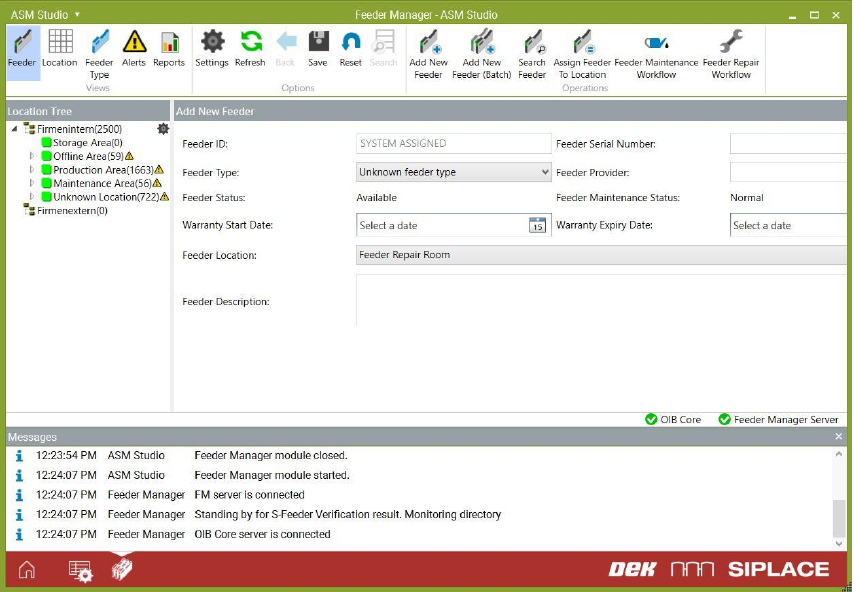
Figure 4-1: Feeder Manager UI elements
The screenshot above shows the main UI of Feeder Manager module when started from
inside ASM Studio. It consists of
Menu bar: this is the menu area where all the Feeder Manager functions can be
accessed.
Location Tree: this is an organization tree for the factory locations. The assigned
feeders are displayed in here also.
View area: this is the area where the views for various Feeder Manager Client
functions will be shown in tab forms.
Messages: the information, warning and error messages are displayed in here
Status bar: the FM Server identity and both the connection status to FM Server and
OIB core is displayed here.
(1)
(1)