00198178-04_GS_FeederManager_3.3_R18-1_EN.pdf - 第95页
SIPLACE Feeder Ma nager 3.3 (R18 -1) / Getting S tarted 08/2018 Edition 95 Barcode Setting This setting allows the user to configure b arcode label related s ettings. Feeder Barcode T ype Allows the user to sel ect to pr…
SIPLACE Feeder Manager 3.3 (R18-1) / Getting Started 08/2018 Edition
94
Note:
If the total length of the location ID format definition is > 18 and <= 30 characters, and 1D
feeder barcode printing format is selected from the Global Settings, the system will
prompt the user to select 2D barcode printing format.
1D barcodes, for which the total length of the location ID format definition is > 18
characters, cannot be printed on the barcode label.
2D barcodes, for which the total length of the location ID format definition is > 30
characters, cannot be printed on the barcode label.
9.4 Print Options
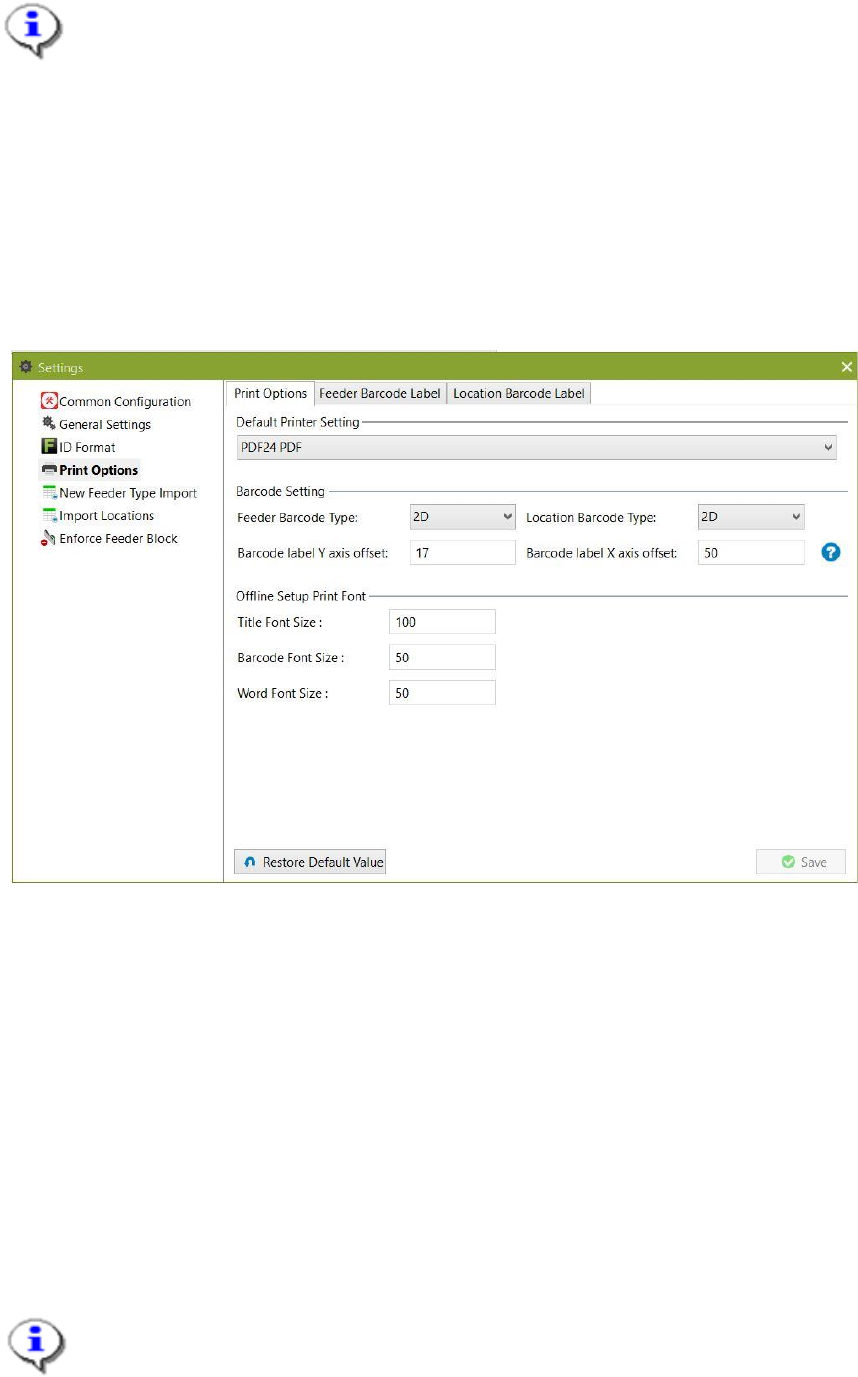
In the Print Options tab, the print options, feeder and location barcode labels are preset.
Figure 9-25: Settings - Print Options with Print Options selected
9.4.1 (General) Print Options
This view allows the user to make general settings related to printing jobs.
9.4.1.1 Description of the fields
Default Printer
Select the printer available to this computer that you want to use as the default printer for
Feeder Manager Client. The selection is empty by default.
The first time a Feeder Manager printing function is used, the user will be prompted for the
printer selection. The user selection will then be set as the default.
Note:
This is independent from the default printer selection of the Windows operating system.

SIPLACE Feeder Manager 3.3 (R18-1) / Getting Started 08/2018 Edition
95
Barcode Setting
This setting allows the user to configure barcode label related settings.
Feeder Barcode Type
Allows the user to select to print 1D or 2D barcode labels for feeder barcodes.
Location Barcode Type
Allows the user to select to print 1D or 2D barcode labels for location barcodes.
Barcode label Y axis offset
Allows the user to modify the barcode label Y-axis offset. Default value = 50.
Barcode label X axis offset
Allows the user to modify the barcode label X-axis offset. Default value = 25.
Offline Setup Print Font
The offline setup font sizing for printing is displayed with preset values (Microsoft font size
standard in pixels). The values are by default disabled for editing. However, the user can click
on Modify Font Size button to modify the values.
Title font size
Allows the user to modify the font size for the title.
Barcode font size
Allows the user to modify the font size for the barcode.
Word font size
Allows the user to modify the font size for text.
Warning:
Default font size values are optimized for barcode printing on A4 paper. If you modify
them, the printing result may not be usable for scanning.
9.4.1.2 Description of the buttons
Save
Click on this button to save the modified print options.
Restore Default Values
Click on this button to restore the factory settings.
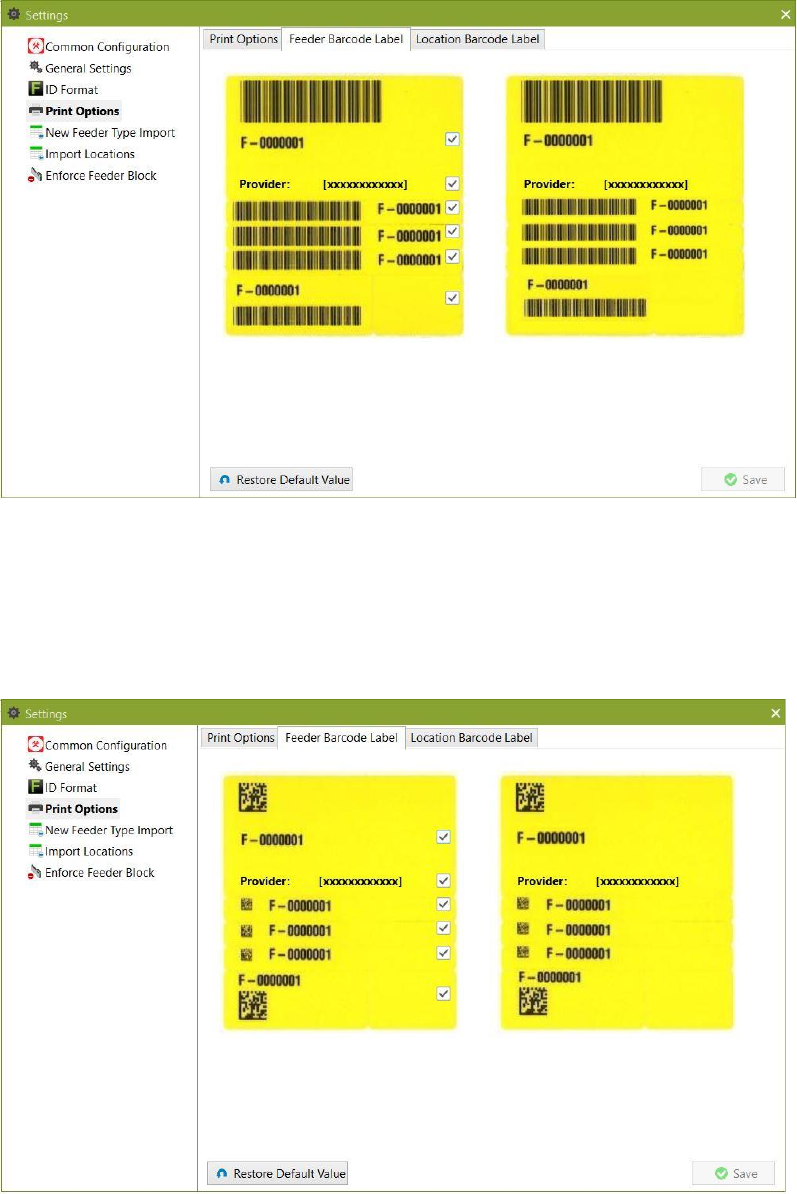
9.4.2 Feeder Barcode Label Printing Format view
Click on Feeder Barcode Label Printing Format tab to open the view.
SIPLACE Feeder Manager 3.3 (R18-1) / Getting Started 08/2018 Edition
96
1D feeder barcode labels:
Figure 9-26: Feeder Barcode Label Printing Format for 1D barcode labels
Tick the checkboxes for the information that shall appear on the barcode label.
To the right a preview of the selected printing format is shown.
2D feeder barcode labels:
Figure 9-27: Feeder Barcode Label Printing Format dialog box for 2D barcode labels
Tick the checkboxes for the information that shall appear on the barcode label.
To the right a preview of the selected printing format is shown.