00198178-04_GS_FeederManager_3.3_R18-1_EN.pdf - 第40页
SIPLACE Feeder Ma nager 3.3 (R18 -1) / Getting S tarted 08/2018 Edition 40 Figure 5- 20 Feeder Bar code Printer Selection Note: Feeder Manager def ault printer is independe nt of the W ind ows default printer setting. Se…
SIPLACE Feeder Manager 3.3 (R18-1) / Getting Started 08/2018 Edition
39
On The Date
This option allows the user to search all the feeders with warranty start or expiry date
which equals to the selected date.
5.3.3 Search Result page
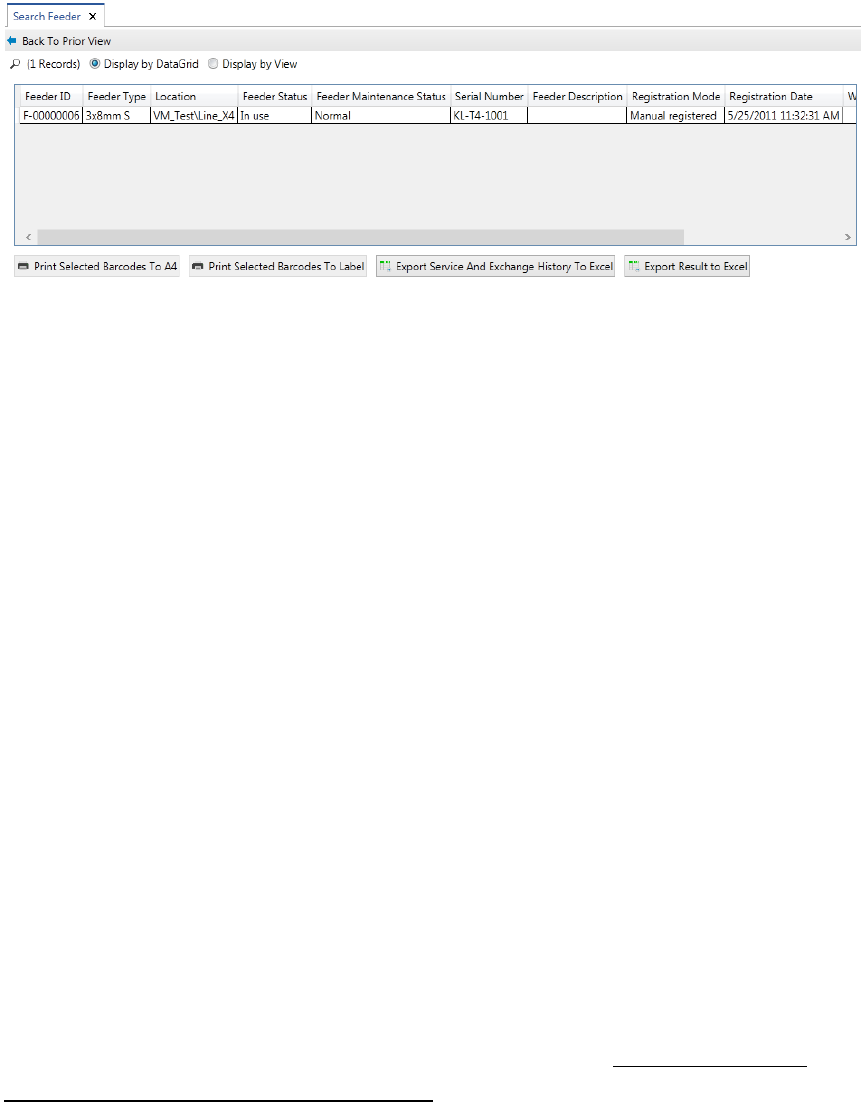
The feeder search result is displayed in the following form. The feeders matching the search
criteria are displayed in a list.
Figure 5-19: Feeder Search Result
1) Double click on the feeder entry will bring up the feeder detail view of this feeder
Back To Prior View
Use this button to go back to the previous search criteria editing view.
Display by DataGrid
In this option, the feeders in the search result will be displayed as a data grid view.
Double-click on a row to open the Feeder Details view.
Display by View
In this option, the feeders in the search result will be displayed as icons.
Double click on the icon to open the Feeder Detail view.
Print Selected Barcodes to A4
This option allows user to print the selected feeders’s barcodes using a normal printer.
Print Selected Barcodes to Label
This option allows user to print the selected feeders’s barcodes to barcode label printer.
Click on this button to print a barcode label for the feeder selected.
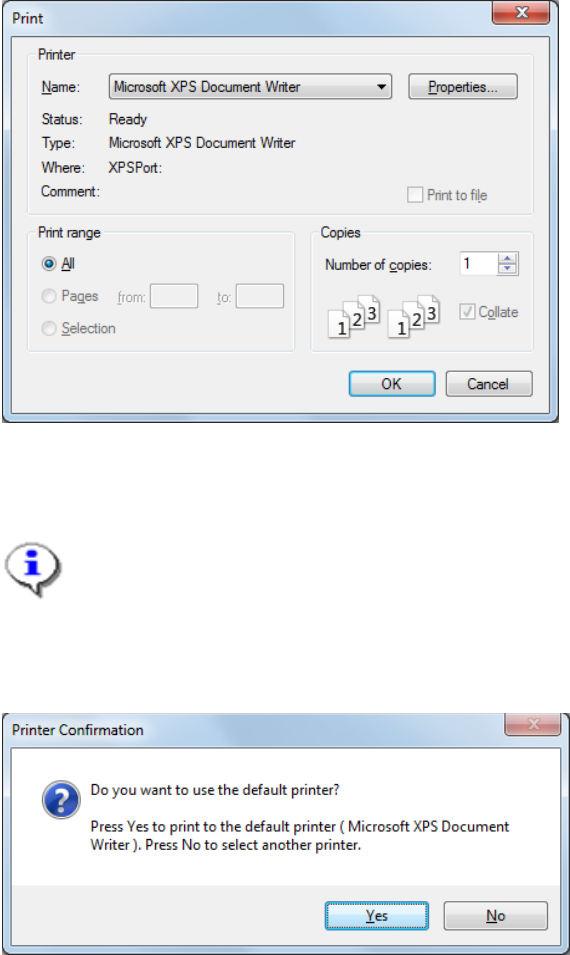
Note: For the first time when this function is used, the user will be prompted with the standard
Windows printer selection dialog, so a printer selection can be done. User selection will be
saved as the default printer for Feeder Manager.
SIPLACE Feeder Manager 3.3 (R18-1) / Getting Started 08/2018 Edition
40
Figure 5-20 Feeder Barcode Printer Selection
Note:
Feeder Manager default printer is independent of the Windows default printer setting.
See section 9.4 Print Options for details.
For subsequent printings, following message will be shown
Figure 5-21 Feeder Barcode Default Printer Confirmation
Click Yes to directly print to the default printer.
Or
Click No to open the printer selection dialog.
Export Service and Exchange History to Excel
Click on this button to export the service and exchange history of all the feeders shown in
the result list to an excel file.
Export Result to Excel
Use this button to export the search result into Excel format.
SIPLACE Feeder Manager 3.3 (R18-1) / Getting Started 08/2018 Edition
41
Note:
Exported excel files require Excel Viewer 2007 or higher to open.
5.4 Feeder Maintenance Workflow
Note: starting from Feeder Manager 3.0, the feeder maintenance and repair workflow will be
followed in a guided way to avoid unwanted input errors.
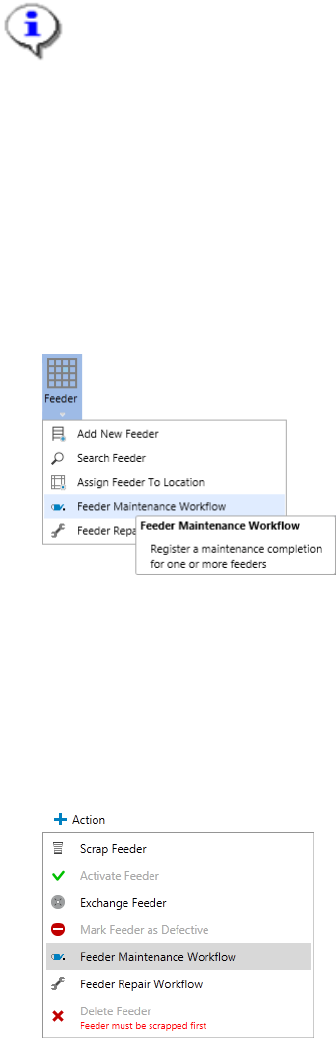
The Feeder Maintenance Workflow can be accessed via two places
1) Via the main meu. Go to Feeder Feeder Maintenance Workflow
Figure 5-22 Access Feeder Maintenance Workflow from the main menu
Note: You will need to key in or scan the feeder ID to be maintained.
2) Via the Action button of Feeder details.
Open up a certain Feeder’s feeder detail view, and then press the Action button to bring
up the dropdown list of actions. Select Feeder Maintenance Workflow
Figure 5-23 Access Feeder Maintenance Workflow from the feeder detail view
Note: in this approach, the Feeder ID of the feeder selected will be pre-entered into the
first page of the Maintenance Workflow.
The feeder maintenance workflow will be started and follow the steps below.