00198178-04_GS_FeederManager_3.3_R18-1_EN.pdf - 第77页
SIPLACE Feeder Ma nager 3.3 (R18 -1) / Getting S tarted 08/2018 Edition 77 9 Settings menu Click on Setting s button in the m enu bar to open the Setting dialog. Figure 9-1 Setting s menu button From the Settings funct…
SIPLACE Feeder Manager 3.3 (R18-1) / Getting Started 08/2018 Edition
76
8.5.1 Description of the fields
Service entry date from
Allows the user to search for feeders based on the service entry date to generate the report.
All feeders that were maintained on/after the selected date are included in the report.
Service entry date to
Allows the user to search for feeders based on the service entry date to generate the report.
All feeders that were maintained on/before the selected date are included in the report.
8.5.2 Description of the buttons
Generate
Click on this button to search for maintained feeders in the selected service entry date
range and generate the report.
Reset
Click on this button to clear all fields and reset them to their respective default values.
Note:
Feeders with feeder status Scrapped will not be included in the report.
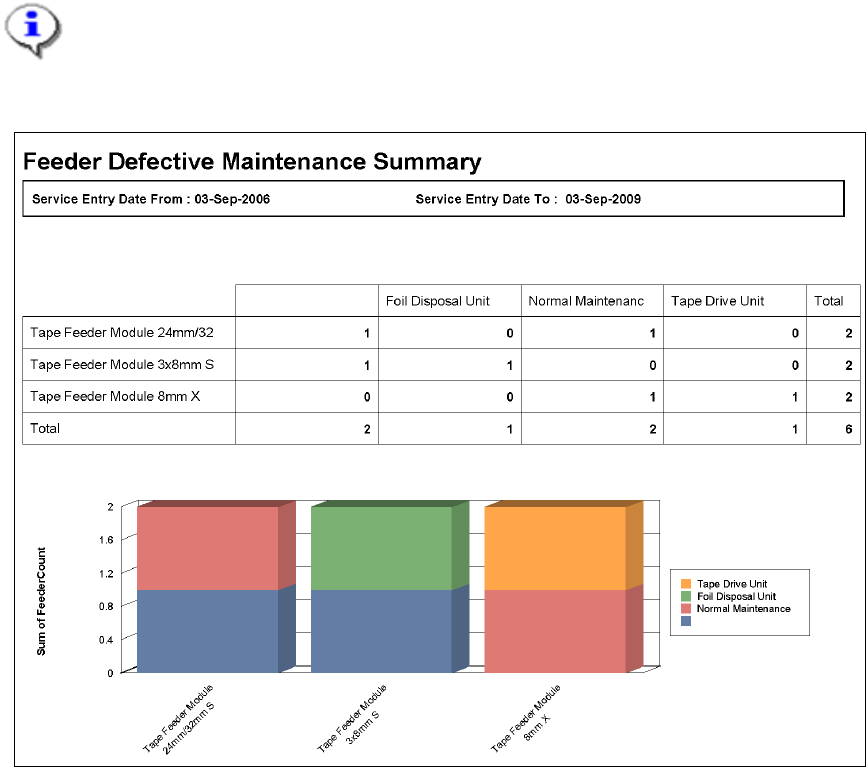
Example: Feeder Maintenance Defect Report
Figure 8-13: Feeder Maintenance Defect Report
SIPLACE Feeder Manager 3.3 (R18-1) / Getting Started 08/2018 Edition
77
9 Settings menu
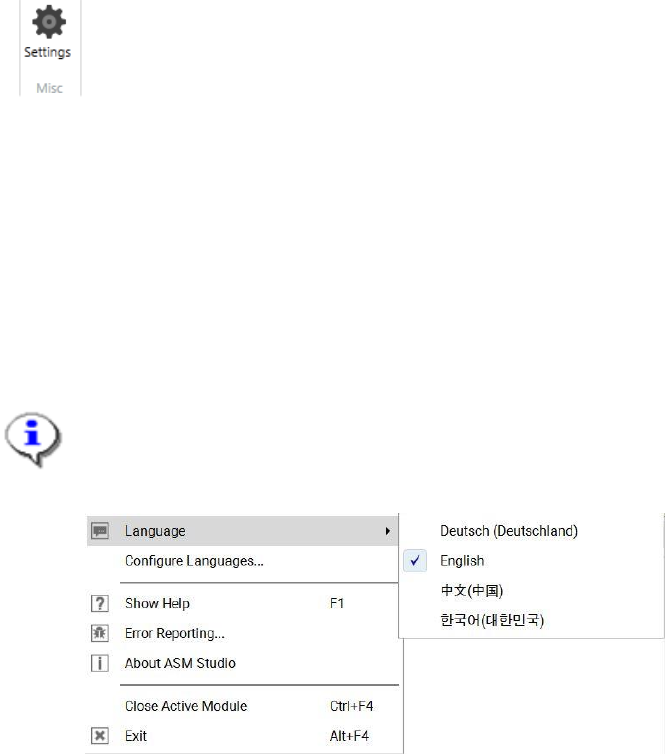
Click on Settings button in the menu bar to open the Setting dialog.
Figure 9-1 Settings menu button
From the Settings function, the user can
1) Define a common configuration,
2) Make global settings,
3) Define feeder and location ID format,
4) Define barcode label printing format for feeders and locations,
5) Change user passwords
Note:
The language change function which was previously parked under Settings, is now
accessed from the ASM Studio main menu.
Figure 9-2 ASM Studio Language Change
SIPLACE Feeder Manager 3.3 (R18-1) / Getting Started 08/2018 Edition
78
9.1 Common Configuration
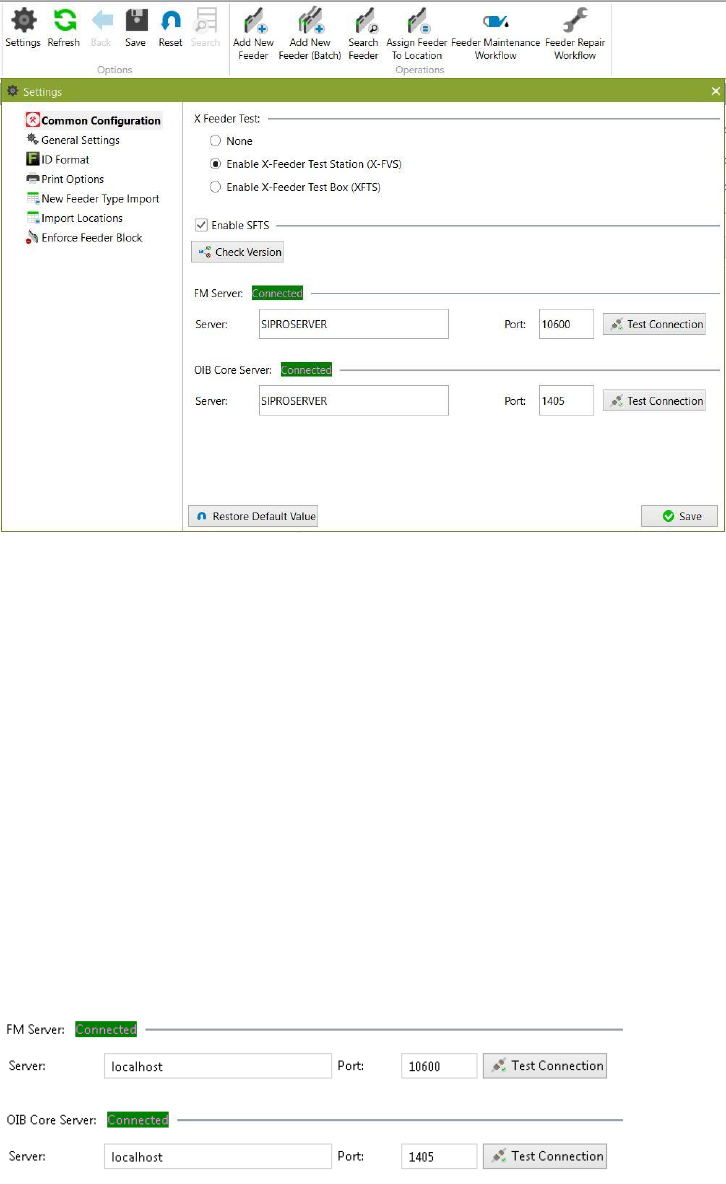
When the Setting dialog is opened, the first tab Common Configuration is selected by
default.
Figure 9-3 Settings - Common Configuration
Inside the Common Configuration, following connections can be configured.
1) FM Server connection
2) OIB Core connection
3) X-Feeder Test connection (X-FVS)
4) XFTS connection
5) SFTS connection
9.1.1 FM Server and OIB Server Connection
Feeder Manager Server and OIB Core Server connection can be configured by the following
fields.
Figure 9-4 FM Server and OIB Server configuration