00198178-04_GS_FeederManager_3.3_R18-1_EN.pdf - 第11页
SIPLACE Feeder Ma nager 3.3 (R18 -1) / Getting S tarted 08/2018 Edition 11 3 Starting / Terminating Feeder Manager After Feeder Manag er is installed succ essfully, follo wing application icons wil l be added to the W in…
SIPLACE Feeder Manager 3.3 (R18-1) / Getting Started 08/2018 Edition
10
2.4 Online Help
The Online Help contains details about the program functions.
2.4.1 Accessing the Online Help via the F1 key
Start the context-sensitive Help system for the current dialog with the F1 key.
2.4.2 Accessing the Online Help via the Menu bar
Start the context-sensitive Help system for the current dialog by selecting Help – Online
Help in the menu bar.
See chapter 10 Help for more details on the Help menu.
SIPLACE Feeder Manager 3.3 (R18-1) / Getting Started 08/2018 Edition
11
3 Starting / Terminating Feeder Manager
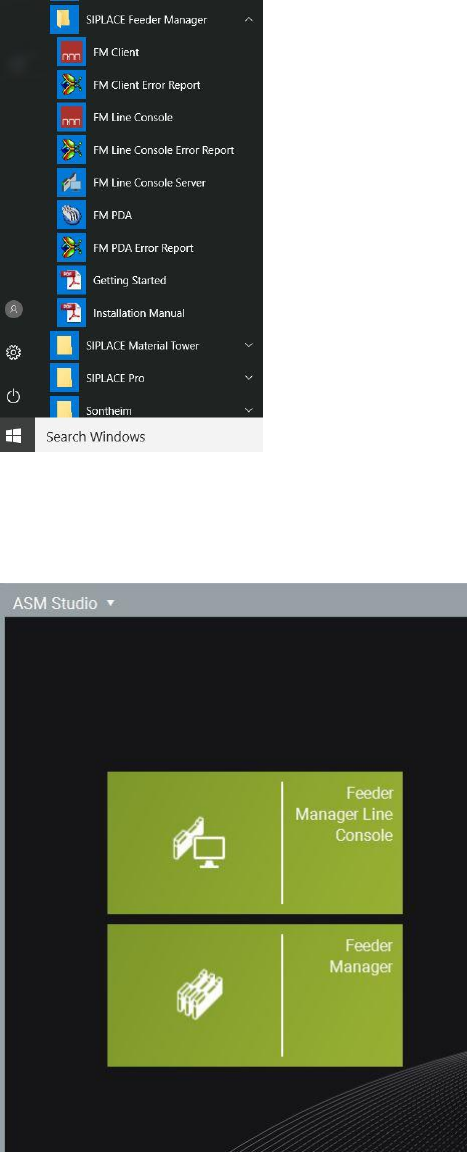
After Feeder Manager is installed successfully, following application icons will be added to the
Windows Start menu under All Programs SIPLACE Feeder Manager.
Figure 3-1 Feeder Manager folder as seen in Windows Start Menu
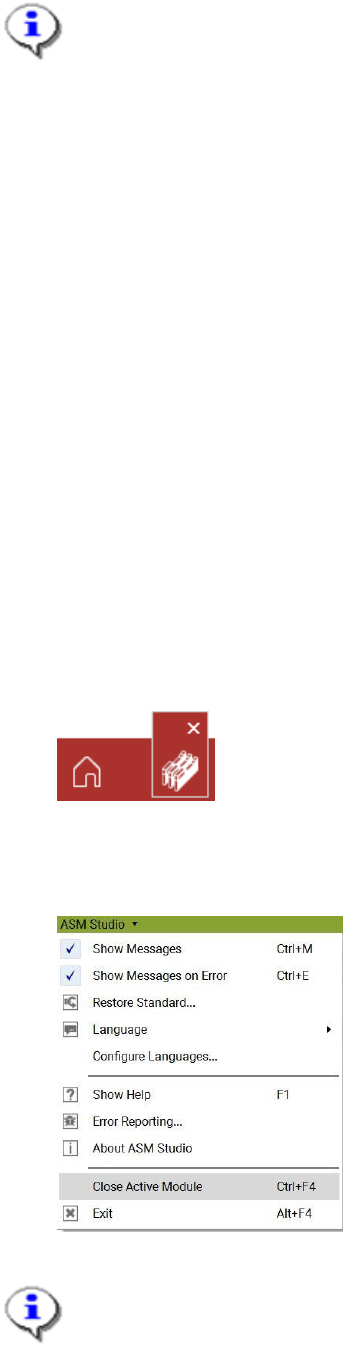
You will also be able to find the FM Client and FM Line Console icon on the ASM Studio
Desktop.
Figure 3-2 FM Client and Line Console icons on ASM Studio Desktop
SIPLACE Feeder Manager 3.3 (R18-1) / Getting Started 08/2018 Edition
12
Note:
Both Feeder Manager and Feeder Manager Line Console applications are hosted
inside ASM Studio as Studio modules. Refer to the Feeder Manager Installation
Manual, item no. 00198179-04 for details.
3.1 Starting the Feeder Manager Client
To start FM Client, do one of the following,
Start the ASM Studio from the Windows Start menu Start – All Programs – ASM Studio or
with the icon on the Windows desktop
Start the Feeder Manager Client by clicking on the FM Client icon on the ASM Studio
desktop.
Or
Start FM Client directly from the Windows Start Menu
Once the FM Client Main Window is shown, you’ll need to enter the log on credential. Contact
your system administrator if there are any questions regarding the user name or password.
3.2 Terminating the Feeder Manager Client
To terminate the FM Client, do one of the following,
Mouse over the FM Client icon on the ASM Studio toolbar, then press on the cross sign
Or
Click the Close Active Module on the ASM Studio Menu (or press Ctrl + F4) to close FM
Client.
Note:
Clicking on the cross button on the top right hand corner of ASM Studio UI will shut
down the ASM Studio.