00198178-04_GS_FeederManager_3.3_R18-1_EN.pdf - 第81页
SIPLACE Feeder Ma nager 3.3 (R18 -1) / Getting S tarted 08/2018 Edition 81 Check the Enable X-Feeder T est Box (XFT S) . The Refresh butt on and Te st Connection button will b e enabled. Plug the XFTS USB c able to t…
SIPLACE Feeder Manager 3.3 (R18-1) / Getting Started 08/2018 Edition
80
9.1.2.1 Viewing test results
Before starting the test make sure that the feeder already exists in the Feeder Manager, e.g.
via the Search Feeder view.
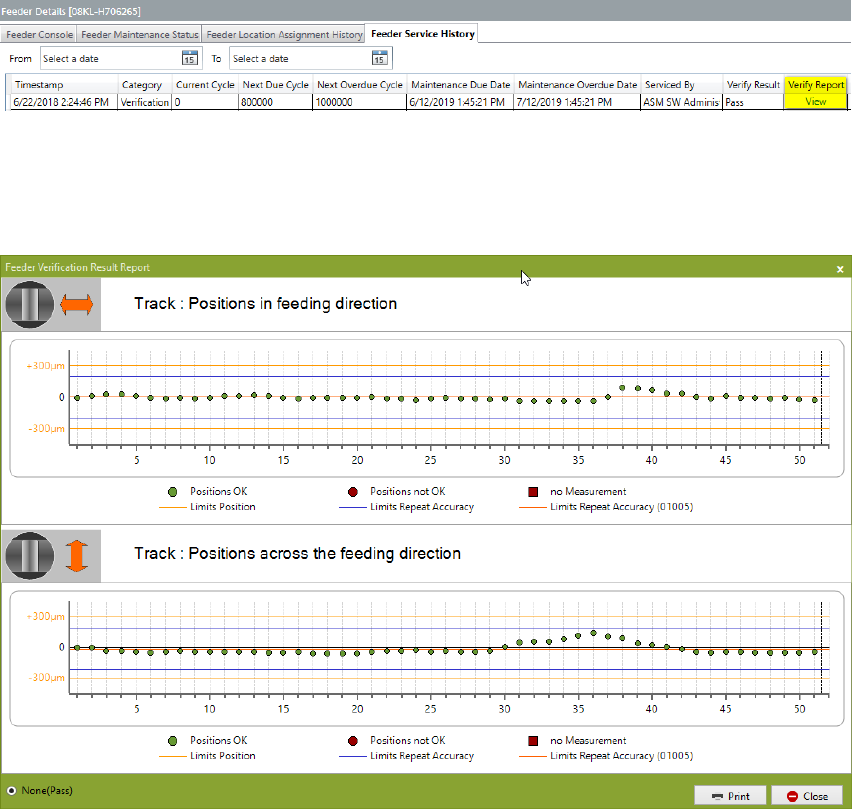
Every time a Pick-up position test is done to a feeder, the test result will be imported to the
Feeder Manager and shown under the Feeder Service History tab of the Feeder Details
view of this feeder.
Example:
Figure 9-7 Feeder Service History tab – test result
Click View in the Verify Report column to display the result report. The following report
view will be shown.
Figure 9-8 X-FVS Feeder Varification Result Report
9.1.3 XFTS connection
The checkbox is for user to choose whether XFTS function is enabled or not.
Before saving the setting, the user can also verify the connectivity to the XFTS box by
pressing the Test Connection button.
Note: When the option Enable XFTS is not checked, the buttons for this function are disabled
(see Figure 9-3).
SIPLACE Feeder Manager 3.3 (R18-1) / Getting Started 08/2018 Edition
81
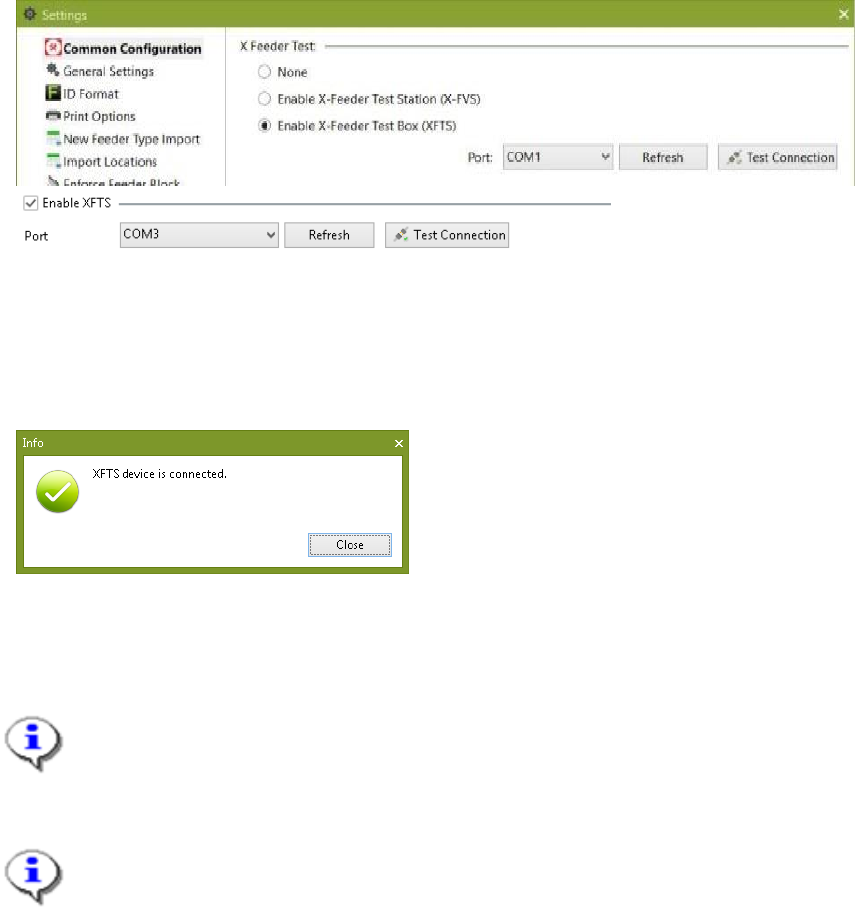
Check the Enable X-Feeder Test Box (XFTS).
The Refresh button and Test Connection button will be enabled.
Plug the XFTS USB cable to the FM Client PC, then power on the XFTS.
Press Refresh button
The com port for XFTS connection is detected.
Figure 9-9 XFTS virtual com port is detected
Press the Test Connection button.
Following dialog will be shown to confirm the connection test to the XFTS device is successful.
Figure 9-10 XFTS connectivity is tested successfully
Press Save to save your settings.
Note:
Once the configuration is done successfully, subsequent XFTS test results will be
automatically saved in the Feeder Manager's Feeder Maintenance History under the
tested feeder.
Note:
When FM Client application detects the XFTS connection, it will automatically
retrieve all the existing test results and empty the XFTS data memory.
9.1.3.1 Limitations and Restrictions
1) The raw data of XFTS test result does not contain timestamp information. FM Client uses
the retrieval time as the time for the test results.
2) XFTS is only able to store a maximum of one hundred (100) test results in its data
memory.
3) Only one XFTS connection is supported per FM Client computer.
SIPLACE Feeder Manager 3.3 (R18-1) / Getting Started 08/2018 Edition
82
9.1.3.2 Troubleshooting
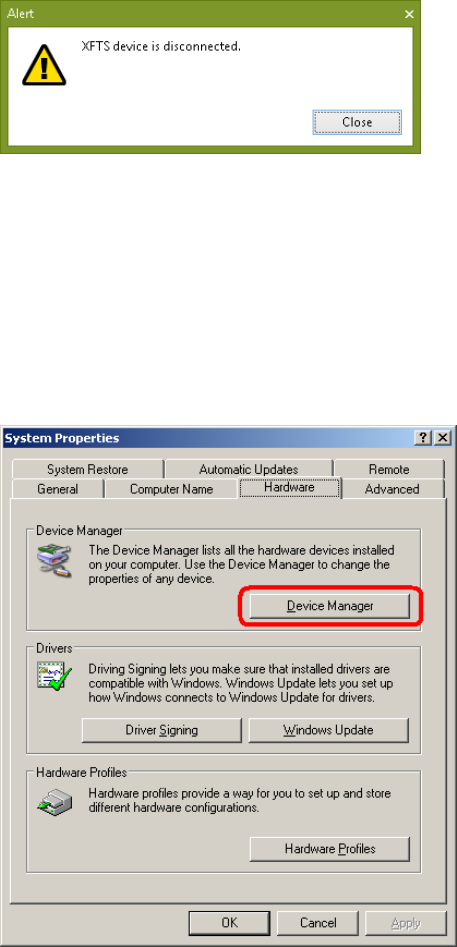
If test connection to XFTS fails, this dialog will be shown.
Figure 9-11 XFTS connection test failed
Follow these steps to troubleshoot.
Open Device Manager
From Windows Start menu, click Start Settings Control Panel, then double click
System to open the System Properties window. In Hardware tab, click Device Manager
button.
Figure 9-12 How to start Windows Device Manager
Once Device Manager is opened, right click on Ports (COM & LPT) and select Scan for
hardware changes.