00198178-04_GS_FeederManager_3.3_R18-1_EN.pdf - 第18页
SIPLACE Feeder Ma nager 3.3 (R18 -1) / Getting S tarted 08/2018 Edition 18 4.3.7 Location Tree The following location areas are defined f or Inside F acto ry : – Storage Area – Offline Area – Production Area – Maintenanc…
SIPLACE Feeder Manager 3.3 (R18-1) / Getting Started 08/2018 Edition
17
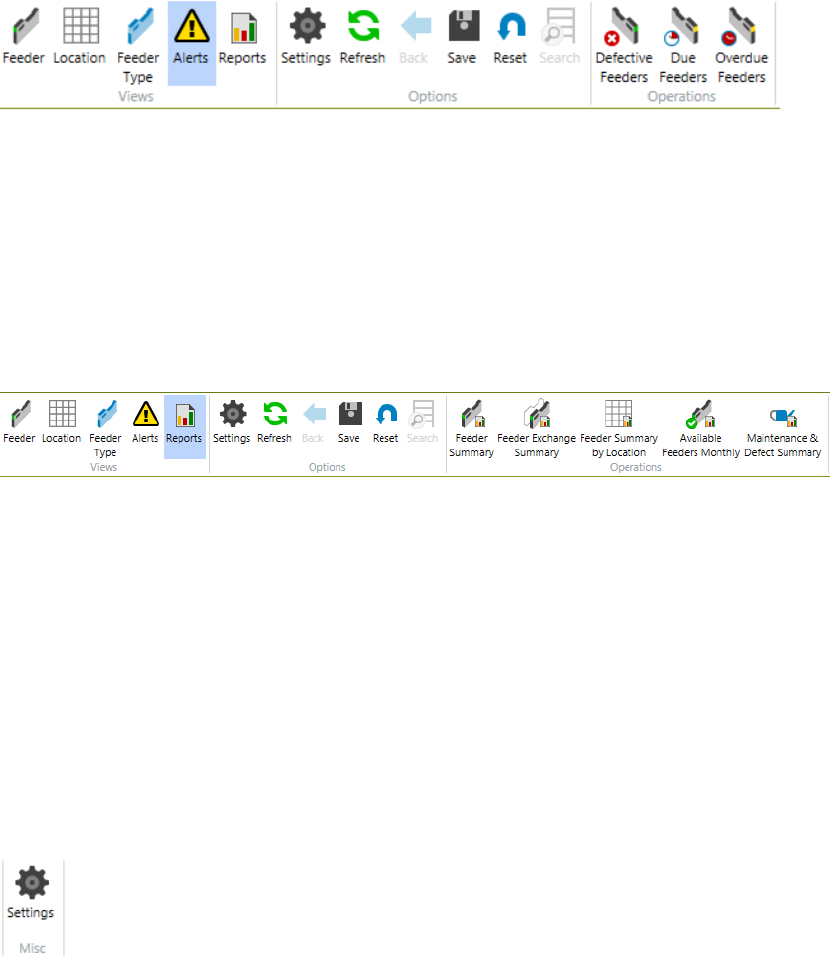
4.3.4 Alert menu group
Alerts are displayed for feeders that are
1) Defective or have a feeder type mismatch.
Due or overdue to maintenance, It is also possible to view and modify feeder details for single
feeders and print the Alert list.
See chapter 11 Alerts for more details.
4.3.5 Reports menu group
User can make queries or generate following reports from this menu group
1) Feeder Summary,
2) Feeder Exchange Summary,
3) Feeder Summary by Location,
4) Available Feeders over time monthly
5) Feeder Maintenance & Defect Summary.
It is also possible to print, save and export the queries and reports.
See chapter 8 Report centric functions for more details.
4.3.6 Settings menu
By starting the Settings function, the user can
1) Define a common configuration,
2) Make global settings,
3) Define feeder and location ID format,
4) Define barcode label printing format for feeders and locations,
5) Change user passwords
See chapter 9 Settings menu for more details.
SIPLACE Feeder Manager 3.3 (R18-1) / Getting Started 08/2018 Edition
18
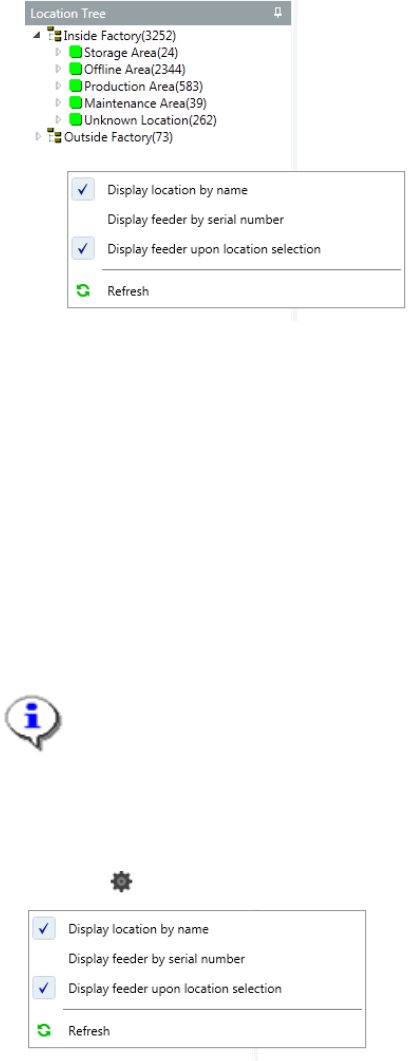
4.3.7 Location Tree
The following location areas are defined for Inside Factory:
– Storage Area
– Offline Area
– Production Area
– Maintenance Area
– Unknown Location
Following location area is defined for Outside Factory:
– Outside Factory
Note:
It is not possible to create any location under the location type Unknown Location.
This is a default location used for new feeders, for which the location has to be
decided.
Once a feeder is assigned to a location, it cannot be assigned back to Unknown
Location.
Click the button inside the location tree will bring up the following context menu.
Display Location By Name
Check this to display the locations by their respective Location Names.
By default this option is checked. If unchecked, the locations are displayed by their Location
IDs.
Display Feeders By Serial Number
Check this to display the feeders by their Serial Numbers.
By default this option is unchecked, and the feeders are displayed by their respective Feeder
IDs.
SIPLACE Feeder Manager 3.3 (R18-1) / Getting Started 08/2018 Edition
19
Display Feeder upon Location Selection
By default this option is checked, and the location node will be expanded automatically to
show all the feeders inside.
Uncheck this to stop the automatic feeder display upon location selection.
Refresh
Click this button to force a refreshing of the Location Tree display.
Normally the Location Tree is refreshed automatically in real-time.
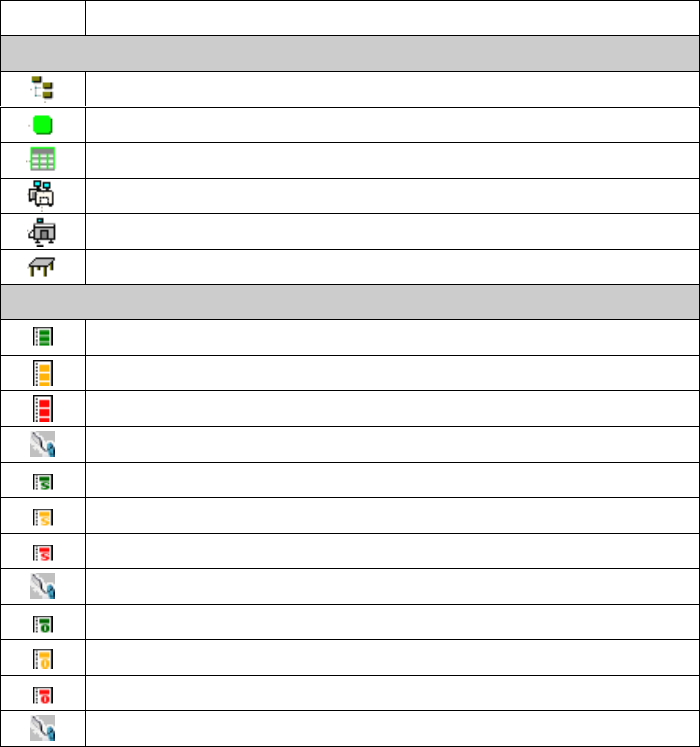
4.3.8 Icons in Feeder Manager Client
The following icons are used in Feeder Manager Client.
Icon
Description
Location
Location site e.g. Inside factory / Outside factory
Location area e.g. Storage area
General location
Line
Station
Station Location / Changeover Table
Feeder
X-feeder and maintenance status is Normal
X-feeder and maintenance status is Due
X-feeder and maintenance status is Overdue
X-feeder is Scrapped
S-feeder and maintenance status is Normal
S-feeder and maintenance status is Due
S-feeder and maintenance status is Overdue
S-feeder is Scrapped
Other feeder type and maintenance status is Normal
Other feeder type and maintenance status is Due
Other feeder type and maintenance status is Overdue
Other type of feeder is Scrapped
Table 4-1: Icons in Feeder Manager Client