00198178-04_GS_FeederManager_3.3_R18-1_EN.pdf - 第48页
SIPLACE Feeder Ma nager 3.3 (R18 -1) / Getting S tarted 08/2018 Edition 48 5.5.4 Step 4 – Feeder Maintenance Option Figure 5- 35 Feeder R epair Option This step provides an option for you to do the feeder m aintenance al…
SIPLACE Feeder Manager 3.3 (R18-1) / Getting Started 08/2018 Edition
47
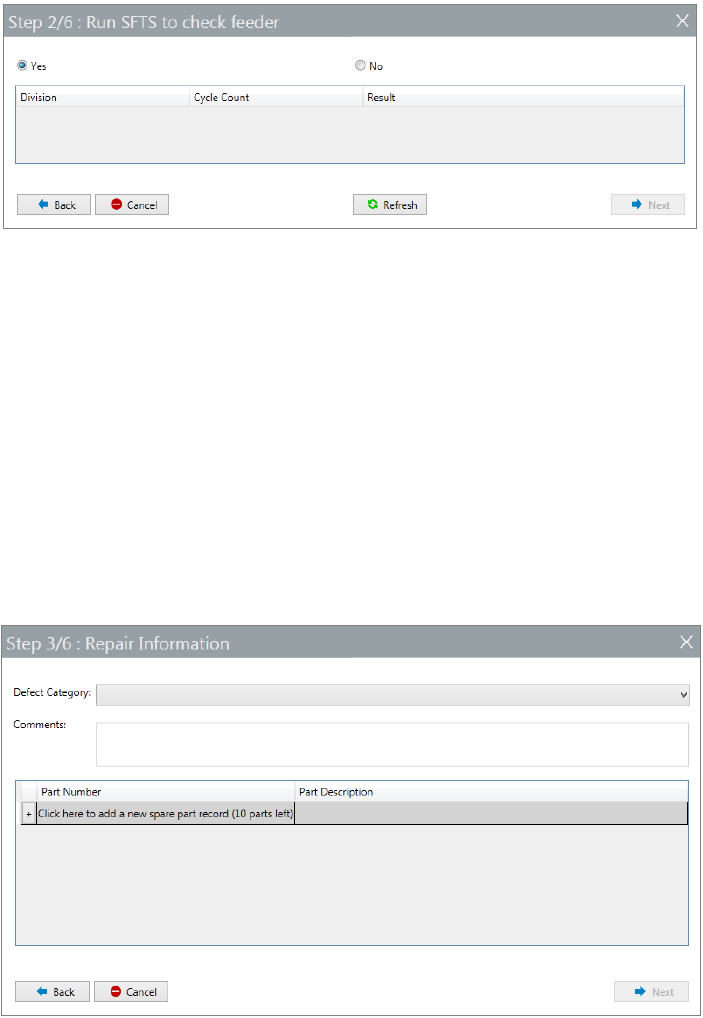
5.5.2 Step 2 - Run SFTS or XFTS to check feeder
Figure 5-33 Run SFTS or XFTS to check feeder before maintain
This step provides an option for you to do feeder checking using either SFTS or XFTS
(depending on the feeder type) before proceeding to the repair procedure.
If you choose Yes, an SFTS verification should be done now. Feeder Manager will
automatically collect the feeder test result.
Once done, press Refresh button to have the test result displayed. Check the data and press
Next to proceed.
Or select No at the top of the form to continue without a feeder checking.
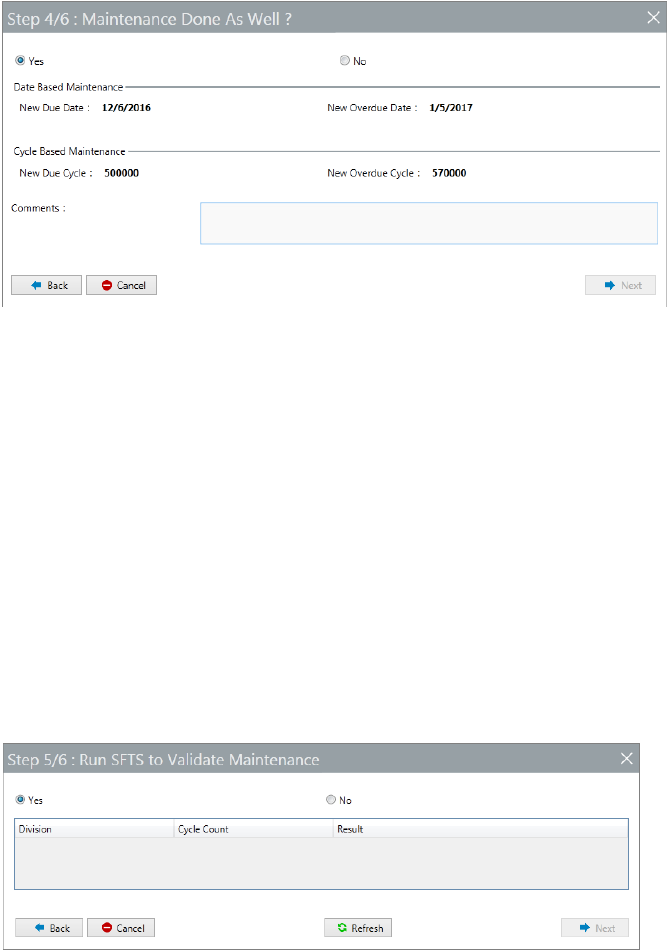
5.5.3 Step 3 – Repair Information
Figure 5-34 Repair information
This step allows you to enter the repair information. Refer to section 5.4.5 to details.
SIPLACE Feeder Manager 3.3 (R18-1) / Getting Started 08/2018 Edition
48
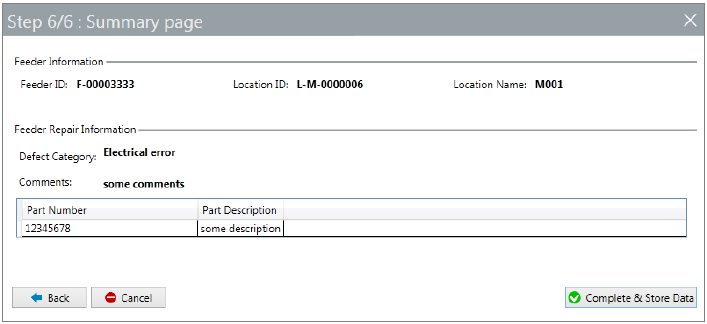
5.5.4 Step 4 – Feeder Maintenance Option
Figure 5-35 Feeder Repair Option
This step provides an option for you to do the feeder maintenance along the workflow as well.
By default, Yes is selected, and you will be able to see the defined maintenance plan for the
feeder type this feeder belongs to.
See section 5.4.3 for details.
If you keep the Yes as selected, you are required to enter maintenance comment before
proceeding to the next step.
Or you can select No to continue without doing a maintenance plan update.
5.5.5 Step 5 – Option to check feeder with SFTS or XFTS again
Figure 5-36 Option to check feeder with SFTS or XFTS again
This step allows you to choose whether to conduct another round of SFTS or XFTS test to
verify the maintenance / repair result.
Execute the test if necessary in the same way as described in Step 2, or select No to proceed
SIPLACE Feeder Manager 3.3 (R18-1) / Getting Started 08/2018 Edition
49
5.5.6 Step 6 – Summary
Figure 5-37 Feeder Maintenance Workflow Summary page
The 6
th
and last step gives you the summary of all the repair information entered for the
subject feeder.
Check the content to make sure they are correct. You can use the Back button to go to any
previous step for modifications.
Once satisfied, press the Complete & Store Data button to complete the maintenance
workflow for this feeder and store the relevant maintenance data into Feeder Manager
database.