00198178-04_GS_FeederManager_3.3_R18-1_EN.pdf - 第119页
SIPLACE Feeder Ma nager 3.3 (R18 -1) / Getting S tarted 08/2018 Edition 119 Note: At any time, the user c an right click on the registered doc king station to either e dit or delete it. Figure 13 -8 Docking Station Conte…
SIPLACE Feeder Manager 3.3 (R18-1) / Getting Started 08/2018 Edition
118
Docking Station Type
Allows the user to select the docking station type.
Docking Station Table Configuration
Allows the user to select the table configuration.
If the docking station does not exist in the database, the docking station will be created as a
new location and associated to the registered offline location.
Figure 13-6 New Docking Station registered
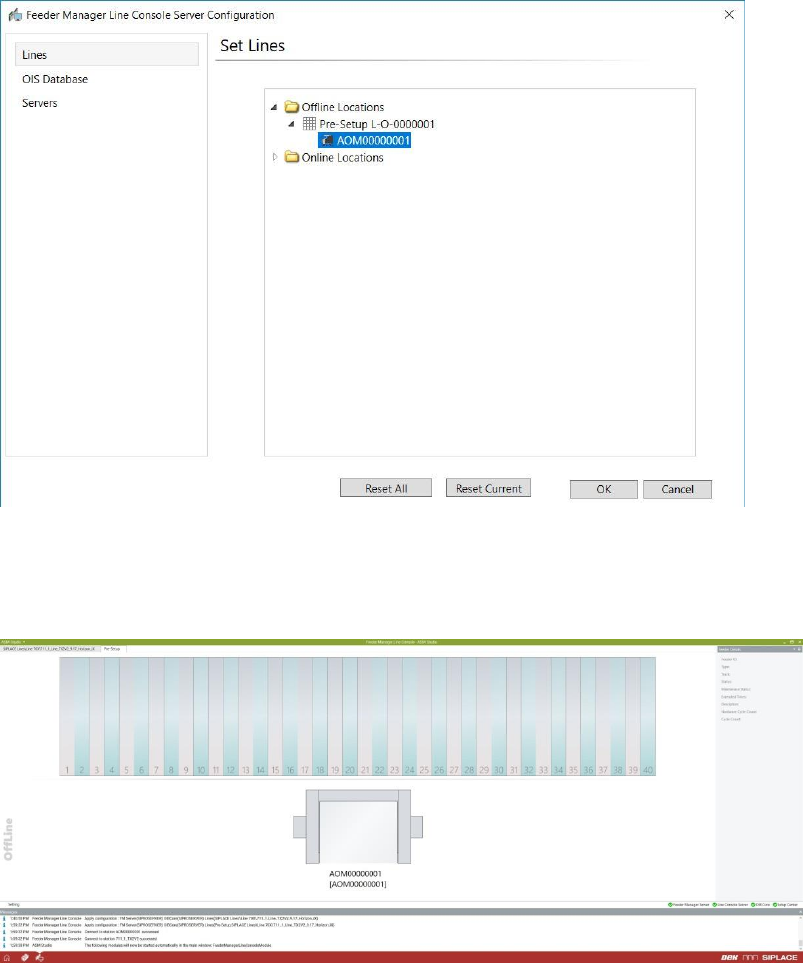
A new tab will be added to the FM Line Console main window with the name of the Offline
Location, and the graphics of the new docking station will be shown as following.
Figure 13-7 Line Console UI showing the new docking station
SIPLACE Feeder Manager 3.3 (R18-1) / Getting Started 08/2018 Edition
119
Note:
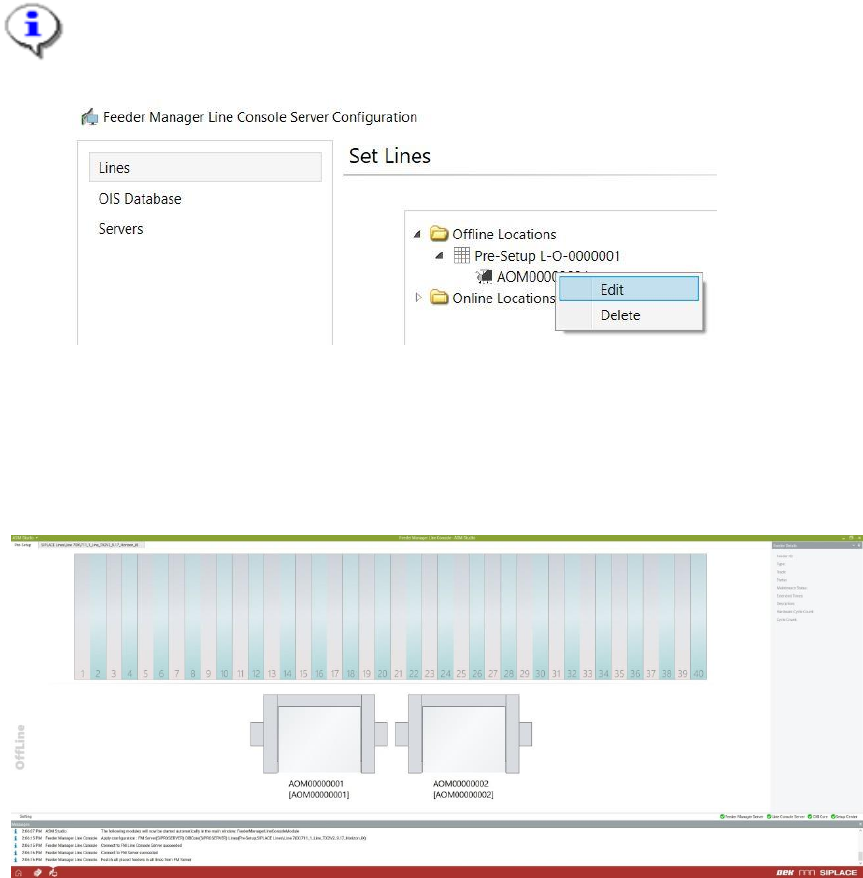
At any time, the user can right click on the registered docking station to either edit or
delete it.
Figure 13-8 Docking Station Context Menu
When more than one docking stations are registered, they will appear horizontally in the Line
Console UI. The user shall check the details of each docking station by clicking on the
docking station icon, and the selected docking station will be highlighted as below.
Figure 13-9 Docking Station selection

SIPLACE Feeder Manager 3.3 (R18-1) / Getting Started 08/2018 Edition
120
13.1.3 Placed and removed feeders
When a feeder is inserted into a docking station, Feeder Manager will be notified and reads
the serial number of the inserted feeder. Based on the serial number, Feeder Manager checks
if the feeder exists in the database. If not, Feeder Manager creates a new feeder ID and
assigns the feeder type based on the feeder type code.
When a feeder is placed, the feeder status and maintenance message will be updated and
the feeder location will be associated to the table.
When a feeder is removed, the feeder location will be updated to the registered offline
location.
Note:
If FM Line Console and Setup Center are installed on the same computer, FM Line
Console will depend on Setup Center to obtain offline feeder movement events.
Therefore it will constantly check the running status of the Setup Center GUI and the
Setup Center OIB adapter.
If the Setup Center version is 5.2 or lower, there are following limitations with regards to
the docking station connection.
1) Limitation #1:
Whenever Setup Center GUI or Setup Center OIB adapter is restarted, the user will
be prompted to do the following
• Scan Quick-start barcode
• Scan Docking station ID
• Scan COT ID
in order for FM to keep updating the feeder movements on Docking Station in real-
time.
Failing to do so will result in data inconsistency between Setup Center and Feeder
Manager.
2) Limitation #2:
If a feeder placed on the table is marked as type-mismatched in Setup Center after
setup verification, and consequently removed from the table, Setup Center will not
notify FM Line Console of the removal in real-time.
In order to solve this inconsistency, you need to follow the above scanning
sequence again.
If the Setup Center version is 6 or higher, or if the FM Line Console is installed alone,
then there are no such limitations.