00198178-04_GS_FeederManager_3.3_R18-1_EN.pdf - 第113页
SIPLACE Feeder Ma nager 3.3 (R18 -1) / Getting S tarted 08/2018 Edition 113 12.6 Icons used in FM Line Console FM Line Console uses the sam e icons as F M Client and a dditionall y the following ones: Ico n Description L…
SIPLACE Feeder Manager 3.3 (R18-1) / Getting Started 08/2018 Edition
112
Note:
If the OIB Core address is changed, you will be prompted to restart the FM Line Console
Server.
After restarting, all the lines and stations previously configured will be removed from FM
Line Console. And you must reconfigure the production lines and stations.
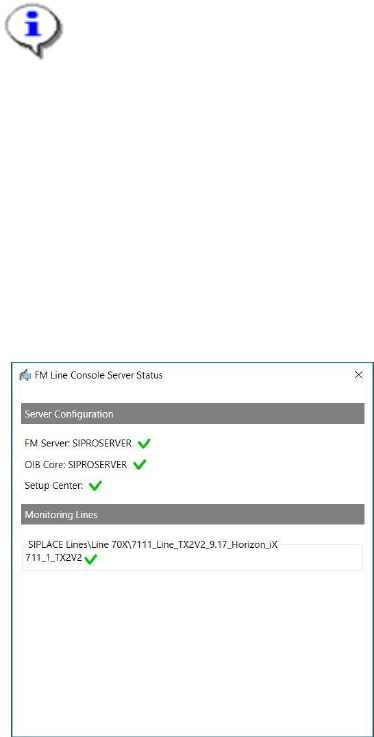
12.4 Show Status
The working status of FM Line Console can be seen from the system tray icon, and the details
is available from the Show Status option. When Show Status is clicked, following status
window will be shown.
Figure 12-7 FM Line Console Server Status
12.5 Online Help
User can access the Online Help for FM Line Console either via the ASM Studio main menu
or by press the F1 button. See chapter 10 Help for more details.
SIPLACE Feeder Manager 3.3 (R18-1) / Getting Started 08/2018 Edition
113
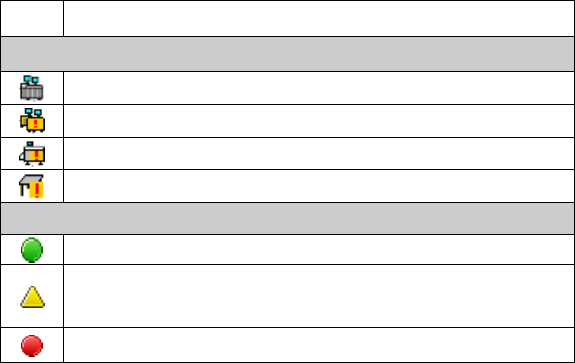
12.6 Icons used in FM Line Console
FM Line Console uses the same icons as FM Client and additionally the following ones:
Icon
Description
Location
Production Line / Offline Area
Line with a feeder problem
Station with a feeder problem
Station Location with a feeder problem
Feeder
Feeder maintenance is Normal
Feeder maintenance status is Due/Overdue (unforced),
or the feeder mismatches the target setup
Feeder status is Scrapped or Blocked
Table 12-3: Icons in FM Line Console

SIPLACE Feeder Manager 3.3 (R18-1) / Getting Started 08/2018 Edition
114
13 Feeder location tracking
In the Storage Area, Maintenance Area and Outside Factory Area the operator can associate
feeders by batch scanning, where he/she scans a location barcode followed by all feeder IDs
in batch mode to collect the required information to assign feeders to a location in these
areas.
Note:
Feeder Manager does not support manual location assignment of X-feeders to any
Production Area or Offline Verification Area locations.
Only locations under Storage Area and Maintenance Area are allowed for manual
location assignment for X-feeders.
In the Offline Area, the operator can associate feeders by scanning the table ID, where he/she
scans the offline location barcode followed by scanning every pack of track and feeder IDs
associated to collect the required information to assign feeders to a location in the Offline
Area.
Note:
The area barcodes have to be prepared on an A4 size paper in advance. See section
0
Print Offline Area Setup for more details.
If a new table ID is detected, the system will create the location automatically.
In the Production Area, the operator can associate feeders by scanning the station location,
where he/she scans the location ID barcode followed by scanning every pair of track and
feeder IDs associated to collect the required information to assign feeders to an online
location.
If a new feeder is detected, it will be created before it is assigned to a location. If a feeder is
detected with any status other than Normal, the operator will be alerted when it is assigned to
a location.
The following feeder location hierarchies apply for feeder locations in the Offline Area and the
Production Area. See chapter 6 Location centric functions for more details on adding new
or searching for feeder locations.