00198178-04_GS_FeederManager_3.3_R18-1_EN.pdf - 第118页
SIPLACE Feeder Ma nager 3.3 (R18 -1) / Getting S tarted 08/2018 Edition 118 Docking Station T ype Allows the user to sel ect the dock ing station type. Docking Station T able Configuration Allows the user to sel ect the …
SIPLACE Feeder Manager 3.3 (R18-1) / Getting Started 08/2018 Edition
117
Note:
At any time, the user can right click on the Off Line folder or the selected Offline Location
again to select a new location for the Offline Location settings.
13.1.2 Adding Docking Stations
In this step, the user should add the docking stations according to the actual Offline situation.
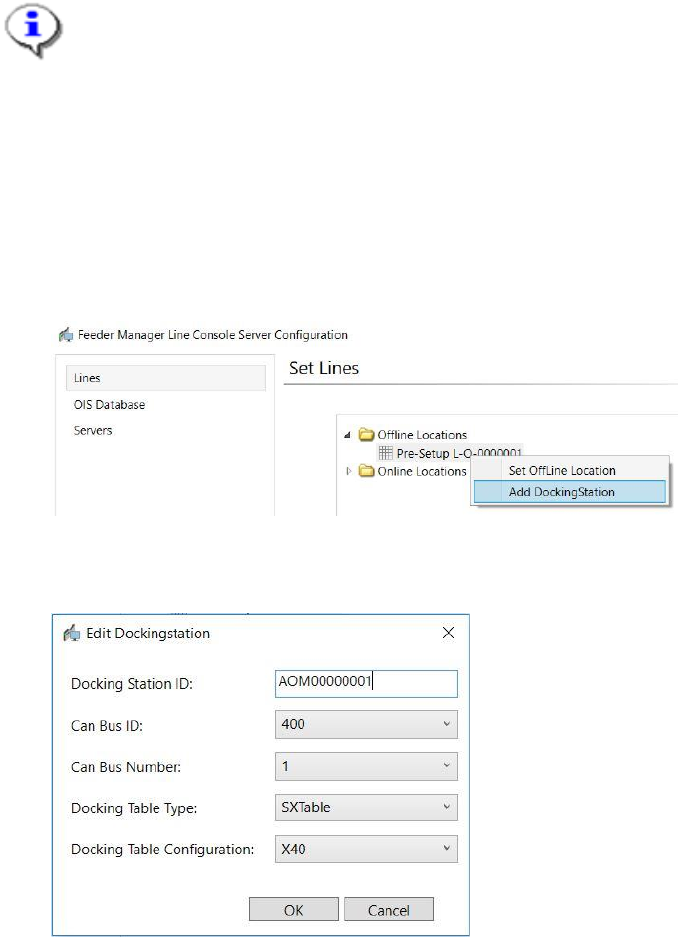
Right click on the Offline location configured earlier and click on Add Docking Station to
start.
Figure 13-4 Add Docking Station Context menu
Following dialog will be shown for Docking Station configuration
Figure 13-5 Docking Station Configuration window
Enter the details for the new docking station and click on OK.
Below are the description of the fields
Docking Station ID
Allows the user to enter (or scan) the barcode ID of the docking station.
CAN Bus ID
Allows the user to enter the CAN Bus ID, which is labeled at the rear of the docking station.
CAN Bus Number
Allows the user to enter the CAN Bus port number, e.g. "1" or "2".
SIPLACE Feeder Manager 3.3 (R18-1) / Getting Started 08/2018 Edition
118
Docking Station Type
Allows the user to select the docking station type.
Docking Station Table Configuration
Allows the user to select the table configuration.
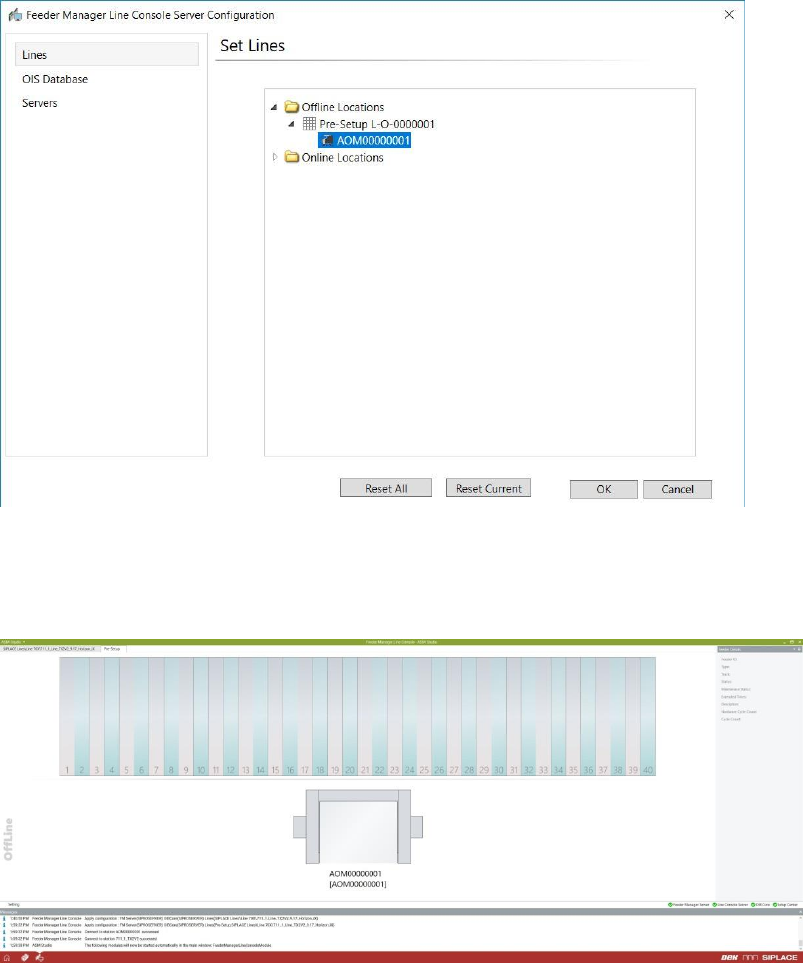
If the docking station does not exist in the database, the docking station will be created as a
new location and associated to the registered offline location.
Figure 13-6 New Docking Station registered
A new tab will be added to the FM Line Console main window with the name of the Offline
Location, and the graphics of the new docking station will be shown as following.
Figure 13-7 Line Console UI showing the new docking station
SIPLACE Feeder Manager 3.3 (R18-1) / Getting Started 08/2018 Edition
119
Note:
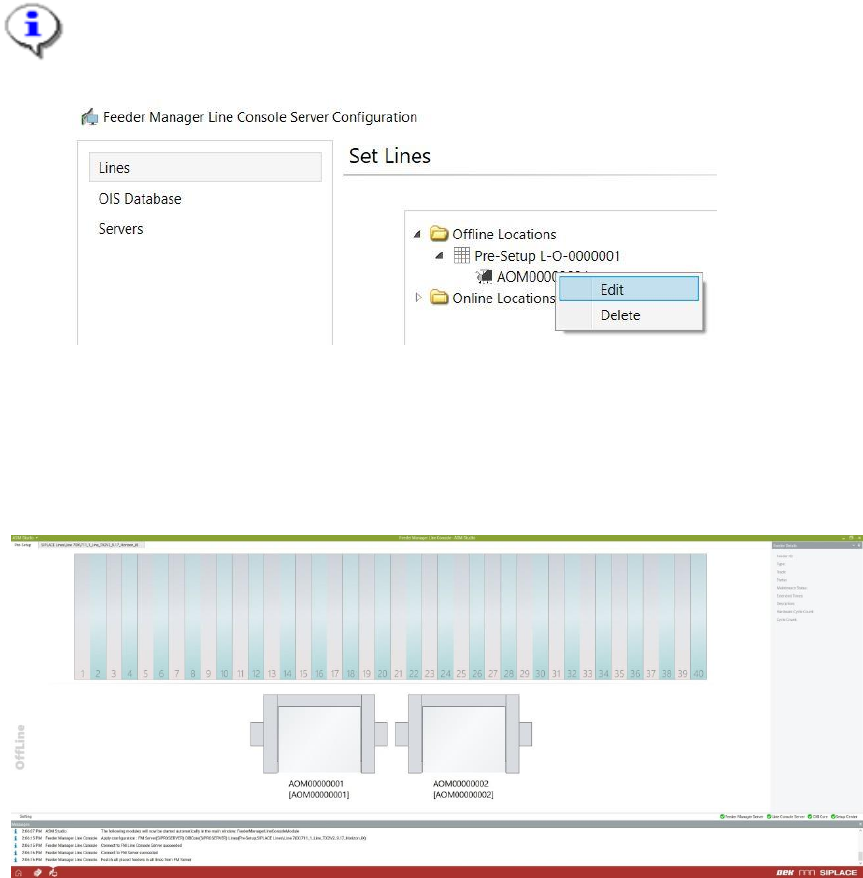
At any time, the user can right click on the registered docking station to either edit or
delete it.
Figure 13-8 Docking Station Context Menu
When more than one docking stations are registered, they will appear horizontally in the Line
Console UI. The user shall check the details of each docking station by clicking on the
docking station icon, and the selected docking station will be highlighted as below.
Figure 13-9 Docking Station selection