00198178-04_GS_FeederManager_3.3_R18-1_EN.pdf - 第131页
SIPLACE Feeder Ma nager 3.3 (R18 -1) / Getting S tarted 08/2018 Edition 131 General tab Scan a feeder barcode. The feeder status f or the scanned feeder is d isplayed. Figure 14 - 12 : Feeder status - green By feeder s…
SIPLACE Feeder Manager 3.3 (R18-1) / Getting Started 08/2018 Edition
130
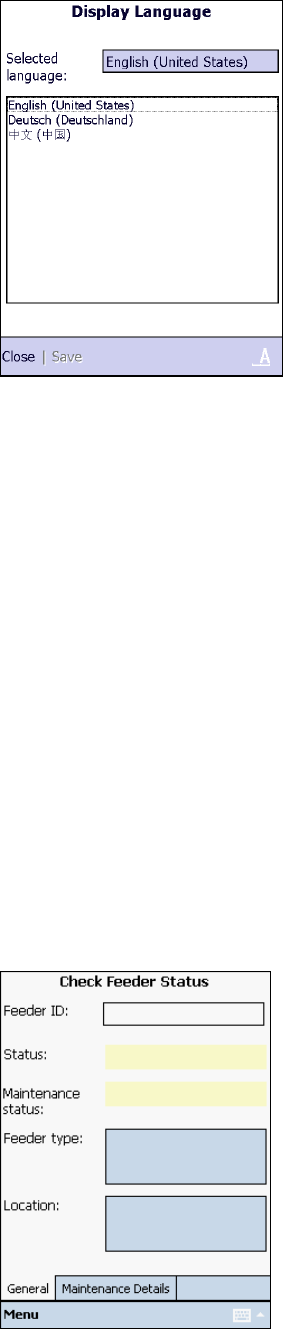
Display Language
Tap on this menu item to display or change the display language.
Figure 14-10: Display Language
To change the selected language:
Highlight the language to change to. In this version of Feeder Manager, English (United
States), Deutsch (Germany) and Chinese (Simplified) are available.
Tap on Save to save the changes.
Tap on Close to exit the screen.
14.3 Function description
In this section the single functions of the Feeder Manager Mobile Application are described.
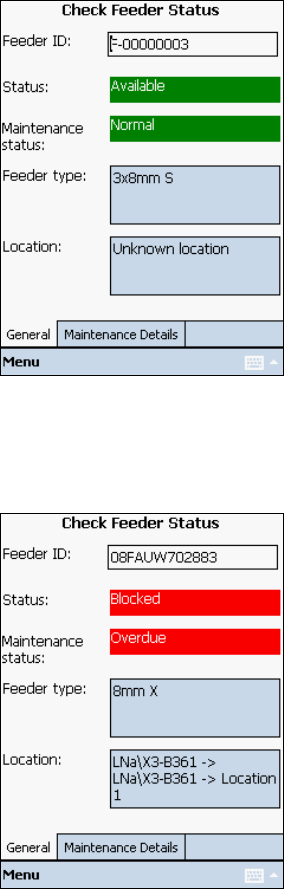
14.3.1 Check Feeder Status
With this function the user can check the feeder status for any feeder in the system.
Select Check Feeder Status in the Main menu.
The following screen is displayed.
Figure 14-11: Check Feeder Status
SIPLACE Feeder Manager 3.3 (R18-1) / Getting Started 08/2018 Edition
131
General tab
Scan a feeder barcode.
The feeder status for the scanned feeder is displayed.
Figure 14-12: Feeder status - green
By feeder status Available and maintenance status Normal, the status is indicated in green.
By feeder status Blocked and maintenance status Overdue, the status is indicated in red.
Figure 14-13: Feeder Status - red
By feeder status Available/In Use and maintenance status Due, the status is indicated in
orange.
Maintenance Details tab
Tap on this tab to display more maintenance details.
Tap on Menu – Close to exit the screen.
or
Tap on Menu – Clear Form to perform the function for another feeder.
SIPLACE Feeder Manager 3.3 (R18-1) / Getting Started 08/2018 Edition
132
14.3.2 X Feeder ID Association
X feeders produced in early times may not indicate the feeder ID on the vendor barcode.
Feeder Manager can obtain the feeders ID through EDIF communication when this type of
feeders are placed online or connected through docking station. But when the vendor barcode
is scanned, Feeder Manager will not be able to identify it correctly.
With the X Feeder ID association function, the user can associate an X-feeder’s vendor
barcode with its actual feeder ID by scanning the barcode (which is composed of its part
number and serial number), followed by the actual location (location barcode and track
barcode).
After the association is done, this feeder will be conveniently identified by its vendor barcode.
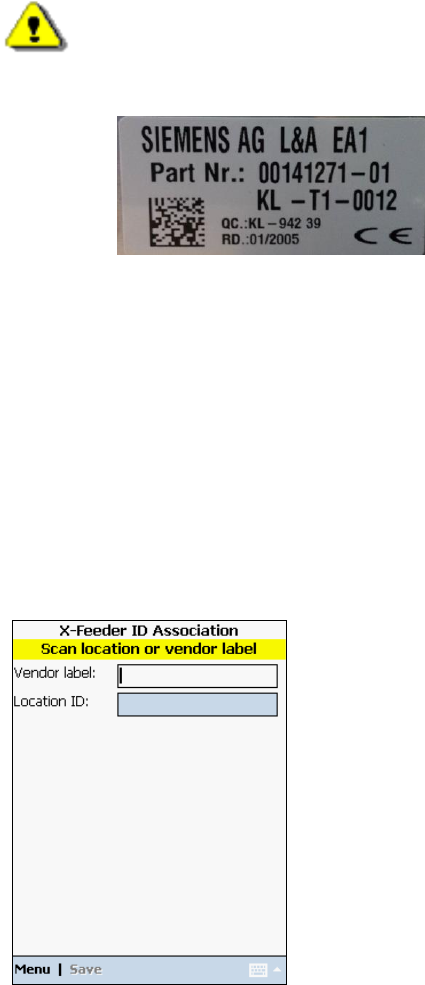
Warning: Use this function with caution.
1) This function is ONLY applicable to X feeders which has a valid EDIF
communication and with a vendor barcode like this,
Figure 14-14 Old X Feeder External Barcode Example
2) The user is strongly suggested to do the association outside of the production time.
3) In order to avoid any erroneous association, the user should insert the feeder into
EDIF communication right after scanning the vendor barcode.
4) The EDIF communication should also be maintained for the rest of the ID
association process.
Following are the steps for this operation.
Select X Feeder ID Association in the Main menu.
The following screen is displayed.
Figure 14-15: X Feeder ID Association