00198178-04_GS_FeederManager_3.3_R18-1_EN.pdf - 第38页
SIPLACE Feeder Ma nager 3.3 (R18 -1) / Getting S tarted 08/2018 Edition 38 Registration Date from Allows the user to searc h for feeders registered o n or after the input da te. Select a date fr om the calendar. Figure…
SIPLACE Feeder Manager 3.3 (R18-1) / Getting Started 08/2018 Edition
37
Feeder ID / Serial Number
This field allows the user to search for a feeder using either its feeder ID or serial number. If
the input string contains a feeder serial number, the serial number will be used for the search.
The user can manually key in the searching information, or use the scanner to scan the
feeder’s vendor barcode.
The search will start once the Enter is pressed during manual entering, or a scanning is
done.
Location
This field allows the user to choose from a list of locations for feeder search.
Click on the drop down button to see the list of locations.
Feeder Description
Allows the user to search for a feeder based on its feeder description.
Feeder Type
Allows the user to search for feeders of a particular feeder type.
Feeder Status
Allows the user to search for feeders based on their status. It is possible to search for all or
single status types. The following feeder status types exist:
Available
Blocked
In Use
Scrapped
Maintenance Status
Allows the user to search for feeders based on their maintenance status. It is possible to
search for all or single maintenance status types. The following maintenance status types
exist:
Normal
Defective
Due
Overdue
Feeder Registration Status
Allows the user to search for feeders based on their registration mode. It is possible to search
for all or single modes. The following registration modes exist:
Manual Registered
Auto Registered
SIPLACE Feeder Manager 3.3 (R18-1) / Getting Started 08/2018 Edition
38
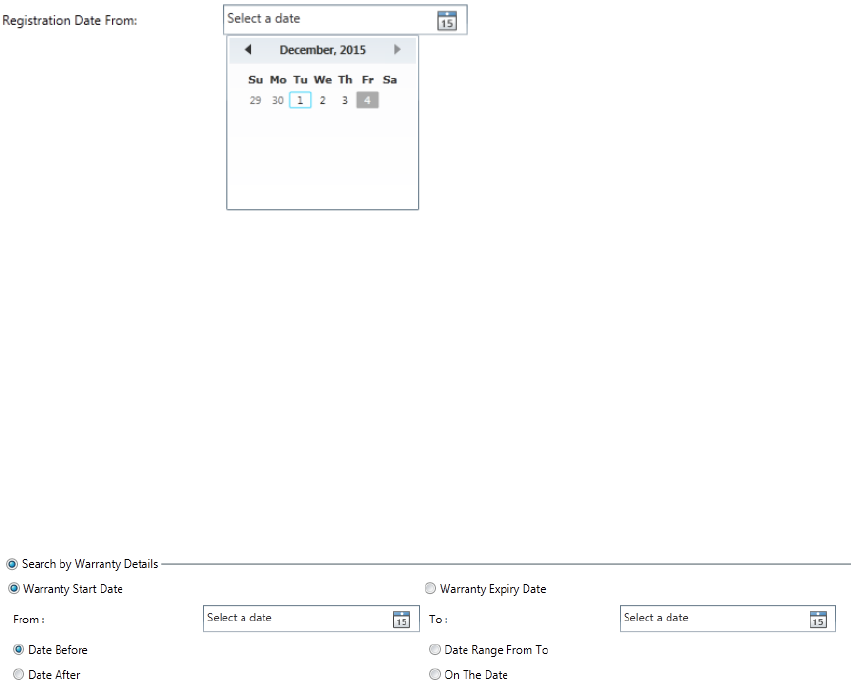
Registration Date from
Allows the user to search for feeders registered on or after the input date.
Select a date from the calendar.
Figure 5-17: Registration Date - Calendar
All feeders registered between the selected date and today's date will be found.
Note: you can only choose a date before the current date of searching.
5.3.2 Search feeder by warranty information
Feeders can also be search using their warranty information. Below is the search criteria
editing form.
Figure 5-18 Search feeder by warranty information
Warranty Date Type
Here you can choose to search feeders by using either the warranty start date or warranty
expiry date.
Date Range
The Date range setter consists of 4 types of filters.
Date Before
This option allows the user to search for all the feeders with warranty start or expiry date
before the selected date. Selected date is not included in the search.
Date After
This option allows the user to search all the feeders with warranty start or expiry date after
the selected date .Selected date is not included in the search.
Date Range From To
This option allows the user to search all the feeders with warranty start or expiry date
which falls between the two selected dates or on either of them.
SIPLACE Feeder Manager 3.3 (R18-1) / Getting Started 08/2018 Edition
39
On The Date
This option allows the user to search all the feeders with warranty start or expiry date
which equals to the selected date.
5.3.3 Search Result page
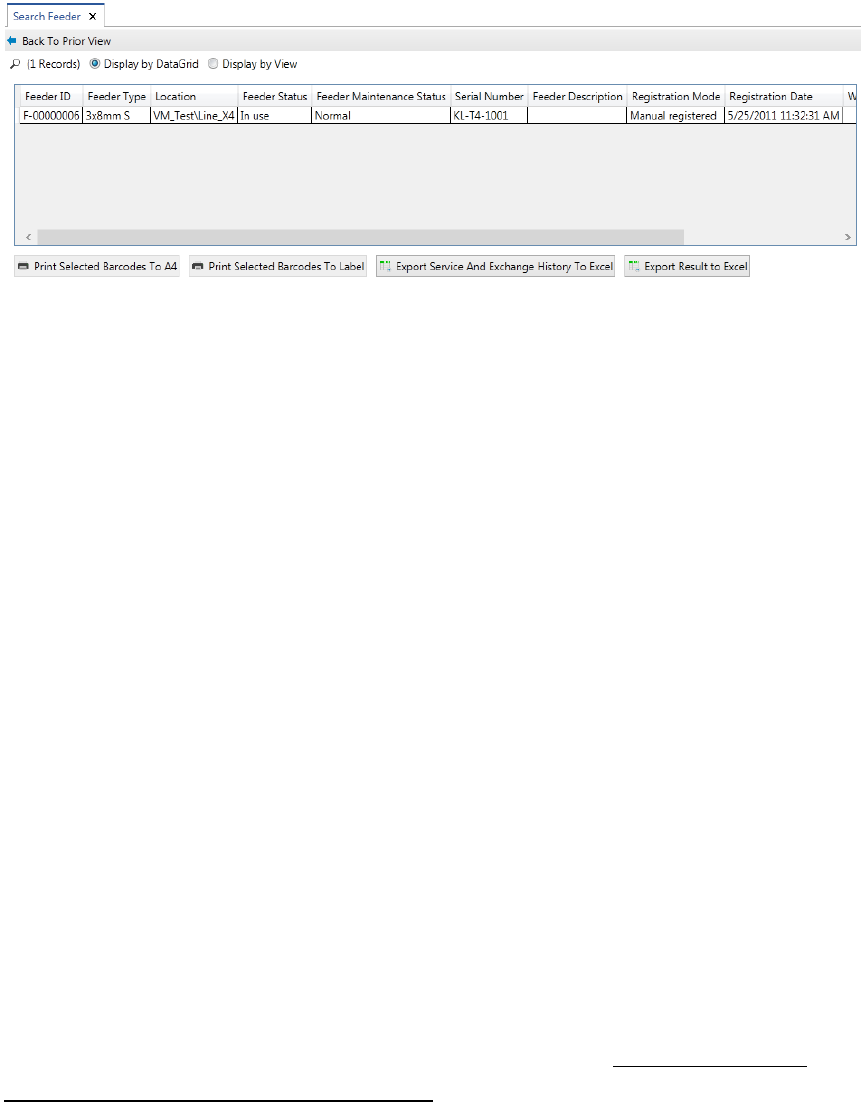
The feeder search result is displayed in the following form. The feeders matching the search
criteria are displayed in a list.
Figure 5-19: Feeder Search Result
1) Double click on the feeder entry will bring up the feeder detail view of this feeder
Back To Prior View
Use this button to go back to the previous search criteria editing view.
Display by DataGrid
In this option, the feeders in the search result will be displayed as a data grid view.
Double-click on a row to open the Feeder Details view.
Display by View
In this option, the feeders in the search result will be displayed as icons.
Double click on the icon to open the Feeder Detail view.
Print Selected Barcodes to A4
This option allows user to print the selected feeders’s barcodes using a normal printer.
Print Selected Barcodes to Label
This option allows user to print the selected feeders’s barcodes to barcode label printer.
Click on this button to print a barcode label for the feeder selected.
Note: For the first time when this function is used, the user will be prompted with the standard
Windows printer selection dialog, so a printer selection can be done. User selection will be
saved as the default printer for Feeder Manager.