00198178-04_GS_FeederManager_3.3_R18-1_EN.pdf - 第107页
SIPLACE Feeder Ma nager 3.3 (R18 -1) / Getting S tarted 08/2018 Edition 107 12 FM Line Console FM Line Console is a W indows application that t ypically runs on line com puters and con nects to the stations and SI PLACE …
SIPLACE Feeder Manager 3.3 (R18-1) / Getting Started 08/2018 Edition
106
General Settings for details.
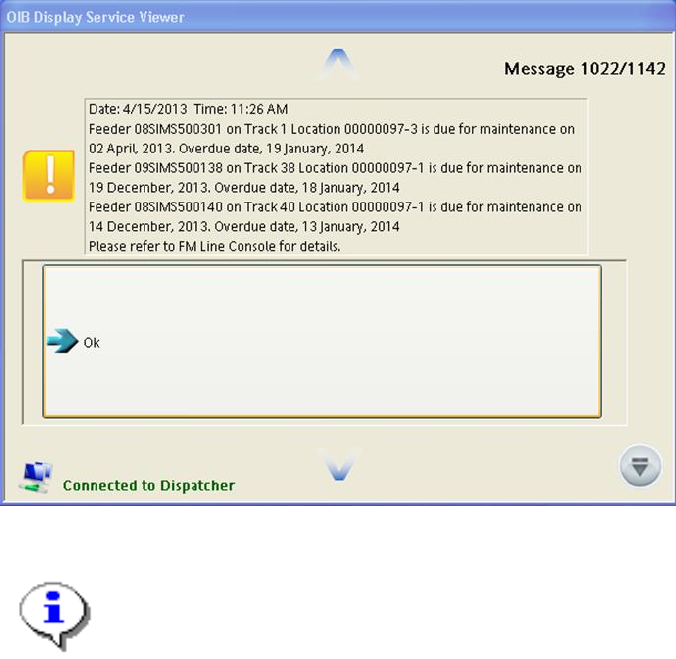
Example: Alert message displayed on the station computer
Figure 11-5: SIPLACE Display Service alert
Note:
For how to install and administrate SIPLACE OIB Display Service and its
Viewer, please refer to Chapter 7, “Installation Display Service Viewer” and
Chapter 8, “Administration of the Display Service” of document 00900028-04,
Installation and Configuration Manual SIPLACE OIB.
SIPLACE Feeder Manager 3.3 (R18-1) / Getting Started 08/2018 Edition
107
12 FM Line Console
FM Line Console is a Windows application that typically runs on line computers and connects
to the stations and SIPLACE Pro.
In the Offline Area , FM Line Console shall be deployed on the computer that is physically
connected to the docking stations.
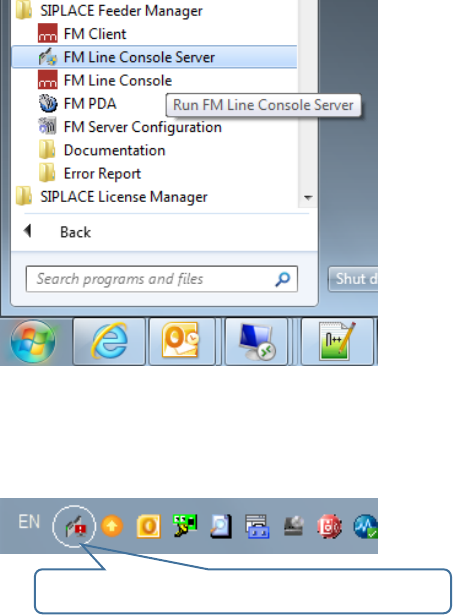
Once installed, FM Line Console will appear under Start All Programs SIPLACE
Feeder Manager FM Line Console.
FM Line Console contains the following functions:
Feeder Tracking for X-feeders in the Production Area and the Offline Area
Gets line and setup information from SIPLACE Pro OIB Adapter
Sends alerts to the SIPLACE Display Service on the station GUI
12.1 Line Console Server service
After FM Line Console is installed successfully, the Line Console Server service will be
started automatically. You can also manually start it as below if it is stopped for any reason.
Figure 12-1 Start FM Line Console Server from Windows Start Menu
Once started, you can find the FM Line Console Server Manager at the System Tray as
following:
FM Line Console Server System Tray Icon
SIPLACE Feeder Manager 3.3 (R18-1) / Getting Started 08/2018 Edition
108
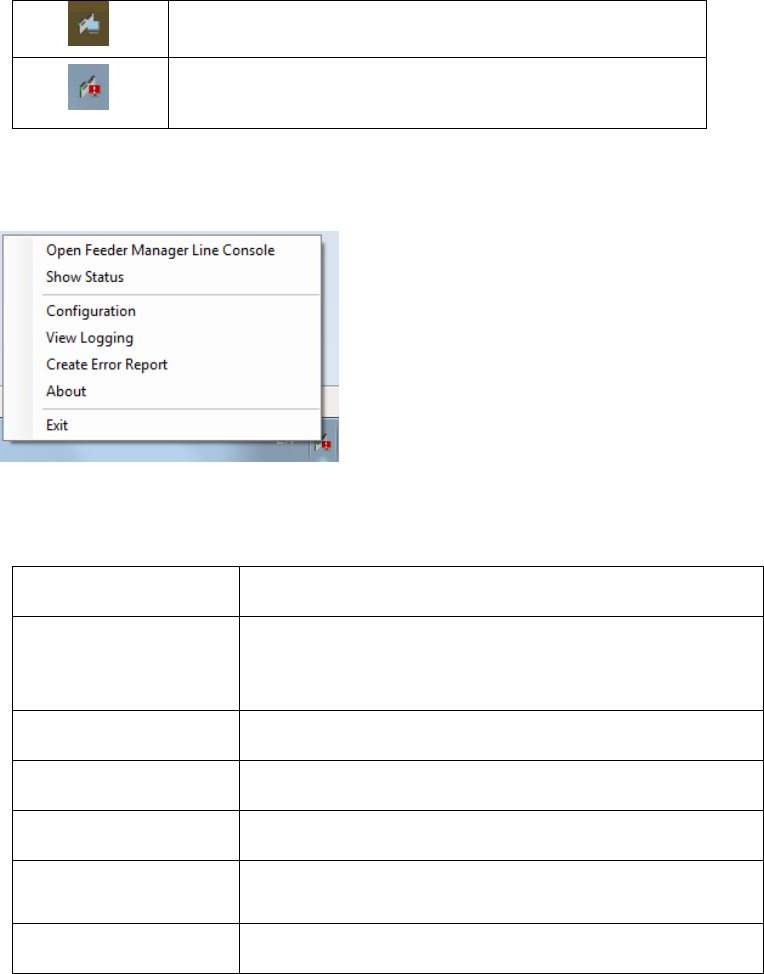
The FM Line Console System Tray icon will provide status information as following:
FM Line Console is working properly
There is one or more errors in the FM Line Console
working status
The FM Line Console System Tray icon can also be right clicked to show the server options.
Figure 12-2 FM Line Console Server Manager Options
Menu item
Meaning
Open Feeder
Manager Line
Console
To open up the FM Line Console main UI.
Show Status
To show the FM Line Console working status.
Configuration
To open FM Line Console Configuration window.
View Logging
To view the FM Line Console logs inside YatsStudio
Create Error Report
To create an error report of FM Line Console using the
SIPLACE Net Error Reporter Service.
About
To display the About window of FM Line Console
Table 12-1 FM Line Console Server Manager Options
12.2 Line Console Main UI
Feeder Manager Line Console can be started either from Windows Start menu or from the FM
Line Console Server Manager options menu.
Once started, Feeder Manager Line Console will be hosted inside ASM Studio. Below is an
example of the FM Line Console main window when opened.