00198178-04_GS_FeederManager_3.3_R18-1_EN.pdf - 第114页
SIPLACE Feeder Ma nager 3.3 (R18 -1) / Getting S tarted 08/2018 Edition 114 13 Feeder location tracking In the Storage Area , Mainte nance Area and O utside Factory Area the operat or can assoc iate feeders by batch scan…
SIPLACE Feeder Manager 3.3 (R18-1) / Getting Started 08/2018 Edition
113
12.6 Icons used in FM Line Console
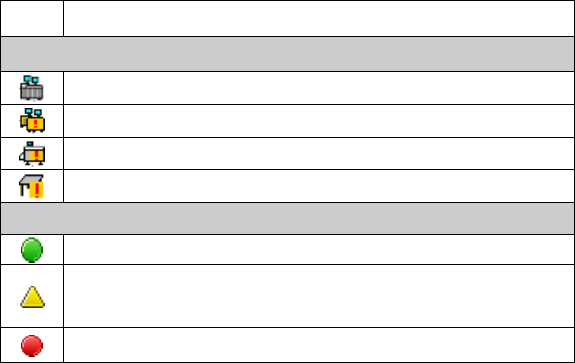
FM Line Console uses the same icons as FM Client and additionally the following ones:
Icon
Description
Location
Production Line / Offline Area
Line with a feeder problem
Station with a feeder problem
Station Location with a feeder problem
Feeder
Feeder maintenance is Normal
Feeder maintenance status is Due/Overdue (unforced),
or the feeder mismatches the target setup
Feeder status is Scrapped or Blocked
Table 12-3: Icons in FM Line Console

SIPLACE Feeder Manager 3.3 (R18-1) / Getting Started 08/2018 Edition
114
13 Feeder location tracking
In the Storage Area, Maintenance Area and Outside Factory Area the operator can associate
feeders by batch scanning, where he/she scans a location barcode followed by all feeder IDs
in batch mode to collect the required information to assign feeders to a location in these
areas.
Note:
Feeder Manager does not support manual location assignment of X-feeders to any
Production Area or Offline Verification Area locations.
Only locations under Storage Area and Maintenance Area are allowed for manual
location assignment for X-feeders.
In the Offline Area, the operator can associate feeders by scanning the table ID, where he/she
scans the offline location barcode followed by scanning every pack of track and feeder IDs
associated to collect the required information to assign feeders to a location in the Offline
Area.
Note:
The area barcodes have to be prepared on an A4 size paper in advance. See section
0
Print Offline Area Setup for more details.
If a new table ID is detected, the system will create the location automatically.
In the Production Area, the operator can associate feeders by scanning the station location,
where he/she scans the location ID barcode followed by scanning every pair of track and
feeder IDs associated to collect the required information to assign feeders to an online
location.
If a new feeder is detected, it will be created before it is assigned to a location. If a feeder is
detected with any status other than Normal, the operator will be alerted when it is assigned to
a location.
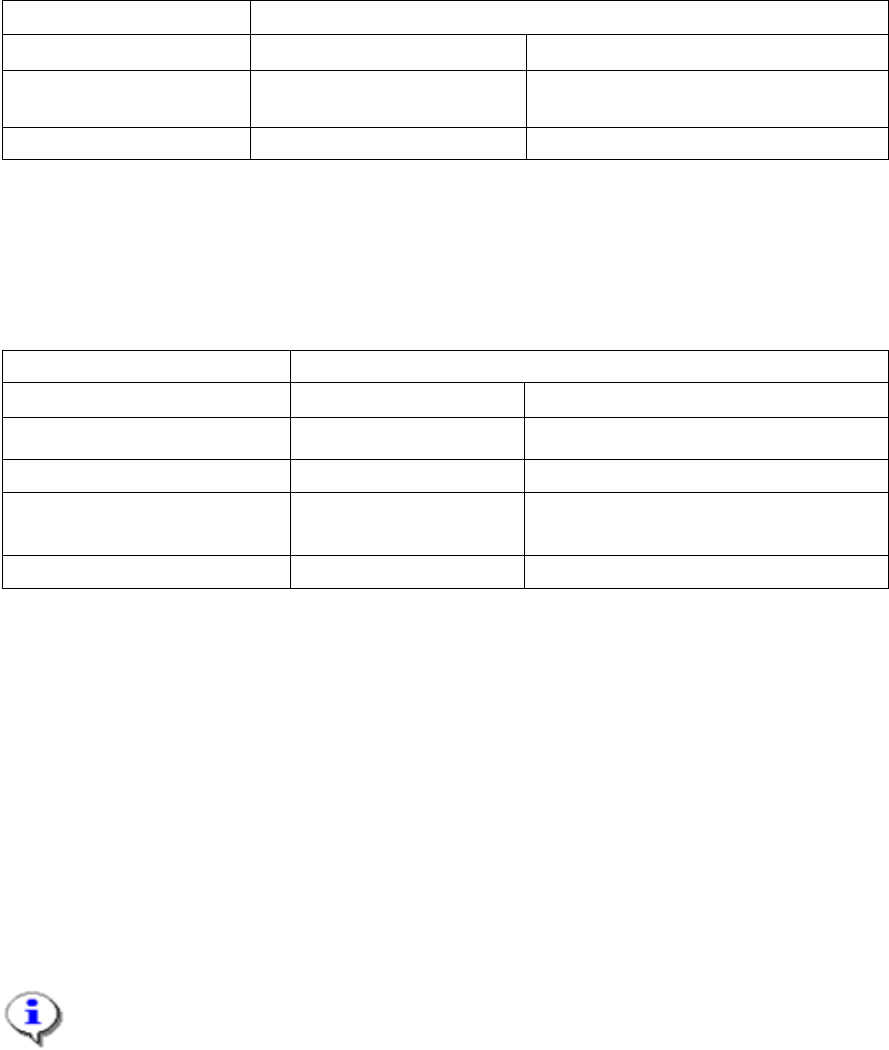
The following feeder location hierarchies apply for feeder locations in the Offline Area and the
Production Area. See chapter 6 Location centric functions for more details on adding new
or searching for feeder locations.
SIPLACE Feeder Manager 3.3 (R18-1) / Getting Started 08/2018 Edition
115
For X-feeders, the docking station ID will be treated as a location in Feeder Manager and can
be associated to a static parent location. The following table displays the feeder location
tracking for X-feeders:
Feeder location hierarchy after action
Action
Offline
Online
Place Table/Add Feeder
Offline Area Docking Station
Production Area Line Station
Station Location
Remove Table/Feeder
Offline Area
Production Area Line
Table 13-1: Feeder location hierarchy for X-feeders
For Non-X-feeders, the table will be tracked and created as a location object in Feeder
Manager. The following table displays the feeder location tracking for Non-X-feeders:
Feeder location hierarchy after action
Action
Offline
Online
Add Feeder
Offline Area Table
Production Area Line Station
Station Location
Replace Feeder
Offline Area
Production Area Line
Place Table
-
Production Area Line Station
Station Location (Table will be associated
to Station Location!)
Remove Table
Production Area Line Table
Table 13-2: Feeder location hierarchy for Non-X-feeders
13.1 Feeder location tracking in the Offline Area (X-feeders)
For the feeder location tracking in Offline Area, the user needs to specify an Offline Area
location first, followed by adding docking station definitions to it.
13.1.1 Adding Offline Location
Before adding docking stations for the first time, the user needs to specify an Offline Area
location that will be used as parent location for the configured docking stations.
Note:
This location shall be added using the Add New Location workflow of Feeder Manager
Client, in which the user selects the Offline Area as the Location Area and General
Location as the Location Type.
Right click on the Off Line folder and click Set Offline Location.