00198178-04_GS_FeederManager_3.3_R18-1_EN.pdf - 第124页
SIPLACE Feeder Ma nager 3.3 (R18 -1) / Getting S tarted 08/2018 Edition 124 FM Line Console will display a fee der summ ary of the feeders for which the maintenance status is Due / Overdu e / Defective / Scr apped on the…
SIPLACE Feeder Manager 3.3 (R18-1) / Getting Started 08/2018 Edition
123
When a blocked feeder is exchanged with an available feeder, FM Line Console reflects the
changes and updates the location for both feeders.
When a feeder is removed, the feeder location will be associated to the line location and the
feeder status will be changed from In Use to Available.
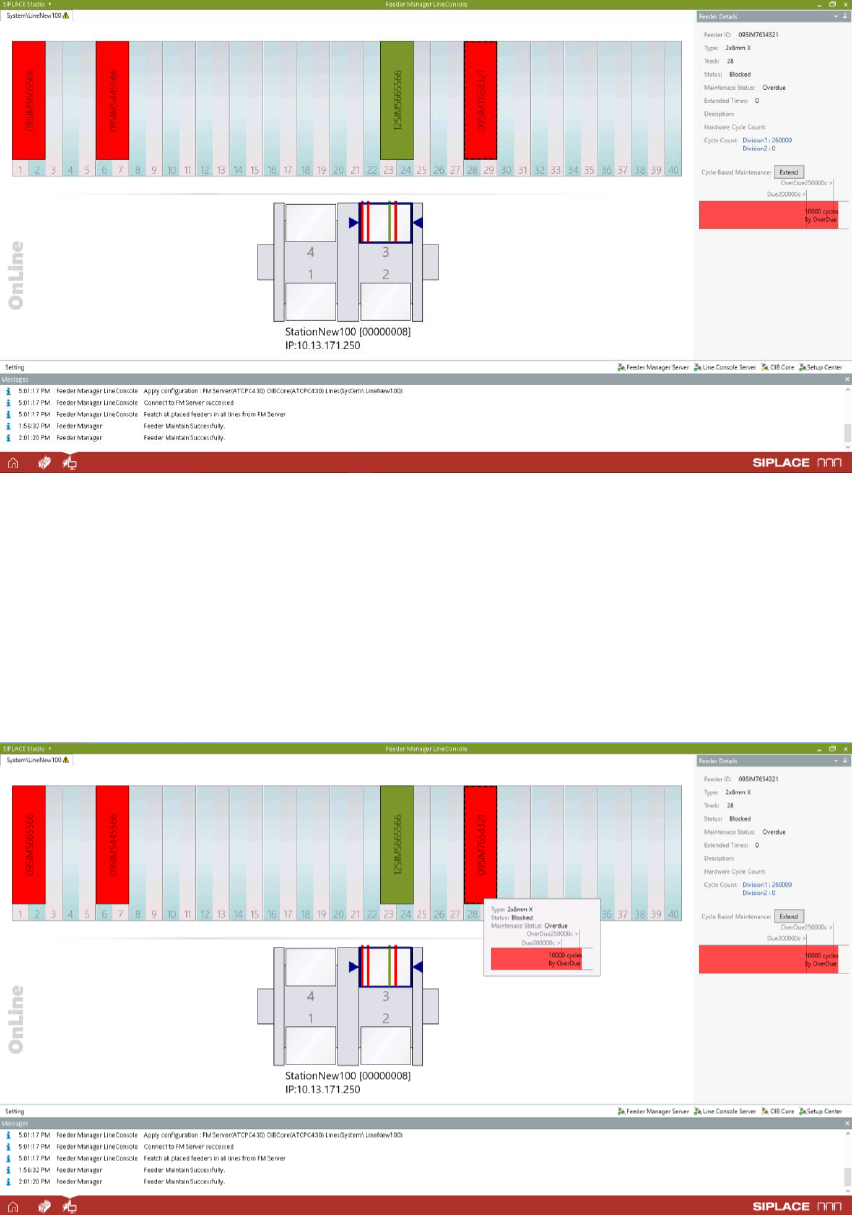
Example of the information displayed on FM Line Console for the station:
Figure 13-13: Station and status
Once the line is successfully added, the stations under this line will be visible from inside the
Line Console UI. The user can then select the station location and feeders consecutively.
The selected station location will be highlighted by dark blue frame and triangles as seen
above. The Feeder Details of the selected feeder will be shown on the right hand side panel.
When mouse-over on the feeder graphics, a tooltip will be shown to indicate the feeder details
also.
Figure 13-14 Feeder Graphics Tooltip
SIPLACE Feeder Manager 3.3 (R18-1) / Getting Started 08/2018 Edition
124
FM Line Console will display a feeder summary of the feeders for which the maintenance
status is Due/Overdue/Defective/Scrapped on the selected line(s) and will send an alert
message “Feeders need attention” to the station computer via the SIPLACE OIB Display
Service on a fixed frequency, which is configured in the Global Settings view in FM Client,
see section 9.1.5 for details.
13.3 Feeder location tracking with wired barcode scanner (DYN 550)
If a DYN 550 wired barcode scanner is connected to the PC, it can be used to create new
feeders by using vendor labels and to assign feeders to a location in all areas.
In the Feeder Manager Installation Manual, item no. 00198179-02 more information can be
found on installing and configuring the DYN 550 wired barcode scanner.
SIPLACE Feeder Manager 3.3 (R18-1) / Getting Started 08/2018 Edition
125
14 Feeder Manager Mobile Application
The Feeder Manager Mobile Application is a Windows Mobile based application that contains
a mobile GUI for feeder tracking and runs on the MC70 scanner. Information regarding
installation can be found in the Feeder Manager Installation Manual, item no. 00198179-01.
As of Feeder Manager 2.0 SP1 the MC75 scanner is additionally supported. The descriptions
of the MC70 scanner are valid for the MC75 scanner as well.
14.1 Starting/terminating the application
14.1.1 Starting the application
Whenever the MC70 scanner is started or rebooted, the application starts automatically.
If another application, e.g. Setup Center is available, the AppSwitcher also can be used to
switch over the Feeder Manager to the MC70 scanner. For this:
Press the right-hand grey button on the MC70.
14.1.2 Terminating the application
To terminate the application
Select File – Exit from the menu bar on the MC70 scanner.
The single functions will be stopped automatically at the scanner timeout present in the Global
Settings view, e.g. if no input is captured in the timeout period, the screen is reset.