00198178-04_GS_FeederManager_3.3_R18-1_EN.pdf - 第57页
SIPLACE Feeder Ma nager 3.3 (R18 -1) / Getting S tarted 08/2018 Edition 57 Figure 6-7: Line information to im port loca tion T ick the line(s) that sh all be imported. Click on the Import Lo cation(s) button. Note: 1…
SIPLACE Feeder Manager 3.3 (R18-1) / Getting Started 08/2018 Edition
56
6.4 Import Locations view
From Feeder Manager 3.0, Import Location is moved to Settings due to the nature that it will
only be used during initial configuration.
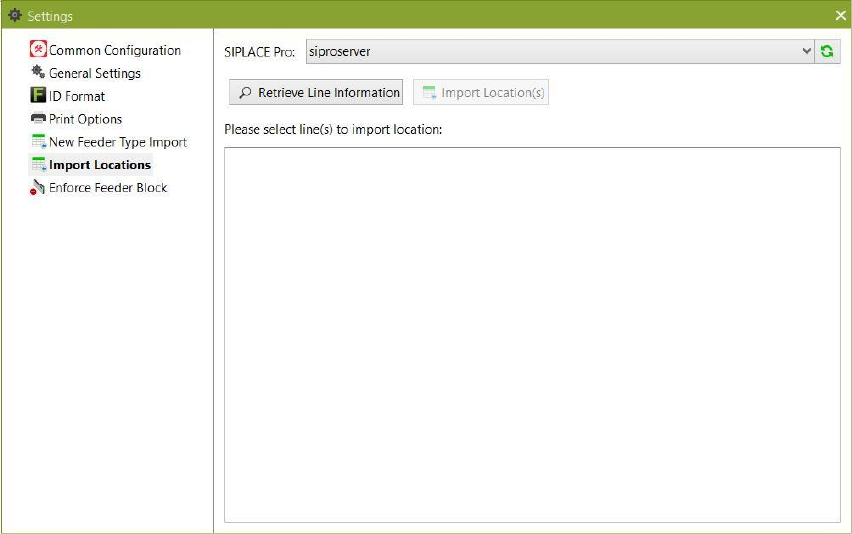
Click on Settings – Import Locations.
The Import Locations tab is displayed.
Figure 6-6: Import Locations tab
The dropdown list titled “SIPLACE Pro” will be automatically populated with the SIPLACE Pro
servers.
Make sure the desired line is selected from the dropdown list. Then click the Retrieve
Line Information button to receive information on existing locations defined in SIPLACE
Pro.
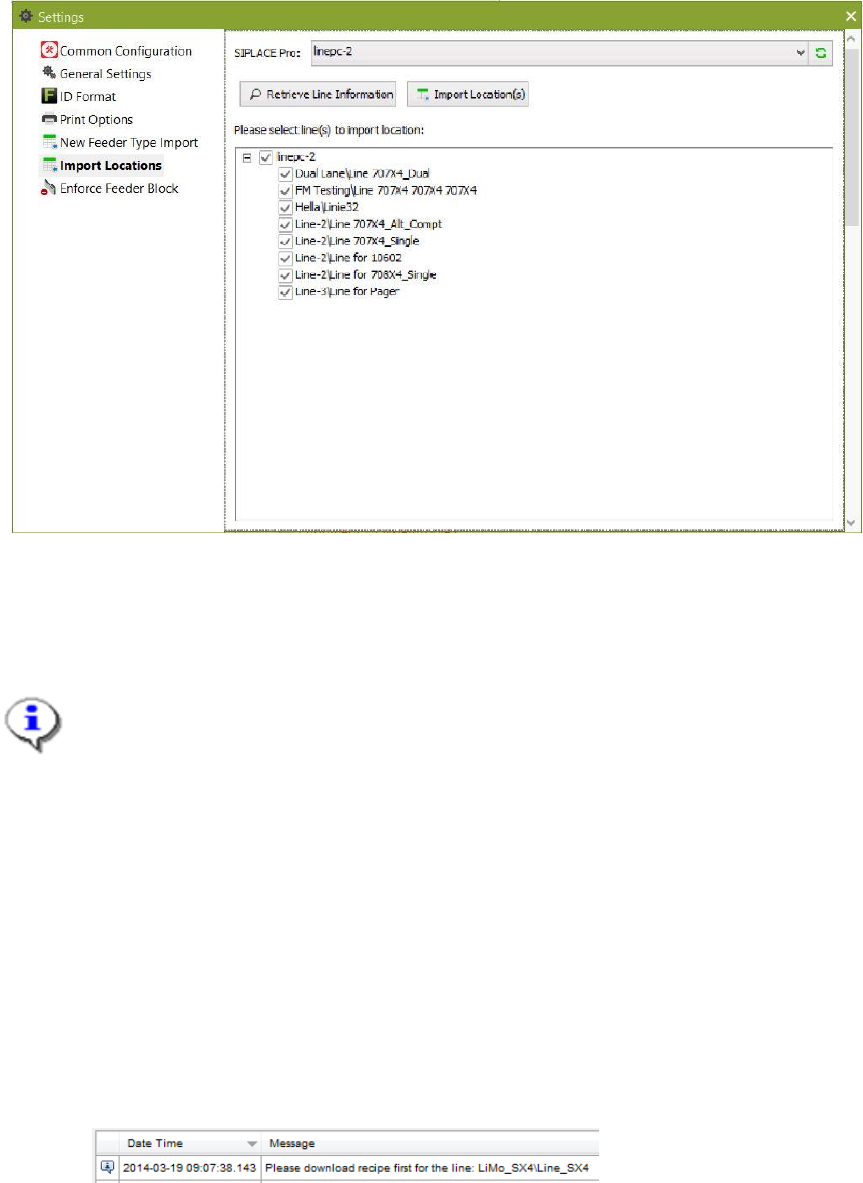
The existing locations in SIPLACE Pro are displayed.
SIPLACE Feeder Manager 3.3 (R18-1) / Getting Started 08/2018 Edition
57
Figure 6-7: Line information to import location
Tick the line(s) that shall be imported.
Click on the Import Location(s) button.
Note:
1) If the line name does not exist in the Feeder Manager database, the system will
automatically create a location ID for it and for all the sub-locations extracted from
SIPLACE Pro.
2) If the line already exists, the system will update the parent location ID for all of the
line's sub-locations.
3) The location type for all the new created locations will be assigned to Production
Area.
4) The line will be highlighted in red if no corresponding machine ID was found in
SIPLACE Pro. In this case the system will not create any locations for this line. The
user will be prompted to download a recipe to the line.
Figure 6-8 Message “download recipe first for the line selected”
The imported locations can be modified in the Location Details dialog box.
SIPLACE Feeder Manager 3.3 (R18-1) / Getting Started 08/2018 Edition
58
7 Feeder Type centric functions
Feeder Manager provides following feeder type centric functions
1) Add New Feeder Type
2) Search Feeder Type
3) New Feeder Type Import
7.1 Add New Feeder Type view
Add New Feeder Type is accessed from the main menu via either
1) Add Add New Feeder Type, or
2) Feeder Type Add New Feeder Type
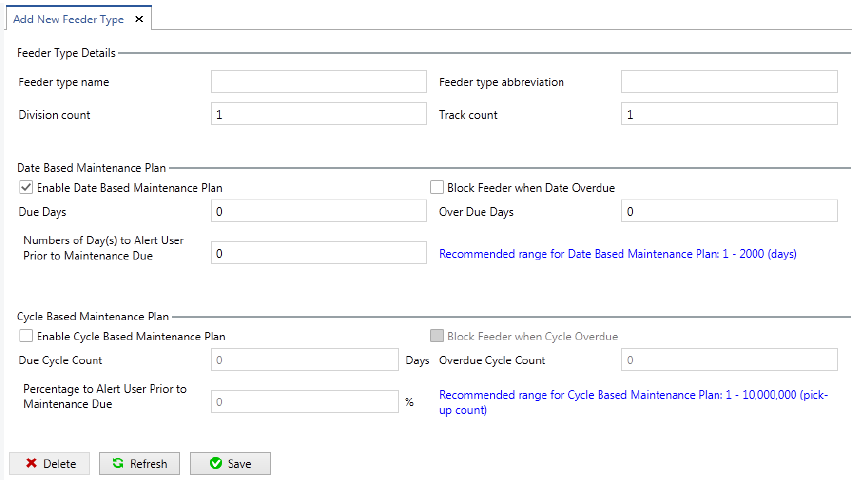
The Add New Feeder Type view is displayed.
Figure 7-1: Feeder Type Details – New dialog box
Enter the details to add a new feeder type to the system.
7.1.1 Description of the fields
Feeder type name
Allows the user to enter the feeder type name.
Feeder type abbreviation
Allows the user to enter the abbreviated name for the feeder type. The abbreviated name
must have 5 characters.