00198178-04_GS_FeederManager_3.3_R18-1_EN.pdf - 第60页
SIPLACE Feeder Ma nager 3.3 (R18 -1) / Getting S tarted 08/2018 Edition 60 7.2 Search Feeder Ty pe view Search Feeder T ype is accessed f rom the m ain menu via either 3) Search Search Fe eder T ype , or 4) Feeder Type…

SIPLACE Feeder Manager 3.3 (R18-1) / Getting Started 08/2018 Edition
59
Division count
Allows the user to enter the number of divisions on which the components are transported.
Track count
Allows the user to enter the number of tracks that are occupied on the table (depends on the
feeder width).
Date Based Maintenance Plan
Indicate whether you want to enable Date Based Maintenance plan for the new feeder type,
and if yes, enter the due and overdue days, as well as how many days you want to alert the
user before the due date.
Cycle Based Maintenance Plan
Indicate whether you want to enable Cycle Based Maintenance plan for the new feeder type,
and if yes, enter the due and overdue cycle counts, as well as how many days you want to
alert the user before the due cycle count is reached.
7.1.2 Description of the buttons
Save
Click on this button to save the feeder type details.
Delete
Click on this button to delete a feeder type from the system.
Note:
A feeder type can only be deleted if no feeder IDs are assigned to it. Otherwise this
button is disabled.
A system-defined feeder type cannot be deleted.
Refresh
Click on this button to refresh the display.
SIPLACE Feeder Manager 3.3 (R18-1) / Getting Started 08/2018 Edition
60
7.2 Search Feeder Type view
Search Feeder Type is accessed from the main menu via either
3) Search Search Feeder Type, or
4) Feeder Type Search New Feeder Type
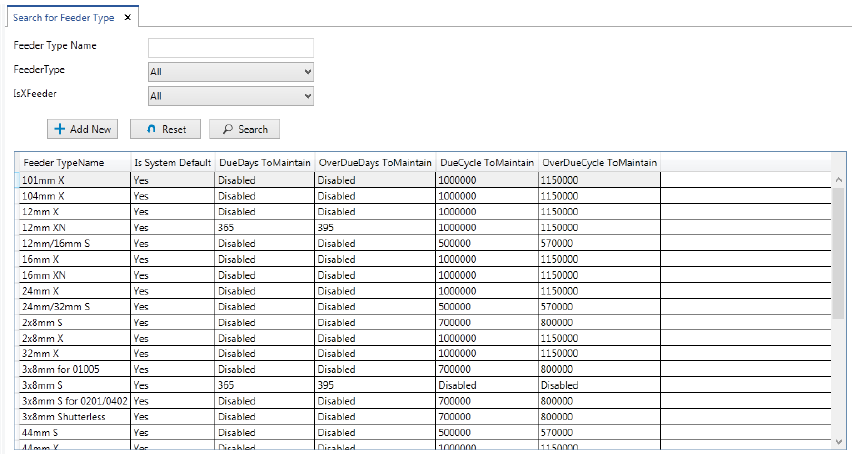
The Search For Feeder Type view displayed as following.
Figure 7-2: Search Feeder Type view
By default all the available feeder types are listed out in the table below the search criteria
area to search a convenient list.
Enter the details to search for a particular feeder type.
7.2.1 Description of the fields
Feeder type name
Allows the user to enter a feeder type name to search for.
Feeder type
Allows the user to select a specific feeder type or all feeder types to search for from the drop-
down list.
Is X feeder
Allows the user to search for all feeder types belonging to the X-feeder family (or not) from the
drop-down list. The following options are available:
– All (X- and non-X-feeders)
– No (non-X-feeders)
– Yes (X-feeders)
SIPLACE Feeder Manager 3.3 (R18-1) / Getting Started 08/2018 Edition
61
7.2.2 Description of the buttons
Search
Click on this button to search for feeder types based on any or all of the search criteria.
Reset
Click on this button to clear all the field values in the Feeder Type Management dialog
box and reset them to default values (if any).
Refresh
Click on this button to refresh the Feeder Type drop-down list.
Once any feeder type details are updated or a new feeder type is added, and the user returns
to the Feeder Type Management dialog box, a manual refresh by clicking on this button is
required in order for the changes to take effect in the Feeder type drop-down list.
7.2.3 Editing the maintenance plan
Double click any feeder type in the above list to enter the Feeder Type Details window.
For each SIPLACE feeder type, default values for date based and cycle based maintenance
plan are provided from the system. Some of these values can be modified in the Feeder Type
Details – Edit view. For customer feeder types, a date-based or a cycle-based maintenance
plan can be defined or modified.
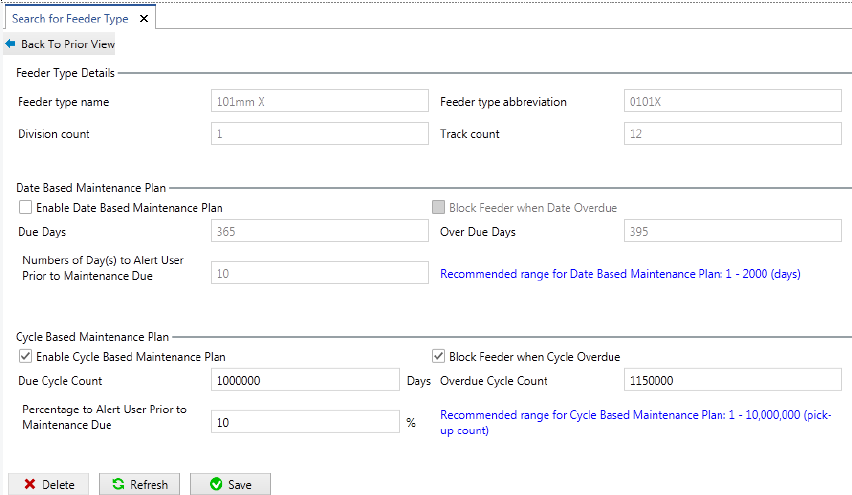
Figure 7-3: Feeder Type Details – Edit view
The Feeder Type Details – Edit view is divided into three sections, Feeder Type Details,
Date Based Maintenance Plan and Cycle Based Maintenance Plan.