00198178-04_GS_FeederManager_3.3_R18-1_EN.pdf - 第85页
SIPLACE Feeder Ma nager 3.3 (R18 -1) / Getting S tarted 08/2018 Edition 85 Note: The minim um required version of SFeeder T est is 2.05 Note: By default, SFT S saves one test resu lt file per test in t he following folde…
SIPLACE Feeder Manager 3.3 (R18-1) / Getting Started 08/2018 Edition
84
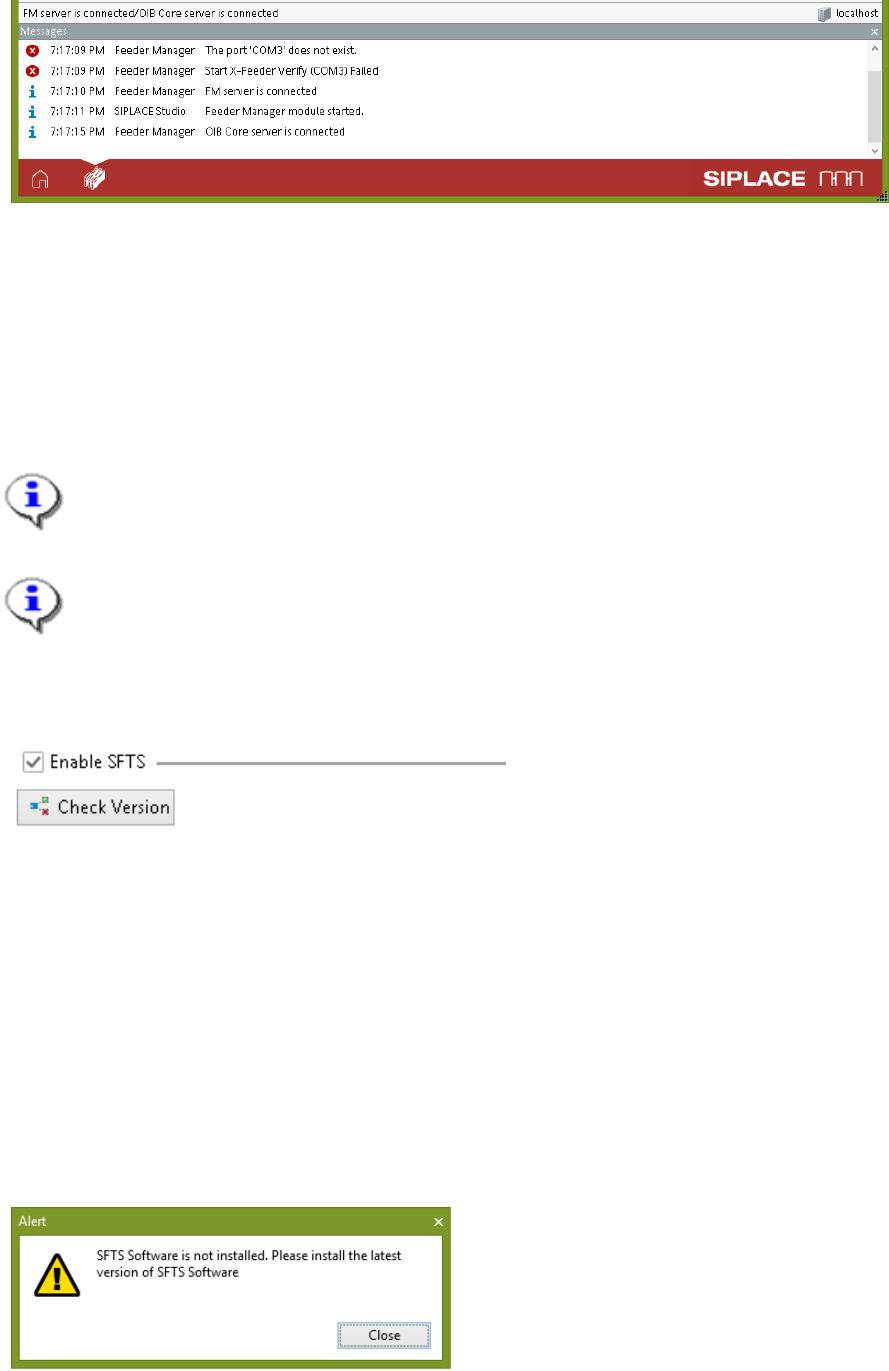
Figure 9-15 FM Client failed to connect to XFTS at start
In this case, please check and make sure the USB cable for XFTS is properly plugged and the
XFTS is powered on, then try to the Test Connection button again.
9.1.4 SFTS connection
This option allows the user to choose whether the SFTS connection function is enabled.
Note:
Before configuration, please refer to the "User Manual SIPLACE S-Feeder Test Station"
to connect the SFTS to FM Client computer.
Note:
The Check Version button is disabled before the Enable SFTS is checked.
To start, check the Enable SFTS.
Figure 9-16 SFTS function is enabled
Check Version button is enabled. This button is used to check whether the version of the
SFeederTest software installed is compatible with this version of Feeder Manager.
Click on the Check Version button.
A pop up message will indicate the check result.
If the SFTS software is missing, or if its version is not compatible with Feeder Manager, you
will see the corresponding error messages.
For example, in case the SFeeder Test is not installed, following message will be shown.
Figure 9-17 SFeeder Test software is not installed
SIPLACE Feeder Manager 3.3 (R18-1) / Getting Started 08/2018 Edition
85
Note:
The minimum required version of SFeeder Test is 2.05
Note:
By default, SFTS saves one test result file per test in the following folder
“C:\ProgramData\FCD\FM”
You can change this to another folder from SFTS software by Tools Settings
Feedermanager – Transfer Directory menu.
Note:
When SFTS verification is finished, Feeder Manager will automatically save the
feeder verification result to the Feeder Maintenance History of the tested feeder,
given that the feeder is found whose serial number matches the ID in the test
result.
Once Feeder Manager successfully imports the test result from the above folder, it
will modify the name of the result file and append the .done suffix.
E.g., if the original SFTS verification result file is "abc.xml", after Feeder Manager
import it successfully, the file name will be changed to "abc.xml.done".
9.1.4.1 Viewing SFTS test results
Starting from Feeder Manager 3.0, the user can view the SFTS test report in the same
graphical form as in SFeederTest software.
To do so, first go to the Feeder Service History tab of the feeder in question.
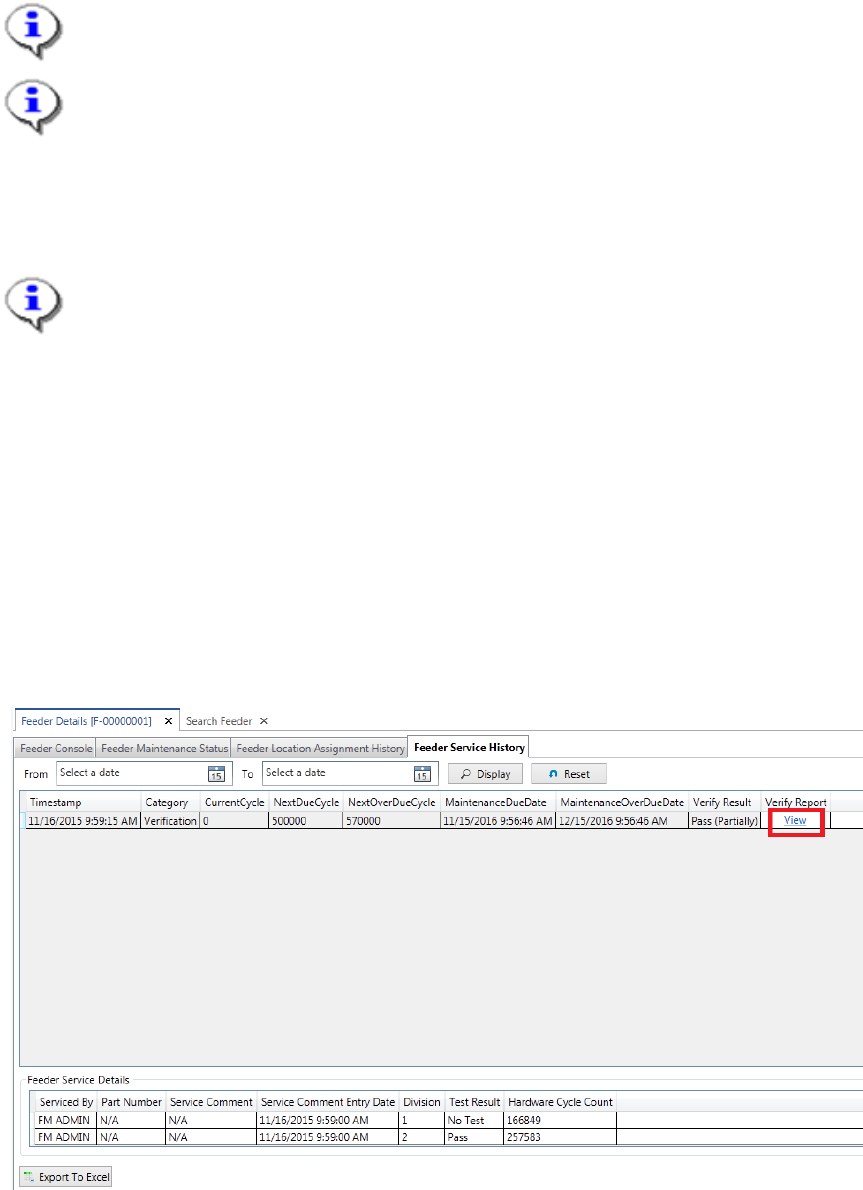
Figure 9-18 Feeder Service History indicating SFTS test record
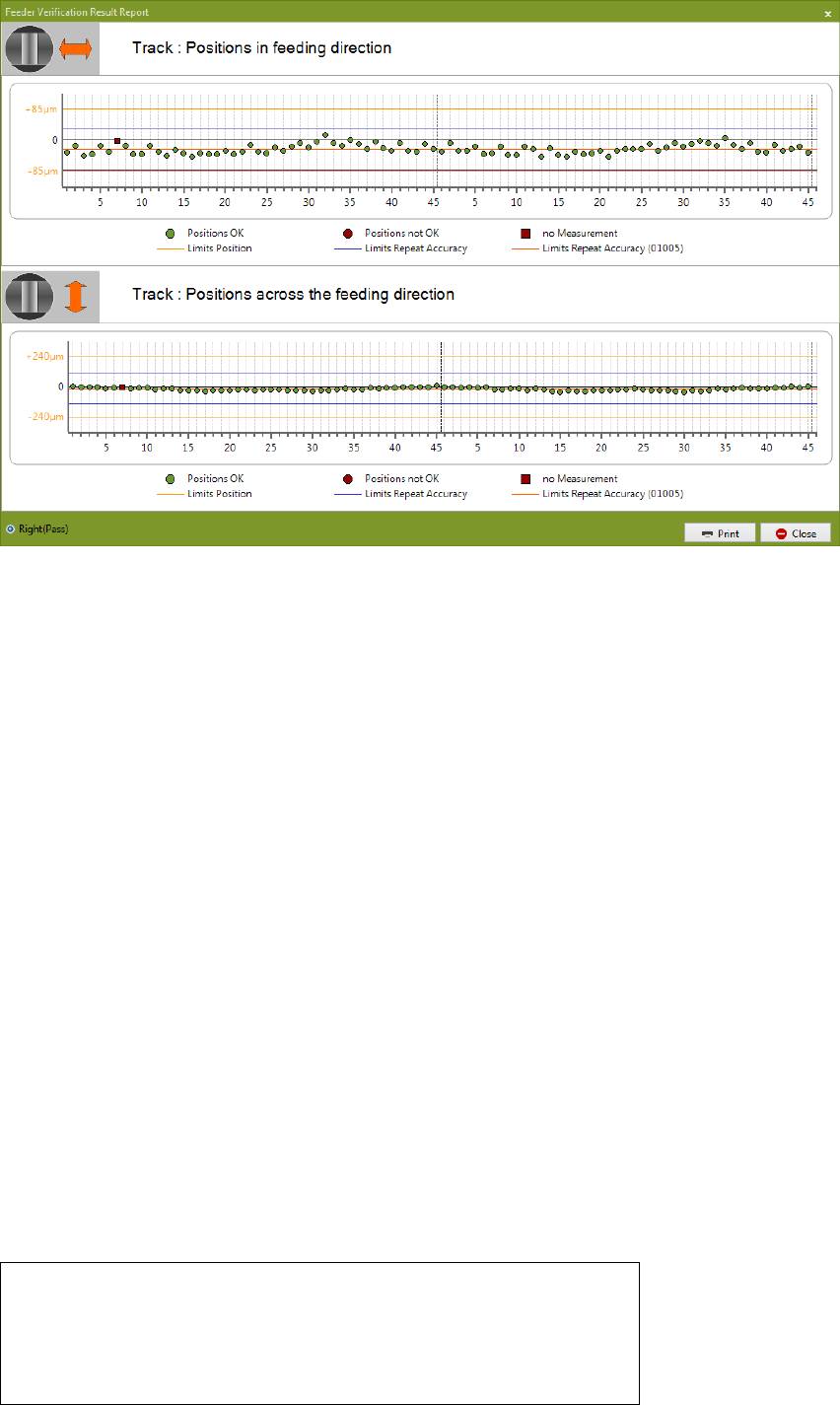
Then click on the View hyperlink in the Verify Report column. Following report viewer will be
shown, which is in the same form as seen from SFeederTest softer.
SIPLACE Feeder Manager 3.3 (R18-1) / Getting Started 08/2018 Edition
86
Figure 9-19 SFTS Feeder Verification Result Report viewer
From here you can proceed to print the report.
Note: all SFTS test result data will be saved in Feeder Manager database, so this function
also works without SFeederTest being executed.
9.1.4.2 Limitations and Restrictions
For any SFTS test result, if Feeder Manager cannot find a matching feeder with the same
serial number, it will
1) Leave the file in place without appending the .done suffix.
2) Add an error message inside the Message Log to indicate the failed search.
9.1.4.3 SFTS Configuration Troubleshooting
If you don't see the corresponding test result appearing in the above mentioned folder after
the test is done, refer to 00196591-02 for detail troubleshooting procedures.
If you see the test result successfully appears in the drop folder mentioned above, but the
result is not displayed inside Feeder Manager's Feeder Maintenance History table, double
check whether the "ID" in the test result matches the "Feeder Serial Number" of the
corresponding feeder in Feeder Manager database.
For example, the ID of the following SFTS test result is "2x8_KL-B7-0025".
- <?xml version="1.0" encoding="utf-8"?>
- <Feeder>
- <ID>2x8_KL-B7-0025</ID>
- <Datetime>20120329 10:53:12</Datetime>
- <Division>