00198178-04_GS_FeederManager_3.3_R18-1_EN.pdf - 第79页
SIPLACE Feeder Ma nager 3.3 (R18 -1) / Getting S tarted 08/2018 Edition 79 Server: Host name or IP address for the two serv ers will be fille d based on the on es provided b y the user during installati on. The user can …
SIPLACE Feeder Manager 3.3 (R18-1) / Getting Started 08/2018 Edition
78
9.1 Common Configuration
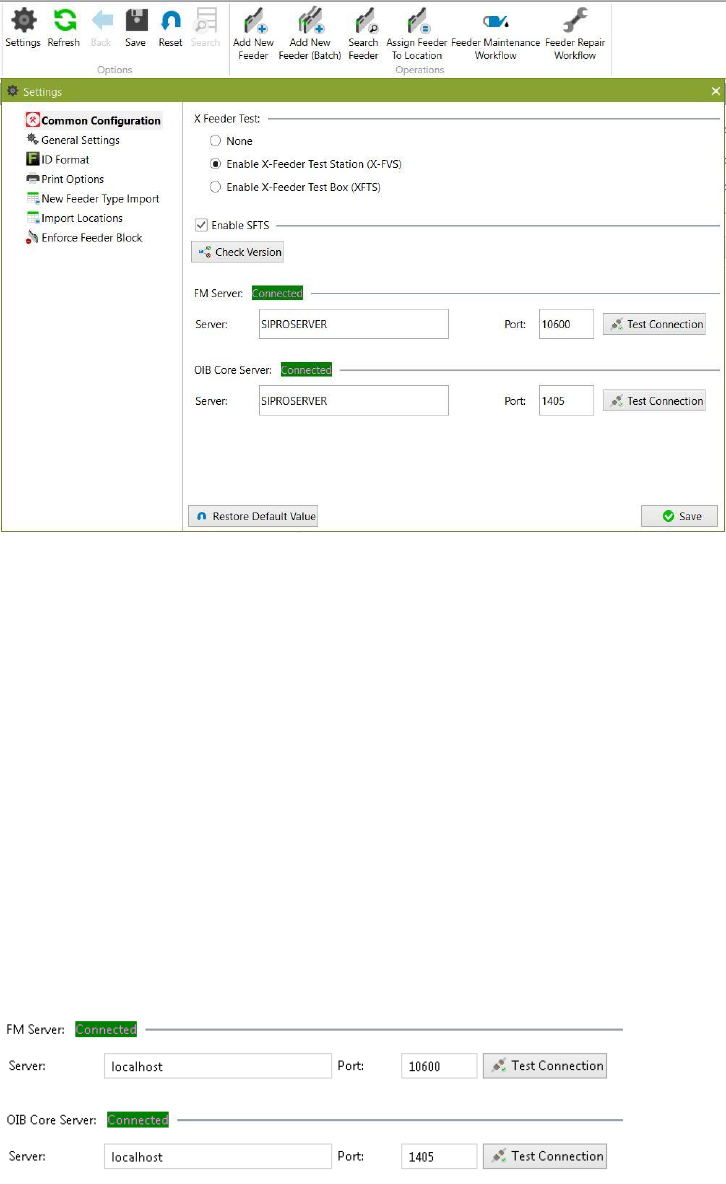
When the Setting dialog is opened, the first tab Common Configuration is selected by
default.
Figure 9-3 Settings - Common Configuration
Inside the Common Configuration, following connections can be configured.
1) FM Server connection
2) OIB Core connection
3) X-Feeder Test connection (X-FVS)
4) XFTS connection
5) SFTS connection
9.1.1 FM Server and OIB Server Connection
Feeder Manager Server and OIB Core Server connection can be configured by the following
fields.
Figure 9-4 FM Server and OIB Server configuration
SIPLACE Feeder Manager 3.3 (R18-1) / Getting Started 08/2018 Edition
79
Server:
Host name or IP address for the two servers will be filled based on the ones provided by the
user during installation.
The user can modify these entries as needed.
Connection status
The connection status (Connected or Disconnected) is displayed for the servers of the
configuration.
Test Connection button can be used to verify the correctness of the entered server host
name or IP address. Once pressed, the connectivity will be checked, and a pop up dialog will
inform the user whether the test is successful or not.
Note: After test connection, the user need to explicitly save it, otherwise the change will not
take effect.
9.1.2 X-Feeder Test connection (X-FVS)
For the Feeder Manager integration the following options are provided in the Common
Configuration tab.
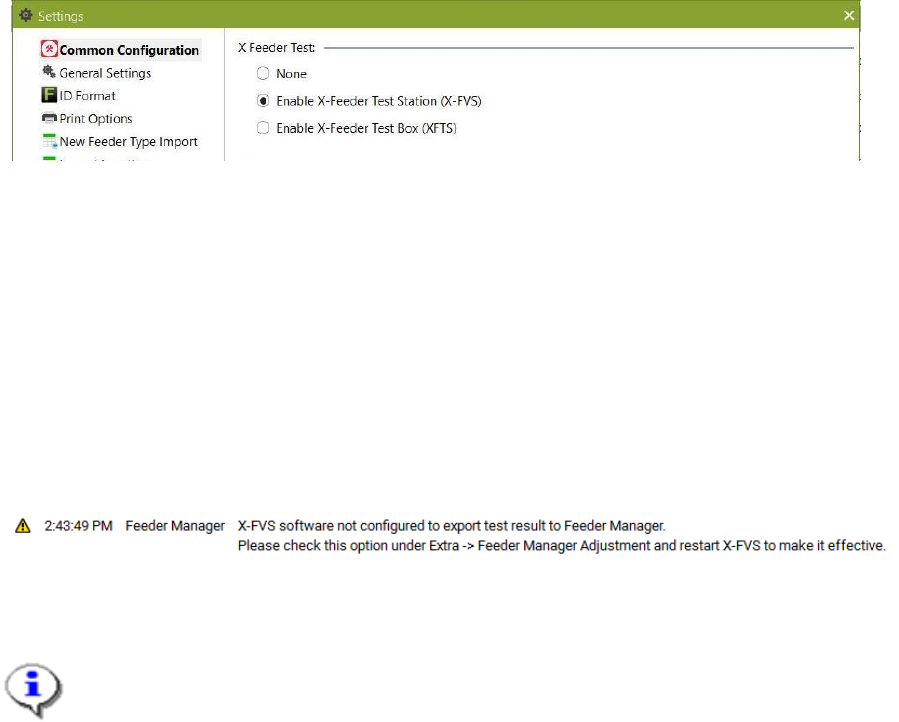
Figure 9-5 Settings view – X Feeder Test
None
The option is enabled by default after a new installation.
Enable X-Feeder Test Station (X-FVS)
Enable the option for X-FVS integration. After pressing the Save button, the Feeder Manager
will start to monitor the directory specified in the Transfer Directory. The Feeder Manager
Client checks if the option Export test result to feeder manager under Extras – Feeder
Manager Adjustment is enabled. If not the following warning is displayed:
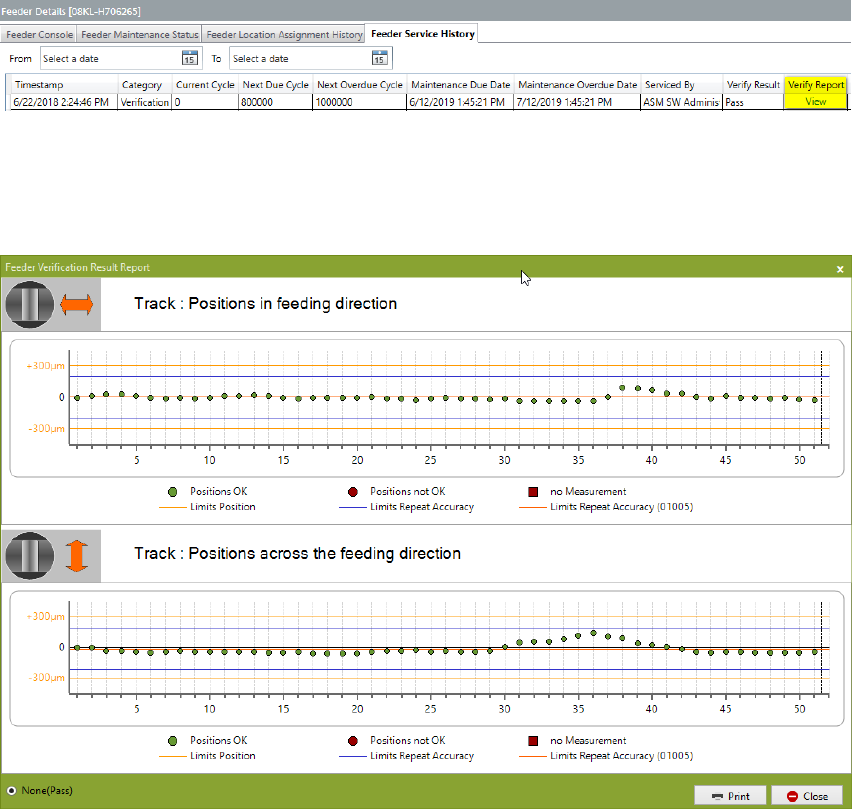
Figure 9-6 Warning message
Note:
After changing settings in X-FVS software, the software must be closed for the
changes to make effective. Otherwise, the changes are not received by the
Feeder Manager.
SIPLACE Feeder Manager 3.3 (R18-1) / Getting Started 08/2018 Edition
80
9.1.2.1 Viewing test results
Before starting the test make sure that the feeder already exists in the Feeder Manager, e.g.
via the Search Feeder view.
Every time a Pick-up position test is done to a feeder, the test result will be imported to the
Feeder Manager and shown under the Feeder Service History tab of the Feeder Details
view of this feeder.
Example:
Figure 9-7 Feeder Service History tab – test result
Click View in the Verify Report column to display the result report. The following report
view will be shown.
Figure 9-8 X-FVS Feeder Varification Result Report
9.1.3 XFTS connection
The checkbox is for user to choose whether XFTS function is enabled or not.
Before saving the setting, the user can also verify the connectivity to the XFTS box by
pressing the Test Connection button.
Note: When the option Enable XFTS is not checked, the buttons for this function are disabled
(see Figure 9-3).