00198178-04_GS_FeederManager_3.3_R18-1_EN.pdf - 第127页
SIPLACE Feeder Ma nager 3.3 (R18 -1) / Getting S tarted 08/2018 Edition 127 Figure 14 -3: Function area for X fe eders only Figure 14 -4: Function area for X a nd S feeders In this area the user s elects the function t o…
SIPLACE Feeder Manager 3.3 (R18-1) / Getting Started 08/2018 Edition
126
Key
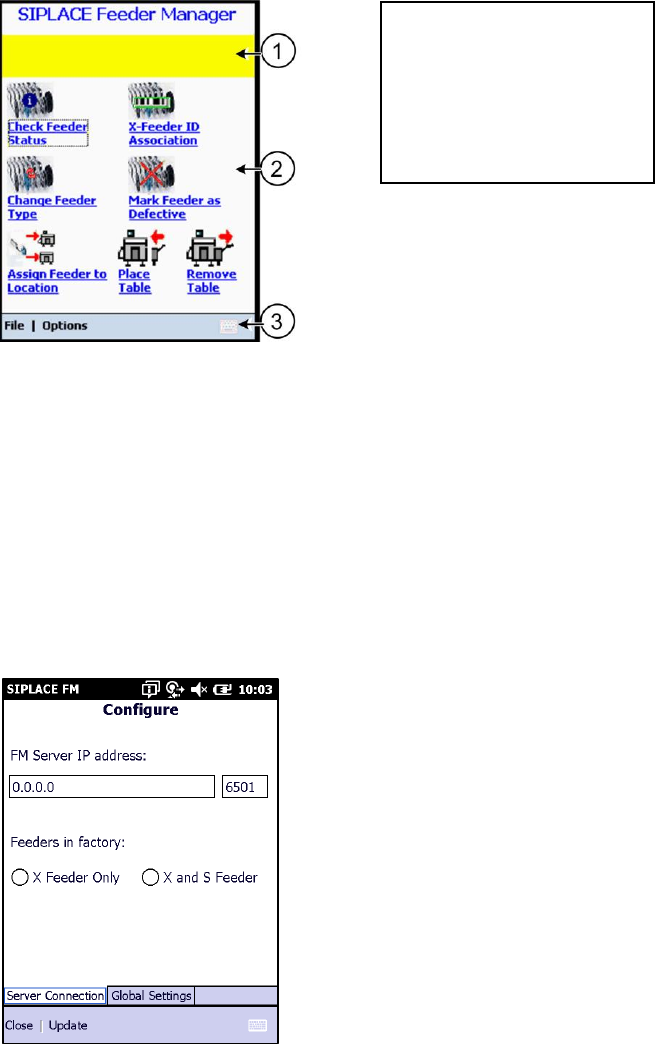
① Prompting area
② Function area
③ Menu bar
14.2 Graphical User Interface – Main menu
This section will helps with the familiarity of the Feeder Manager Mobile Application user
interface. The following screen displays the Main menu on the MC70 scanner.
Figure 14-1: Main menu
14.2.1 Prompting area
In this area the user is prompted to start an action.
14.2.2 Function area
At first run, the user will be prompted to set the Function area to contain functions for (1) X
Feeders only, or (2) both X and S feeders.
Figure 14-2 FM PDA initial configuration
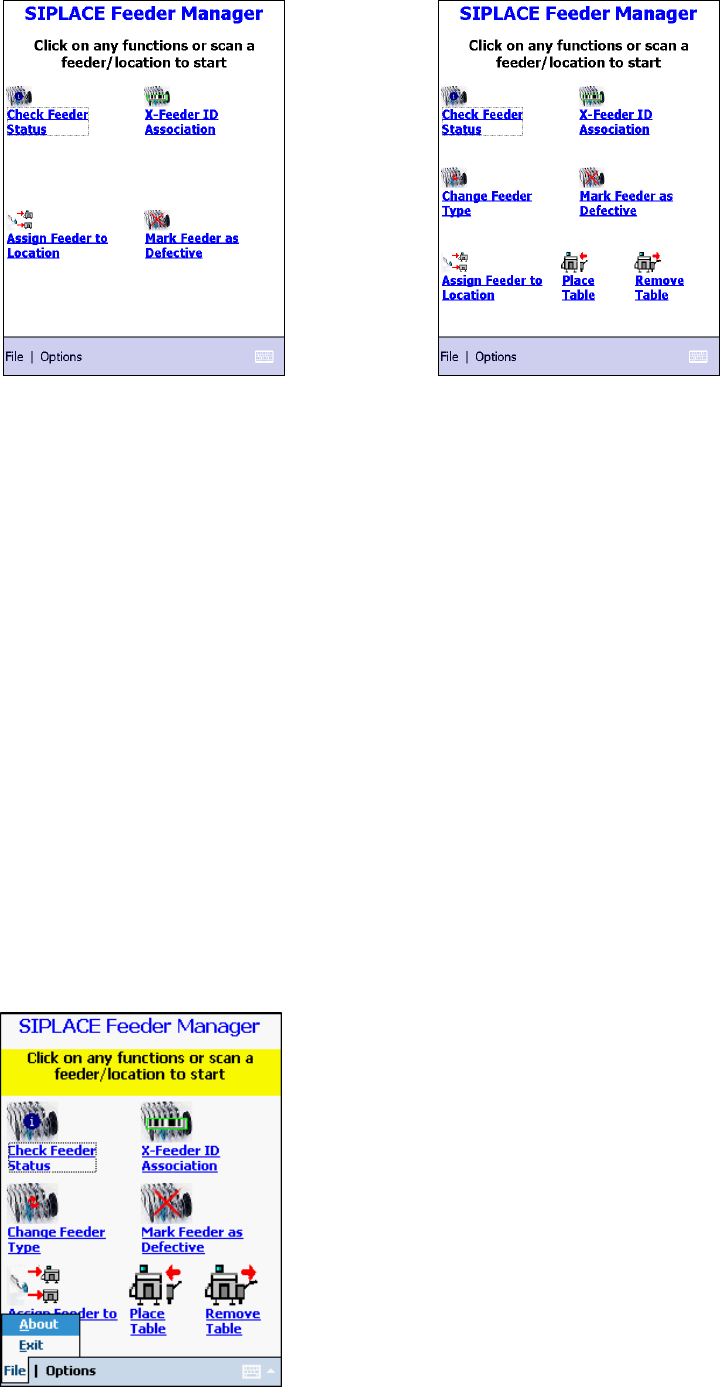
The Function Area for the two working modes are as follows.
SIPLACE Feeder Manager 3.3 (R18-1) / Getting Started 08/2018 Edition
127
Figure 14-3: Function area for X feeders only
Figure 14-4: Function area for X and S feeders
In this area the user selects the function to be performed. The following functions are
available:
Check Feeder Status
X Feeder ID Association
Change Feeder Type
Mark Feeder as Defective
Assign Feeder to Location
Place Table
Remove Table
The single functions are described in section 14.3.
14.2.3 Menu bar
The menu bar contains the File and Options menus and a key board function to tip text.
Tap on the respective menu to open it.
14.2.3.1 File menu
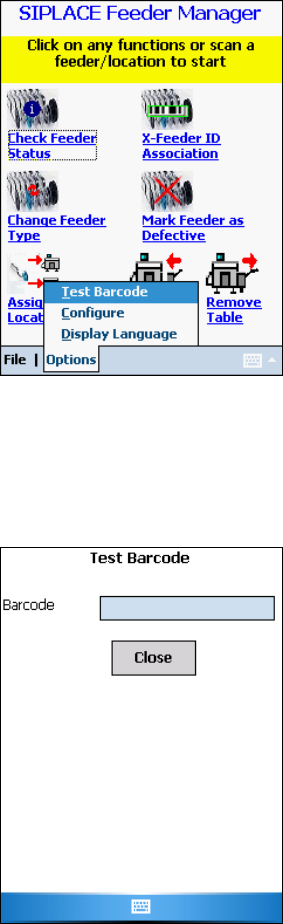
Figure 14-5: Main menu – File menu
SIPLACE Feeder Manager 3.3 (R18-1) / Getting Started 08/2018 Edition
128
About
Tap on this menu item to get information on the Feeder Manager version and copyright.
Exit
Tap on this menu item to terminate the application.
14.2.3.2 Options menu
Figure 14-6: Main menu – Options menu
Test Barcode
Tap on this menu item to test a barcode.
The following screen is displayed.
Figure 14-7: Test Barcode
Scan the barcode that shall be tested.
Tap on Close to exit the screen.