00198178-04_GS_FeederManager_3.3_R18-1_EN.pdf - 第93页
SIPLACE Feeder Ma nager 3.3 (R18 -1) / Getting S tarted 08/2018 Edition 93 Define the form at for an internal or ex ternal ID form at and save it. A unique location ID with the pre -defined form at will be autom atical…
SIPLACE Feeder Manager 3.3 (R18-1) / Getting Started 08/2018 Edition
92
Save
Click on this button to save the feeder ID format.
Before saving the format, the Feeder Manager will validate the format based on the criteria
that are listed under Note: in the Internal tab. If the validation was successful, the system will
inform the user that the format has been saved, otherwise an error message is displayed.
Restore to default values.
Click on this button to reset the entries.
Note:
If the total length of the feeder ID format definition is > 12 and <= 20 characters, and 1D
feeder barcode printing format is selected from the Global Settings, the system will
prompt the user to select 2D barcode printing format.
1D barcodes, for which the total length of the feeder ID format definition is > 12
characters, cannot be printed on the barcode label.
2D barcodes, for which the total length of the feeder ID format definition is > 20
characters, cannot be printed on the barcode label.
9.3.2 Location ID Format
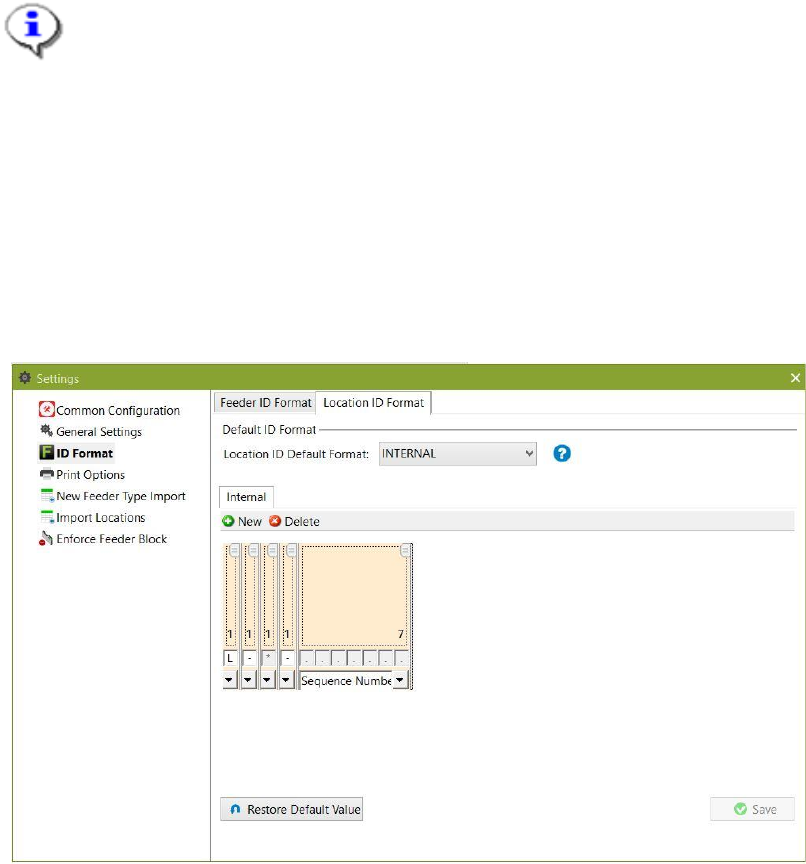
Following screenshot shows the Location ID Format view.
Figure 9-24 Location ID Format settings
This setting view allows the user to select the location ID format. Again, two types of location
ID formats are supported:
INTERNAL
o A unique location ID is generated automatically by the system (default value).
EXTERNAL
o A customer specific location ID must be entered.
SIPLACE Feeder Manager 3.3 (R18-1) / Getting Started 08/2018 Edition
93
Define the format for an internal or external ID format and save it.
A unique location ID with the pre-defined format will be automatically generated for each new
location added.
9.3.2.1 Description of the segments
Control Barcode
Allows the user to enter characters to identify the barcode type. This is a mandatory field.
Max. length = 10 characters.
Location Type
Allows the user to enter a single character to identify the location type. When this segment is
selected, it will be automatically changed to 1 character, as the location type is pre-defined
with this length in the database table.
Sequence Number
Allows the user to enter a running number for the location ID. This is a mandatory field. The
length of the sequence number:
can only be extended once defined
must be greater than the length of the next sequence number to be generated
Ignore
Allows the user to enter any text. The segment can be used to define a separator.
9.3.2.2 Description of the buttons
New
Click on this button to add a segment to the location ID format.
Delete
Click on this button to delete a segment from the location ID format.
Save
Click on this button to save the location ID format.
Before saving the format, the Feeder Manager will validate the format based on the criteria
that are listed under Note: in the Location ID Format dialog box. If the validation was
successful, the system will inform the user that the format has been saved, otherwise an error
message is displayed.
Restore Default Value
Click on this button to reset the entries.
SIPLACE Feeder Manager 3.3 (R18-1) / Getting Started 08/2018 Edition
94
Note:
If the total length of the location ID format definition is > 18 and <= 30 characters, and 1D
feeder barcode printing format is selected from the Global Settings, the system will
prompt the user to select 2D barcode printing format.
1D barcodes, for which the total length of the location ID format definition is > 18
characters, cannot be printed on the barcode label.
2D barcodes, for which the total length of the location ID format definition is > 30
characters, cannot be printed on the barcode label.
9.4 Print Options
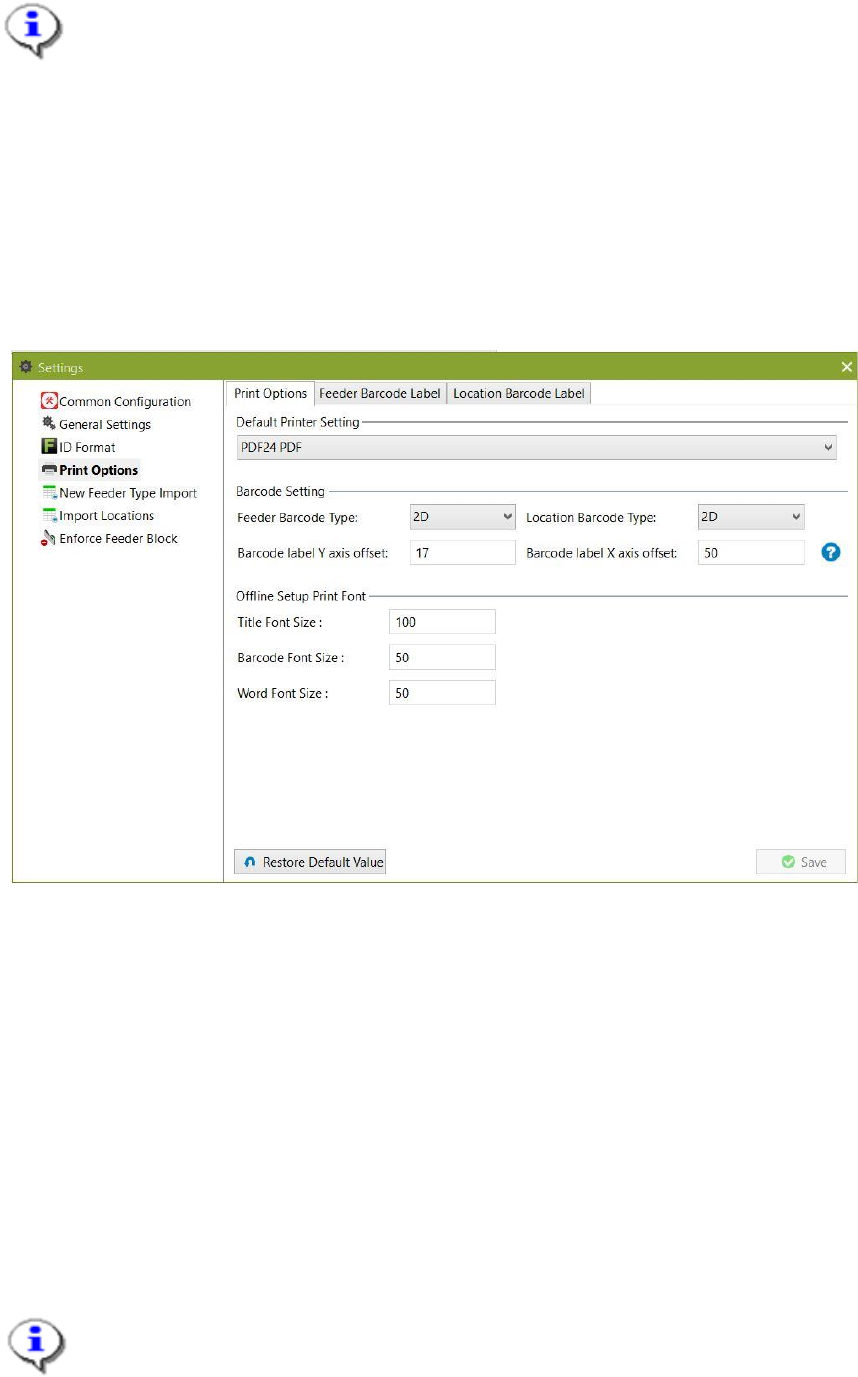
In the Print Options tab, the print options, feeder and location barcode labels are preset.
Figure 9-25: Settings - Print Options with Print Options selected
9.4.1 (General) Print Options
This view allows the user to make general settings related to printing jobs.
9.4.1.1 Description of the fields
Default Printer
Select the printer available to this computer that you want to use as the default printer for
Feeder Manager Client. The selection is empty by default.
The first time a Feeder Manager printing function is used, the user will be prompted for the
printer selection. The user selection will then be set as the default.
Note:
This is independent from the default printer selection of the Windows operating system.