00198178-04_GS_FeederManager_3.3_R18-1_EN.pdf - 第103页
SIPLACE Feeder Ma nager 3.3 (R18 -1) / Getting S tarted 08/2018 Edition 103 11 Alerts Alert mes sages for feeders that need att ention are disp layed in the Feeder Ma nager Alert List, on the station com puter and on the…
SIPLACE Feeder Manager 3.3 (R18-1) / Getting Started 08/2018 Edition
102
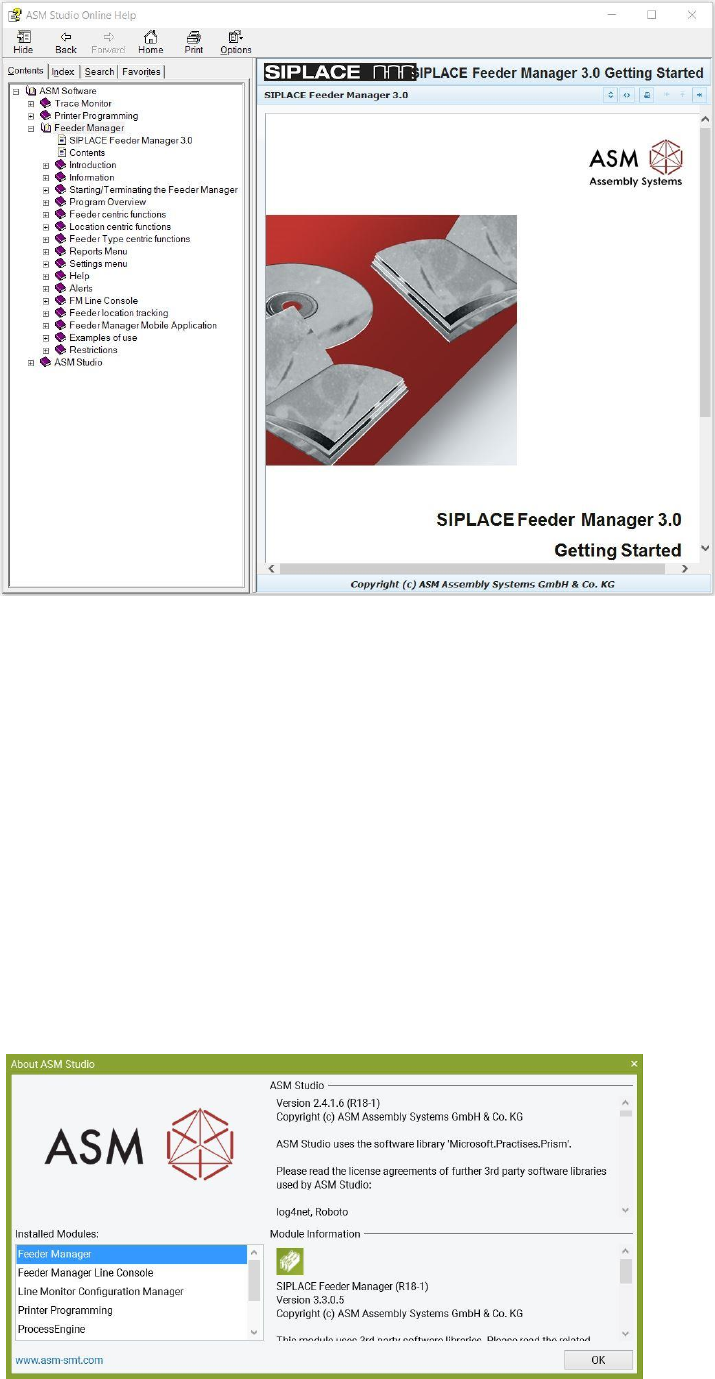
Figure 10-2 ASM Studio Online Help window
To start, press F1 or go to the ASM Studio main menu and select Show Help.
10.3 About
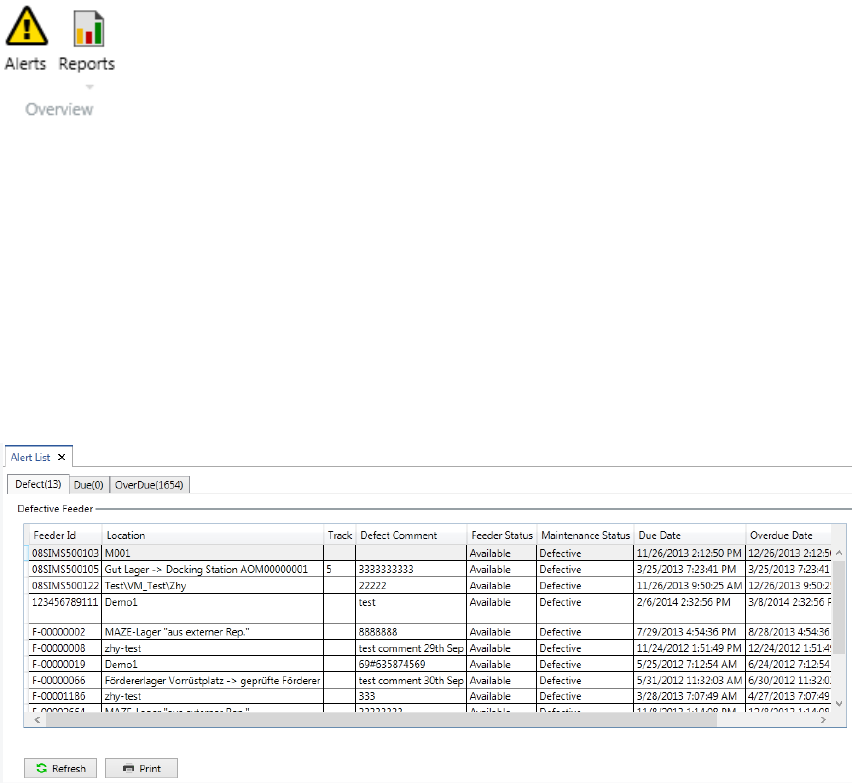
The About window displays the version number and copyright information of ASM Feeder
Manager.
Starting from Feeder Manager 3.0, the About information is accessed from the main ASM
Studio About dialog.
To view, go to the ASM Studio main menu and select About ASM Studio. When opened,
select Feeder Manager to view the details.
Figure 10-3 ASM Studio About box
SIPLACE Feeder Manager 3.3 (R18-1) / Getting Started 08/2018 Edition
103
11 Alerts
Alert messages for feeders that need attention are displayed in the Feeder Manager Alert List,
on the station computer and on the FM Line Console.
11.1 Alert List
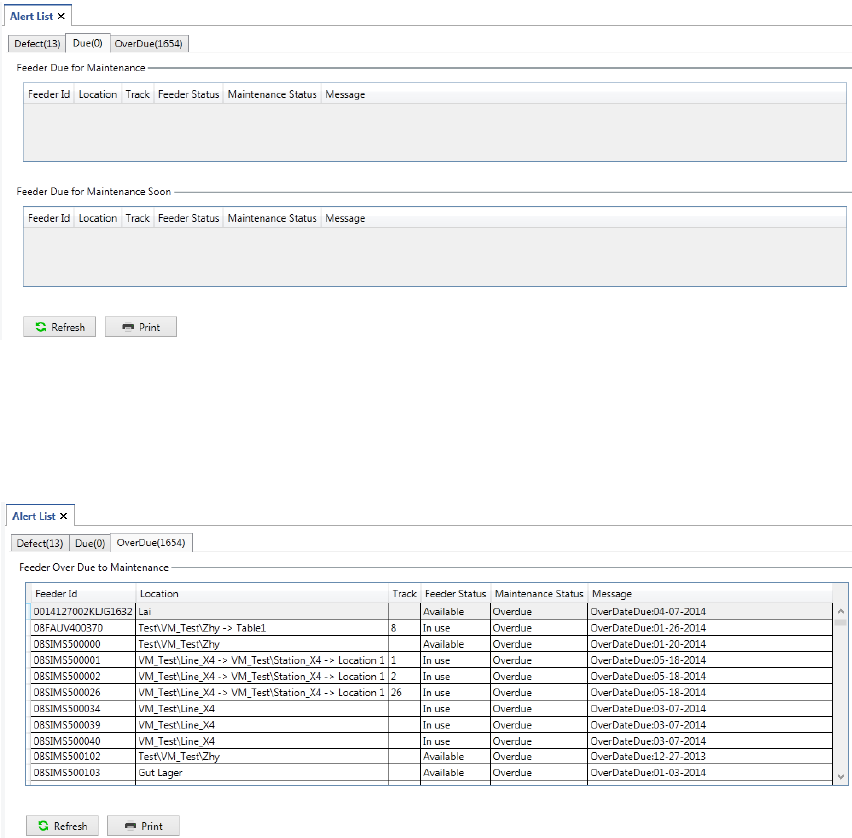
Alert list is accessed from Alert:
Figure 11-1 Alert menu button
Click on Alert button in the menu bar to open the list.
Alert list displays feeders that are either due or overdue to maintenance, or defective or have
a feeder type mismatch. The Alert list is organized in three categories: Defective (k), Due
(m), and Overdue (n), where k, m and n are the numbers of feeders which are defect, due
and overdue respectively.
Example: Displayed information in the Defective tab
Figure 11-2: Alert List, Defective tab
SIPLACE Feeder Manager 3.3 (R18-1) / Getting Started 08/2018 Edition
104
Example: Displayed information in the Due tab
Figure 11-3: Alert List, Due tab
Example: Displayed information in the Overdue tab
Figure 11-4: Alert List, Overdue tab
It is also possible to view and modify feeder details for single feeders.
Double-click on a feeder row in the Alert list.
The feeder details for the selected feeder are displayed. See section 5.1.2 for more details on
modifying the feeder details.
11.1.1 Description of the buttons
Print
Click on this button to print the Alert list.
Refresh
Click on this button to refresh the Alert list.
Note: Once any feeder details are updated, and the user returns to the Alert List, a manual
refresh is required in order for the changes to take effect in the list.