00198178-04_GS_FeederManager_3.3_R18-1_EN.pdf - 第24页
SIPLACE Feeder Ma nager 3.3 (R18 -1) / Getting S tarted 08/2018 Edition 24 Description of the bu ttons Refresh Click on this button to ref resh the Fe eder Details – Add New view. Feeder Operations W hen a feeder is …
SIPLACE Feeder Manager 3.3 (R18-1) / Getting Started 08/2018 Edition
23
Registration mode
The registration mode is displayed as either MANUAL or AUTO.
MANUAL: it means the feeder was registered through a manual process triggered by the
user. This mode applies to both S and smart feeders.
AUTO: it means the feeder was added to the Feeder Manager database through
automatic detection, when the feeder was either placed online or connected to a docking
station. This mode only applies to smart feeders.
Feeder status
The feeder status is displayed. Available is the initial status when a new feeder has been
created. The feeder status is automatically changed based on location, maintenance status
and whether it is scrapped or not. The following feeder status types exist:
– Available
– Blocked
– In Use
– Scrapped
Feeder maintenance status
The feeder maintenance status is displayed. Normal is the initial maintenance status when a
new feeder has been created. The following maintenance status types exist:
– Normal
– Defective
– Due
– Overdue
Last maintenance date
Displays the date when the feeder was either registered for the first time, or the last time it
was put through the Feeder Maintenance Workflow.
Is feeder exchanged
Indicates whether the feeder has been exchanged with another feeder (Yes or No).
Exchanged feeder ID
The feeder ID is displayed with which the feeder has been exchanged.
Defect comment
Indicates the defect comment entered for the latest time when it was marked as defective.
When the feeder is serviced or through with the feeder maintenance workflow, this field will be
cleared.
SIPLACE Feeder Manager 3.3 (R18-1) / Getting Started 08/2018 Edition
24
Description of the buttons
Refresh
Click on this button to refresh the Feeder Details – Add New view.
Feeder Operations
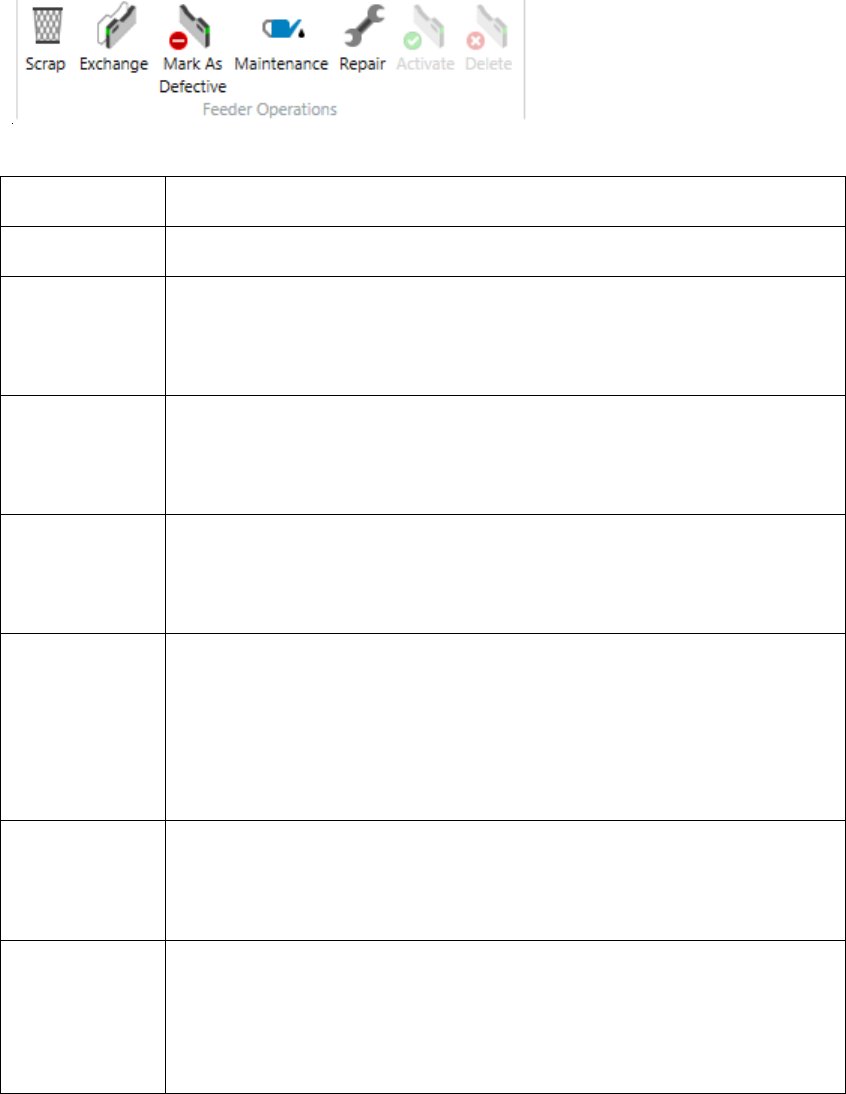
When a feeder is registered and selected in the Location Tree, following buttons will be
shown in the Feeder Operation menu, for user to perform the corresponding actions:
Figure 5-3: Feeder Operations
Action type
Description
Scrap Feeder
Once a feeder is scrapped, no changes can be made to the feeder details.
Activate Feeder
Upon activation of a scrapped feeder, the feeder details can be modified
again (allowed fields only) and the feeder status is set to the previous
status before scrapping.
Exchange
Feeder
The feeder to replace the old feeder should be of the same feeder type
and the feeder status should be Available. When the feeder status is In
Use, this option is disabled.
Mark Feeder as
Defective
A defective comment has to be entered in a dialog box. Once a feeder
has been marked as Defective, the feeder status is set to Blocked and the
maintenance status to Defective.
Feeder
Maintenance
Workflow
A maintenance comment and the cause have to be entered in a dialog
box. Upon marking the maintenance as complete, the maintenance date
values are reset based on the maintenance plan. The feeder status is set
to Available and the maintenance status to Normal. The Feeder Defect
History table is updated accordingly.
Feeder Repair
Workflow
Entry point for the Repair workflow of a feeder. You can enter repair and
part change information from this workflow. You also have an option to
also complete the Maintenance workflow from here.
Delete Feeder
The feeder will be deleted.
A feeder must be scrapped first before being deleted. Otherwise you will
see the red information highlighting the reason of this function being
disabled.
Figure 5-4 Feeder Actions

SIPLACE Feeder Manager 3.3 (R18-1) / Getting Started 08/2018 Edition
25
Save
Click on this button to save the feeder details for the feeder.
Print Barcode to label
Click on this button to print a barcode label for any feeder through a label printer.
Print Barcode to A4
Click on this button to print a barcode label for any feeder to an A4 paper through normal
printer.
5.1.2 Modifying feeder details
The maintenance plan for the feeder is selected based on the feeder type. Maintenance
status is set to Normal and Feeder status is set to Available, except for the case when the
feeder is assigned to Offline/Production Area. Then the Feeder status is set to In Use.
The following feeder details can be modified afterwards.
Feeder serial number
Feeder type: can only be modified as long as the feeder type = Unknown Feeder Type. Once
the feeder type is set to a known feeder type, it cannot be modified anymore.
Feeder location
Feeder provider
Feeder description
Warranty Start Date
Warranty Expiry Date
When you open the newly registered feeder, you will also see three more new tabs added to
the feeder details except the extended Feeder Console. The three new tabs are: Feeder
Maintenance Status, Feeder Location Assignment History and Feeder Service History.
Figure 5-5 Different tabs of Feeder details
The meanings of these tabs are described below.
5.1.3 Feeder Maintenance Status tab
The maintenance plans are preset from the system and are based on the feeder type. There
are two types of maintenance plans for each feeder type: Date Based Maintenance and Cycle
Based Maintenance.