00198178-04_GS_FeederManager_3.3_R18-1_EN.pdf - 第140页
SIPLACE Feeder Ma nager 3.3 (R18 -1) / Getting S tarted 08/2018 Edition 140 Figure 14 - 29 : Assign Fee der to Location – Feeder ID Tap on Save to sa ve the entries. Tap on M enu – Close to ex it the screen. or Tap…
SIPLACE Feeder Manager 3.3 (R18-1) / Getting Started 08/2018 Edition
139
For assignment of feeders to station location and table, a track assignment is compulsory.
For assignment of feeders to table, if the table does not belong to offline area, the user will be
prompted to scan an offline area for offline assignment.
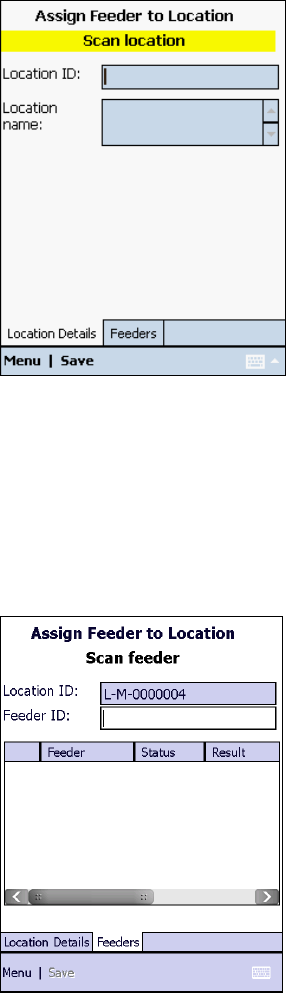
The following screen is displayed for workflow (3), in which the user is prompted to scan a
location barcode.
Figure 14-27: Assign Feeder to Location
Location Details tab
Scan the location barcode of the feeder.
The following screen is displayed, in which the user is prompted to scan a feeder barcode.
The feeders already assigned to the location are listed.
Figure 14-28: Assign Feeder to Location – Scan Feeder
Feeders tab
Scan the feeder barcode of the feeder that shall be assigned to the location.
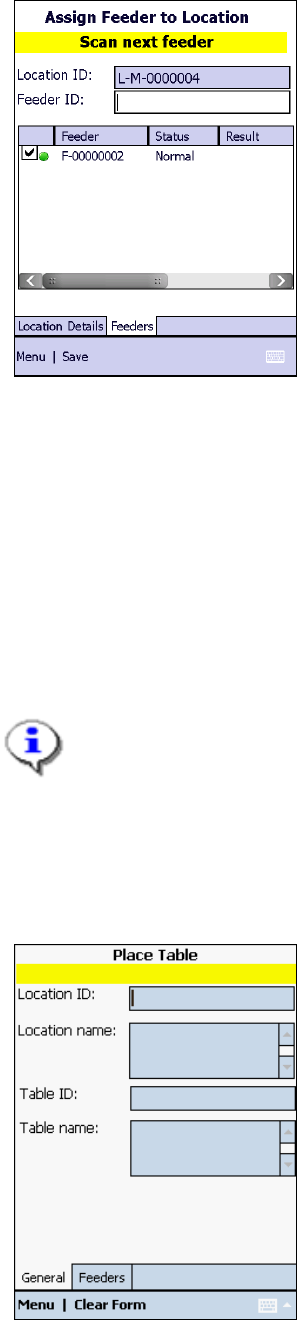
The following screen is displayed, in which the scanned feeder barcode is entered.
SIPLACE Feeder Manager 3.3 (R18-1) / Getting Started 08/2018 Edition
140
Figure 14-29: Assign Feeder to Location – Feeder ID
Tap on Save to save the entries.
Tap on Menu – Close to exit the screen.
or
Tap on Menu – Clear Form to perform the function for another feeder.
14.3.6 Place Table
With this function the user can place a changeover table into a station location.
Note:
Feeder Manager does not support changeover table (COT) placement in a docking
station.
Select Place Table in the Main menu.
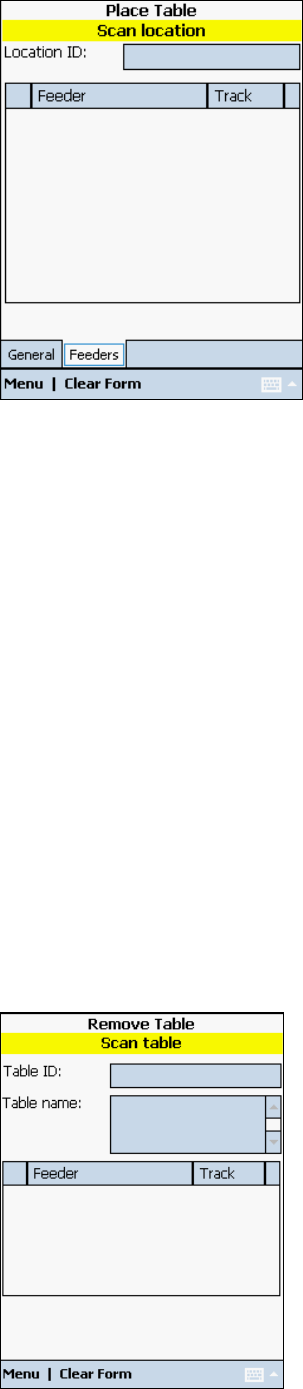
The following screen is displayed, in which the user is prompted to scan a table barcode.
Figure 14-30: Place Table – General
General tab
Scan the table barcode of the table that shall be placed.
SIPLACE Feeder Manager 3.3 (R18-1) / Getting Started 08/2018 Edition
141
The following screen is displayed, in which the user is prompted to scan a location barcode.
Figure 14-31: Place Table - Feeders
Feeders tab
Scan the station location barcode for the table that shall be placed.
Tap on Menu – Close to exit the screen.
or
Tap on Clear Form to perform the function for another location.
All feeders that previously were assigned on the table will have their location ID pointed to the
station location. The table parent location ID will be assigned to the station location ID that
was scanned previously. The feeder status will be changed from Available to In Use.
14.3.7 Remove Table
With this function the user can remove a changeover table from a station location. The table
must have been assigned to a station location previously to be able to be removed.
Select Remove Table in the Main menu.
The following screen is displayed, in which the user is prompted to scan a table barcode.