00198178-04_GS_FeederManager_3.3_R18-1_EN.pdf - 第116页
SIPLACE Feeder Ma nager 3.3 (R18 -1) / Getting S tarted 08/2018 Edition 116 Figure 13 -1 Offline Lo c ation Settin g Context Menu The Set Offline Location wind ow will be open, with a list of valid Of fline Locations f o…

SIPLACE Feeder Manager 3.3 (R18-1) / Getting Started 08/2018 Edition
115
For X-feeders, the docking station ID will be treated as a location in Feeder Manager and can
be associated to a static parent location. The following table displays the feeder location
tracking for X-feeders:
Feeder location hierarchy after action
Action
Offline
Online
Place Table/Add Feeder
Offline Area Docking Station
Production Area Line Station
Station Location
Remove Table/Feeder
Offline Area
Production Area Line
Table 13-1: Feeder location hierarchy for X-feeders
For Non-X-feeders, the table will be tracked and created as a location object in Feeder
Manager. The following table displays the feeder location tracking for Non-X-feeders:
Feeder location hierarchy after action
Action
Offline
Online
Add Feeder
Offline Area Table
Production Area Line Station
Station Location
Replace Feeder
Offline Area
Production Area Line
Place Table
-
Production Area Line Station
Station Location (Table will be associated
to Station Location!)
Remove Table
Production Area Line Table
Table 13-2: Feeder location hierarchy for Non-X-feeders
13.1 Feeder location tracking in the Offline Area (X-feeders)
For the feeder location tracking in Offline Area, the user needs to specify an Offline Area
location first, followed by adding docking station definitions to it.
13.1.1 Adding Offline Location
Before adding docking stations for the first time, the user needs to specify an Offline Area
location that will be used as parent location for the configured docking stations.
Note:
This location shall be added using the Add New Location workflow of Feeder Manager
Client, in which the user selects the Offline Area as the Location Area and General
Location as the Location Type.
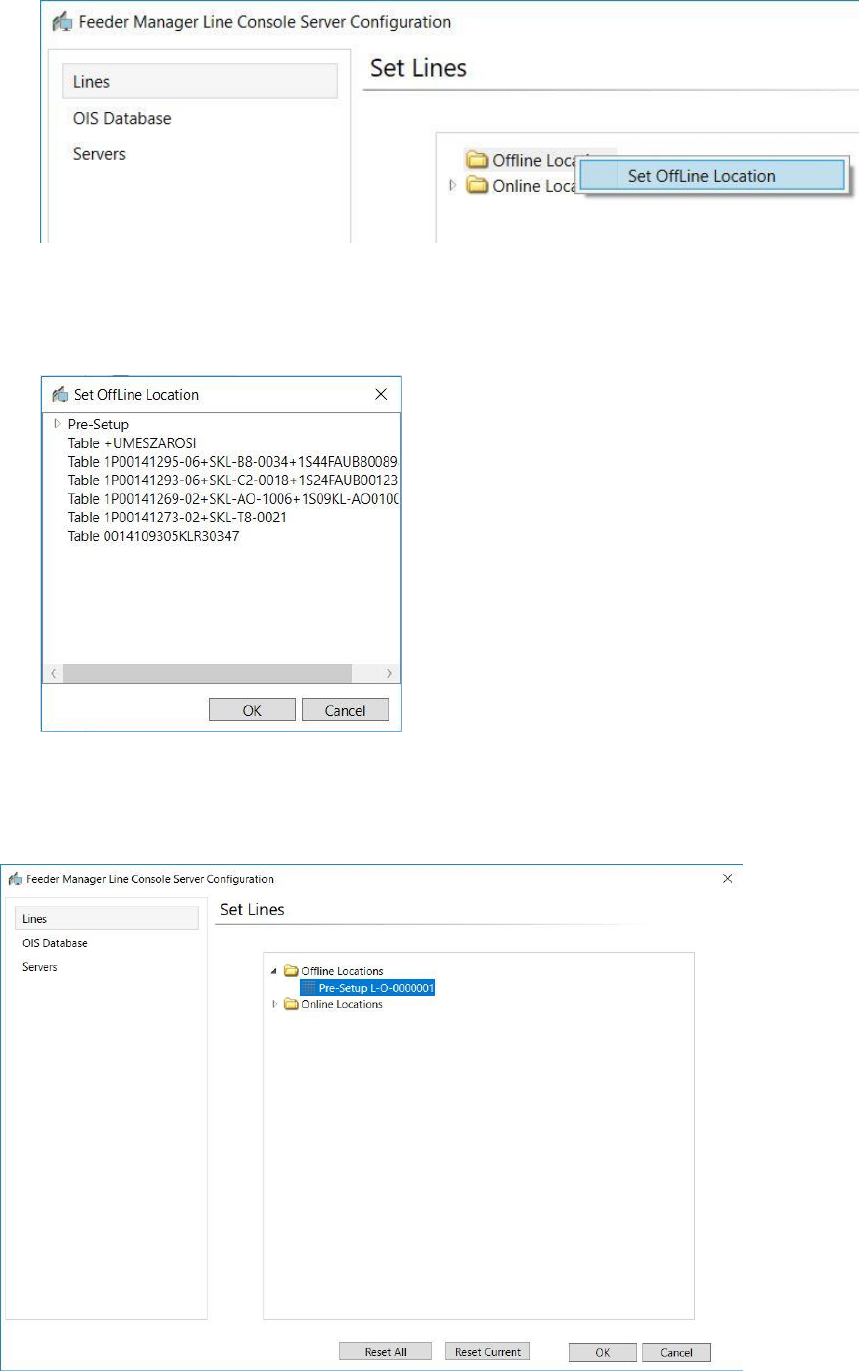
Right click on the Off Line folder and click Set Offline Location.
SIPLACE Feeder Manager 3.3 (R18-1) / Getting Started 08/2018 Edition
116
Figure 13-1 Offline Location Setting Context Menu
The Set Offline Location window will be open, with a list of valid Offline Locations for user to
choose.
Figure 13-2 Set Offline Location window
Select the desired location and click OK.
The Offline Location is now configured.
Figure 13-3 Offline Location Selected
SIPLACE Feeder Manager 3.3 (R18-1) / Getting Started 08/2018 Edition
117
Note:
At any time, the user can right click on the Off Line folder or the selected Offline Location
again to select a new location for the Offline Location settings.
13.1.2 Adding Docking Stations
In this step, the user should add the docking stations according to the actual Offline situation.
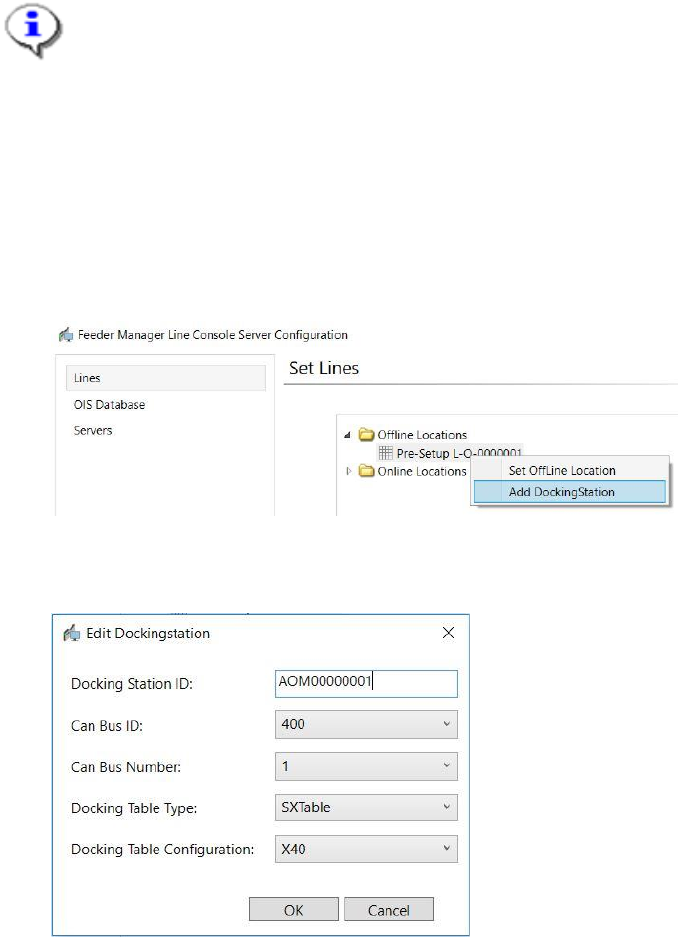
Right click on the Offline location configured earlier and click on Add Docking Station to
start.
Figure 13-4 Add Docking Station Context menu
Following dialog will be shown for Docking Station configuration
Figure 13-5 Docking Station Configuration window
Enter the details for the new docking station and click on OK.
Below are the description of the fields
Docking Station ID
Allows the user to enter (or scan) the barcode ID of the docking station.
CAN Bus ID
Allows the user to enter the CAN Bus ID, which is labeled at the rear of the docking station.
CAN Bus Number
Allows the user to enter the CAN Bus port number, e.g. "1" or "2".