00198178-04_GS_FeederManager_3.3_R18-1_EN.pdf - 第134页
SIPLACE Feeder Ma nager 3.3 (R18 -1) / Getting S tarted 08/2018 Edition 134 Figure 14 - 18 : Save conf irmation af ter track ID scan Tap Yes to save t he association resu lt immediately. Or No to go to the summ ary pag…
SIPLACE Feeder Manager 3.3 (R18-1) / Getting Started 08/2018 Edition
133
Scan the vendor label (item number and serial number) from the feeder.
The following screen is displayed, in which the feeder ID has been derived from the item
number and serial number.
Figure 14-16: X Feeder ID Association with Feeder ID
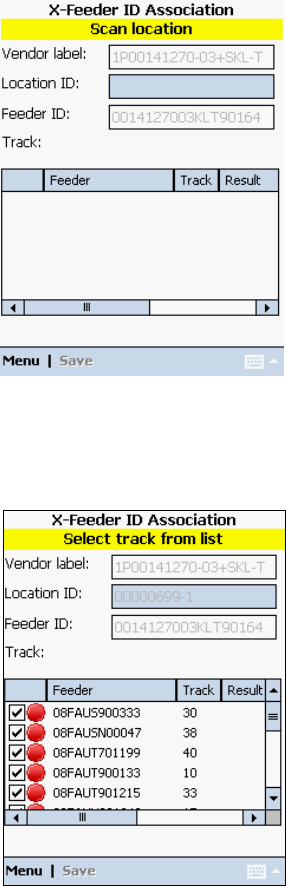
Scan the location barcode where this feeder is located.
The following screen is displayed, in which all feeders on the scanned location are displayed.
Figure 14-17: X Feeder ID Association with Location ID
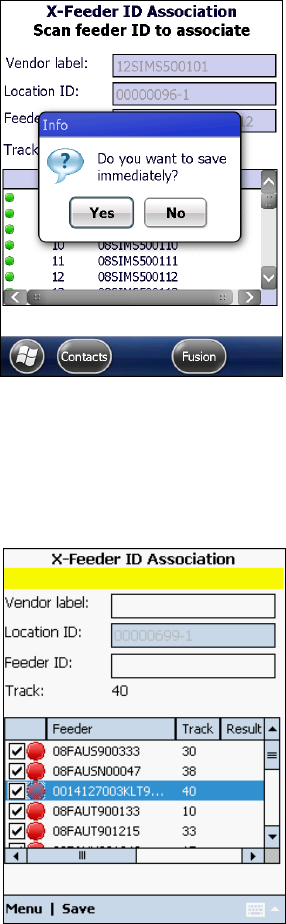
Scan track ID barcode
The user will be prompted with following message.
SIPLACE Feeder Manager 3.3 (R18-1) / Getting Started 08/2018 Edition
134
Figure 14-18: Save confirmation after track ID scan
Tap Yes to save the association result immediately.
Or No to go to the summary page. The following screen is displayed, in which the track just
scanned is indicated.
Figure 14-19: X Feeder ID Association with Track
Tap on Save to save the entries.
Or tap Menu Close to cancel the association.
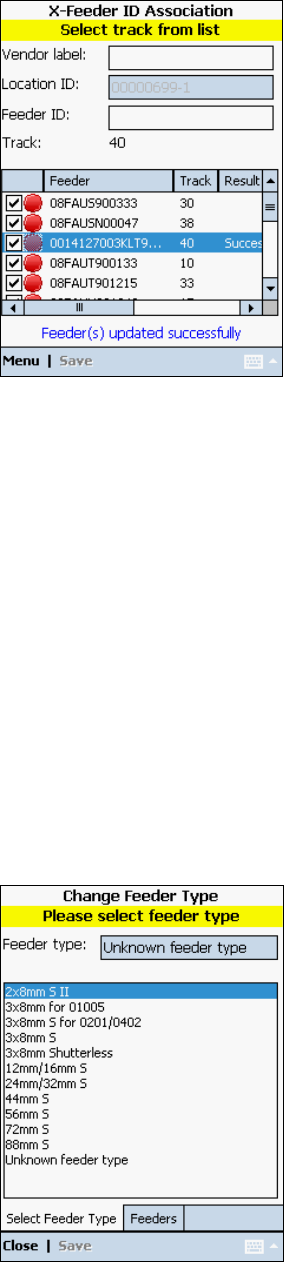
If Save is selected, the following screen is displayed indicating the association is successful.
SIPLACE Feeder Manager 3.3 (R18-1) / Getting Started 08/2018 Edition
135
Figure 14-20: X Feeder ID Association – Feeder(s) updated
Tap on Menu Close to exit the screen.
Or Menu Clear Form to perform the function for another feeder.
14.3.3 Change Feeder Type
With this function the user can define a feeder type for an unknown feeder type.
When the system detects a new feeder ID for customer specific feeder IDs and the ID
matches the defined customer specific format, the system will automatically register the
feeder ID by setting the feeder type to Unknown. The user can then change the feeder type by
selecting an existing feeder type from the drop-down list.
Select Change Feeder Type in the Main menu.
The following screen is displayed.
Figure 14-21: Change Feeder Type – Select Feeder Type
Select Feeder Type tab
Select a feeder type from the list.
The system will prompt the user to scan a feeder.