00198178-04_GS_FeederManager_3.3_R18-1_EN.pdf - 第19页
SIPLACE Feeder Ma nager 3.3 (R18 -1) / Getting S tarted 08/2018 Edition 19 Display Feeder upon Location Selection By default this option is ch eck ed, and the location node will be expanded automaticall y to show all the…
SIPLACE Feeder Manager 3.3 (R18-1) / Getting Started 08/2018 Edition
18
4.3.7 Location Tree
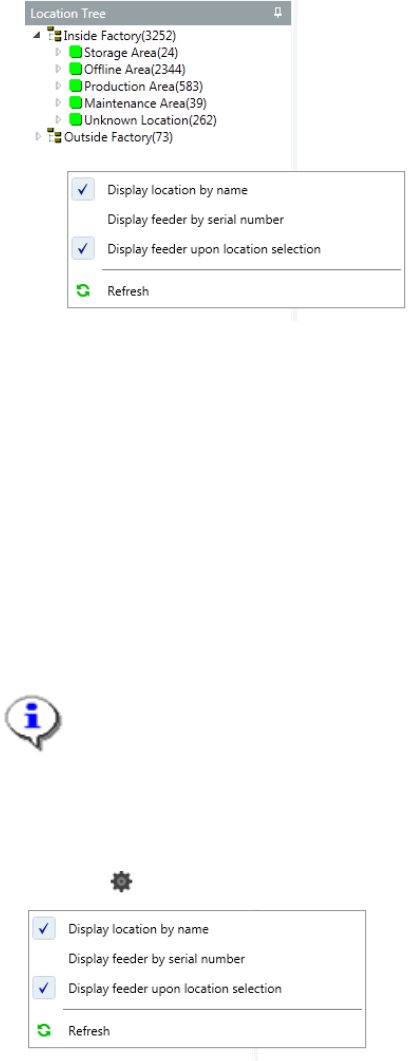
The following location areas are defined for Inside Factory:
– Storage Area
– Offline Area
– Production Area
– Maintenance Area
– Unknown Location
Following location area is defined for Outside Factory:
– Outside Factory
Note:
It is not possible to create any location under the location type Unknown Location.
This is a default location used for new feeders, for which the location has to be
decided.
Once a feeder is assigned to a location, it cannot be assigned back to Unknown
Location.
Click the button inside the location tree will bring up the following context menu.
Display Location By Name
Check this to display the locations by their respective Location Names.
By default this option is checked. If unchecked, the locations are displayed by their Location
IDs.
Display Feeders By Serial Number
Check this to display the feeders by their Serial Numbers.
By default this option is unchecked, and the feeders are displayed by their respective Feeder
IDs.
SIPLACE Feeder Manager 3.3 (R18-1) / Getting Started 08/2018 Edition
19
Display Feeder upon Location Selection
By default this option is checked, and the location node will be expanded automatically to
show all the feeders inside.
Uncheck this to stop the automatic feeder display upon location selection.
Refresh
Click this button to force a refreshing of the Location Tree display.
Normally the Location Tree is refreshed automatically in real-time.
4.3.8 Icons in Feeder Manager Client
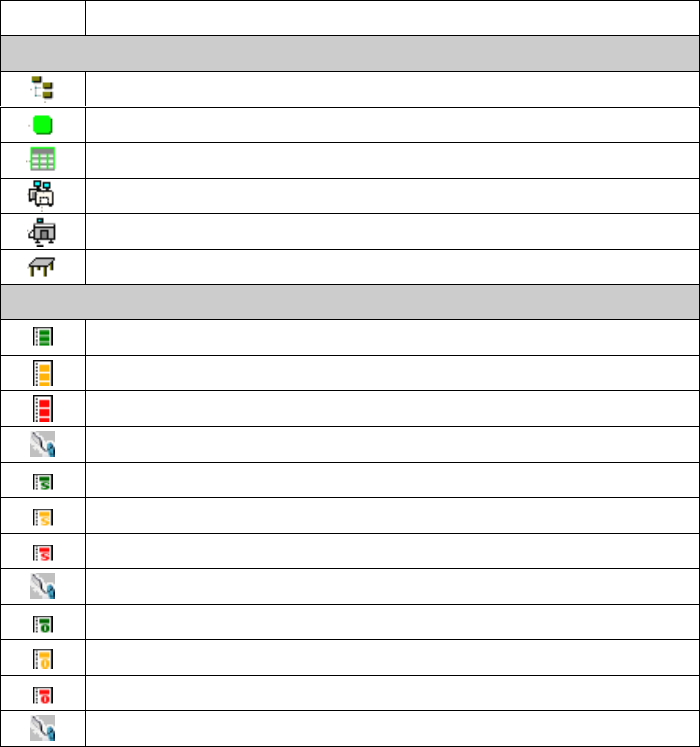
The following icons are used in Feeder Manager Client.
Icon
Description
Location
Location site e.g. Inside factory / Outside factory
Location area e.g. Storage area
General location
Line
Station
Station Location / Changeover Table
Feeder
X-feeder and maintenance status is Normal
X-feeder and maintenance status is Due
X-feeder and maintenance status is Overdue
X-feeder is Scrapped
S-feeder and maintenance status is Normal
S-feeder and maintenance status is Due
S-feeder and maintenance status is Overdue
S-feeder is Scrapped
Other feeder type and maintenance status is Normal
Other feeder type and maintenance status is Due
Other feeder type and maintenance status is Overdue
Other type of feeder is Scrapped
Table 4-1: Icons in Feeder Manager Client

SIPLACE Feeder Manager 3.3 (R18-1) / Getting Started 08/2018 Edition
20
4.3.9 Application-orientated operation by using color marks
On the Feeder Manager Client, the feeders are marked with feeder colors in order to monitor
the status of the feeder (i.e. maintenance status is defective/due/normal/overdue).
In FM Client, FM Line Console and on the PDA device the following color marks are used:
Color
Feeder
Status
Maintenanc
e Status
Meaning
Red
Blocked
Defective
The feeder is defective.
Red
Blocked
Overdue
The feeder is overdue for maintenance or
the cycle count for this feeder is overdue.
Red
Available/
In Use
Overdue
The feeder is overdue for maintenance or
the cycle count for this feeder is overdue.
Orange
Available/
In Use
Due
The feeder is due for maintenance or the
cycle count for this feeder is due.
Green
Available/
In Use
Normal
The feeder is available or in use.
Table 4-2: Feeder Manager coloring scheme