00198178-04_GS_FeederManager_3.3_R18-1_EN.pdf - 第47页
SIPLACE Feeder Ma nager 3.3 (R18 -1) / Getting S tarted 08/2018 Edition 47 5.5.2 Step 2 - Run SFTS or XFTS to check feeder Figure 5- 33 Run SFTS or XFTS to che c k feeder be fore maintain This step provides an option for…
SIPLACE Feeder Manager 3.3 (R18-1) / Getting Started 08/2018 Edition
46
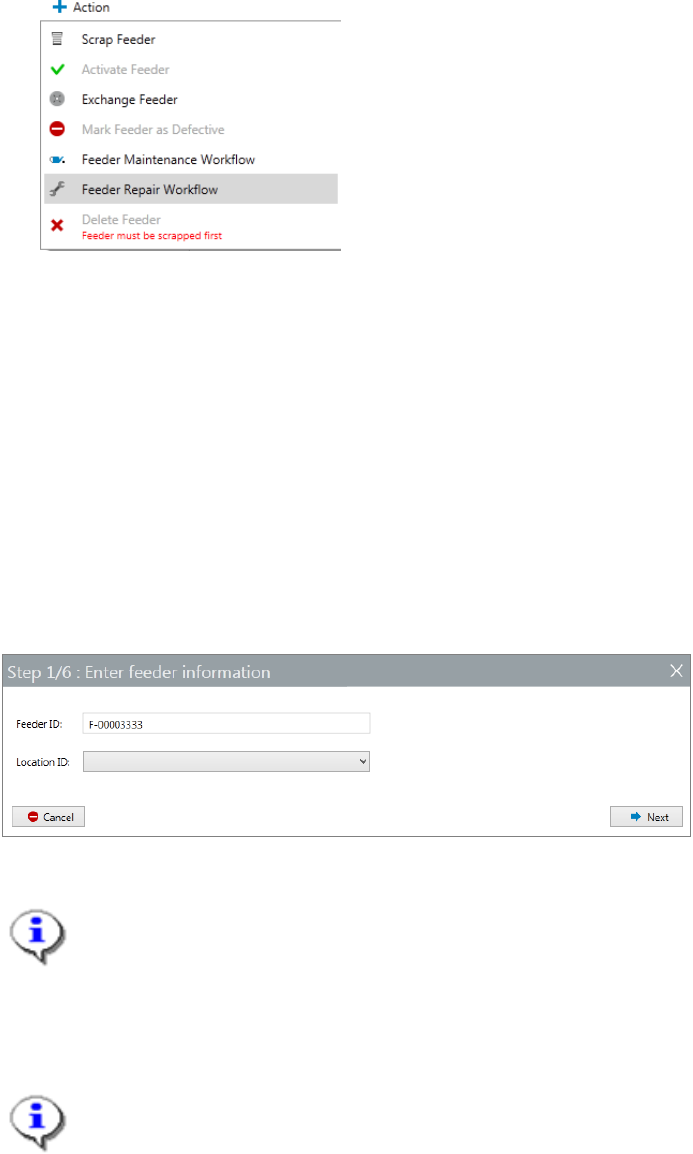
2) Via the Action button of Feeder details.
Open up a certain Feeder’s feeder detail view, and then press the Action button to bring
up the dropdown list of actions. Select Feeder Repair Workflow.
Figure 5-31 Access Feeder Maintenance Workflow from the feeder detail view
Note: in this approach, the Feeder ID of the feeder selected will be pre-entered into the
first page of the Repair Workflow.
The feeder repair workflow will be started and follow the steps below.
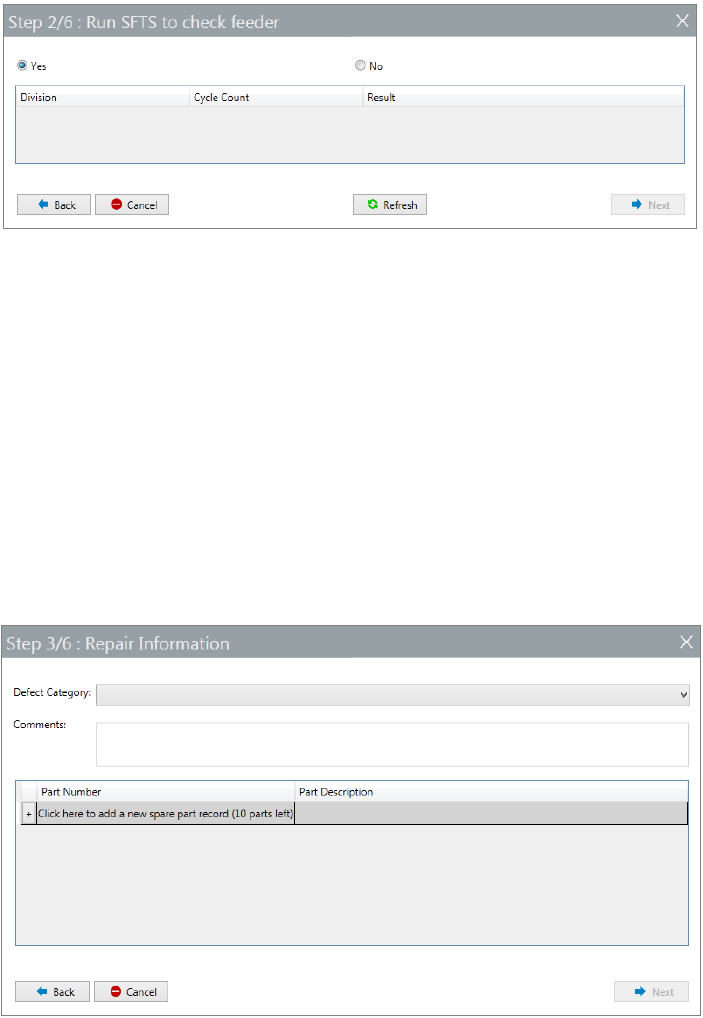
5.5.1 Step 1 - Enter feeder information
The first step of the Feeder Repair flow is to request for Feeder ID and the Location this
feeder is to be assigned to for maintaining.
Figure 5-32 Feeder Maintenance Workflow Step 1
Note:
Feeder IDs can also be scanned by using a wired scanner connected to the PC,
see 5.1.1 Add New Feeder view and Feeder Console tab for details.
Feeder ID field will be pre-entered if this workflow is triggered from the Action
dropdown of a selected feeder.
Note:
For the first time this function is used, the Location ID field will be empty. Once a
maintenance location is selected, it will be used as the default maintenance location
for consequent maintenance and repair workflows, until it is changed
Press Next to continue.
SIPLACE Feeder Manager 3.3 (R18-1) / Getting Started 08/2018 Edition
47
5.5.2 Step 2 - Run SFTS or XFTS to check feeder
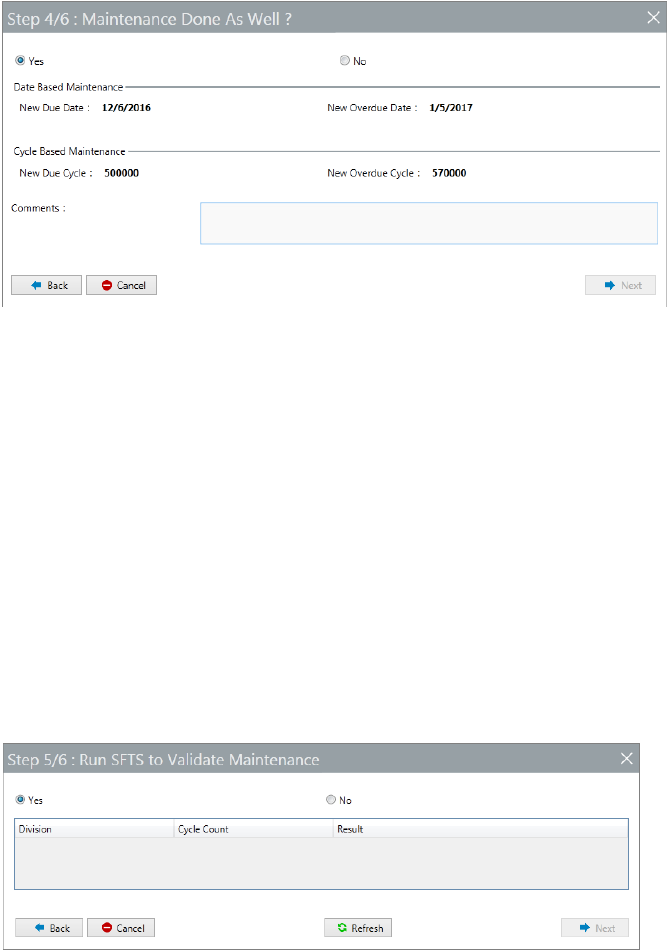
Figure 5-33 Run SFTS or XFTS to check feeder before maintain
This step provides an option for you to do feeder checking using either SFTS or XFTS
(depending on the feeder type) before proceeding to the repair procedure.
If you choose Yes, an SFTS verification should be done now. Feeder Manager will
automatically collect the feeder test result.
Once done, press Refresh button to have the test result displayed. Check the data and press
Next to proceed.
Or select No at the top of the form to continue without a feeder checking.
5.5.3 Step 3 – Repair Information
Figure 5-34 Repair information
This step allows you to enter the repair information. Refer to section 5.4.5 to details.
SIPLACE Feeder Manager 3.3 (R18-1) / Getting Started 08/2018 Edition
48
5.5.4 Step 4 – Feeder Maintenance Option
Figure 5-35 Feeder Repair Option
This step provides an option for you to do the feeder maintenance along the workflow as well.
By default, Yes is selected, and you will be able to see the defined maintenance plan for the
feeder type this feeder belongs to.
See section 5.4.3 for details.
If you keep the Yes as selected, you are required to enter maintenance comment before
proceeding to the next step.
Or you can select No to continue without doing a maintenance plan update.
5.5.5 Step 5 – Option to check feeder with SFTS or XFTS again
Figure 5-36 Option to check feeder with SFTS or XFTS again
This step allows you to choose whether to conduct another round of SFTS or XFTS test to
verify the maintenance / repair result.
Execute the test if necessary in the same way as described in Step 2, or select No to proceed