00198178-04_GS_FeederManager_3.3_R18-1_EN.pdf - 第102页
SIPLACE Feeder Ma nager 3.3 (R18 -1) / Getting S tarted 08/2018 Edition 102 Figure 10 -2 ASM S tudio Online H elp window To start, press F1 or go to the A SM Studio m ain menu and select Show Help. 10.3 A b out The About…
SIPLACE Feeder Manager 3.3 (R18-1) / Getting Started 08/2018 Edition
101
10 Help
The Help menu group seen from previous versions of Feeder Manager has been removed
because Feeder Manager is now a module inside ASM Studio, and all the corresponding
functions shall be accessed from the ASM Studio main menu.
10.1 Error reporting
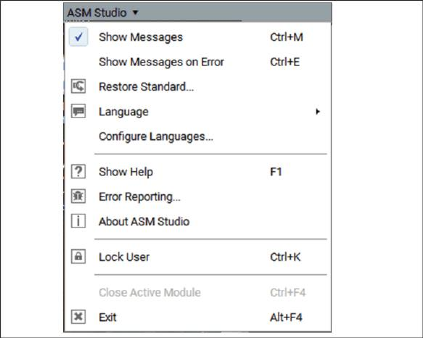
Error reporting allows the user to start the ASM Net Error Reporter Services. With this
program the product installation can be selected for which an error report shall be generated.
To start, go to the ASM Studio main menu and select Error Reporting…
Figure 10-1 ASM Studio Error Reporting
Note: With the current version of ASM Studio, auto navigation to the error report profile for the
active module is not enabled. Therefore you need to manually locate the correct profile and
select it.
10.2 Online Help
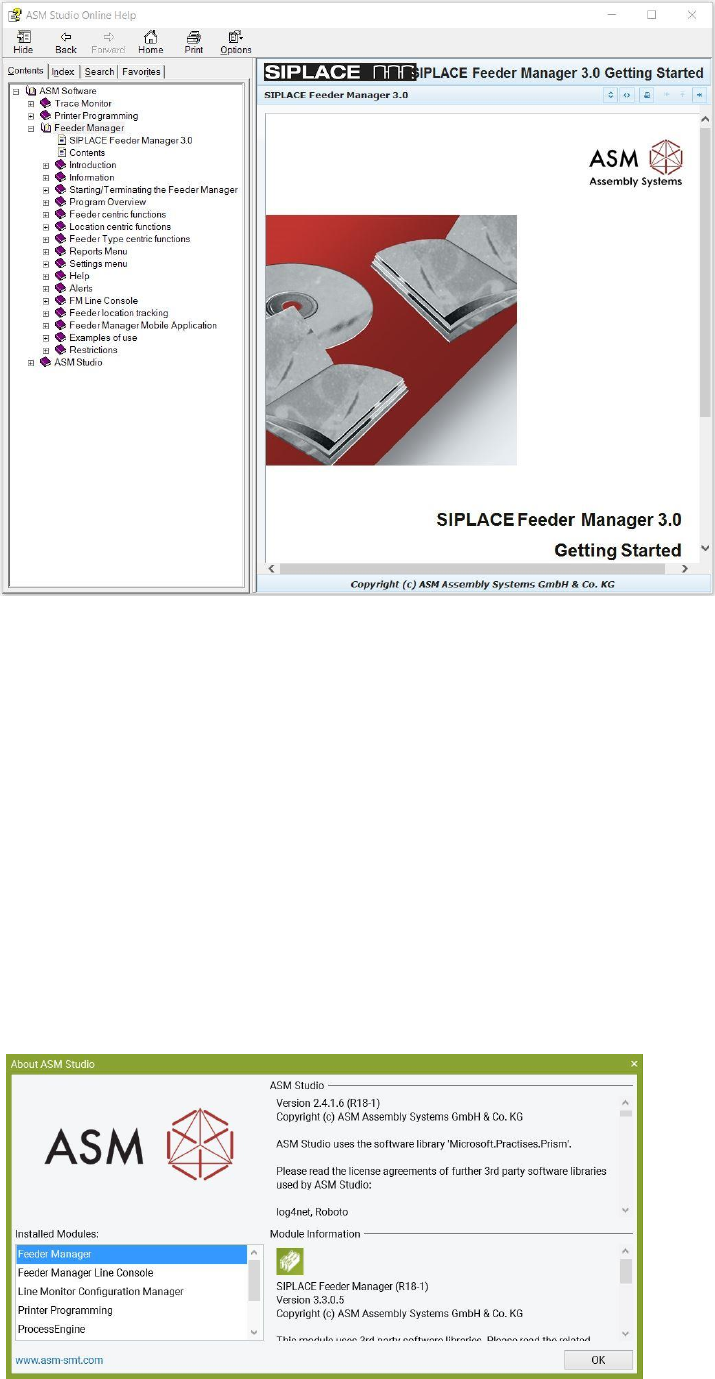
Allows the user to open the Online Help file for the Feeder Manager.
Starting from Feeder Manager 3.0, the Online Help is incorporated into the main ASM Studio
Online Help. See below.
SIPLACE Feeder Manager 3.3 (R18-1) / Getting Started 08/2018 Edition
102
Figure 10-2 ASM Studio Online Help window
To start, press F1 or go to the ASM Studio main menu and select Show Help.
10.3 About
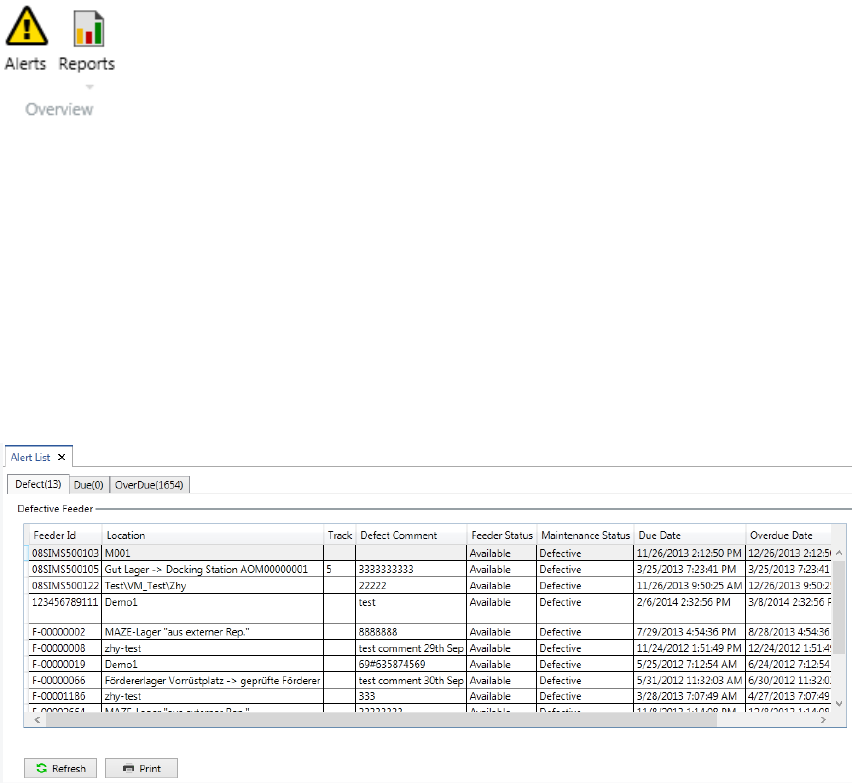
The About window displays the version number and copyright information of ASM Feeder
Manager.
Starting from Feeder Manager 3.0, the About information is accessed from the main ASM
Studio About dialog.
To view, go to the ASM Studio main menu and select About ASM Studio. When opened,
select Feeder Manager to view the details.
Figure 10-3 ASM Studio About box
SIPLACE Feeder Manager 3.3 (R18-1) / Getting Started 08/2018 Edition
103
11 Alerts
Alert messages for feeders that need attention are displayed in the Feeder Manager Alert List,
on the station computer and on the FM Line Console.
11.1 Alert List
Alert list is accessed from Alert:
Figure 11-1 Alert menu button
Click on Alert button in the menu bar to open the list.
Alert list displays feeders that are either due or overdue to maintenance, or defective or have
a feeder type mismatch. The Alert list is organized in three categories: Defective (k), Due
(m), and Overdue (n), where k, m and n are the numbers of feeders which are defect, due
and overdue respectively.
Example: Displayed information in the Defective tab
Figure 11-2: Alert List, Defective tab