00198178-04_GS_FeederManager_3.3_R18-1_EN.pdf - 第16页
SIPLACE Feeder Ma nager 3.3 (R18 -1) / Getting S tarted 08/2018 Edition 16 4.3.1 Feeder menu group Following functions can be accessed f rom this menu gr oup 1) Add New Feeder 2) Add New Feeder b y Batch (onl y applicabl…
SIPLACE Feeder Manager 3.3 (R18-1) / Getting Started 08/2018 Edition
15
4.3 Graphical User Interface – Main menu
This section introduces the user interface of Feeder Manager. The user interface is divided
into the following areas:
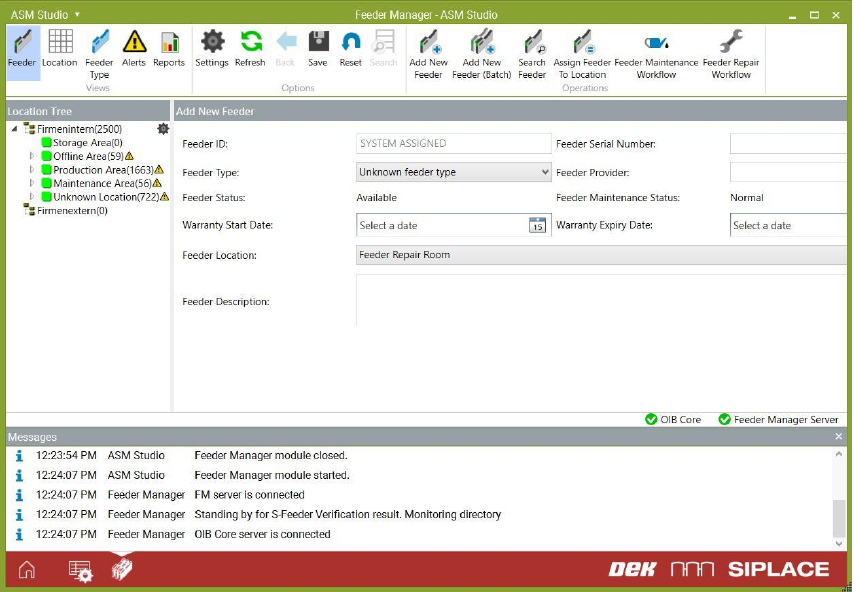
Figure 4-1: Feeder Manager UI elements
The screenshot above shows the main UI of Feeder Manager module when started from
inside ASM Studio. It consists of
Menu bar: this is the menu area where all the Feeder Manager functions can be
accessed.
Location Tree: this is an organization tree for the factory locations. The assigned
feeders are displayed in here also.
View area: this is the area where the views for various Feeder Manager Client
functions will be shown in tab forms.
Messages: the information, warning and error messages are displayed in here
Status bar: the FM Server identity and both the connection status to FM Server and
OIB core is displayed here.
(1)
(1)
SIPLACE Feeder Manager 3.3 (R18-1) / Getting Started 08/2018 Edition
16
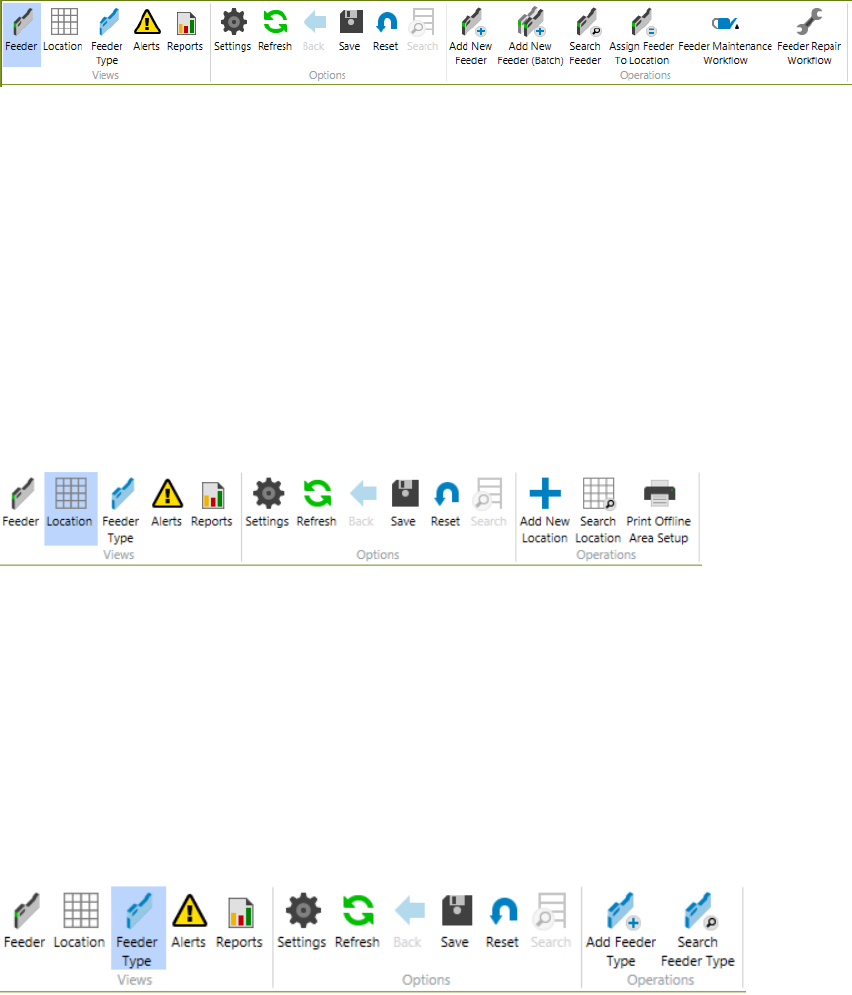
4.3.1 Feeder menu group
Following functions can be accessed from this menu group
1) Add New Feeder
2) Add New Feeder by Batch (only applicable to S Feeders)
3) Search Feeder
4) Assign Feeder to Location
5) Feeder Maintenance Workflow
6) Feeder Repair Workflow
See chapter 5 Feeder centric functions for more details.
4.3.2 Location menu group
Following functions can be accessed from this menu group
1) Add New Location
2) Search Location
3) Print Offline Area Setup
See chapter 6 Location centric functions for more details.
4.3.3 Feeder Type menu group
Following functions can be accessed from this menu group
1) Add new feeder types and define a maintenance plan
2) Search Feeder Types
See chapter 7 Feeder Type centric functions for more details.
SIPLACE Feeder Manager 3.3 (R18-1) / Getting Started 08/2018 Edition
17
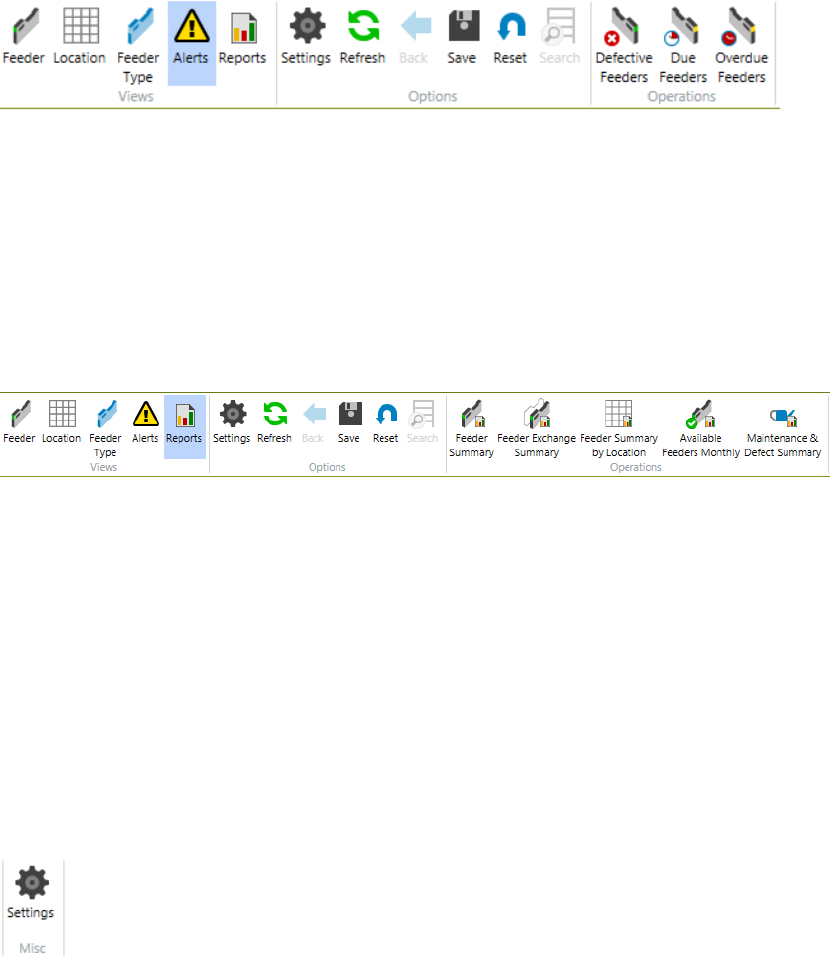
4.3.4 Alert menu group
Alerts are displayed for feeders that are
1) Defective or have a feeder type mismatch.
Due or overdue to maintenance, It is also possible to view and modify feeder details for single
feeders and print the Alert list.
See chapter 11 Alerts for more details.
4.3.5 Reports menu group
User can make queries or generate following reports from this menu group
1) Feeder Summary,
2) Feeder Exchange Summary,
3) Feeder Summary by Location,
4) Available Feeders over time monthly
5) Feeder Maintenance & Defect Summary.
It is also possible to print, save and export the queries and reports.
See chapter 8 Report centric functions for more details.
4.3.6 Settings menu
By starting the Settings function, the user can
1) Define a common configuration,
2) Make global settings,
3) Define feeder and location ID format,
4) Define barcode label printing format for feeders and locations,
5) Change user passwords
See chapter 9 Settings menu for more details.