00198178-04_GS_FeederManager_3.3_R18-1_EN.pdf - 第83页
SIPLACE Feeder Ma nager 3.3 (R18 -1) / Getting S tarted 08/2018 Edition 83 Figure 9- 13 Windo ws Device Manager - Scan for hardware cha nges If the XFT S and the cable are in norm al state, you will see the XFT S detecte…
SIPLACE Feeder Manager 3.3 (R18-1) / Getting Started 08/2018 Edition
82
9.1.3.2 Troubleshooting
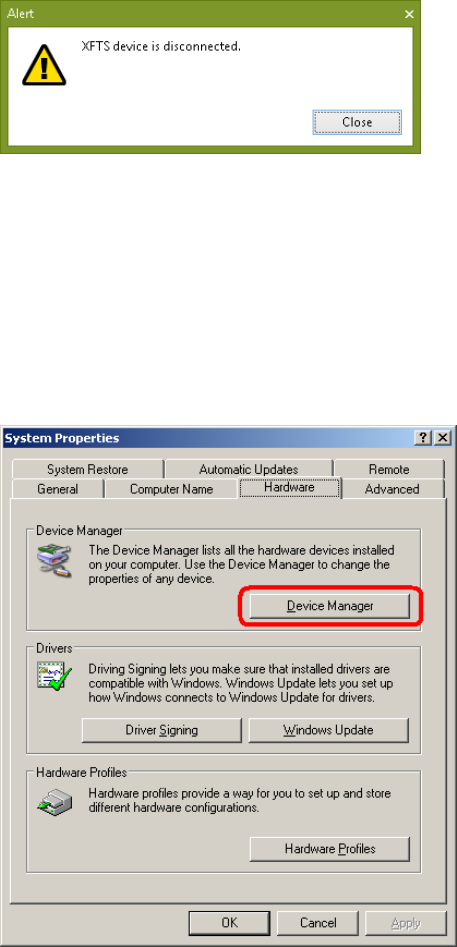
If test connection to XFTS fails, this dialog will be shown.
Figure 9-11 XFTS connection test failed
Follow these steps to troubleshoot.
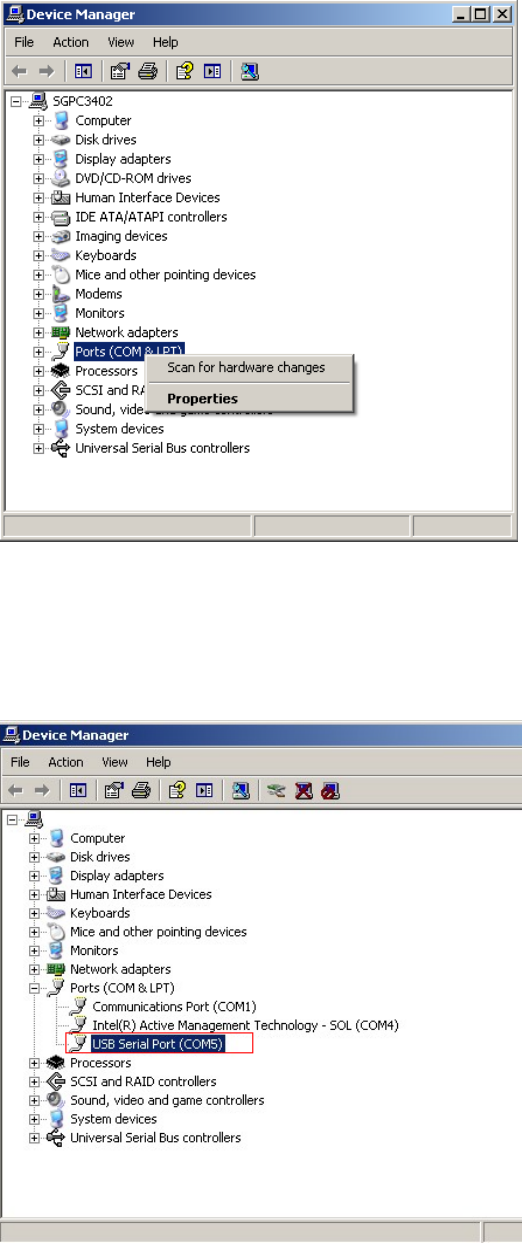
Open Device Manager
From Windows Start menu, click Start Settings Control Panel, then double click
System to open the System Properties window. In Hardware tab, click Device Manager
button.
Figure 9-12 How to start Windows Device Manager
Once Device Manager is opened, right click on Ports (COM & LPT) and select Scan for
hardware changes.
SIPLACE Feeder Manager 3.3 (R18-1) / Getting Started 08/2018 Edition
83
Figure 9-13 Windows Device Manager - Scan for hardware changes
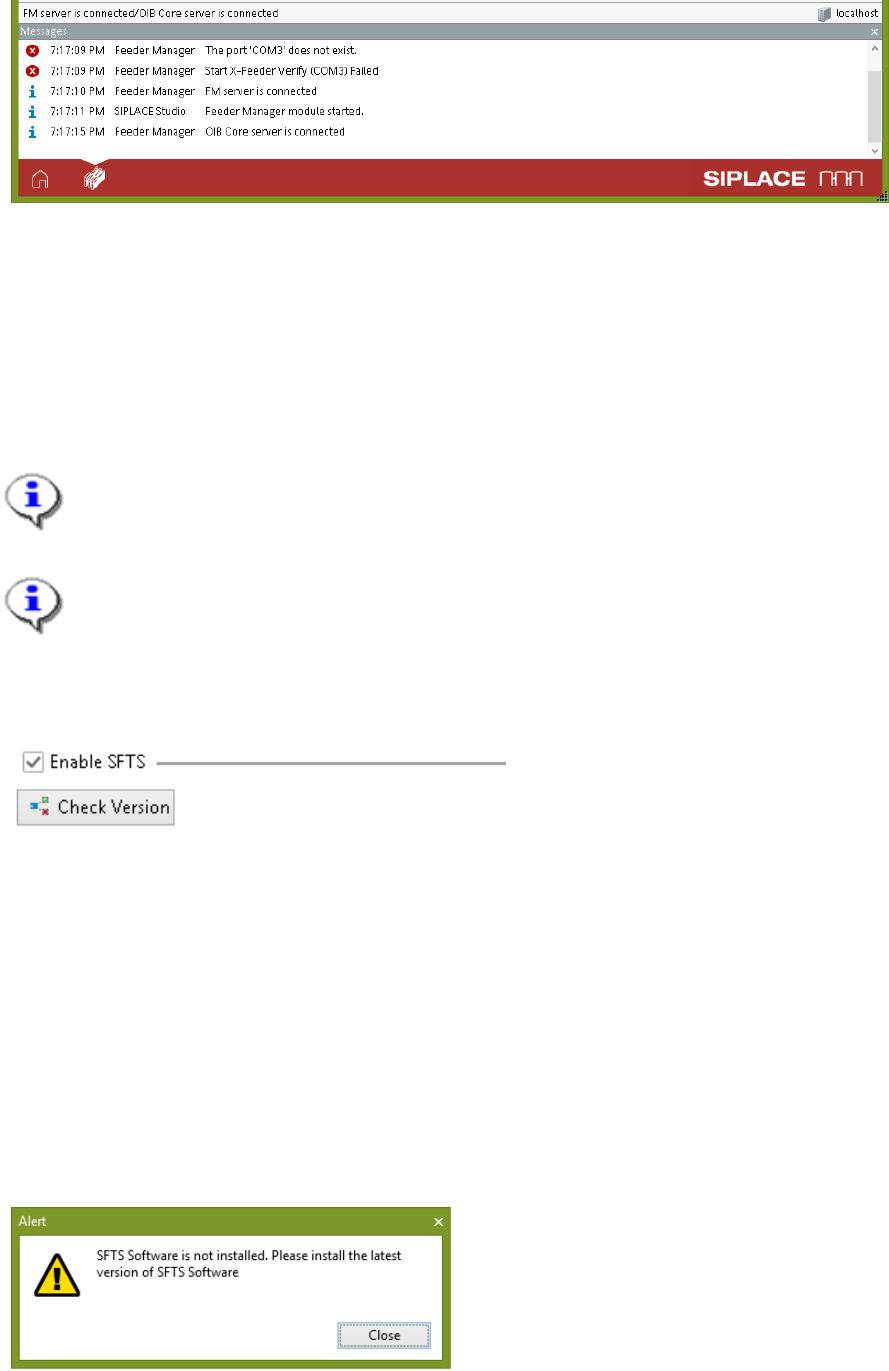
If the XFTS and the cable are in normal state, you will see the XFTS detected as a USB Serial
Port device with the port number indicated as shown below. This means the XFTS is
successfully detected.
Figure 9-14 Device Manager - XFTS is detected
In case if previously XFTS function was enabled, but disconnected or powered off, you will
see the following error message (using COM3 as example) when Feeder Manager Client is
started inside ASM Studio.
SIPLACE Feeder Manager 3.3 (R18-1) / Getting Started 08/2018 Edition
84
Figure 9-15 FM Client failed to connect to XFTS at start
In this case, please check and make sure the USB cable for XFTS is properly plugged and the
XFTS is powered on, then try to the Test Connection button again.
9.1.4 SFTS connection
This option allows the user to choose whether the SFTS connection function is enabled.
Note:
Before configuration, please refer to the "User Manual SIPLACE S-Feeder Test Station"
to connect the SFTS to FM Client computer.
Note:
The Check Version button is disabled before the Enable SFTS is checked.
To start, check the Enable SFTS.
Figure 9-16 SFTS function is enabled
Check Version button is enabled. This button is used to check whether the version of the
SFeederTest software installed is compatible with this version of Feeder Manager.
Click on the Check Version button.
A pop up message will indicate the check result.
If the SFTS software is missing, or if its version is not compatible with Feeder Manager, you
will see the corresponding error messages.
For example, in case the SFeeder Test is not installed, following message will be shown.
Figure 9-17 SFeeder Test software is not installed