00198178-04_GS_FeederManager_3.3_R18-1_EN.pdf - 第122页
SIPLACE Feeder Ma nager 3.3 (R18 -1) / Getting S tarted 08/2018 Edition 122 Figure 13 - 11 Line Selec tion A list of lines retrie ved from SIPLACE Pro will be displa yed. Select the line(s) to be monitored and cl ick o…
SIPLACE Feeder Manager 3.3 (R18-1) / Getting Started 08/2018 Edition
121
13.2 Feeder location tracking in the Production Area (X-feeders)
With this function the user can monitor and keep track of feeder status and feeder location on
the station.
Requirements:
FM Line Console is running
Station is running with a setup downloaded
Feeder(s) are placed on the station
13.2.1 Setting up lines and stations
When using FM Line Console for the first time, it will retrieve all the lines from SIPLACE Pro.
The user can select one or multiple lines for monitoring. Once the lines are connected, FM
Line Console will maintain up-to-date station and line relationship.
FM Line Console will create station location(s) and line if not already present in the system.
FM Line Console will save the last download setup information in the selected line(s) into the
database for recovery and setup verification purpose.
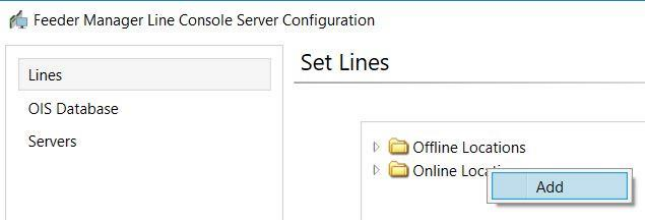
Right click on the Online folder and click Add to start
Figure 13-10 FM Line Console Online Area Line Configuration Context Menu
SIPLACE Feeder Manager 3.3 (R18-1) / Getting Started 08/2018 Edition
122
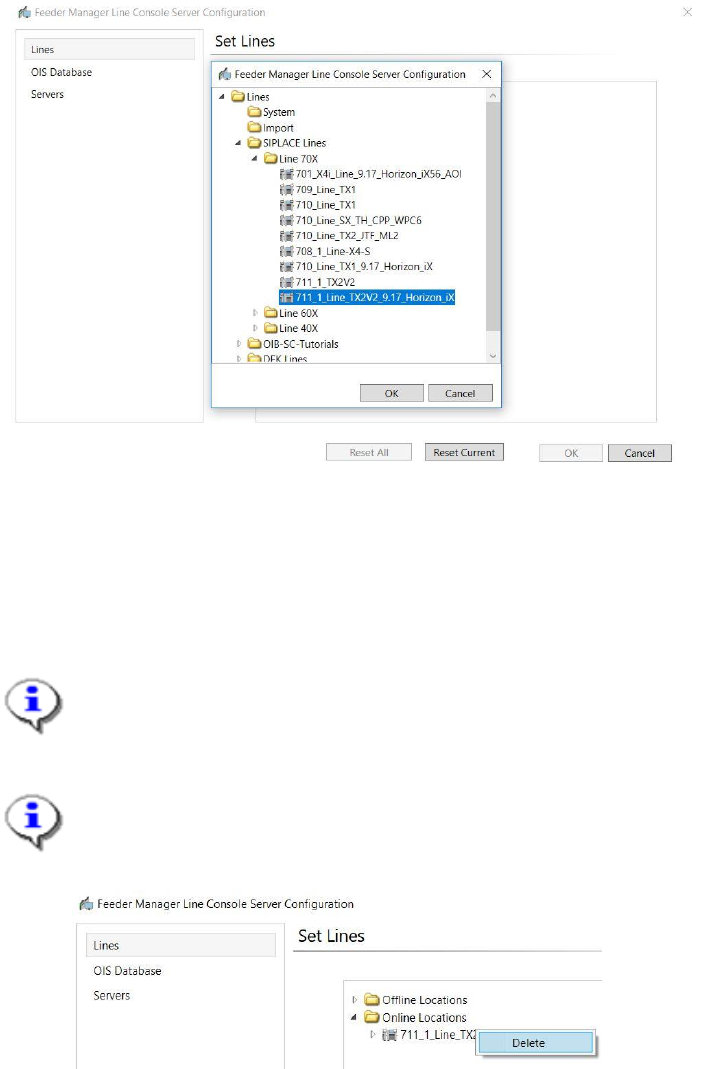
Figure 13-11 Line Selection
A list of lines retrieved from SIPLACE Pro will be displayed.
Select the line(s) to be monitored and click on the OK button.
The selected line will be added and connected.
Note:
Unlike previous version, the added line will be connected automatically.
Note:
At any time, the user can right click on the line or any station under it and click Delete to
delete the line from the monitoring list.
Figure 13-12 Delete Line
13.2.2 Placed and removed feeders
FM Line Console will monitor feeders that are placed and removed on the connected line(s).
When a feeder is placed, the feeder will be updated to FM Line Console and the feeder
location will be associated to the station location.
The feeder information will be displayed by the station. The user can select a station location
to view all the feeders on that location.
SIPLACE Feeder Manager 3.3 (R18-1) / Getting Started 08/2018 Edition
123
When a blocked feeder is exchanged with an available feeder, FM Line Console reflects the
changes and updates the location for both feeders.
When a feeder is removed, the feeder location will be associated to the line location and the
feeder status will be changed from In Use to Available.
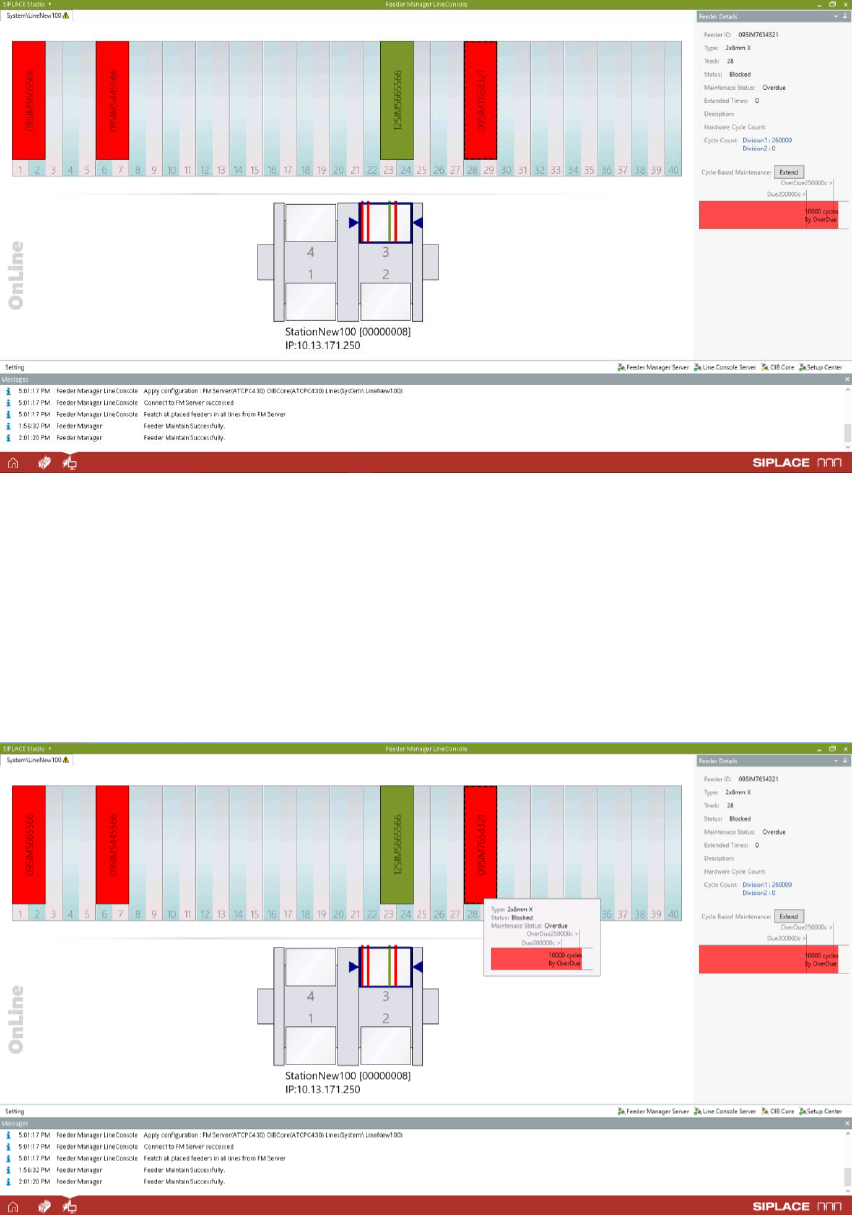
Example of the information displayed on FM Line Console for the station:
Figure 13-13: Station and status
Once the line is successfully added, the stations under this line will be visible from inside the
Line Console UI. The user can then select the station location and feeders consecutively.
The selected station location will be highlighted by dark blue frame and triangles as seen
above. The Feeder Details of the selected feeder will be shown on the right hand side panel.
When mouse-over on the feeder graphics, a tooltip will be shown to indicate the feeder details
also.
Figure 13-14 Feeder Graphics Tooltip