00198178-04_GS_FeederManager_3.3_R18-1_EN.pdf - 第138页
SIPLACE Feeder Ma nager 3.3 (R18 -1) / Getting S tarted 08/2018 Edition 138 Fig ure 14 - 26 : Mark Feeder as Defective – Resul t Tap on Close to exit the scr een. 14.3.5 A ssign Feeder to Location W ith this function t…
SIPLACE Feeder Manager 3.3 (R18-1) / Getting Started 08/2018 Edition
137
The following screen is displayed for the feeder.
Figure 14-24: Mark Feeder as Defective - Status
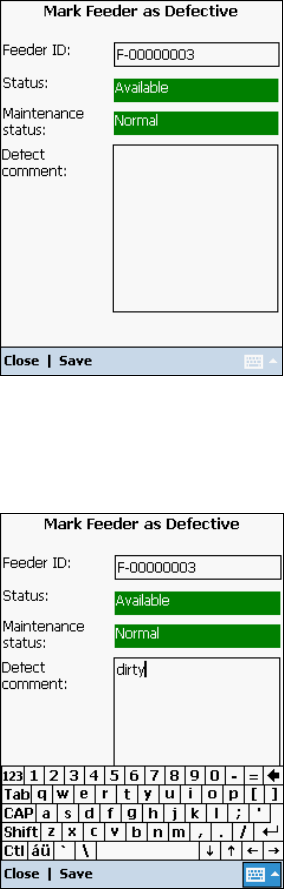
In the following screen the user can enter a defect comment for the feeder. Use the integrated
keyboard function for this.
Figure 14-25: Mark Feeder as Defective – Enter defect comment
Tap on the Defect comment field and then on the keyboard symbol in the menu bar.
The keyboard function opens.
Use the keyboard to enter the defect comment text.
Tap on Save to save the entries.
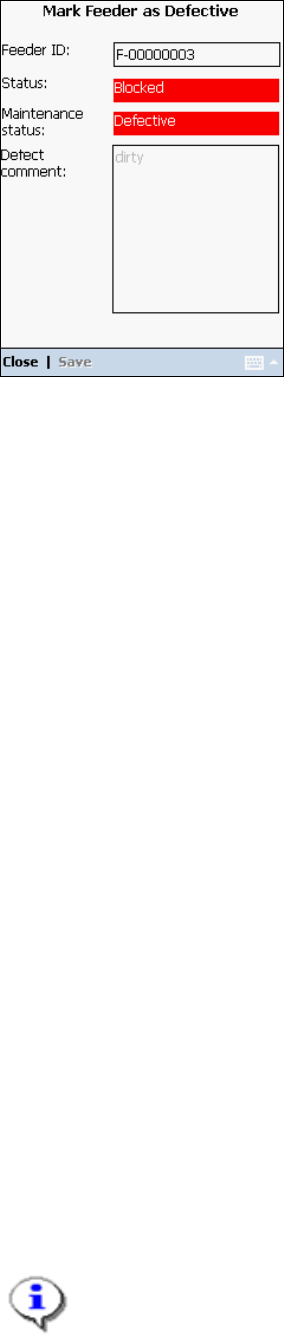
The following screen is displayed for the feeder. The feeder status and maintenance status
have changed to Blocked and Defective respectively and the status is indicated in red.
SIPLACE Feeder Manager 3.3 (R18-1) / Getting Started 08/2018 Edition
138
Figure 14-26: Mark Feeder as Defective – Result
Tap on Close to exit the screen.
14.3.5 Assign Feeder to Location
With this function the user can assign a feeder to a location. There are 3 possible workflows:
(1) Assign to Production Line Station Location
Scan station location barcode
Scan track
Scan feeder barcode
Repeatable for next track and feeder
(2) Assign to Changeover Table in the Offline Area
Scan COT table barcode
Scan offline area (only if the table is not in offline area)
Scan track
Scan feeder barcode
Repeatable for next track and feeder
(3) Assign to Storage Area, Maintenance Area, Outside Factory or General Location
Scan location barcode
Scan feeder barcode
Repeatable for the feeder
Select Assign Feeder to Location in the Main menu.
Note:
Starting from Feeder Manager V2.3, the user is not allowed to manually assign X feeders
to either online locations or COTs in the offline areas.
SIPLACE Feeder Manager 3.3 (R18-1) / Getting Started 08/2018 Edition
139
For assignment of feeders to station location and table, a track assignment is compulsory.
For assignment of feeders to table, if the table does not belong to offline area, the user will be
prompted to scan an offline area for offline assignment.
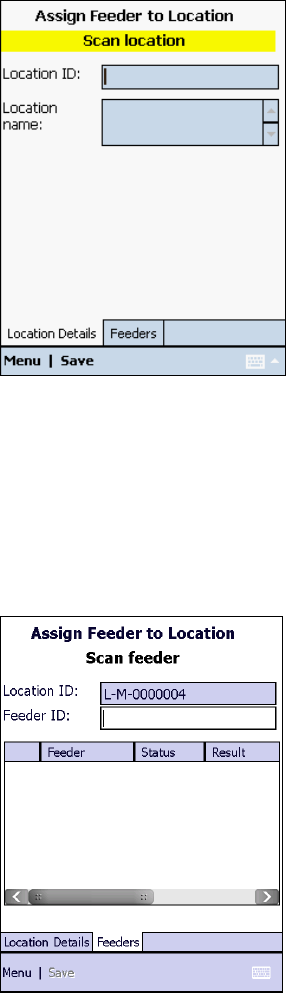
The following screen is displayed for workflow (3), in which the user is prompted to scan a
location barcode.
Figure 14-27: Assign Feeder to Location
Location Details tab
Scan the location barcode of the feeder.
The following screen is displayed, in which the user is prompted to scan a feeder barcode.
The feeders already assigned to the location are listed.
Figure 14-28: Assign Feeder to Location – Scan Feeder
Feeders tab
Scan the feeder barcode of the feeder that shall be assigned to the location.
The following screen is displayed, in which the scanned feeder barcode is entered.