00198178-04_GS_FeederManager_3.3_R18-1_EN.pdf - 第129页
SIPLACE Feeder Ma nager 3.3 (R18 -1) / Getting S tarted 08/2018 Edition 129 Configure Tap on this m enu item to displa y or modify the configur ation. Figure 14 -8: Configure – Server C onnection Server Connection tab …
SIPLACE Feeder Manager 3.3 (R18-1) / Getting Started 08/2018 Edition
128
About
Tap on this menu item to get information on the Feeder Manager version and copyright.
Exit
Tap on this menu item to terminate the application.
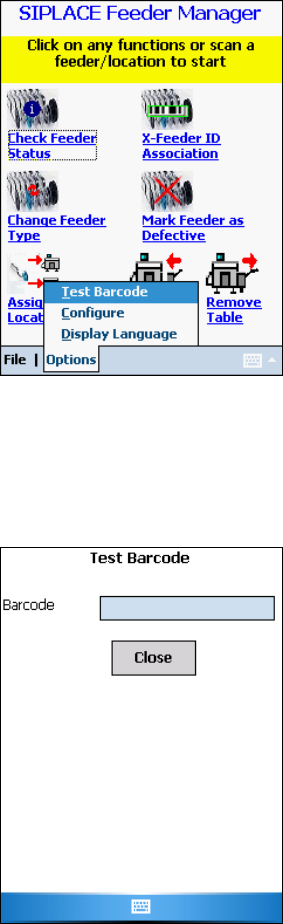
14.2.3.2 Options menu
Figure 14-6: Main menu – Options menu
Test Barcode
Tap on this menu item to test a barcode.
The following screen is displayed.
Figure 14-7: Test Barcode
Scan the barcode that shall be tested.
Tap on Close to exit the screen.
SIPLACE Feeder Manager 3.3 (R18-1) / Getting Started 08/2018 Edition
129
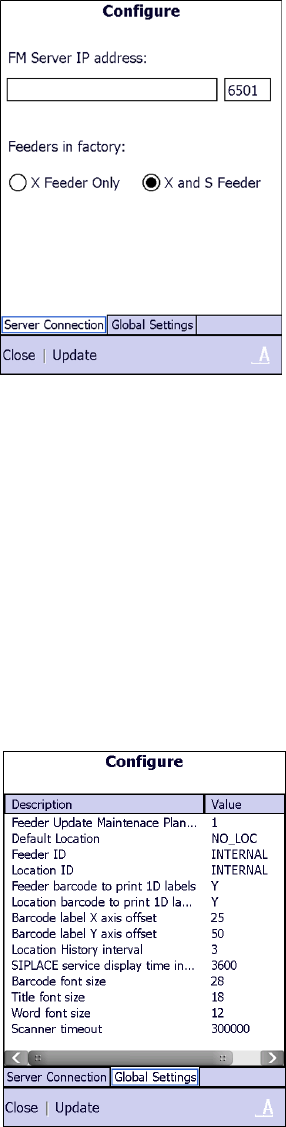
Configure
Tap on this menu item to display or modify the configuration.
Figure 14-8: Configure – Server Connection
Server Connection tab
The IP address for the Feeder Server is displayed in the Feeder Server IP address field. This
entry can be modified.
Enter the details that shall be changed of the IP address.
It shall have the correct IP address of the machine, where the Feeder Server has been
installed.
Tap on the Update button to save the changed IP address.
Tap on the Close button to exit the screen.
Figure 14-9: Configure – Global Settings
Global Settings tab
The barcode description in the Global Settings is displayed.
SIPLACE Feeder Manager 3.3 (R18-1) / Getting Started 08/2018 Edition
130
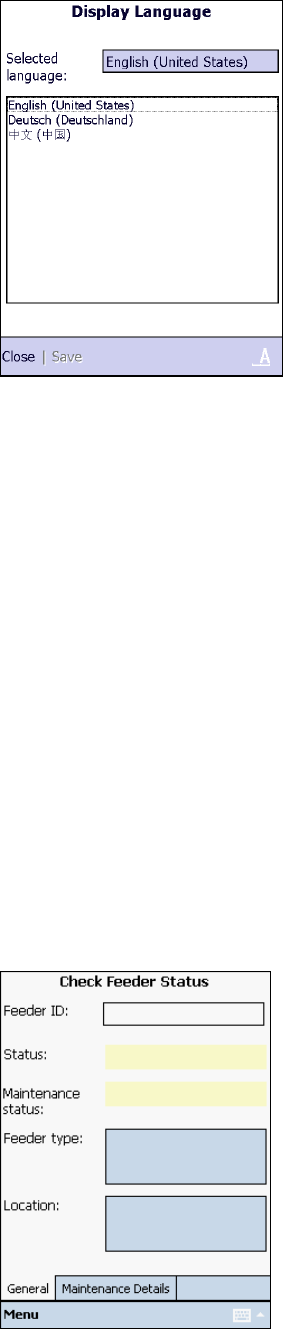
Display Language
Tap on this menu item to display or change the display language.
Figure 14-10: Display Language
To change the selected language:
Highlight the language to change to. In this version of Feeder Manager, English (United
States), Deutsch (Germany) and Chinese (Simplified) are available.
Tap on Save to save the changes.
Tap on Close to exit the screen.
14.3 Function description
In this section the single functions of the Feeder Manager Mobile Application are described.
14.3.1 Check Feeder Status
With this function the user can check the feeder status for any feeder in the system.
Select Check Feeder Status in the Main menu.
The following screen is displayed.
Figure 14-11: Check Feeder Status