00198178-04_GS_FeederManager_3.3_R18-1_EN.pdf - 第42页
SIPLACE Feeder Ma nager 3.3 (R18 -1) / Getting S tarted 08/2018 Edition 42 5.4.1 Step 1 - Enter feeder information The first s tep of the Feeder Mainte nance work flow is to request for F eeder ID and the Location this f…
SIPLACE Feeder Manager 3.3 (R18-1) / Getting Started 08/2018 Edition
41
Note:
Exported excel files require Excel Viewer 2007 or higher to open.
5.4 Feeder Maintenance Workflow
Note: starting from Feeder Manager 3.0, the feeder maintenance and repair workflow will be
followed in a guided way to avoid unwanted input errors.
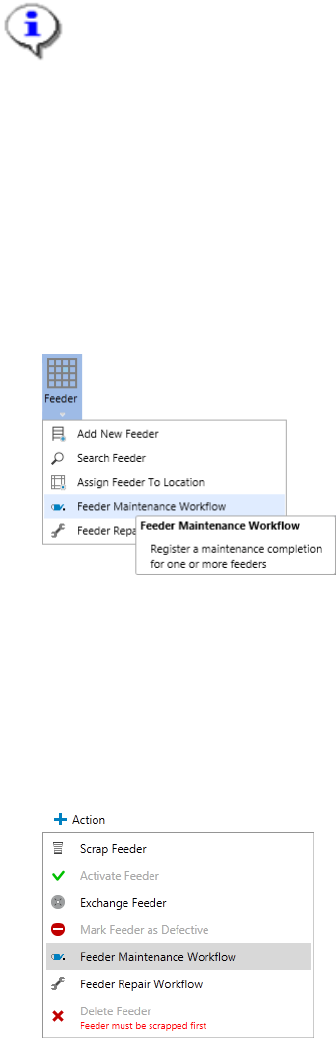
The Feeder Maintenance Workflow can be accessed via two places
1) Via the main meu. Go to Feeder Feeder Maintenance Workflow
Figure 5-22 Access Feeder Maintenance Workflow from the main menu
Note: You will need to key in or scan the feeder ID to be maintained.
2) Via the Action button of Feeder details.
Open up a certain Feeder’s feeder detail view, and then press the Action button to bring
up the dropdown list of actions. Select Feeder Maintenance Workflow
Figure 5-23 Access Feeder Maintenance Workflow from the feeder detail view
Note: in this approach, the Feeder ID of the feeder selected will be pre-entered into the
first page of the Maintenance Workflow.
The feeder maintenance workflow will be started and follow the steps below.
SIPLACE Feeder Manager 3.3 (R18-1) / Getting Started 08/2018 Edition
42
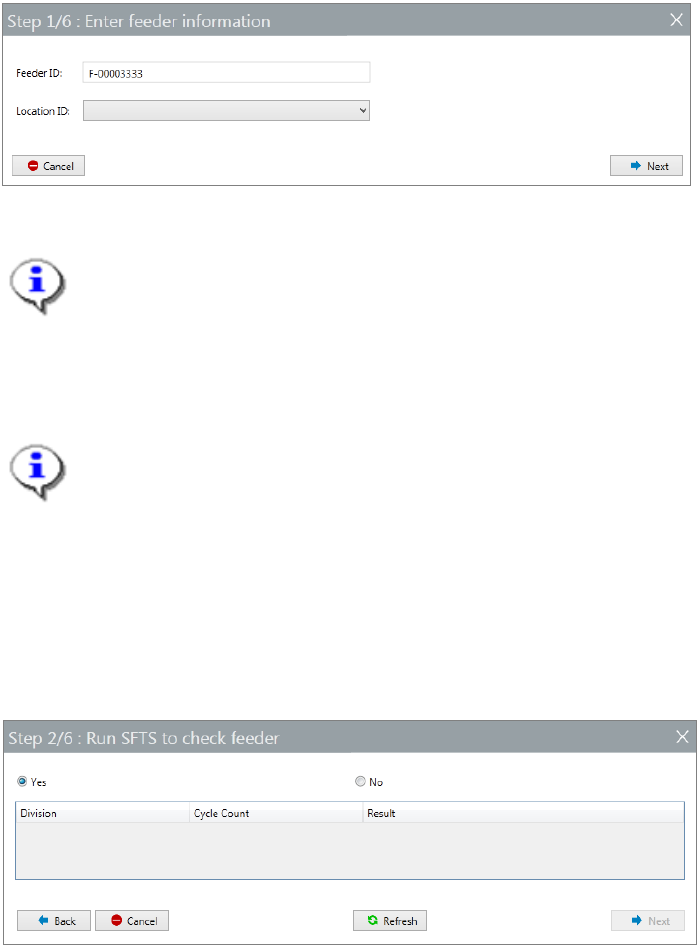
5.4.1 Step 1 - Enter feeder information
The first step of the Feeder Maintenance workflow is to request for Feeder ID and the
Location this feeder is to be assigned to for maintaining.
Figure 5-24 Feeder Maintenance Workflow Step 1
Note:
Feeder IDs can also be scanned by using a wired scanner connected to the PC,
see section 5.1.1 Add New Feeder view and Feeder Console tab for details.
Feeder ID field will be pre-entered if this workflow is triggered from the Action
dropdown of a selected feeder.
Note:
For the first time this function is used, the Location ID field will be empty. Once a
maintenance location is selected, it will be used as the default maintenance location
for consequent maintenance and repair workflows, until it is changed
Press Next to continue.
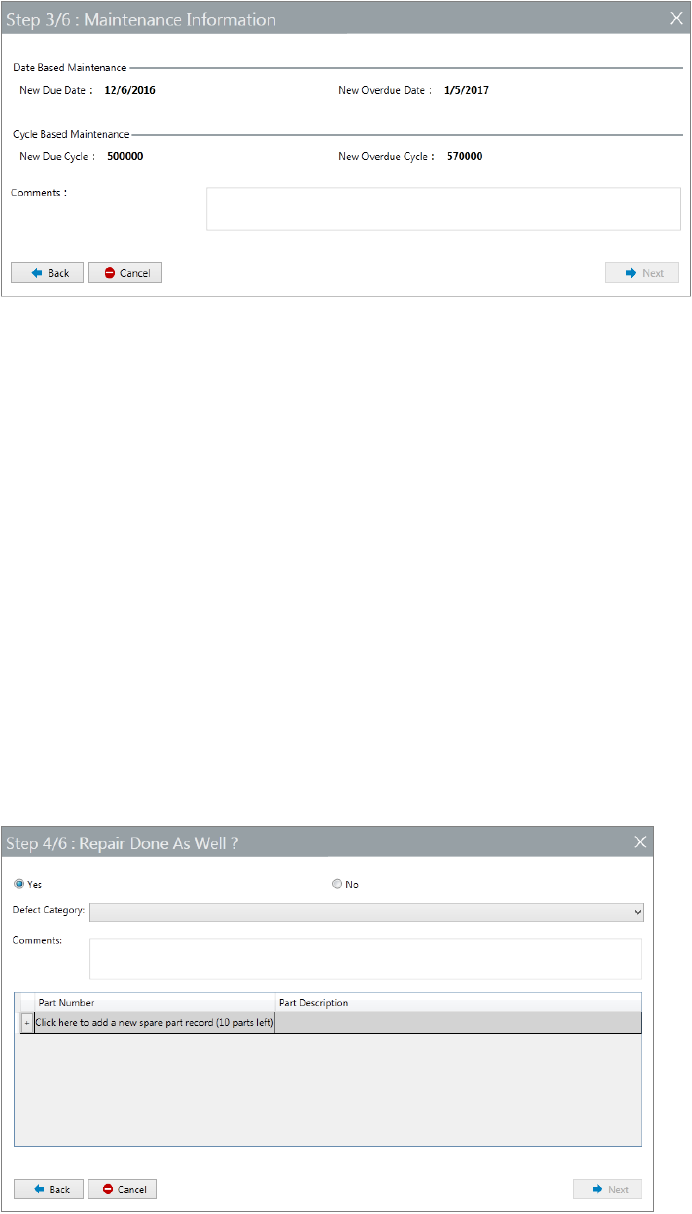
5.4.2 Step 2 - Run SFTS or XFTS to check feeder
Figure 5-25 Run SFTS or XFTS to check feeder before maintain
This step provides an option for you to do feeder checking using either SFTS or XFTS
(depending on the feeder type) before proceeding to the maintenance procedure.
If you choose Yes, an SFTS verification should be done now. Feeder Manager will
automatically collect the feeder test result.
Once done, press Refresh button to have the test result displayed. Check the data and press
Next to proceed.
Or select No at the top of the form to continue without a feeder checking.
SIPLACE Feeder Manager 3.3 (R18-1) / Getting Started 08/2018 Edition
43
5.4.3 Step 3 – Maintenance Information
Figure 5-26 maintenance information
This step allows you to check the new maintenance plan which will be applied to the feeder
once the maintenance workflow is completed.
Note: the maintenance plan data seen here are for information only and cannot be edited. For
the editing of feeder maintenance plan, please see chapter 7 Feeder Type centric functions,
section 7.2.3, Editing the maintenance plan.
You are also required to enter the maintenance comments, which is mandatory.
Once done, press Next to continue.
Note: with Feeder Manager 3.0, the workflow is not allowed to continue at this step without a
comment.
5.4.4 Step 4 – Feeder Repair Option
Figure 5-27 Feeder Repair Option