00198178-04_GS_FeederManager_3.3_R18-1_EN.pdf - 第126页
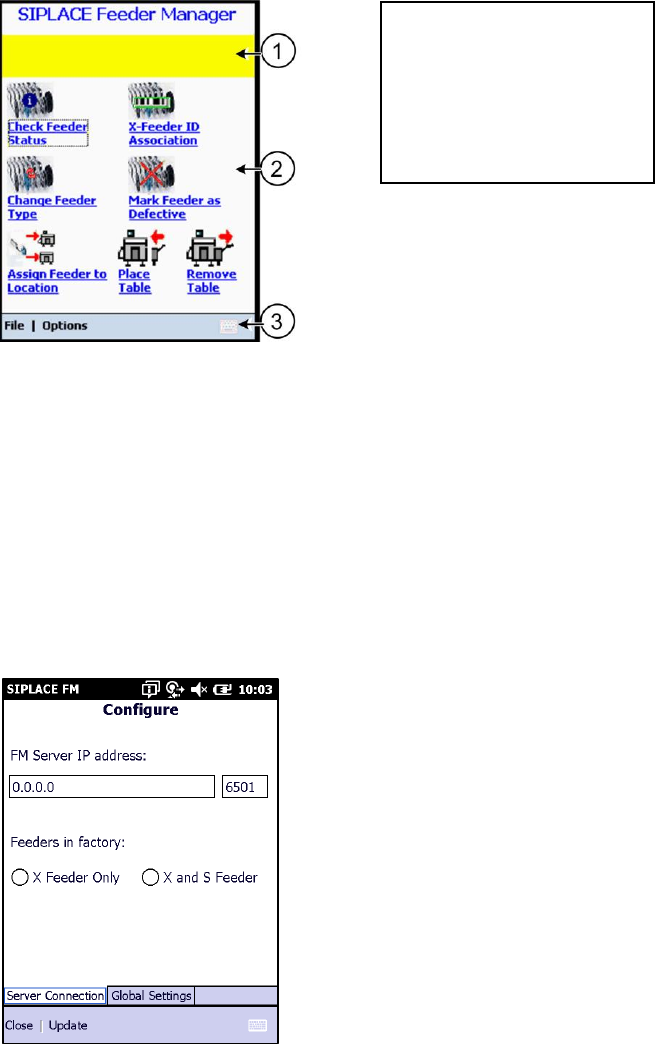
SIPLACE Feeder Ma nager 3.3 (R18 -1) / Getting S tarted 08/2018 Edition 126 Key ① Prompting area ② Function area ③ Menu bar 14.2 Graphica l User Int erface – Main menu This section will helps with the fam iliarity of the…
SIPLACE Feeder Manager 3.3 (R18-1) / Getting Started 08/2018 Edition
125
14 Feeder Manager Mobile Application
The Feeder Manager Mobile Application is a Windows Mobile based application that contains
a mobile GUI for feeder tracking and runs on the MC70 scanner. Information regarding
installation can be found in the Feeder Manager Installation Manual, item no. 00198179-01.
As of Feeder Manager 2.0 SP1 the MC75 scanner is additionally supported. The descriptions
of the MC70 scanner are valid for the MC75 scanner as well.
14.1 Starting/terminating the application
14.1.1 Starting the application
Whenever the MC70 scanner is started or rebooted, the application starts automatically.
If another application, e.g. Setup Center is available, the AppSwitcher also can be used to
switch over the Feeder Manager to the MC70 scanner. For this:
Press the right-hand grey button on the MC70.
14.1.2 Terminating the application
To terminate the application
Select File – Exit from the menu bar on the MC70 scanner.
The single functions will be stopped automatically at the scanner timeout present in the Global
Settings view, e.g. if no input is captured in the timeout period, the screen is reset.
SIPLACE Feeder Manager 3.3 (R18-1) / Getting Started 08/2018 Edition
126
Key
① Prompting area
② Function area
③ Menu bar
14.2 Graphical User Interface – Main menu
This section will helps with the familiarity of the Feeder Manager Mobile Application user
interface. The following screen displays the Main menu on the MC70 scanner.
Figure 14-1: Main menu
14.2.1 Prompting area
In this area the user is prompted to start an action.
14.2.2 Function area
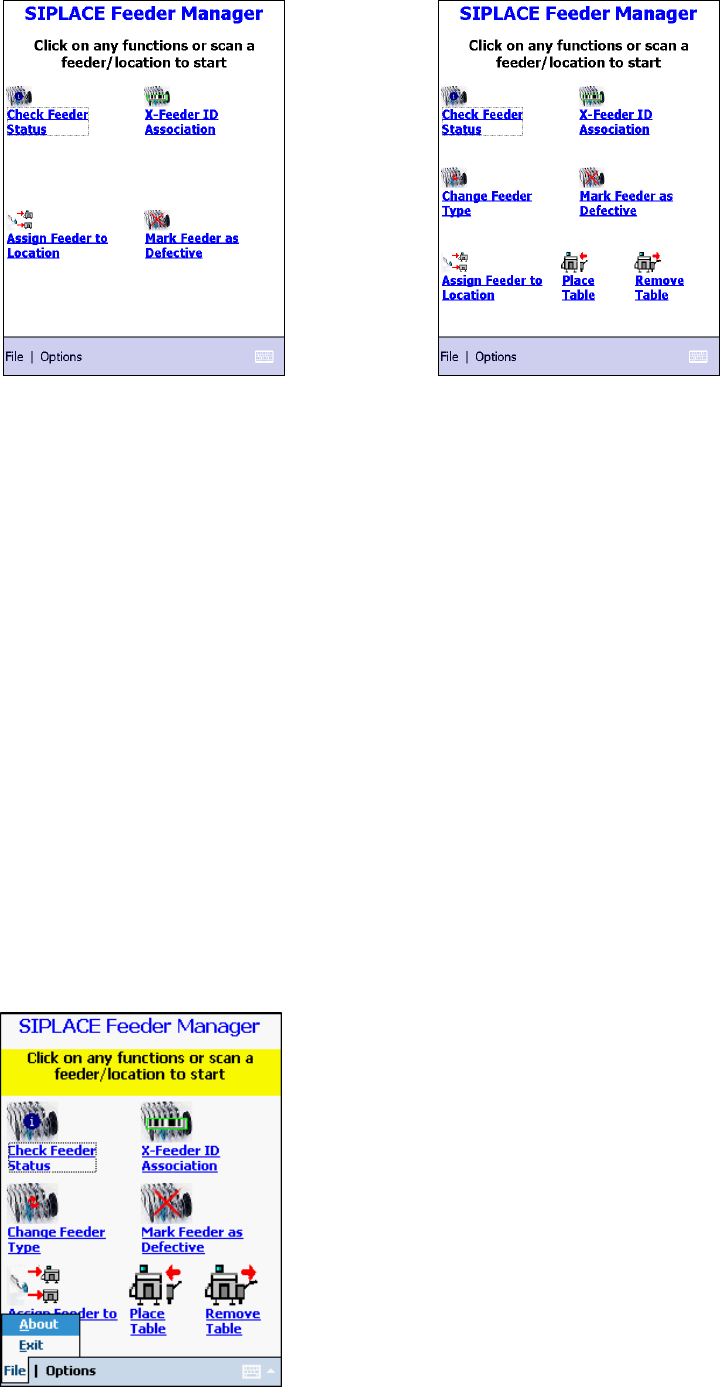
At first run, the user will be prompted to set the Function area to contain functions for (1) X
Feeders only, or (2) both X and S feeders.
Figure 14-2 FM PDA initial configuration
The Function Area for the two working modes are as follows.
SIPLACE Feeder Manager 3.3 (R18-1) / Getting Started 08/2018 Edition
127
Figure 14-3: Function area for X feeders only
Figure 14-4: Function area for X and S feeders
In this area the user selects the function to be performed. The following functions are
available:
Check Feeder Status
X Feeder ID Association
Change Feeder Type
Mark Feeder as Defective
Assign Feeder to Location
Place Table
Remove Table
The single functions are described in section 14.3.
14.2.3 Menu bar
The menu bar contains the File and Options menus and a key board function to tip text.
Tap on the respective menu to open it.
14.2.3.1 File menu
Figure 14-5: Main menu – File menu