00198178-04_GS_FeederManager_3.3_R18-1_EN.pdf - 第87页
SIPLACE Feeder Ma nager 3.3 (R18 -1) / Getting S tarted 08/2018 Edition 87 - <Position>Left</Position> - <Result>Pass</Result> - <Cycle>164240</Cycle> - </Division> - <Divisio…
SIPLACE Feeder Manager 3.3 (R18-1) / Getting Started 08/2018 Edition
86
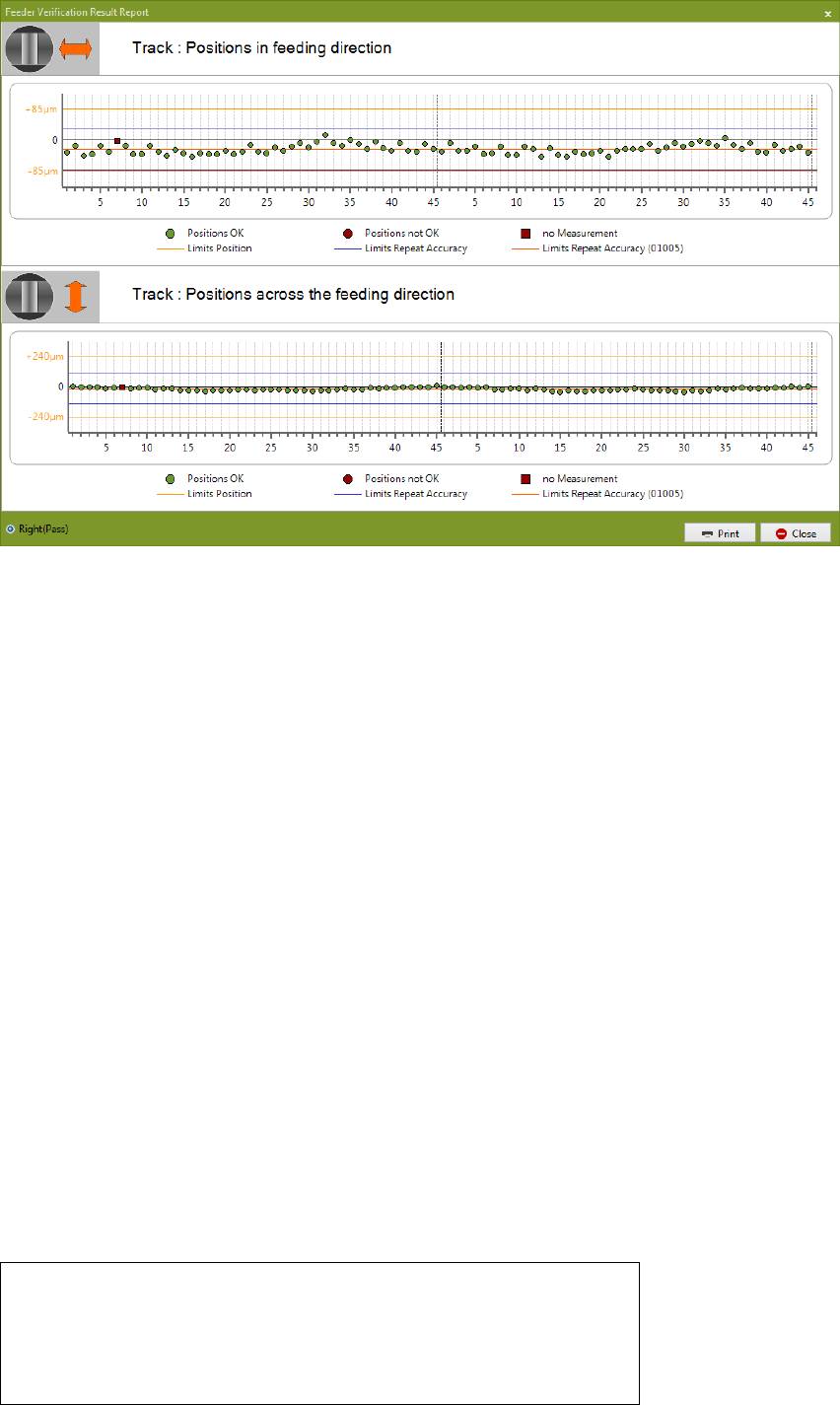
Figure 9-19 SFTS Feeder Verification Result Report viewer
From here you can proceed to print the report.
Note: all SFTS test result data will be saved in Feeder Manager database, so this function
also works without SFeederTest being executed.
9.1.4.2 Limitations and Restrictions
For any SFTS test result, if Feeder Manager cannot find a matching feeder with the same
serial number, it will
1) Leave the file in place without appending the .done suffix.
2) Add an error message inside the Message Log to indicate the failed search.
9.1.4.3 SFTS Configuration Troubleshooting
If you don't see the corresponding test result appearing in the above mentioned folder after
the test is done, refer to 00196591-02 for detail troubleshooting procedures.
If you see the test result successfully appears in the drop folder mentioned above, but the
result is not displayed inside Feeder Manager's Feeder Maintenance History table, double
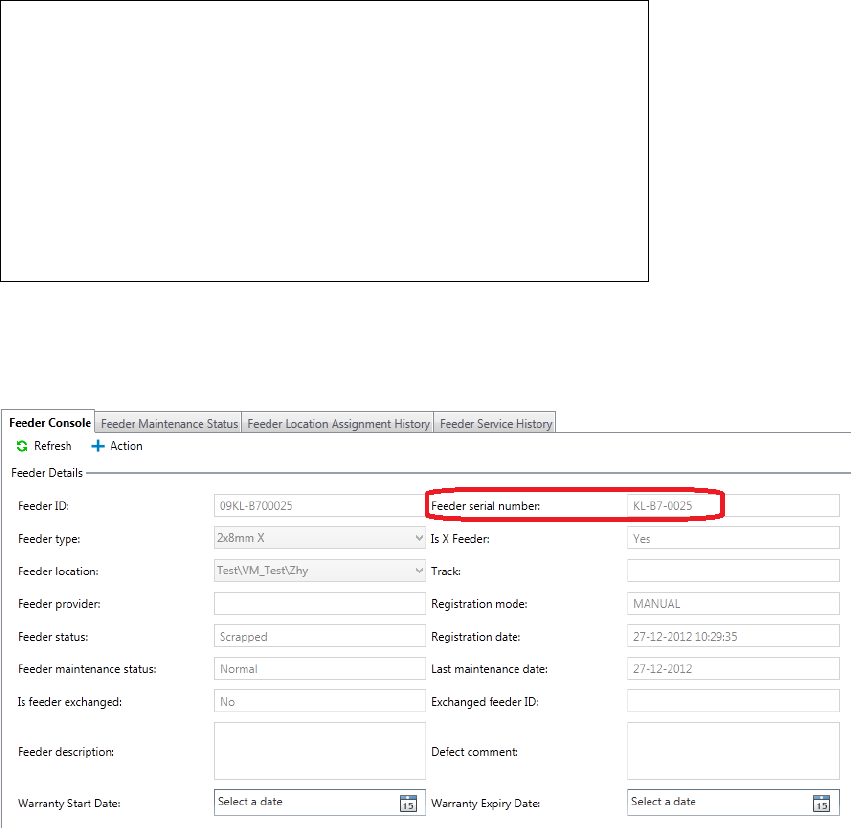
check whether the "ID" in the test result matches the "Feeder Serial Number" of the
corresponding feeder in Feeder Manager database.
For example, the ID of the following SFTS test result is "2x8_KL-B7-0025".
- <?xml version="1.0" encoding="utf-8"?>
- <Feeder>
- <ID>2x8_KL-B7-0025</ID>
- <Datetime>20120329 10:53:12</Datetime>
- <Division>
SIPLACE Feeder Manager 3.3 (R18-1) / Getting Started 08/2018 Edition
87
- <Position>Left</Position>
- <Result>Pass</Result>
- <Cycle>164240</Cycle>
- </Division>
- <Division>
- <Position>Right</Position>
- <Result>Pass</Result>
- <Cycle>201612</Cycle>
- </Division>
</Feeder>
In order for this test result to be imported by Feeder Manager into the maintenance history of
the correct feeder, the target feeder's serial number must be " KL-B7-0025" (without the part
up to _)
Figure 9-20 SFTS Test Result - Matching Feeder Serial Number
9.1.5 Description of the buttons
Save
Click on this button to save the changed configuration.
Restore to default
Click on this button to restore all the configurations to default value.
SIPLACE Feeder Manager 3.3 (R18-1) / Getting Started 08/2018 Edition
88
9.2 General Settings
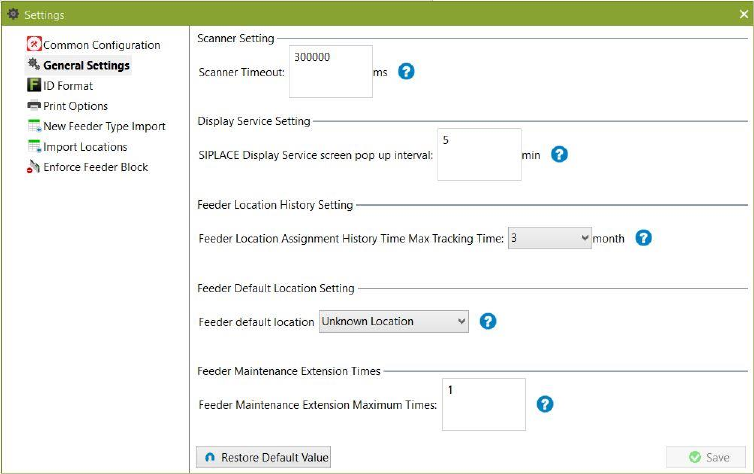
Click on Settings – General Settings tab to open the view.
Figure 9-21: General Settings tab
9.2.1 Description of the fields
Scanner Timeout
Allows the user to modify the timeout in milliseconds (ms) for the scanner. If no input is
captured in the timeout period, the screen is reset. Default value is 300000 ms (5 minutes).
Display Service screen pop up interval
Allows the user to modify the time interval in minutes (min) for the SIPLACE Display Service
window to reappear on the station computer screen after last dismissal by the operator.
Feeder Location History Setting
Allows the user to set the maximum time for the feeder location assignment history to be
maintained by Feeder Manager. Assignment history records which are older than the time set
here will be deleted automatically. Default value is 3 months.
Feeder Default Location Setting
Allows the user to set the default location when adding new S feeders manually. Default value
is “Unknown location”.