00196625-03_AI_SX12_PCB_Barcode_de_en.pdf - 第166页
Setting up and Commissioning Configuring the PCB Barcode Scanner 1D PCB Bar code Scanner 166 PCB Barcode LP-Barcode "Setup T ype" dialo g ► Click on Complete , to install the software in th e default installati…
Setting up and Commissioning
1D PCB Barcode Scanner Configuring the PCB Barcode Scanner
PCB Barcode LP-Barcode 165
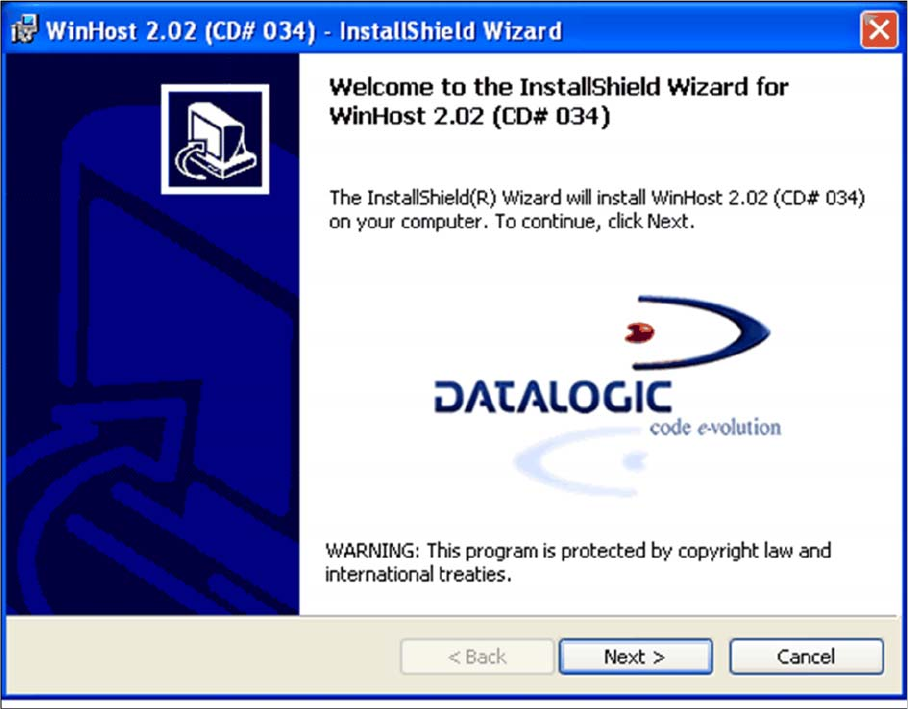
InstallShield Wizard - Welcome
► Click on Next> and follow the instructions issued by the InstallShield Wizards.
► Accept the license conditions.
► Enter the required user information in the Customer Information dialog and confirm with Next>.
Setting up and Commissioning
Configuring the PCB Barcode Scanner 1D PCB Barcode Scanner
166 PCB Barcode LP-Barcode
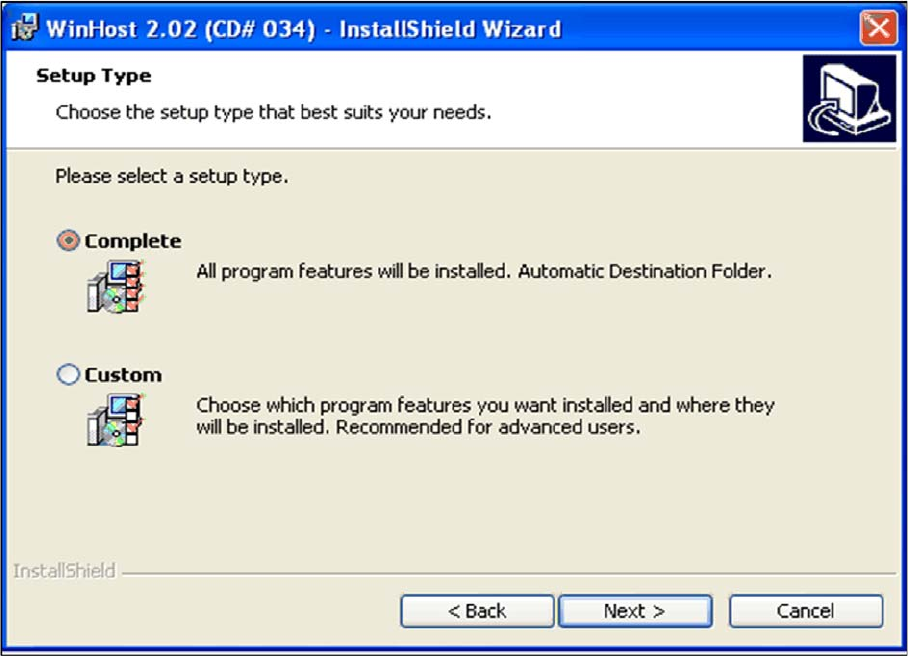
"Setup Type" dialog
► Click on Complete, to install the software in the default installation folder and then confirm with
Next>.
► Click on Custom to install the software in your chosen folder and confirm with Next>.
Enter the required installation folder in the next dialog and then click on Next> to confirm.
The installation procedure will start.
Setting up and Commissioning
1D PCB Barcode Scanner Configuring the PCB Barcode Scanner
PCB Barcode LP-Barcode 167
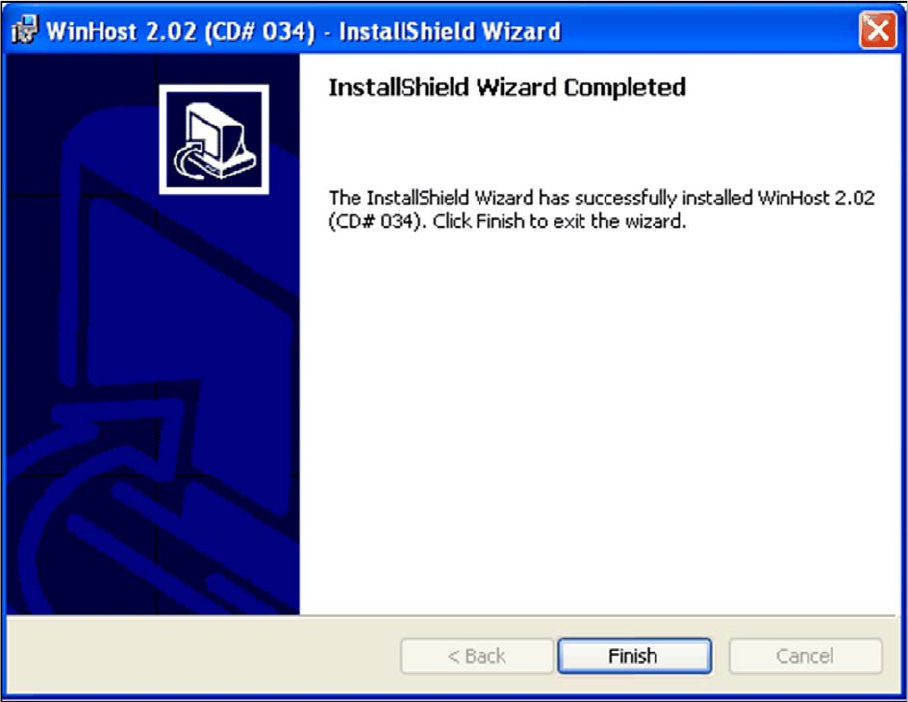
"InstallShield Wizard Completed" dialog
Once the software has been successfully installed, the "InstallShield Wizard Completed" dialog will be
shown.
► Click on "Finish" to end the installation.
A WinHost icon will be placed on the desktop and a Readme file will be shown.
► Close the Readme file.
► Close the WinHost 2.02 window with Exit.