00196625-03_AI_SX12_PCB_Barcode_de_en.pdf - 第190页
Setting up and Commissioning Configuring the PCB Barcode Scanner 2D PCB Bar code Scanner 190 PCB Barcode LP-Barcode Setting the barcode scanner to the board The barcode scanner need s to be set to the printed circuit bo …
Setting up and Commissioning
2D PCB Barcode Scanner Configuring the PCB Barcode Scanner
PCB Barcode LP-Barcode 189
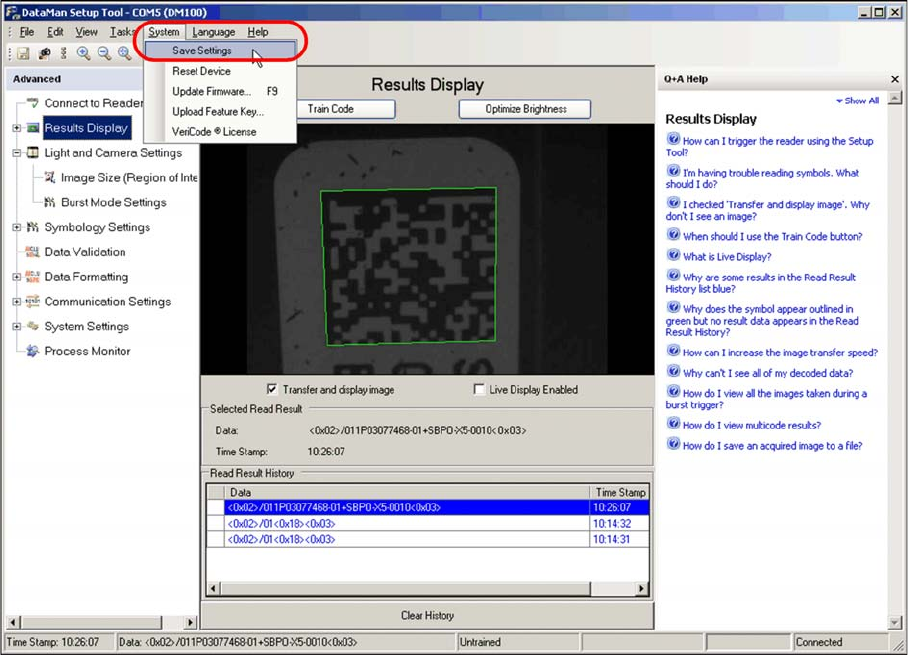
You can also set the scanner to the current code type by clicking on Train code. This achieves the max-
imum operational reliability. The button will then switch over to Untrain code.
If there are several different codes on a board, Train code can be used to select the required code. The
other code types will then be ignored and not scanned.
If you later need to switch over to scanning another code, first cancel the existing setting by clicking on
Untrain code.
Saving settings
Saving settings
► The settings can be permanently saved on the barcode scanner at System --> Save Settings.
For more information, refer to the help function shown on the right.
Setting up and Commissioning
Configuring the PCB Barcode Scanner 2D PCB Barcode Scanner
190 PCB Barcode LP-Barcode
Setting the barcode scanner to the board
The barcode scanner needs to be set to the printed circuit board on initial installation and before each
product change.
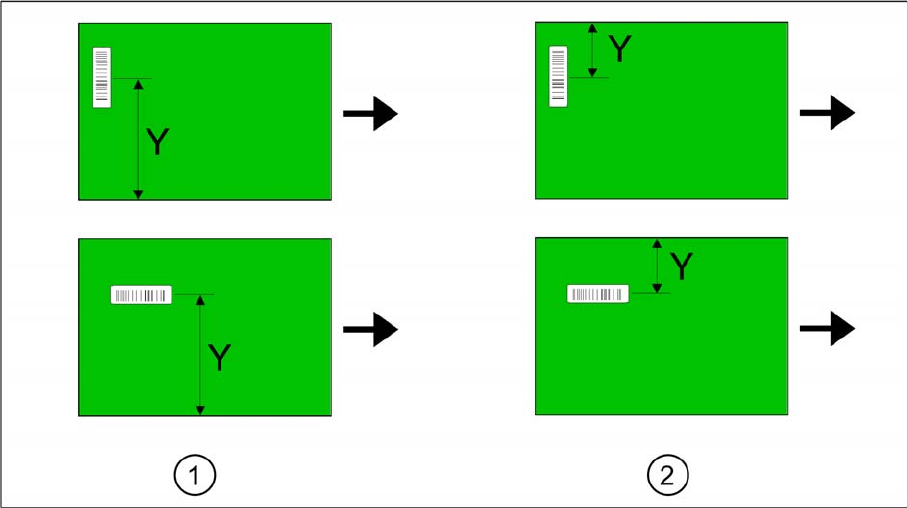
Find the Y dimension on the board.
Legend
1. Fixed conveyor side = right
2. Fixed conveyor side = left
The barcode scanner needs to be set to the position of the code on the printed circuit board. A setting
scale is provided on the barcode scanner guide rails, for this purpose.
► Determine the Y dimension on the board i.e. the center of the code to the board edge of the fixed
conveyor side.
► Use the pointer on the scale to set the Y dimension. The required accuracy is approx. +/- 2 mm.
Setting up and Commissioning
Adjusting the Machine Configuration in the Station Software. Configuring the PCB Barcode Scanner
PCB Barcode LP-Barcode 191
3.3.3 Adjusting the Machine Configuration in the Station Software.
After installing the configuration of the relevant scanner software, you need to adjust the machine con-
figuration in the station software accordingly.
► Switch over to the station software.
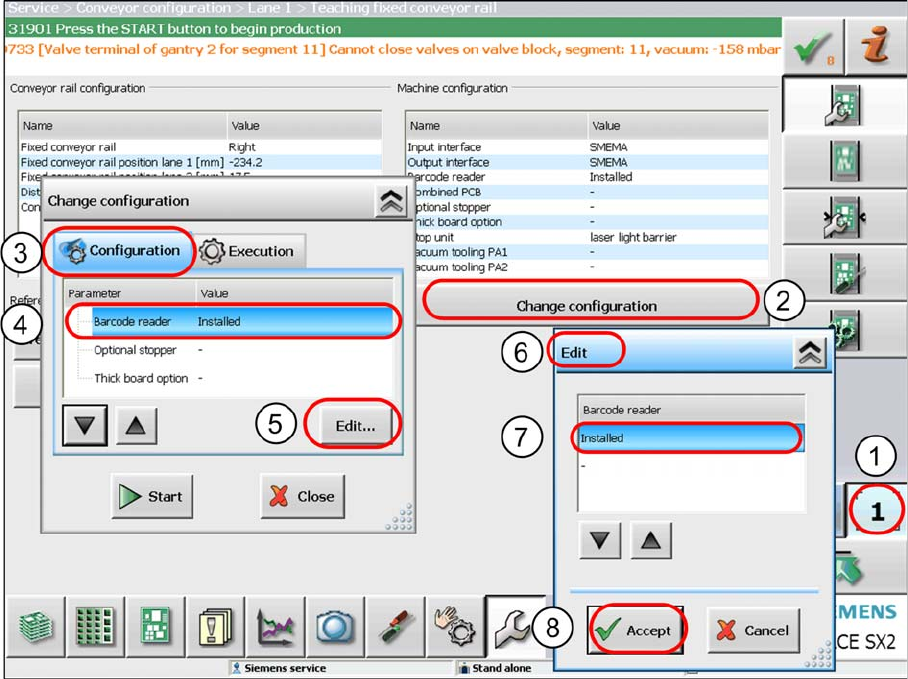
► Go to the Service view and select the function Conveyor configuration .
Adjusting the machine configuration
► Select the conveyor lane (1) on which the barcode scanner has been installed and then select
Change configuration (2).
The Change configuration (3) dialog will be shown.
► Mark the Barcode scanner installed (4) line and click on Edit (5).
The Edit (6) dialog will be shown.
► Mark the Installed (7) line and confirm with Accept (8).
The new barcode scanner is now known to the station software.