00196625-03_AI_SX12_PCB_Barcode_de_en.pdf - 第173页
Setting up and Commissioning 1D PCB Barcode Scanner Configuring the PCB Barcode Scanner PCB Barcode LP-Barcode 173 "Edit Configuration" dialog – "Op-Mode" tab "Edit Configuration" dialog – &…
Setting up and Commissioning
Configuring the PCB Barcode Scanner 1D PCB Barcode Scanner
172 PCB Barcode LP-Barcode
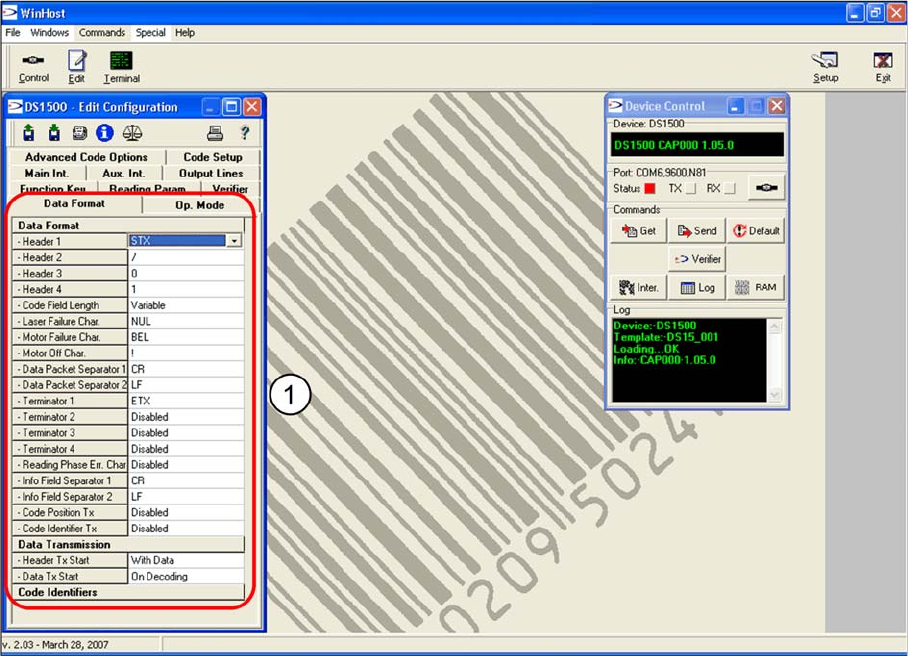
"Edit Configuration" dialog – "Data Format" tab
"Edit Configuration" dialog – "Data Format" tab
The data string structure is shown in the Data Format tab.
► Accept the values shown in the screenshot (1).
Setting up and Commissioning
1D PCB Barcode Scanner Configuring the PCB Barcode Scanner
PCB Barcode LP-Barcode 173
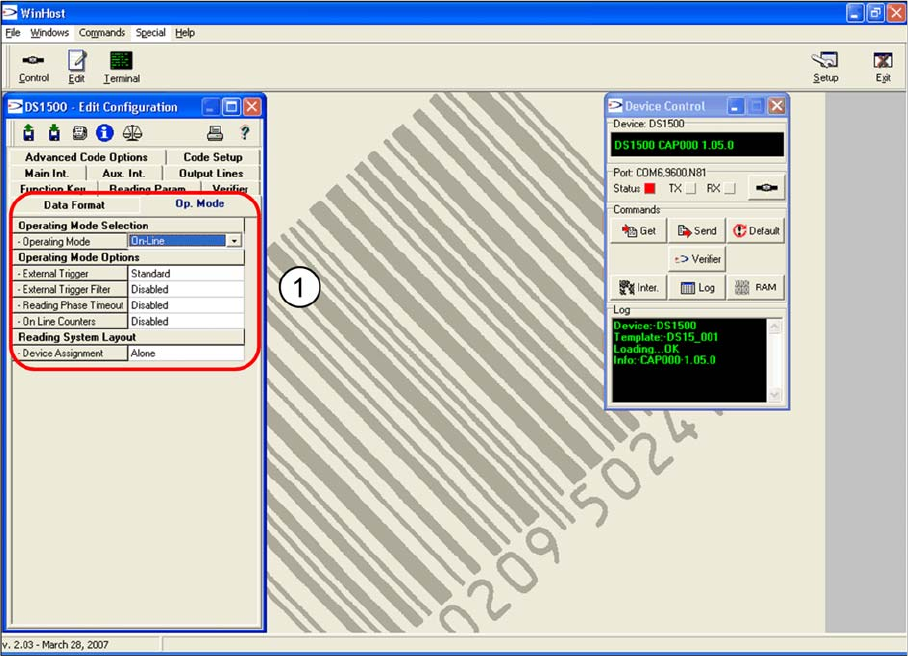
"Edit Configuration" dialog – "Op-Mode" tab
"Edit Configuration" dialog – "Op-Mode" tab
In the Op-Mode tab you can
► Accept the values shown in the screenshot (1).
Setting up and Commissioning
Configuring the PCB Barcode Scanner 1D PCB Barcode Scanner
174 PCB Barcode LP-Barcode
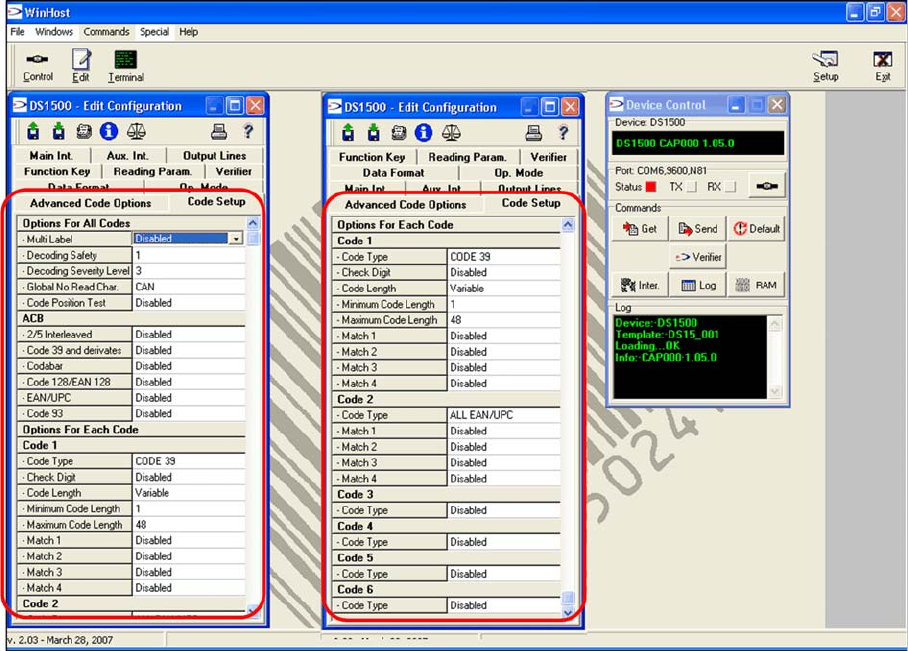
"Edit Configuration" dialog – "Code Setup" tab
"Edit Configuration" dialog – "Code Setup" tab
The settings for the barcode used by the customer can be defined in the Code Setup tab.
Various code types can be enabled. Only those types enabled here will be evaluated by the barcode
scanner. Frequently used codes include code 128, code 39, 2/5 interleaved.
Options for all codes:
"Multi-Label" (if present, multiple codes will be evaluated during each scan i.e. per board)
Options for each Code:
"Block Code 1", "Code 2" etc. will be filled out for each code type to be read.
► Click on the entry to the right of Code Type.
A drop-down selection list will appear.
► Select the required code. Other code-specific settings can be defined in the following lines, if re-
quired.
► Accept the values shown in the screenshot (1).
Transmitting configuration data to the barcode scanner
If configuration settings are changed, these need to be written back onto the barcode scanner.
► Go to the Device Control dialog and click on the RAM button.
This button will switch over to EEPROM.
► Click on Send, to transmit the data to the barcode scanner.
After a few seconds, you will see Configuration sent in the upper output line of the dialog.