00196625-03_AI_SX12_PCB_Barcode_de_en.pdf - 第192页
Setting up and Commissioning Configuring the PCB Barcode Scanner Adjusting the Machine Config uration in the Station Software. 192 PCB Barcode LP-Barcode 3.3.3.1 Testing the Barcode Scanner in the Station Software Testin…
Setting up and Commissioning
Adjusting the Machine Configuration in the Station Software. Configuring the PCB Barcode Scanner
PCB Barcode LP-Barcode 191
3.3.3 Adjusting the Machine Configuration in the Station Software.
After installing the configuration of the relevant scanner software, you need to adjust the machine con-
figuration in the station software accordingly.
► Switch over to the station software.
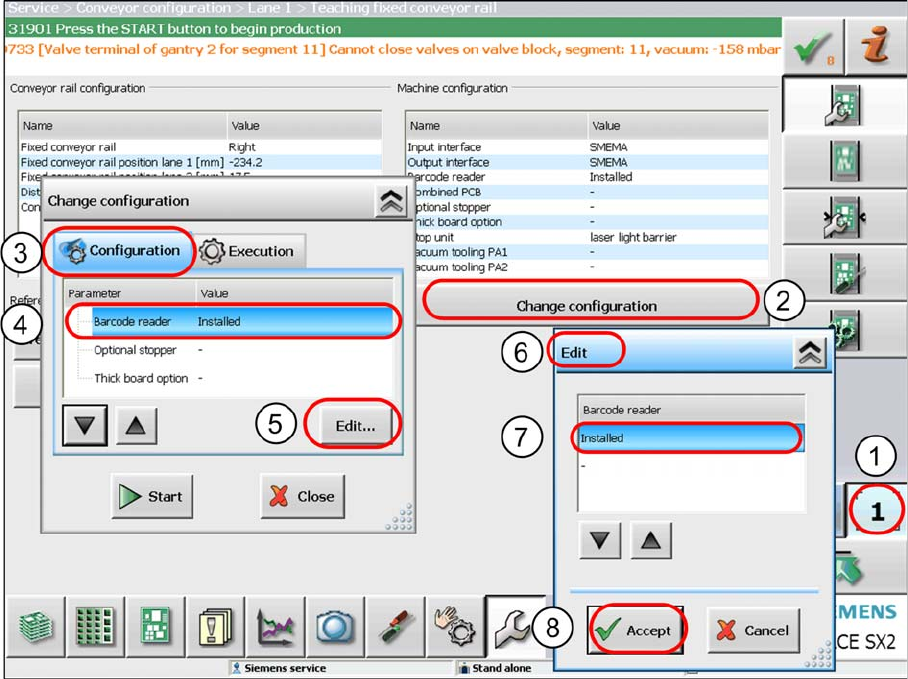
► Go to the Service view and select the function Conveyor configuration .
Adjusting the machine configuration
► Select the conveyor lane (1) on which the barcode scanner has been installed and then select
Change configuration (2).
The Change configuration (3) dialog will be shown.
► Mark the Barcode scanner installed (4) line and click on Edit (5).
The Edit (6) dialog will be shown.
► Mark the Installed (7) line and confirm with Accept (8).
The new barcode scanner is now known to the station software.
Setting up and Commissioning
Configuring the PCB Barcode Scanner Adjusting the Machine Configuration in the Station Software.
192 PCB Barcode LP-Barcode
3.3.3.1 Testing the Barcode Scanner in the Station Software
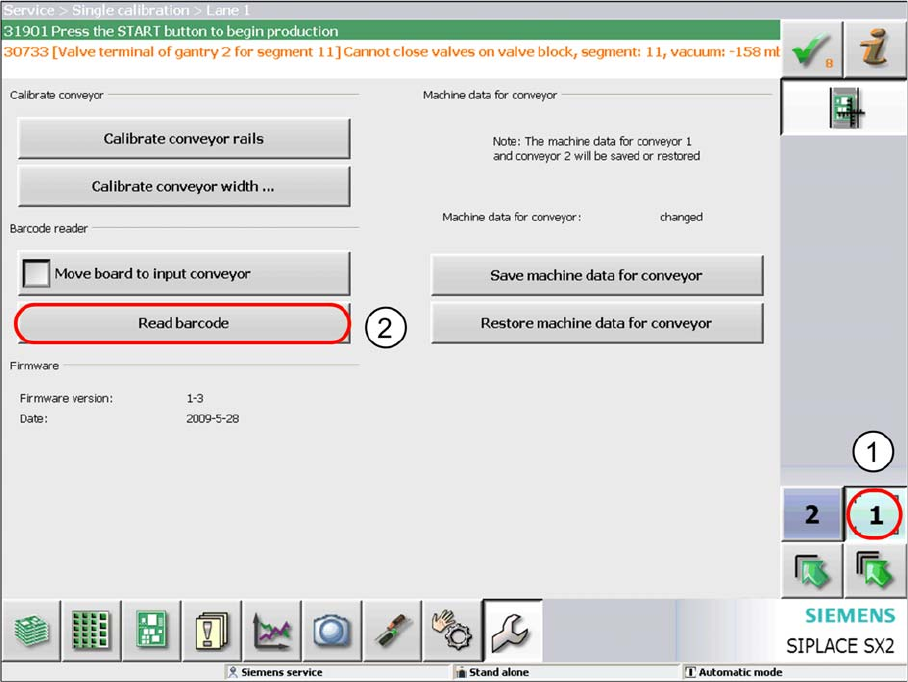
Testing the barcode scanner
► Switch over to the station software.
► Go to the Service view and select the function Single calibration .
► Select the conveyor lane on which the barcode scanner is installed (1).
► Click on Read barcode (2).
The barcode will be read. If the barcode is not read correctly, a corresponding error message will be
issued.
Setting up and Commissioning
Adjusting the Machine Configuration in the Station Software. Removing the PCB Barcode
PCB Barcode LP-Barcode 193
3.4 Removing the PCB Barcode
You can remove the PCB barcode scanner in its holder from the mounting frame inside the machine.
This may be necessary, for example, if the scanner beam angle or scanning direction needs to be ad-
justed or if a defective scanner needs to be replaced.
► Take the pointer out of its holder.
► Use the lever on the relevant holder to loosen the fixtures from the mounting frame.
► Unplug the SUB-D connector.
► Remove the holder from the machine.
► Perform the following tasks. See "3.2 Installing the PCB Barcode Scanner" [ ➙ 121].
► Plug the SUB-D connector back in.
► Reinsert the holder into the mounting frame.
► Reinsert the pointer into the holder.
► Redetermine the Y position. Refer to "3.3.1.2.2 Configuring the Barcode Scanner Software" [➙ 168]
for 1D PCB barcode scanners and "3.3.2.1.2 Configuring the Barcode Scanner Software" [ ➙ 178]
for 2D barcode scanners.
Converting to another barcode scanner type
If you need to convert from 1D to 2D barcode scanners or vice versa, you need to remove the complete
mounting frame, corresponding wiring and the scanner from the machine.
Continue to fit the new scanner. See "3.2 Installing the PCB Barcode Scanner" [ ➙ 121].
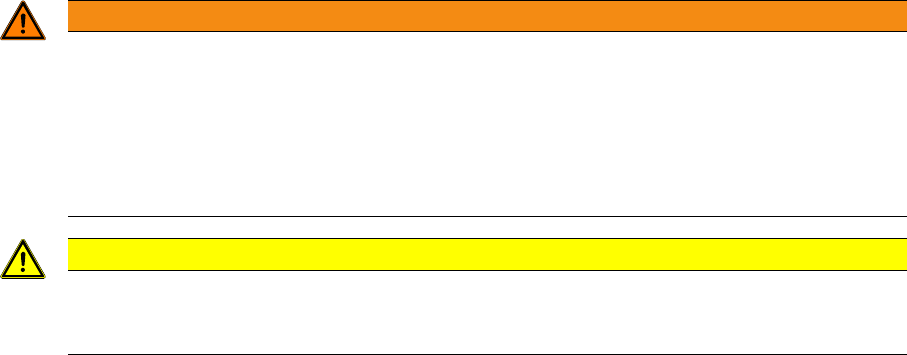
WARNING
Cables may only be connected to or disconnected from the machine when currentless.
The connector encoding informs the conveyor control that a scanner is to be used at the rele-
vant installation position. If the scanner is missing, an error message will be issued.
► Please note that scanner cables may only be connected to the option board if the corre-
sponding scanner has been fitted.
► Take care that the cables do not get into the hazard area of the machine.
CAUTION
Make sure that you use the correct set of cables. Never mix up the cable sets for 1D and 2D
scanners. When using a 1D barcode scanner, you must fit the intermediate adapter (gender
changer).