YSD_Users_E.pdf - 第128页
Chapter 4 Making the dispensing stable Contents 1. Making the dispensing stable 4-1 2. Dispensing test function 4-2 2.1 Overview 4-2 2.2 Per forming a dispensing test 4-3 2.3 Starting a dispensing test during automatic o…
3-14
3
Q & A
4.1.2 Making the settings
Use the following procedure to make the settings.
1
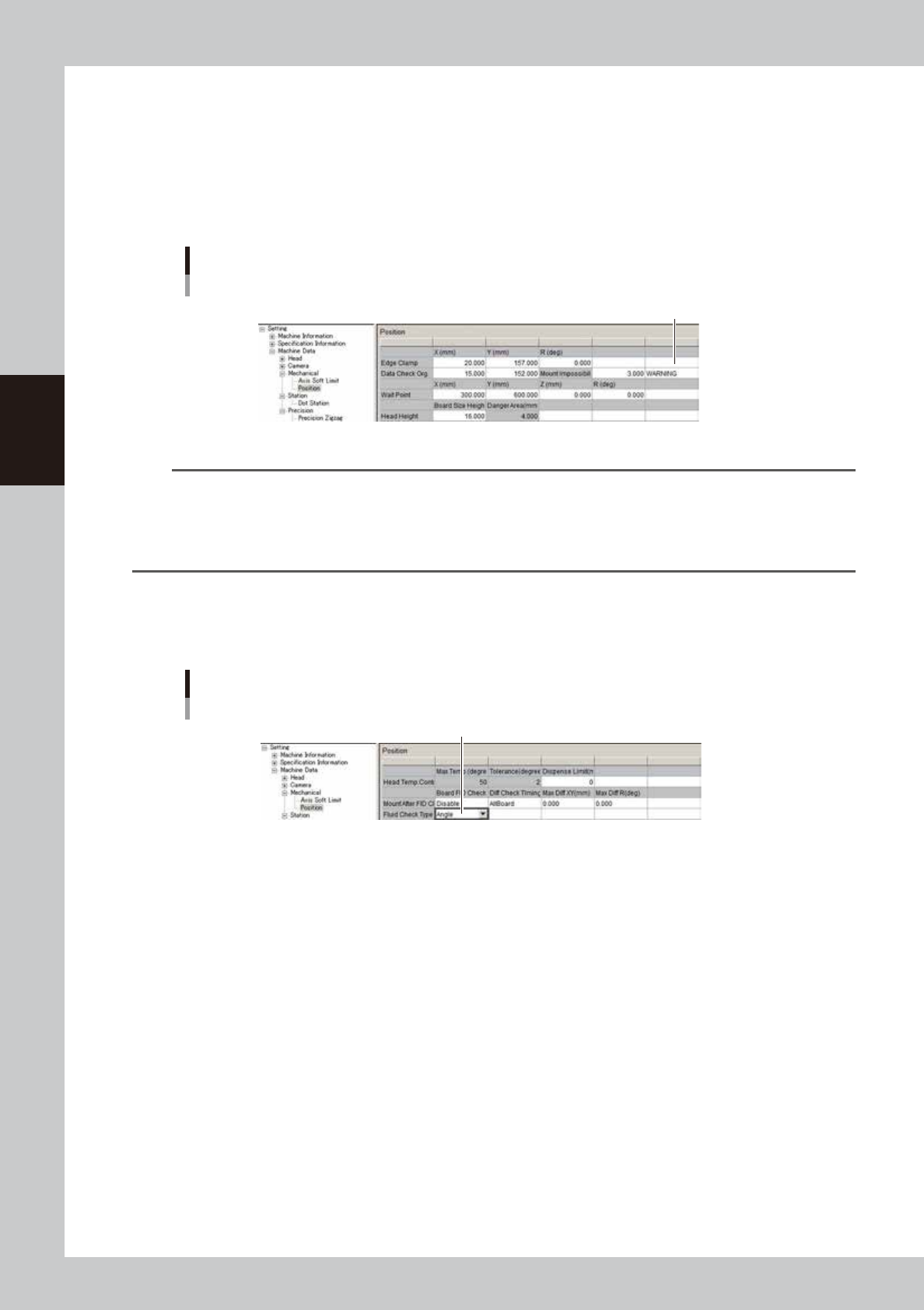
Enter the detection angle.
In the VmSpec window that appears with the [Machine] button, open “Setting” – “Mechanical” –
“Position” and enter the angle in “Wait Point – R (deg)”. In most cases, enter “-114” deg. (The remaining
liquid amount will be detected at angles of -114, -24, 66, and 156.)
Entering the detection angle
Enter detection angle.
64302-N7-00
n
NOTE
If the remaining liquid amount cannot be detected correctly with the “-114” setting, check to find the angle that
allows correct detection.
Rotate the R-axis by hand to align it with the position where all sensors can detect the remaining liquid. Then open the
[Unit] – [Head] – [Move Axis] screen, check the R-axis coordinate displayed on the [ZR] tab, and enter it as the
detection angle.
2
Set the detection method.
In the VmSpec window, open “Setting” – “Mechanical” – “Position” and set “Fluid Check Type” to
“Angle”.
Setting the detection method
Set to “Angle”.
64303-N7-00

Chapter 4 Making the dispensing stable
Contents
1. Making the dispensing stable 4-1
2. Dispensing test function 4-2
2.1 Overview 4-2
2.2 Performing a dispensing test 4-3
2.3 Starting a dispensing test during automatic operation 4-6
3. Creating the predispensing information 4-8
3.1 Using the dispense correction function 4-8
3.1.1 Enabling each setting 4-10
3.1.2 Creating the predispense parameters 4-12
3.1.3 Creating the mark data for dot recognition 4-14
3.1.4 Checking the dispensing amount on the dot station 4-20
3.1.5 Checking the dispensing amount on the board 4-22
3.1.6 Creating the dispense correction (map) 4-23
3.1.7 Setting the calculation type 4-27
3.1.8 Checking that each setting is consistent 4-33
4. Position correction dispense function 4-34
4.1 Overview and item restrictions 4-34
4.2 Setting method 4-35
4.3 Machine data setting 4-36
5. Dot station (option) 4-37
5.1 Dot station setup 4-37
5.1.1 Setting the dot station function 4-38
5.1.2 Entering the pre-dispensing position 4-39
5.1.3 Setting the dot station data 4-40
5.2 Setting the board information 4-42
5.3 Dispense correction limit check 4-44
5.3.1 Correction amount calculation 4-44
5.3.2 Setting method 4-47
5.4 Dispense correction retries 4-48
5.4.1 Setting method 4-50
6. Editing a dispense sequence 4-51
6.1 Performing a predispensing test 4-51
6.2 Editing the dispense sequence 4-51
7. Checking/correcting dispensing positions 4-55
4-1
4
Making the dispensing stable
1. Making the dispensing stable
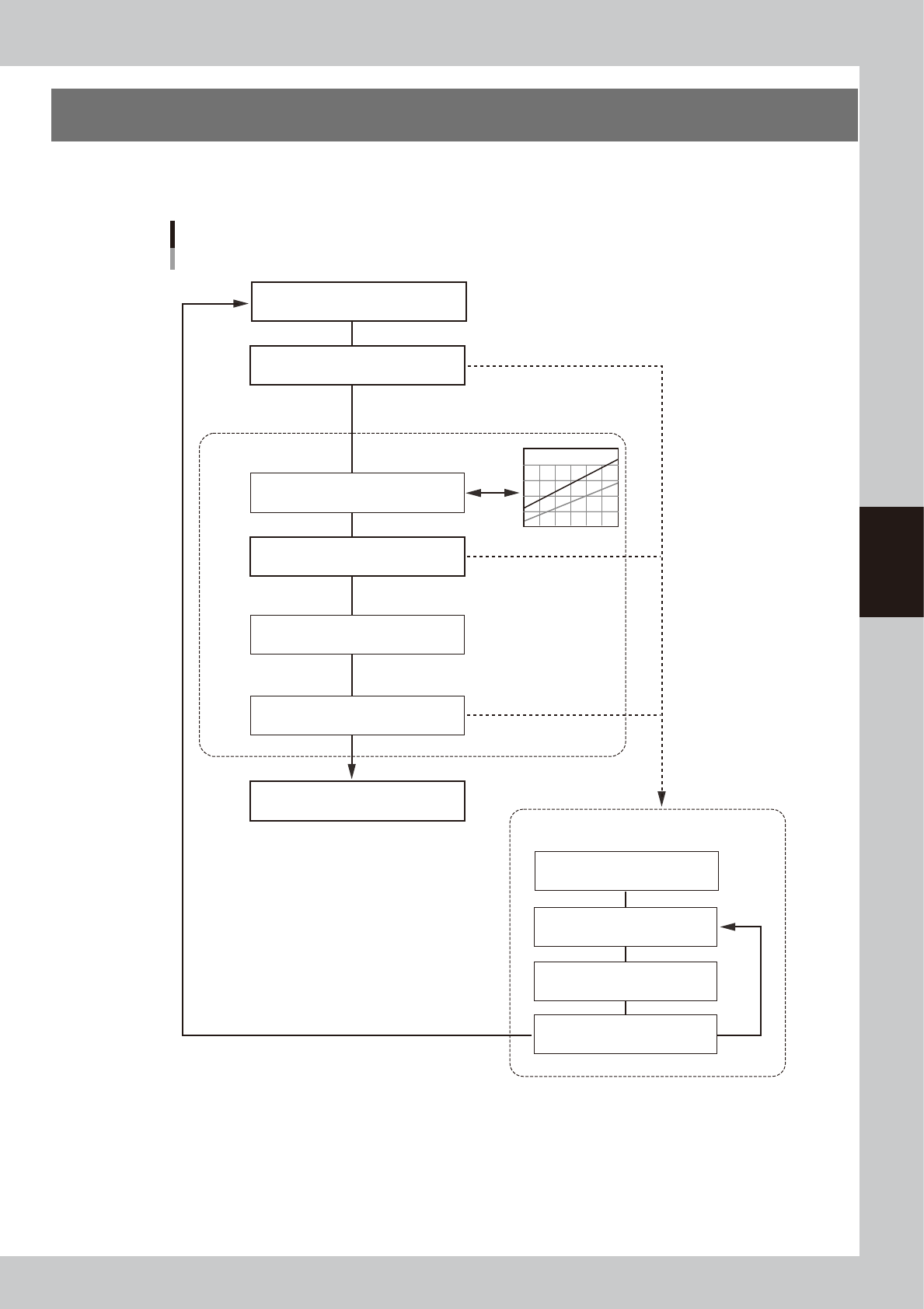
The flowchart below shows the process up to stable dot dispensing.
(Optional dot station is used)
Flowchart for dot dispensing
Correction type
Liquid amount correction
Pressure adjustment
Calculation
Out of setting range
Out of setting range
Out of correction range
Within correction range
Correct dispensing amount
Check dispensing amount
Check dispensing amount
(for check)
Predispense
Check correction limit *
Perform dispensing test
(without correction)
Adjust pressure manually
Check standard pressure
Check dispensing amount
Out of correction range
Within correction range
Predispense
(for correction amount check)
Dispense dots
* This function is enabled when set to “Use” by machine
data setting.
63406-N7-00