YSD_Users_E.pdf - 第149页
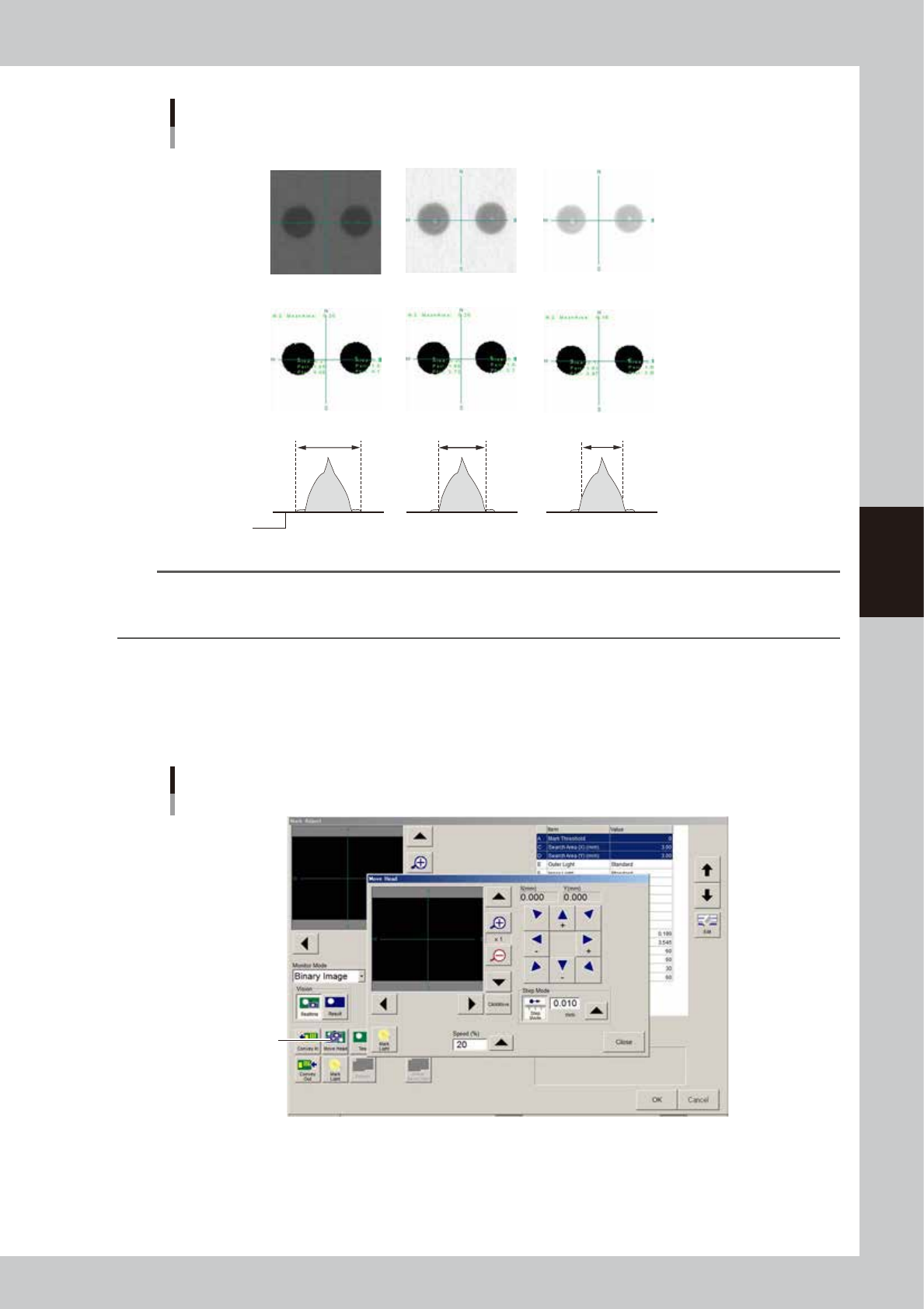
4-21 4 Making the dispensing stable Dot recognition Examples T oo bright Binary image Becomes small Becomes large T oo dark Good Good Dot recognition state Periphery coat is recognized Liquid outline is recognized Liquid…
4-20
4
Making the dispensing stable
3.1.4 Checking the dispensing amount on the dot station
Check the dispensing amount on the dot station by making a dispensing test with the mark data that was
created. The following steps describe the procedure for checking the dispensing amount using a Type 111
nozzle as an example.
1
Set up the head unit.
Prepare a new syringe kept at ambient temperature and the nozzle, and attach them to the head. For
the instructions on how to attach the syringe and nozzle, see “3.4 Setting up the head unit” in Chapter 2.
2
Bleed the nozzle air.
When setting the temperature, bleed the air after waiting until the target temperature is reached. For
the instructions on how to bleed the nozzle air, see “3.6 Bleeding the nozzle air” in Chapter 2.
3
Adjust the air pressure.
Press the [Dispense Test] button to open the dispense screen and the press the [Execute] button to start
dispensing. Adjust the air pressure so that the recognition results reach the standard area value. If failed
to recognize a dispensed dot even after adjusting the air pressure, then check the e dispensing state
visually and adjust to the size you want for the main dispensing.
4
Make the mark adjustment.
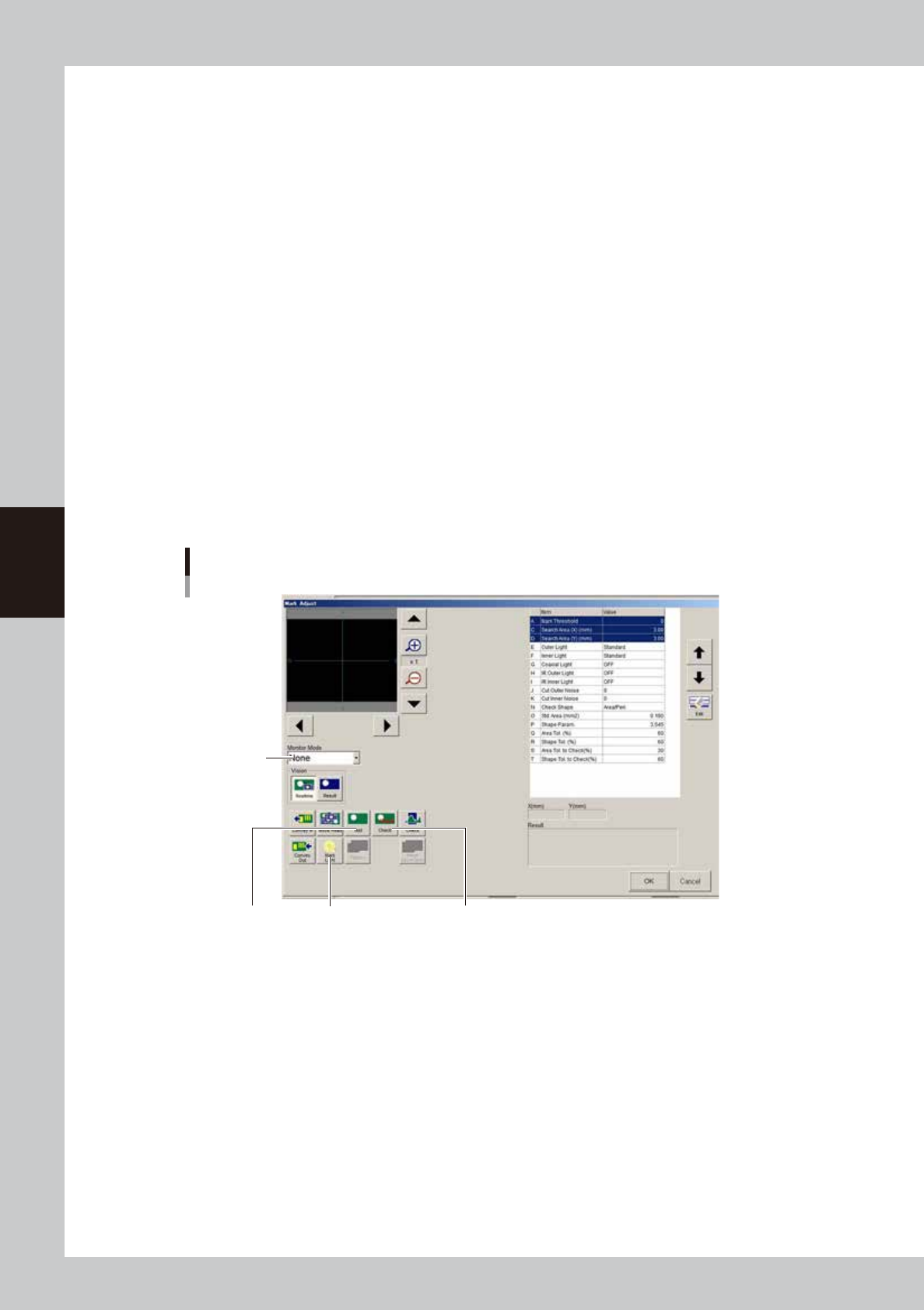
Use a dot having a stable shape to make the mark adjustment. Press the [Test] button, switch to Monitor
Mode, and check the dot recognition state. If the lighting is not correct, then press the [Mark Light]
button and adjust the lighting so as to fall within the correct dot recognition state. After making the
adjustment, press the [Check] button to check if it is within the tolerance range.
Mark Adjust window
[Test] button
Monitor Mode
[Check] button[Mark Light] button
64437-N7-00
[Test] button
If you are not performing the alignment amount check, press this button to acquire the dot area. The acquired area and
perimeter will be displayed when "Result" is selected in the Monitor Mode dropdown list.
[Mark Light] button
Set the lighting level according to the dispensing state. Adjust to the lighting level that produces a dot you want to
recognize.
[Check] button
Use this button if you are performing the alignment amount check, to see whether the dot area is within the tolerance.
4-21
4
Making the dispensing stable
Dot recognition
Examples
Too bright
Binary image
Becomes small
Becomes large
Too dark
Good
Good
Dot recognition state
Periphery coat is recognized
Liquid outline is recognized Liquid outline is not
Paper
63410-N7-00
n
NOTE
If dot recognition is unstable even under the appropriate conditions due to the bond adhesive and solder
characteristics, then change the standard area setting to include the periphery coat so that the dot is recognized
stably.
5
Check the difference between the actual dot and recognition state.
Use the moving camera to check whether the area of the actual dot and the recognized result match
each other. Press the [Move Head] button and align the crosshairs on the camera with the dot groove
for recognition. Set the Monitor Mode to “Binary Image”, and compare the recognition state with the
actual dot to ensure there is no difference. If there is a difference, then readjust using mark adjustment.
Actual dot and recognition state
[Move Head] button
64438-N7-00
6
Confirm the air pressure
Run the dispensing test again and adjust the air pressure so that the dot has the standard area. Make a
note of the air pressure value that you just set.
7
Save the data.
Save the data that was made above.
4-22
4
Making the dispensing stable
3.1.5 Checking the dispensing amount on the board
After setting the mark and adjusting the air pressure based on the results of the dispensing test on the dot
station, actually dispense adhesive on a board and check the difference in the dispensing amount between “on
the dot station” and “on the board”.
1
Enter the dot dispense parameters.
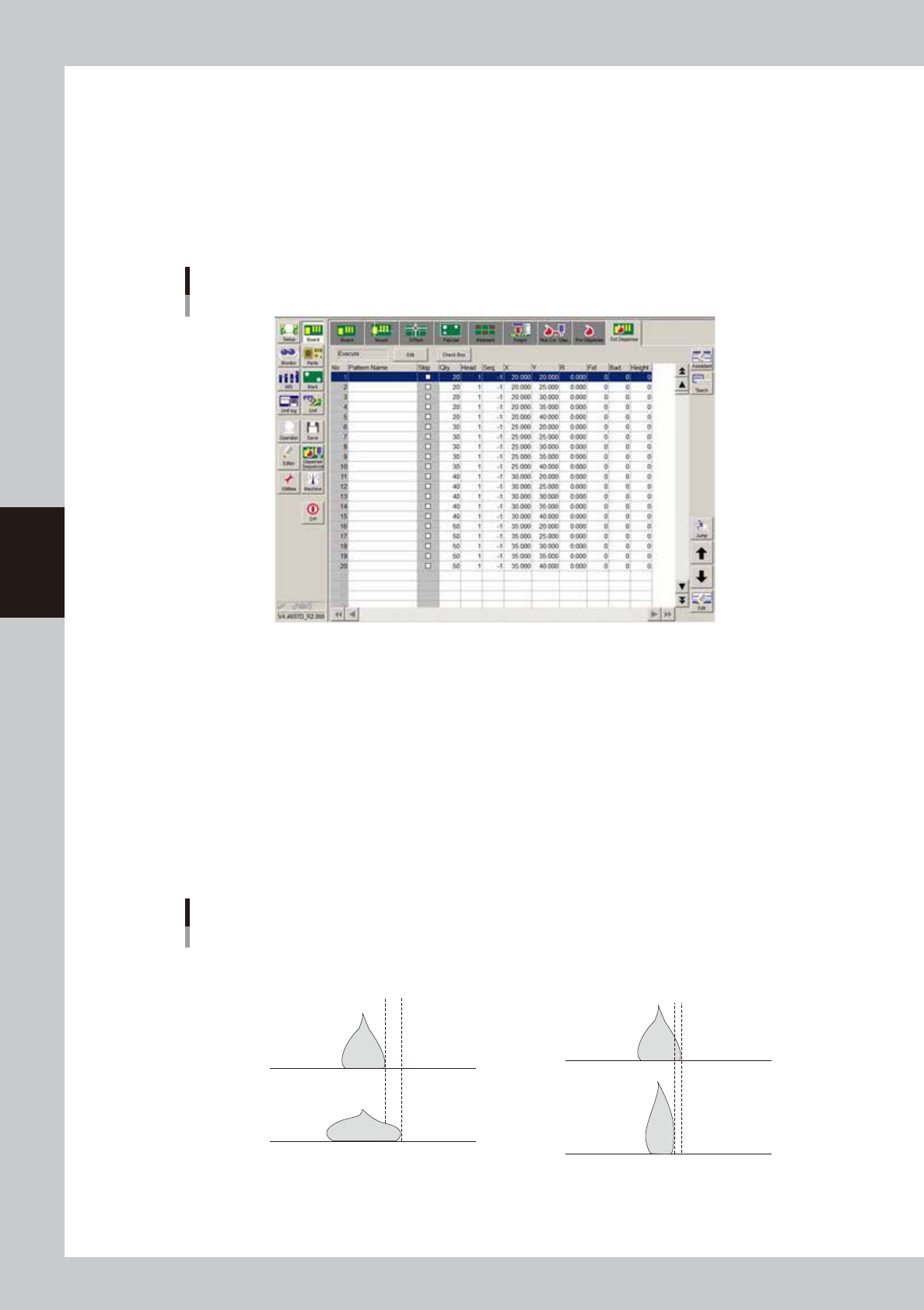
Open the [Board]-[Dot Dispense] screen and enter the parameters for checking the dispensing amount.
To check the stable dispensing amount, create five continuous points of liquid amount data.
Dot dispense parameter settings
Example
64439-N7-00
2
Dispense liquid on a board.
On the [Board]-[Pre Dispense] screen, press the [Edit] button and specify “Skip”. Then start automatic
operation to dispense liquid on a board. Repeat this process while changing the liquid amount until the
maximum desired dot size is dispensed on the board
3
Dispense liquid on the dot station.
Press the [Edit] button and return the setting to “On dot station”. Perform a dispensing test to dispense
each amount of liquid on the dot station.
4
Check the difference in the dispensing amount.
Check the liquid amounts dispensed on the board and on the dot station with eyes or with the moving
camera. When no problem is found, return the liquid amount of the predispense data to “20”.
Checking the dispensing state
Examples
Dispensing amount on board is greater
Dispensing amount on board is smaller
Dot station
Dot station
Board
Difference
Board
Difference
63411-N7-00