YSD_Users_E.pdf - 第193页
5-4 5 Creating the board data 1.3 Creating the board data by manual input T his section describes how to create dispenser board data by manual input. F ollow the steps below to create board data. Since the title of each …
5-3
5
Creating the board data
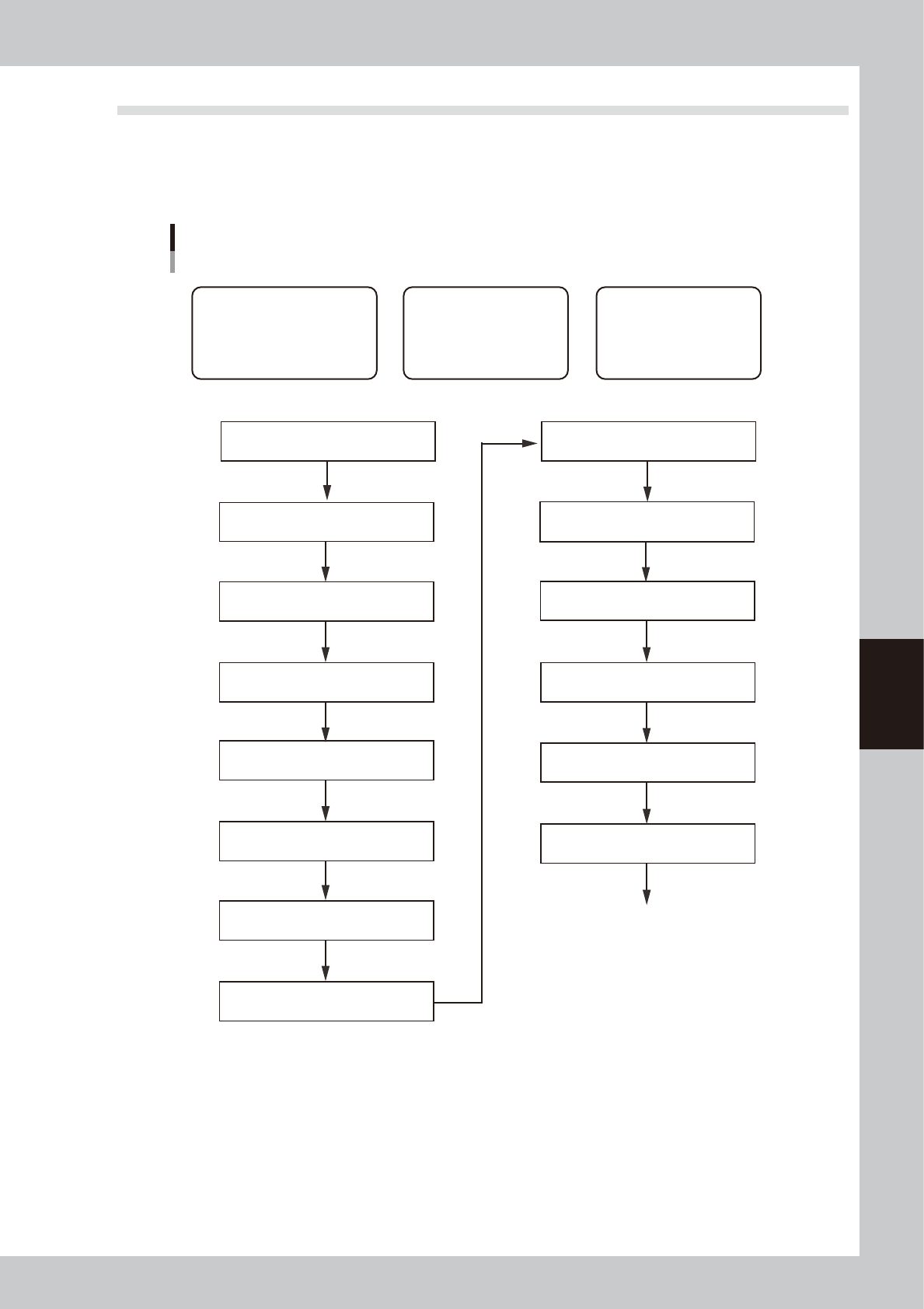
1.2 Creating the board data from CAD data
This section describes how to create dispenser board data from CAD data. As an example, converting only
mount information into dispenser data is explained. To perform ASCII data conversion, use the offline software.
Follow the steps below to create board data. Since the title of each step is the same as the heading of each
section in this manual, refer to the table of contents to find the information on the steps you want to know.
Basic procedure for creating data from CAD data
Example of converting mount data only
[1] Chapter 8, section 1.2
“Copying and moving the board data”
[2] Chapter 4, section 3
“Creating the predispense information”
[3] Chapter 5, section 5
“Creating the parts information”
Create parts data for dispensing
[3] Chapter 5, section 7.1
“Dispense distribution”
[1] Data related to board
• Basic information on nozzles,
temperature setting, etc.
• Information necessary to clamp
board and make corrections
[2] Predispensing operation
Information necessary to
ensure stable dispensing
[3] Dot dispensing operation
Information necessary to
dispense on board
[1] ASCII data conversion
Use offline software
[2] Chapter 4, section 4
“Position correction dispense function”
Perform dispensing test
[1] Chapter 5, section 4.3
“Offset parameters (Board)”
[1] Chapter 5, section 6
“Creating the mark information”
[1] Chapter 5, section 4.4
“Fiducial parameters (Board)”
[1] Chapter 7, section 3.1
“Converting VIOS data into YGX data”
* When board data is not YGX
[1] Chapter 5, section 4.1
“Board parameters (Board)”
[1] Chapter 5, section 3.1
“Nozzle information (Setup)”
[1] Chapter 5, section 3.2
“Temperature setting (Setup)”
[3] Chapter 7, section 4.2
“Deleting the dispensing points”
* When mount data contains parameters not requiring dispensing
63552-N7-00
5-4
5
Creating the board data
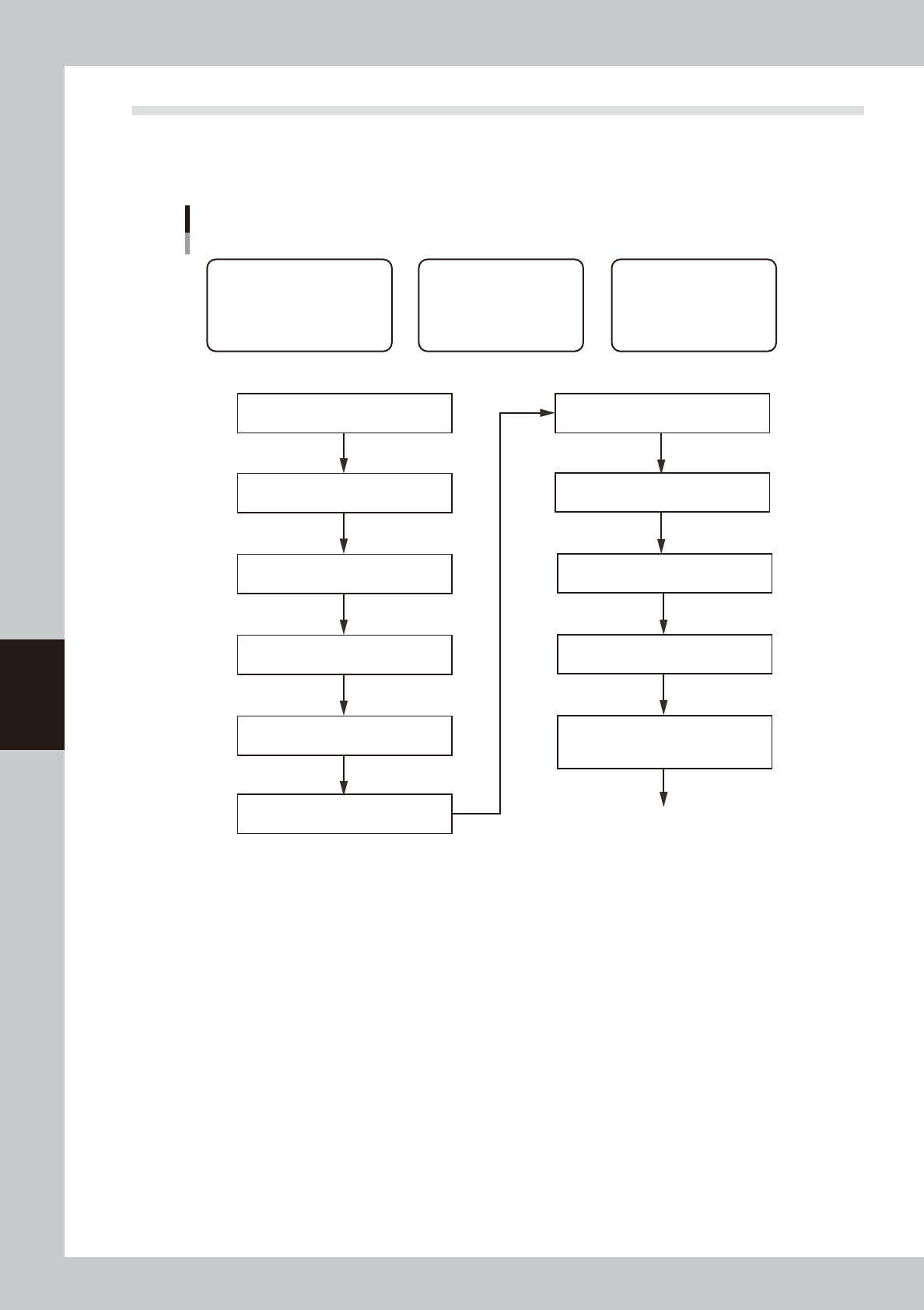
1.3 Creating the board data by manual input
This section describes how to create dispenser board data by manual input. Follow the steps below to create
board data. Since the title of each step is the same as the heading of each section in this manual, refer to the
table of contents to find the information on the steps you want to know.
Basic procedure for creating data by manual input
[1] Chapter 5, section 4.1
“Board parameters (Board)”
[1] Chapter 5, section 3.1
“Nozzle information (Setup)”
[1] Chapter 5, section 3.2
“Temperature setting (Setup)”
[1] Chapter 5, section 2.1
“Registering board names”
[1] Chapter 5, section 4.3
“Offset parameters (Board)”
[1] Chapter 5, section 6
“Creating the mark information”
[1] Chapter 5, section 6.5
“Mark Adjust mode”
[1] Chapter 5, section 4.4
“Fiducial parameters (Board)”
[2] Chapter 4, section 4
“Position correction dispense function”
[1] Data related to board
• Basic information on nozzles,
temperature setting, etc.
• Information necessary to clamp
board and make corrections
[2] Predispensing operation
Information necessary to
ensure stable dispensing
[3] Dot dispensing operation
Information necessary to
dispense on board
[2] Chapter 4, section 3
“Creating the predispense information”
[3] Chapter 4, section 4.9
“Dot dispense parameters (Board)
* After having entered the parameters,
perform a sort and other tasks for each head.
Perform dispensing test
63550-N7-00
5-5
5
Creating the board data
2. Registering and selecting board name
2.1 Registering board names
To create new board data for production, you must first register the board name. There are some methods for
registering a board name.
2.1.1 Registering a new board name
If no basic data is found in the previously registered board data. You should register a new board name with empty data
and then enter necessary data.
2.1.2 Utilizing board data already registered
Make a copy of board data which is already registered in the machine.
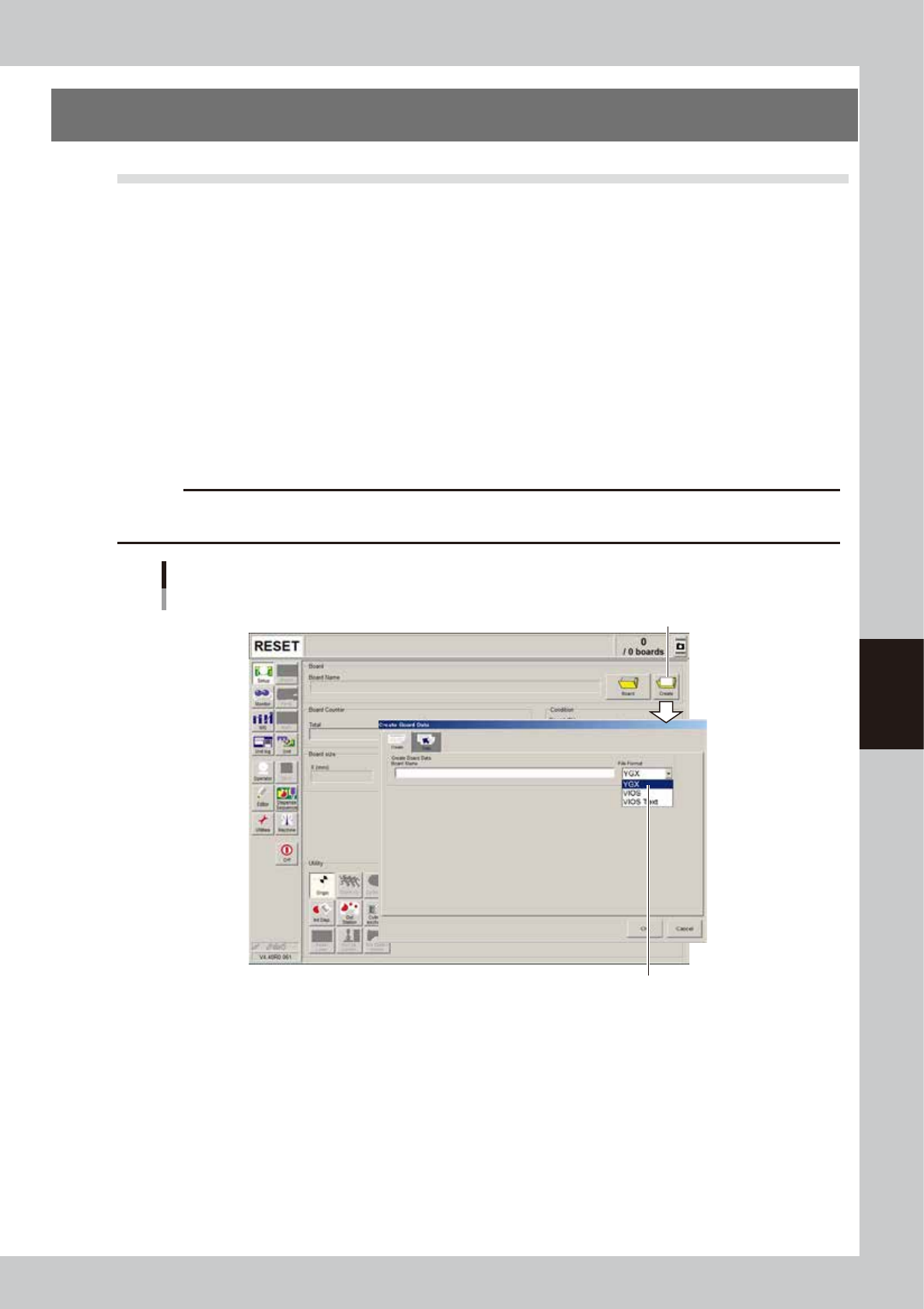
2.1.1 Registering a new board name
1
Press the [Create] button on the Setup screen.
The “Create Board Data” dialog box appears. Select the “YGX” file format.
c
CAUTION
If a file format other than “YGX” is selected, part of information may not be saved, making the relevant functions
unusable.
[Create] button
Select the “YGX” file format.
[Create] button
64500-N7-00