YSD_Users_E.pdf - 第147页
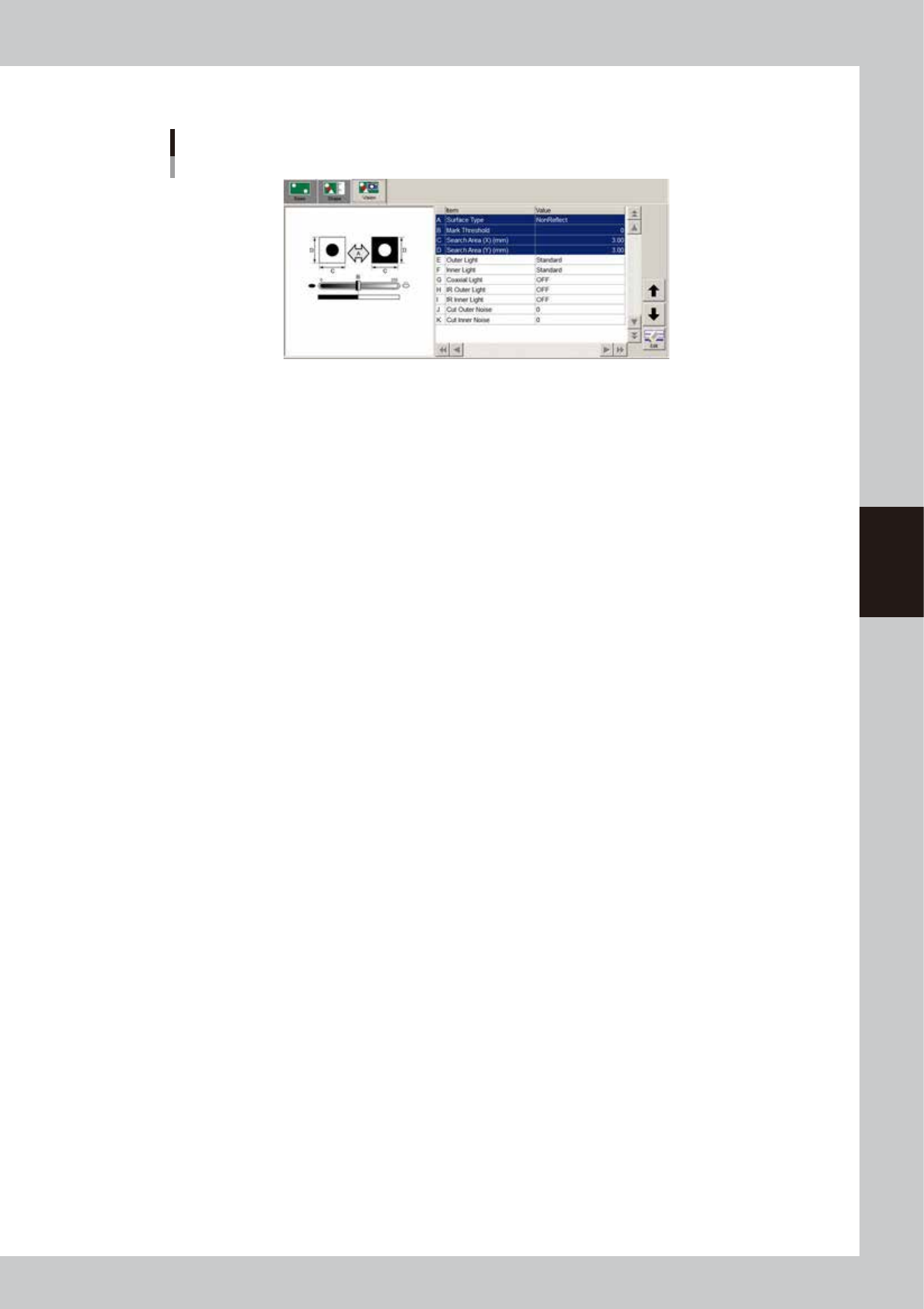
4-19 4 Making the dispensing stable n Mark recognition infor mation Mark recognition information 64436-N7-00 A: Surface T ype Normally , set this parameter to "NonReflect". B: Mark Threshold Set the threshold t…

4-18
4
Making the dispensing stable
B: Std. Area
Enter the main liquid amount to dispense a dot. If there is a difference between the dots on a board and on the dot
station, set this parameter to the liquid amount for the dot on the board.
C: Shape Param.
When the “Check Shape” parameter is set to “Area/Peri”, set the shape constant.
Set this shape constant to “3.545” when the shape to be extracted is a circle, and set it to “4.000” when the shape is a
square.
Shape constant = Perimeter /
√
Area
D: Area Tol.
This is a tolerance used to evaluate dot recognition results. As this parameter value approaches 100%, the evaluation
criteria become less strict.
n
NOTE
To make it easier to obtain the area data, set the area and shape tolerance values to 100%.
This helps you acquire the data easily. After you have acquired the area data, return the parameters to the original
settings.
E: Shape Tol.
This is a tolerance used to evaluate dot recognition results. As this parameter value approaches 100%, the evaluation
criteria become less strict, so even dots forming a long adhesive string are viewed as okay.
F: Area Tol. to Check (for check)
This is a tolerance used to evaluate the second dot recognition results when the alignment amount check function is
used. As this parameter value approaches 100%, the evaluation criteria become less strict.
G: Shape Tol. (for check)
This is a tolerance used to evaluate the second dot recognition results when the alignment amount check function is
used. As this parameter value approaches 100%, the evaluation criteria become less strict, so even dots forming a long
adhesive string are viewed as okay.
H: Min. Sample Dots
Set the number of dots that can be recognized correctly to continue production.
If "0" is set, production will continue irrespective of the recognition result.
It is recommended that predispensing for alignment be performed twice by each head prior to recognition.
An error will occur if the number of dots that can be recognized does not reach the value set for the "Min. Sample Dots"
parameter. (Refer to "8.2.6 Checking alignment during automatic operation".)
When you press the [ERROR CLEAR] button, the [Dispense Test], [Retry]. [Reset] and [Continue] buttons are displayed.
(See “2.3 Starting a dispensing test during automatic operation” in this chapter.
• Continue
Continues automatic operation.
If you click this button after recognition of all the dots has failed, dispense will be performed on the board based on
the previous alignment amount.
• Retry
If you click this button after recognition of all the dots has failed, dispense will be performed again.
• Reset
Stops automatic operation and releases the board.
TIP
When you perform recognition twice, two dots will be recognized with a 1-shot nozzle and four dots with a 2-shot
nozzle.
When the "Min. Sample Dots" parameter is set to "3" when a 2-shot nozzle is used, production will stop if the number of
correctly recognized dots is 2 or less.
If you want to let production stop when predispensing becomes unstable, set the "Min. Sample Dots" parameter to the
maximum number of dots which can be considered to be a sample.
I: Lighting
Set to "Reflected" when recognizing dispensed dots with the moving camera installed on the head assembly.
Set to "Backlight" when using the lighting on the dot station (option).
4-19
4
Making the dispensing stable
n
Mark recognition information
Mark recognition information
64436-N7-00
A: Surface Type
Normally, set this parameter to "NonReflect".
B: Mark Threshold
Set the threshold that reproduces the dot shape correctly.
If the background is uniform (no patterns, etc.), setting this parameter to "0" will automatically determine an appropriate
threshold.
C, D: Search Area (XY)
Set this parameter as small as possible for the dot to be recognized.
4-20
4
Making the dispensing stable
3.1.4 Checking the dispensing amount on the dot station
Check the dispensing amount on the dot station by making a dispensing test with the mark data that was
created. The following steps describe the procedure for checking the dispensing amount using a Type 111
nozzle as an example.
1
Set up the head unit.
Prepare a new syringe kept at ambient temperature and the nozzle, and attach them to the head. For
the instructions on how to attach the syringe and nozzle, see “3.4 Setting up the head unit” in Chapter 2.
2
Bleed the nozzle air.
When setting the temperature, bleed the air after waiting until the target temperature is reached. For
the instructions on how to bleed the nozzle air, see “3.6 Bleeding the nozzle air” in Chapter 2.
3
Adjust the air pressure.
Press the [Dispense Test] button to open the dispense screen and the press the [Execute] button to start
dispensing. Adjust the air pressure so that the recognition results reach the standard area value. If failed
to recognize a dispensed dot even after adjusting the air pressure, then check the e dispensing state
visually and adjust to the size you want for the main dispensing.
4
Make the mark adjustment.
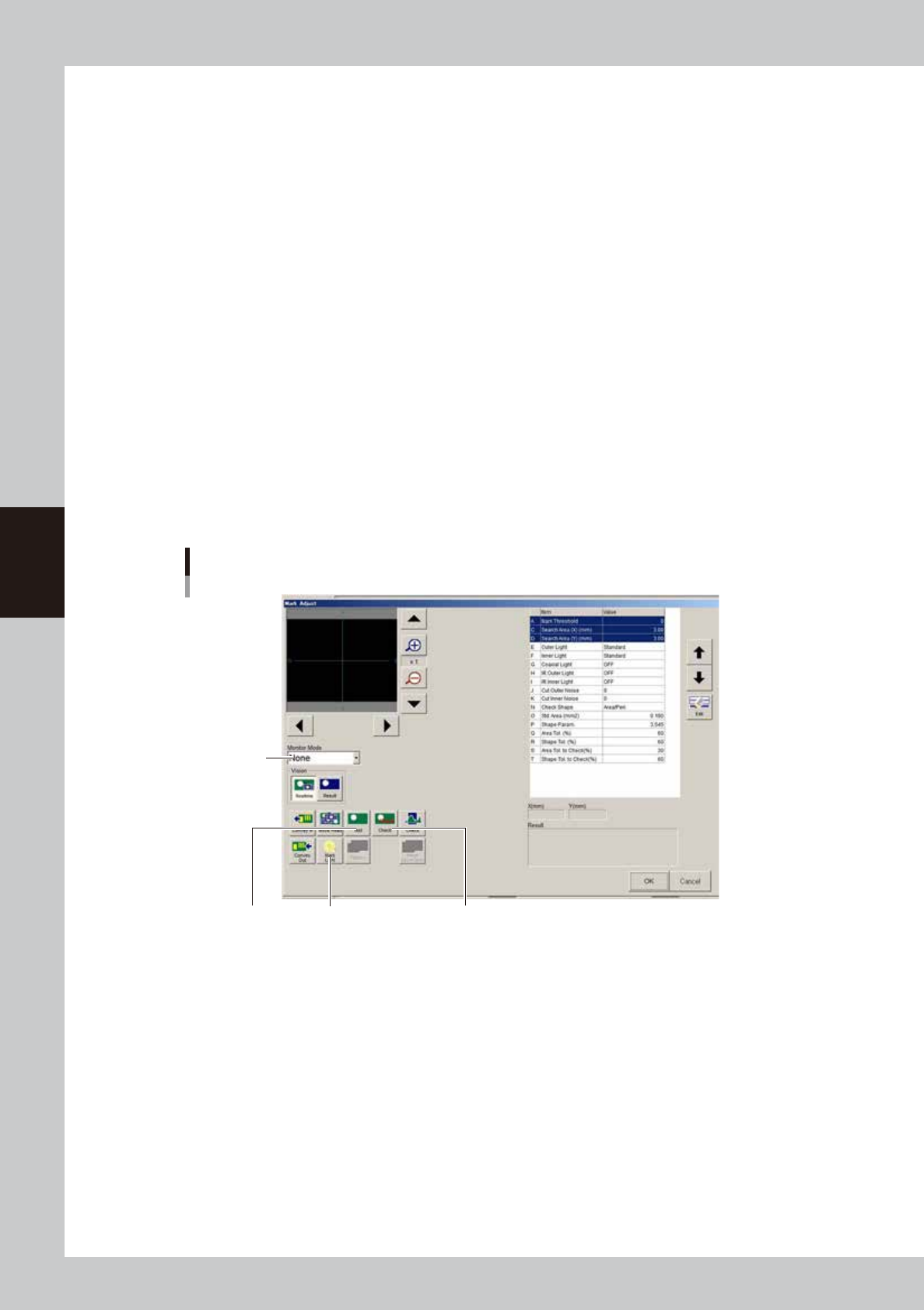
Use a dot having a stable shape to make the mark adjustment. Press the [Test] button, switch to Monitor
Mode, and check the dot recognition state. If the lighting is not correct, then press the [Mark Light]
button and adjust the lighting so as to fall within the correct dot recognition state. After making the
adjustment, press the [Check] button to check if it is within the tolerance range.
Mark Adjust window
[Test] button
Monitor Mode
[Check] button[Mark Light] button
64437-N7-00
[Test] button
If you are not performing the alignment amount check, press this button to acquire the dot area. The acquired area and
perimeter will be displayed when "Result" is selected in the Monitor Mode dropdown list.
[Mark Light] button
Set the lighting level according to the dispensing state. Adjust to the lighting level that produces a dot you want to
recognize.
[Check] button
Use this button if you are performing the alignment amount check, to see whether the dot area is within the tolerance.