YSD_Users_E.pdf - 第268页
5-79 5 Creating the board data 6 Sav e the board data and quit the Editor . 1. Select "Save Board Data" from the File menu or click the [Save Board Data] button on the toolbar . The board data is saved and the …
5-78
5
Creating the board data
3
Display the dot dispense parameters.
Click the Dot Dispense icon in the tree view (left pane) or click the [Dot Dispense] tab in the main view
(right pane).
4
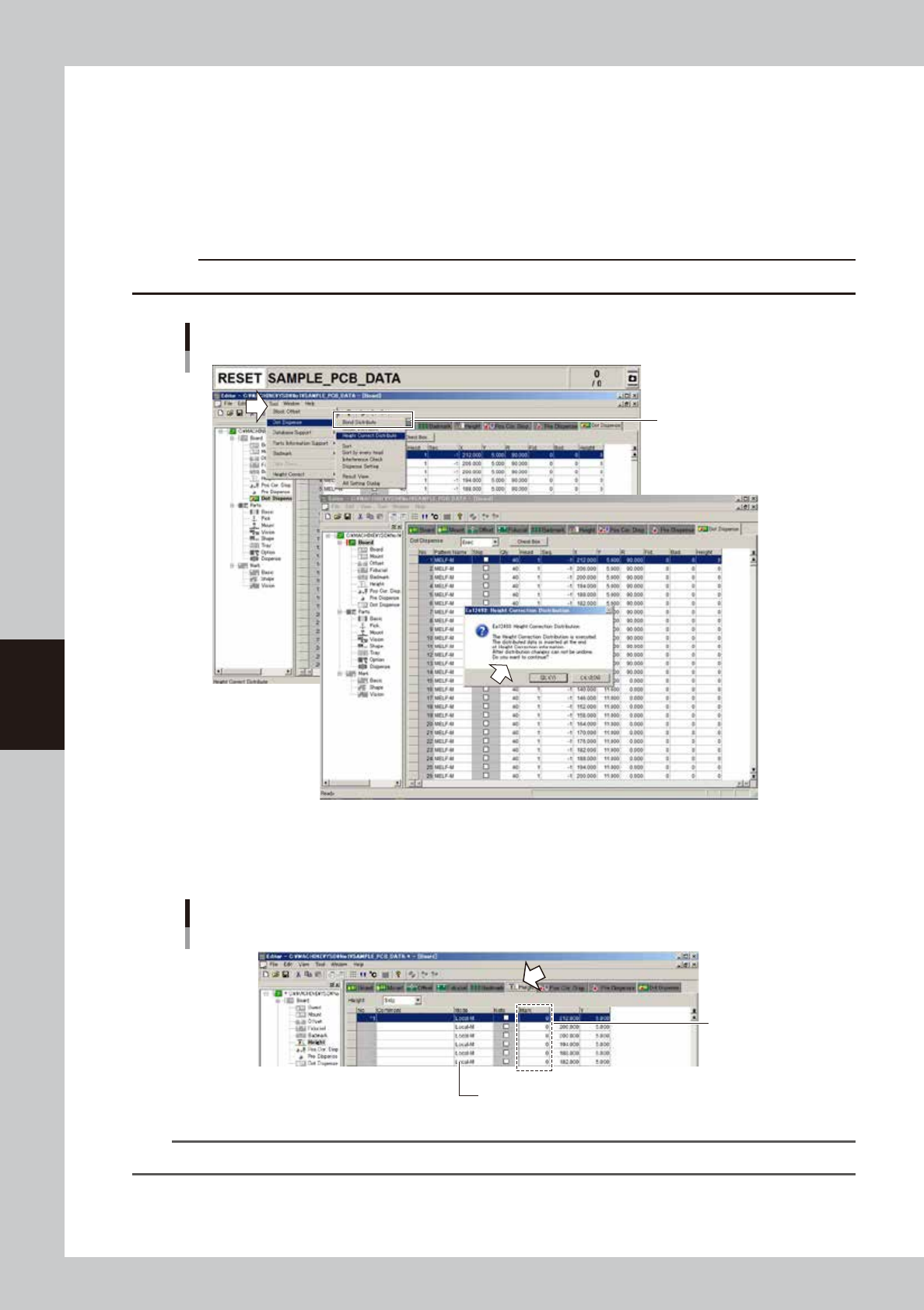
Perform the height correction distribution.
From the [Edit] menu, select [Dispense Distribute] - [Height Correct Distribute].
The height correction distribution will start to create height correction coordinates according to the dot
dispense data.
c
CAUT ION
Performing the height correction distribution will overwrite the height correction of the dot dispense data.
Height correction Distribution
Select eithter command.
64553-N7-00
5
Enter the mark number.
Open the [Height] tab and enter the mark number for height correction.
Entering the mark number
Enter the mark
number for
height correction.
DIstributed data is displayed.
64554-N7-00
TIP
When entering the same mark number in all fields, use [Replace] from the [Edit] menu.
5-79
5
Creating the board data
6
Save the board data and quit the Editor.
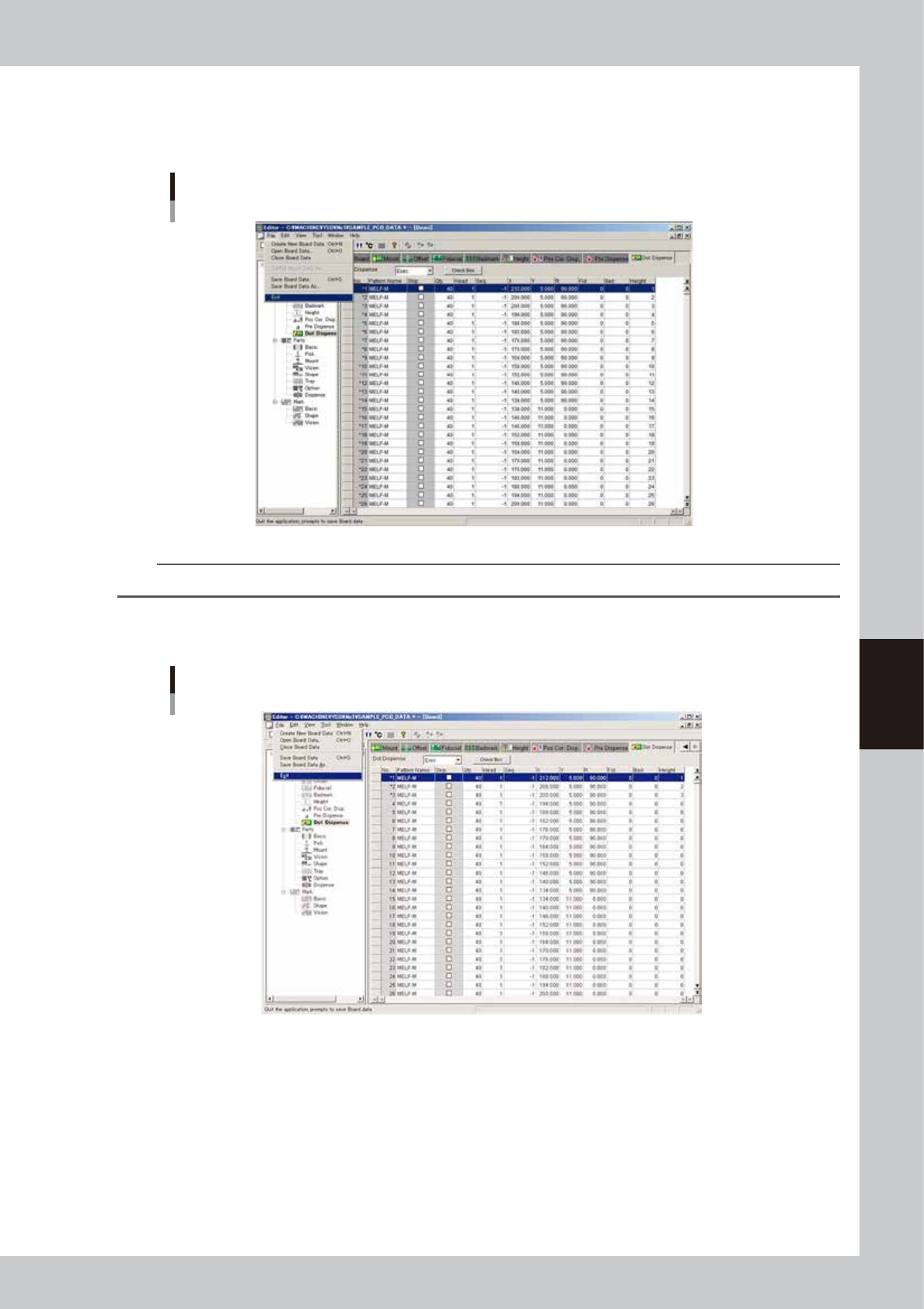
1. Select "Save Board Data" from the File menu or click the [Save Board Data] button on the toolbar.
The board data is saved and the existing board data is overwritten.
"Save Board Data" command
64555-N7-00
TIP
If you do not want the existing board data to be overwritten, select "Save Board Data As…" from the File menu.
2. Select "Exit" from the File menu.
The Editor window closes.
Exiting the Editor
64556-N7-00

Chapter 6 Using the advanced functions
Contents
1. Setup parameters 6-1
1.1 Halfway Continue function 6-1
1.1.1 Loading the saved data 6-2
1.1.2 Editing mount flags 6-2
2. Teach and trace 6-3
2.1 Trace function 6-3
2.2 Auto trace function 6-6
2.3 Teaching function 6-7
2.3.1 Point teaching 6-7
2.3.2 Cursor teaching 6-11
3. Edit Assistant function 6-15
3.1 Switching to the Edit Assistant screen 6-15
3.2 Selecting a range of rows 6-16
3.3 Editing rows 6-17
3.4 Find and replace 6-18
3.5 Renumber 6-19
4. Adjustment 6-21
4.1 Dispensing test (Adjustment screen) 6-21