YSD_Users_E.pdf - 第298页
7-4 7 Editing the board data Database toolbar Use this tool bar when using the database function. 1. [Over view Database] button Shows the database list dialog box. TIP This button per forms the same function as the &quo…
7-3
7
Editing the board data
3. [Save Board Data] button
Saves the currently edited board data over the original board data.
TIP
The [Save Board Data] button performs the same function as the "Save Board Data" command in the File menu.
4. [Cut] button
Cuts and removes the selected range or item.
The data that was cut is stored in the clipboard. The contents previously stored in the clipboard are overwritten.
TIP
The [Cut] button performs the same function as the "Cut" command in the Edit menu.
5. [Copy] button
Copies the selected range or item into the clipboard. The contents previously stored in the clipboard are overwritten.
Reference
The [Copy] button performs the same function as the "Copy" command in the Edit menu.
6. [Paste] button
Pastes the contents currently stored in the clipboard into the selected place.
TIP
The [Paste] button performs the same function as the "Paste" command in the Edit menu.
7. [Toggle Tree View] button
Shows or hides the tree view in the left pane of the Editor window.
TIP
This button performs the same function as the "Tree View" command in the View menu.
8. [Toggle Detail View] button
Shows or hides the detail view of board data that appears in the lower part of the main view.
TIP
This button performs the same function as the "Detail View" command in the View menu.
9. [Nozzle Information] button
Opens the "Nozzle Information" dialog box showing information on the currently used nozzles.
TIP
This button performs the same function as the " Nozzle Information " command in the Edit menu.
10. [Temperature Setting] button
Opens the "Temperature Setting" dialog box that allows you to set the syringe temperature. Set the syringe temperature
within the specified upper limit.
TIP
This button performs the same function as the "Temperature Setting" command in the Edit menu.
11. [Data Check] button
Displays the "Data Check" dialog box to check the board data that is currently open.
TIP
The [Data Check] button performs the same function as the "Data Check" command in the Tool menu.
12. [About] button
Displays the information and version of the Editor.
TIP
The [About] button performs the same function as the "About YgEditor" command in the Help menu.

7-4
7
Editing the board data
Database toolbar
Use this tool bar when using the database function.
1. [Overview Database] button
Shows the database list dialog box.
TIP
This button performs the same function as the "Database Support" – "Overview Database" command in the Tool menu.
2. [Set from Database] button
Copies the contents of the database into the board data.
TIP
This button performs the same function as the "Database Support" – "Set from Database" command in the Tool menu.
3. [Copy Back to Database] button
Copies the board data setting into the database.
TIP
This button performs the same function as the "Database Support" – "Copy Back to Database" command in the Tool
menu.
Tree view
The tree view in the left pane hierarchically displays the icons representing board data items.
The tree view can be hidden and redisplayed by selecting the "Tree View" command from the Tool menu.
Item icons
An item icon represents a group of various data items. Clicking an item icon displays the corresponding information in
the main view or detail view.
Main view
Displays the contents of the selected item icon.
7-5
7
Editing the board data
1.3 Jump
On the Editor window, the cursor can be jumped to the top, end or any desired data row.
This function can be used on the "Mount", "Offset", "Fiducial", "Badmark", "Pre Dispense" and "Dot Dispense"
tab grids, as well as "Parts" grid and "Mark" grid displayed in the main view.
1.3.1 Specifying the row to jump
A jump can be made to a specified row.
1
Click any row in the main view.
2
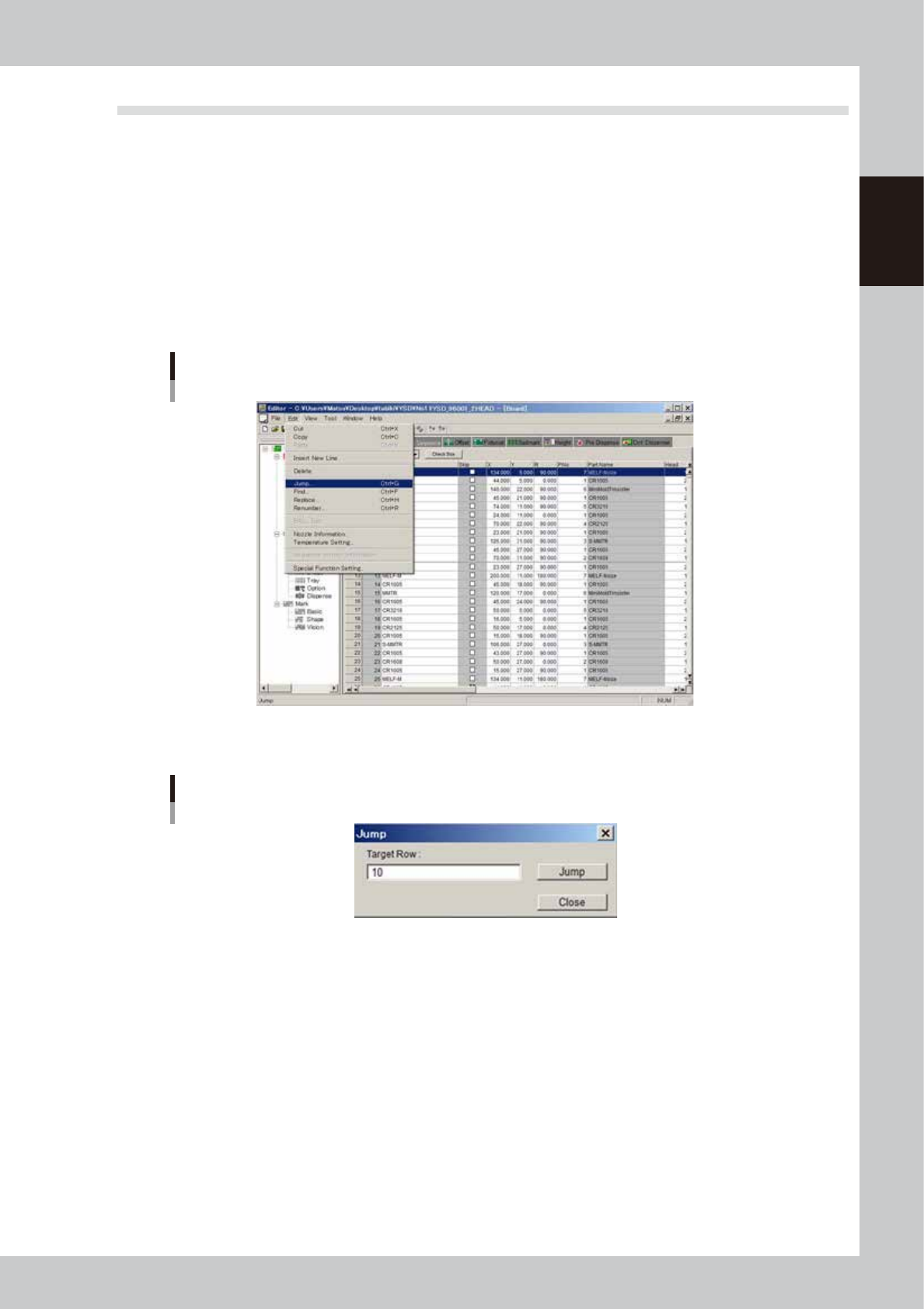
Select the "Jump" command to jump to the specified row.
1. Select "Jump" from the Edit menu.
Edit menu
“Jump”
64703-N7-00
2. The "Jump" dialog box appears. Enter the row number to jump to, and click the [Jump] button.
“Jump” dialog box
64704-N7-00