YSD_Users_E.pdf - 第348页
8-28 8 Managing the data n Items displayed on the "Unit Log" screen Items to be display ed on each tab of the "Unit Log" screen can be viewed by pressing the [Option] button on the lower right of the …
8-27
8
Managing the data
3.1.2 Operation log (Unit Log)
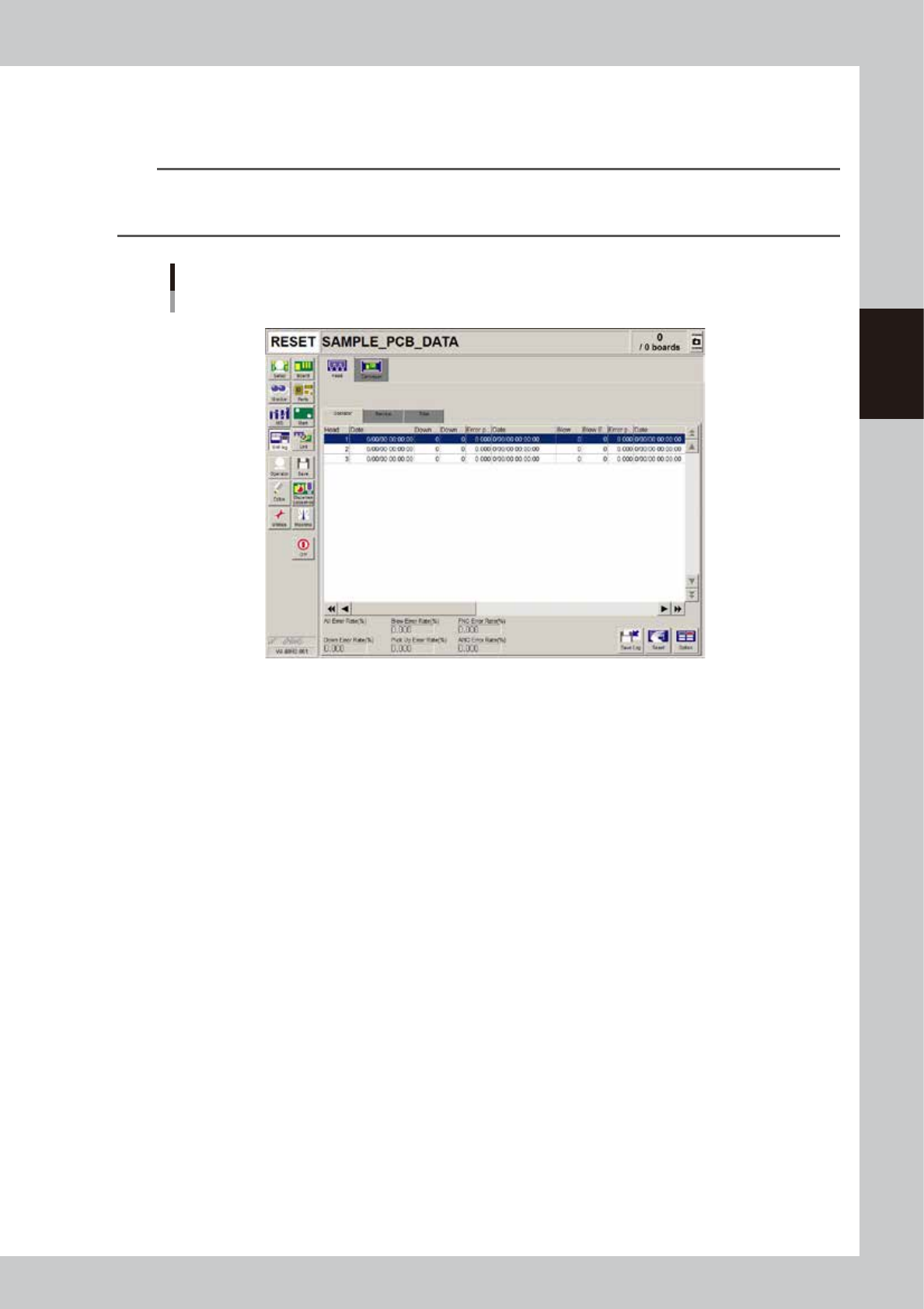
Pressing the [Unit Log] button opens the "Unit Log" screen with the [Head], [Nozzle], [Feeder], [Conveyor] and
[Parts] tabs.
TIP
In the unit log, the head, nozzle, conveyor and feeder operation logs are further divided into 3 groups: "Operator",
"Service" and "Total". The "Operator" and "Service" operation logs can be cleared as needed. The "Total" operation logs
cannot be cleared, as these are used for maintenance.
Operation log (“Unit Log” screen)
[Head]-[Operator] tab
64825-N7-00
Head
The [Head] tab screen displays information on operation logs for each head of the machine. You can check how
frequently each head was used or head-related errors occurred.
The following error rates are displayed on the lower part of this screen.
Down Error Rate (%)
Shows the percentage of the total head down error count divided by the total head down count for all heads.
Blow Error Rate (%)
Shows the percentage of the total blow error count divided by the total blow count for all heads.
Pickup Error Rate (%) (Not used with this machine)
Shows the percentage of the total pickup error count divided by the total pickup count for all heads.
FNC Error Rate (%) (Not used with this machine)
Shows the percentage of the total FNC change error count divided by the total FNC change count for all heads.
ANC Error Rate (%) (Not used with this machine)
Shows the percentage of the total ANC change error count divided by the total ANC change count for all heads.
Conveyor
The [Conveyor] tab screen displays information on operation logs relating to the conveyor units in the machine. You can
check how frequently each conveyor unit was used or errors occurred.
The operation error rate is displayed on the lower part of this screen.
8-28
8
Managing the data
n
Items displayed on the "Unit Log" screen
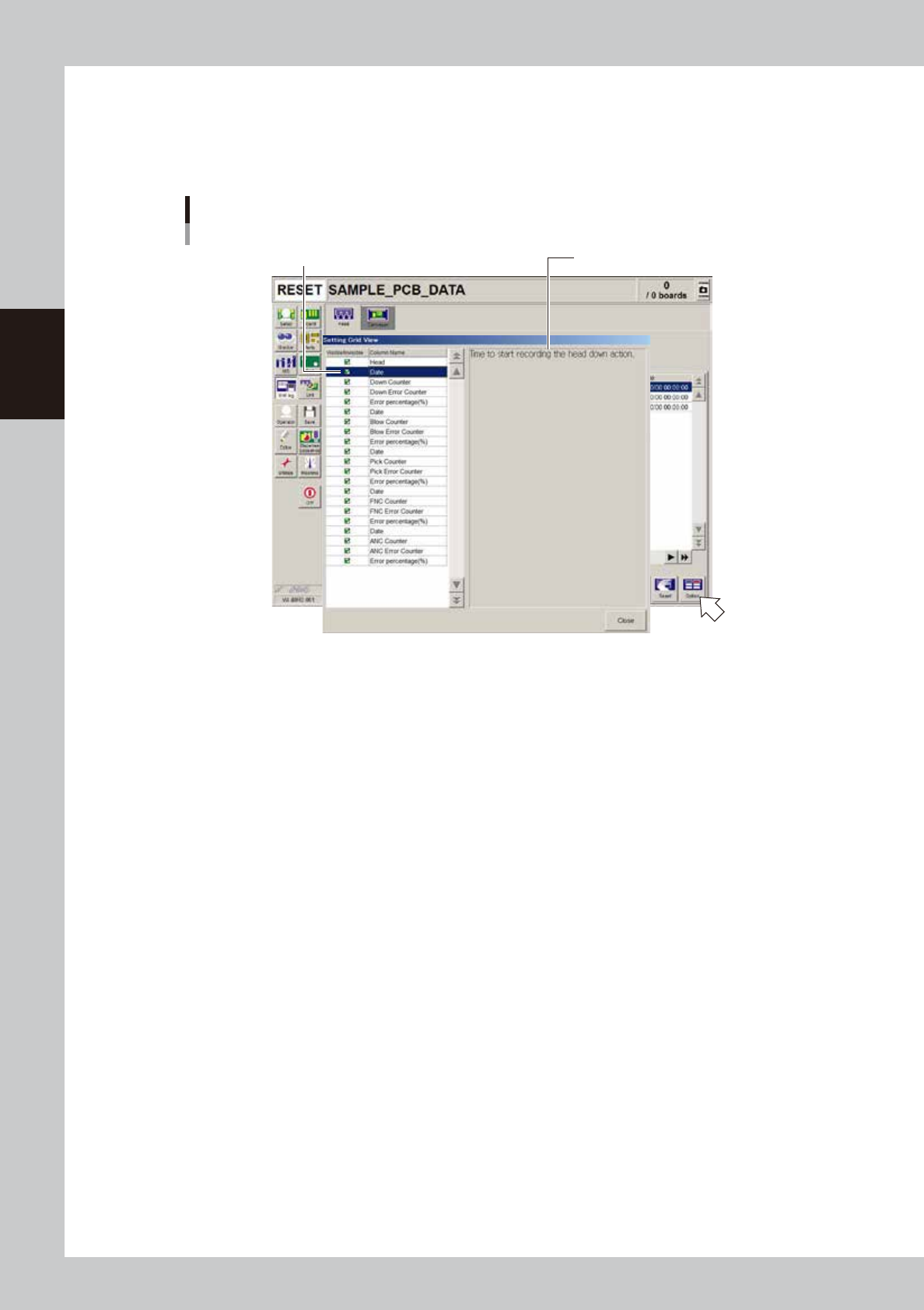
Items to be displayed on each tab of the "Unit Log" screen can be viewed by pressing the [Option] button on the lower
right of the "Unit Log" screen. Pressing the [Option] button opens the "Setting Grid View" screen as shown below.
Selecting each item in the left-hand list shows the contents of that item on the right side.
“Setting Grid View” screen
[Unit Log]-[Head] tab
Select item. Description of the selected item is displayed.
64826-N7-00
8-29
8
Managing the data
3.1.3 Other operations
Production and operation log data can be saved or deleted, and each log data item hidden or re-displayed on
the screen as needed.
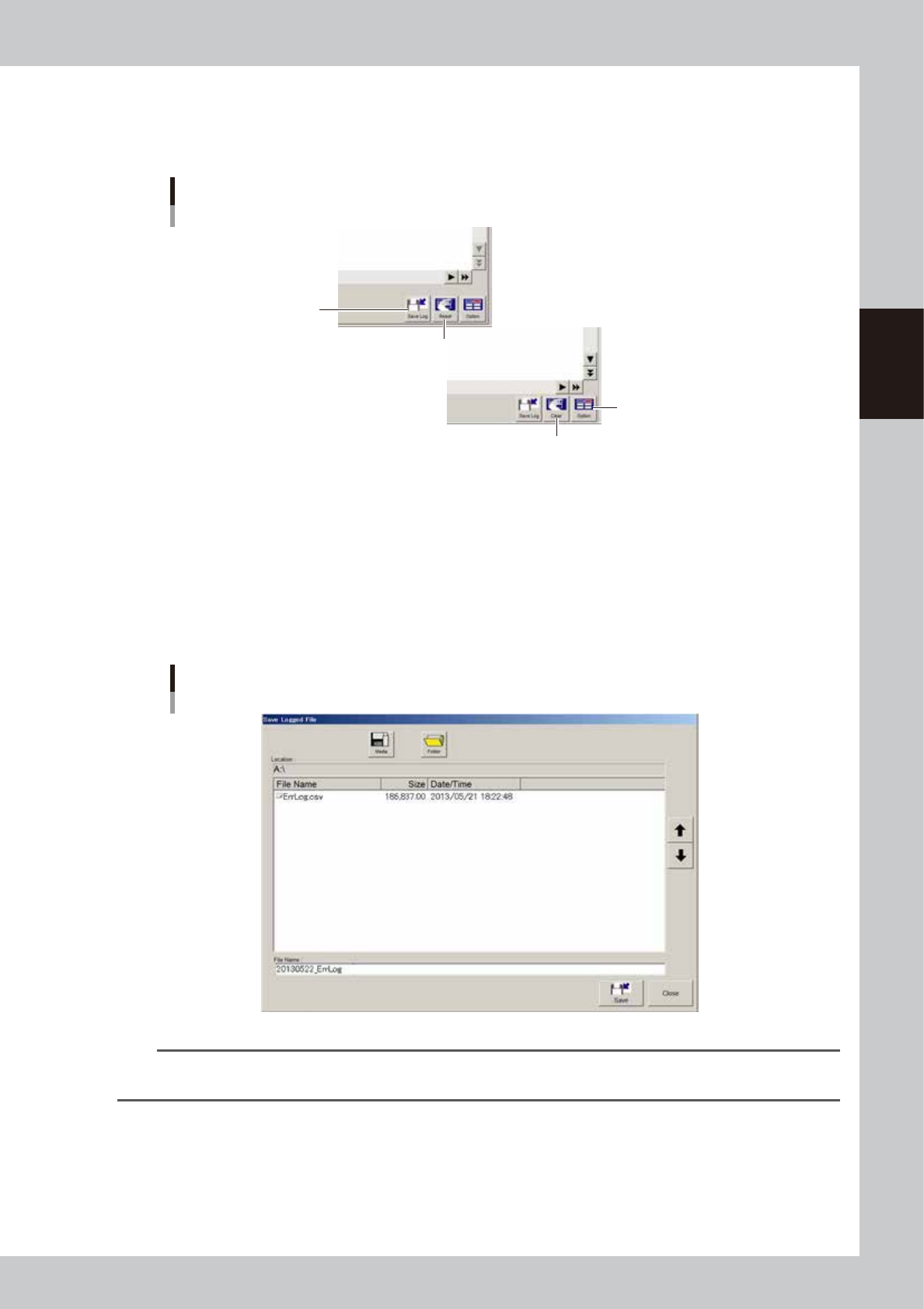
Log data operation and setting buttons
[Save Log] button
[Clear] button
[Option] button
[Reset] button
64827-N7-00
[Save Log] button
Pressing the [Save Log] button opens the "Save Logged File" dialog box. You can save the desired log data currently stored
in the system, into any location such as an external medium (USB memory and floppy disk) or network drive.
1. Press the [Save Log] button to open the "Save Logged File" dialog box.
2. Press the [Media] and [Folder] buttons, and set the location to save the log data.
3. Name the file and press the [Save] button.
The file of the log data will be saved in the specified location. A file extension (.csv) will be automatically assigned to
each file.
Saving the log data
64828-N7-00
TIP
If you want to save all production log data to an external medium at one time, make settings on the "History Utility"
screen. For information on the "History Utility" screen, refer to "3.2.3 History Utility" described later on.