YSD_Users_E.pdf - 第272页
6-3 6 Using the advanced functions 2. T each and trace 2.1 T race function T he trace function automatically moves the teac hing unit such as the camera or head to the target position. T his is mainly used to check the i…
6-2
6
Using the advanced functions
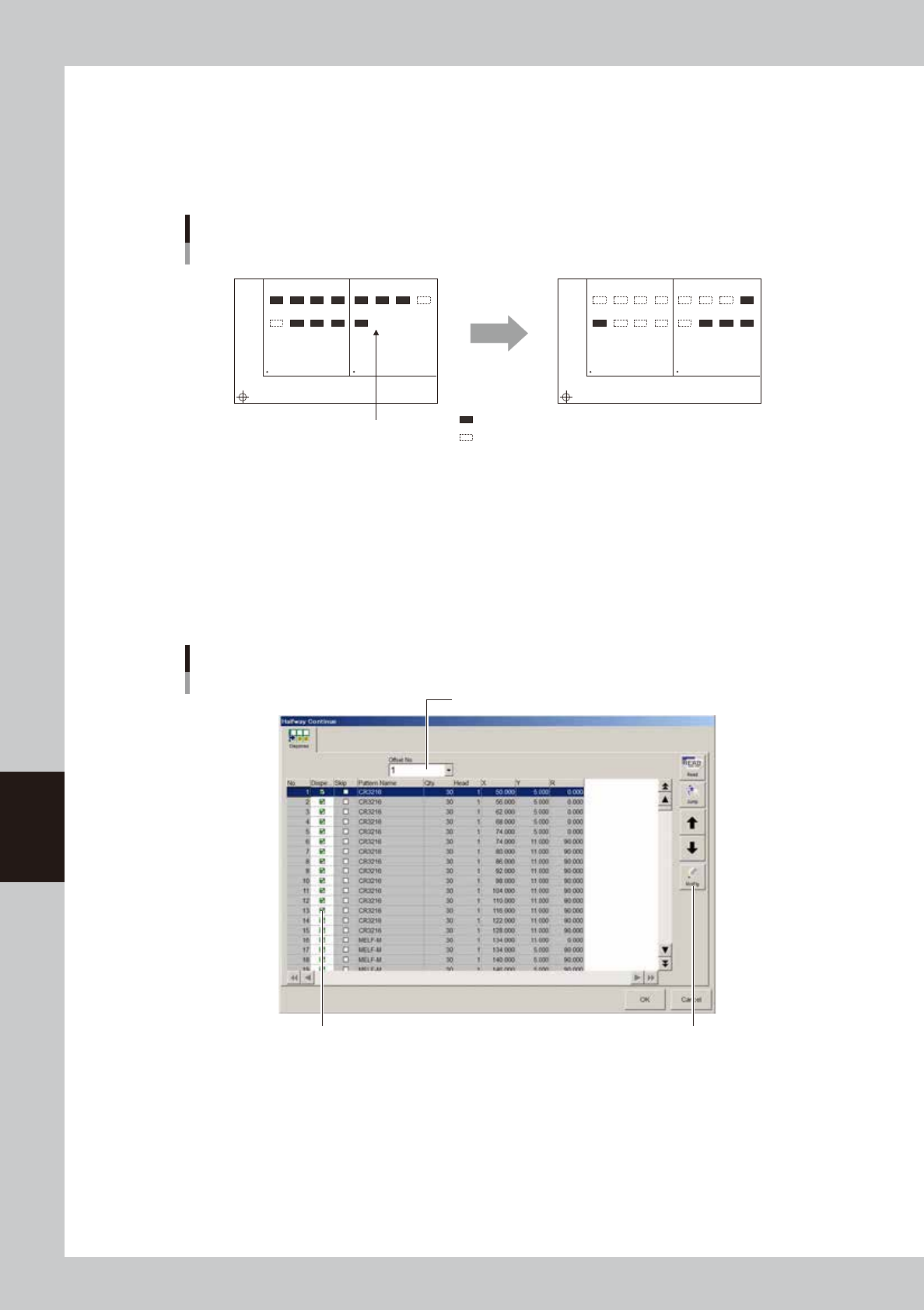
1.1.1 Loading the saved data
Even when you have reset the mounting operation during board production, the machine saves the mounting
operation data that was in progress. You can load that data by pressing the [Read] button on the Halfway
Continue dialog box, to resume the operation from the stopped point. Since the last mounting data including
error information is saved, mounting is also performed at the mounting points at which errors occurred.
Restarting component mount by Halfway Continue function
Automatic operation restarts
after loading the save data.
1
5
BLOCK NO.1 BLOCK NO.2
2
6
3
7
4
8
1
5
2
6
3
7
4
8
1
5
BLOCK NO.1 BLOCK NO.2
2
6
3
7
4
8
1
5
2
6
3
7
4
8
:mounted
:not mounted
Reset
63600-N7-00
1.1.2 Editing mount flags
The Halfway Continue function can also be used to perform mounting for a specific mounting point by
specifying the mount data number. For example, when you have paused mounting operation and reset the
mount data, press the [Read] button to reload the data and edit each mounting point as necessary by using the
[MntFlg] button. When the offset function for multi-block boards is used, the mount data in each block can
also be edited. Note that this function is used only for the first board, with routine mounting operation
beginning from the next board.
[MntFlg] button
Editing mount flags
Offset No. selection box
Mounted flag (checkmark)
64601-N7-00
6-3
6
Using the advanced functions
2. Teach and trace
2.1 Trace function
The trace function automatically moves the teaching unit such as the camera or head to the target position.
This is mainly used to check the input XY coordinate data.
1
Clamp a board on the conveyor.
Use the [Width] button and other buttons on the Unit screen to clamp a board on the conveyor.
2
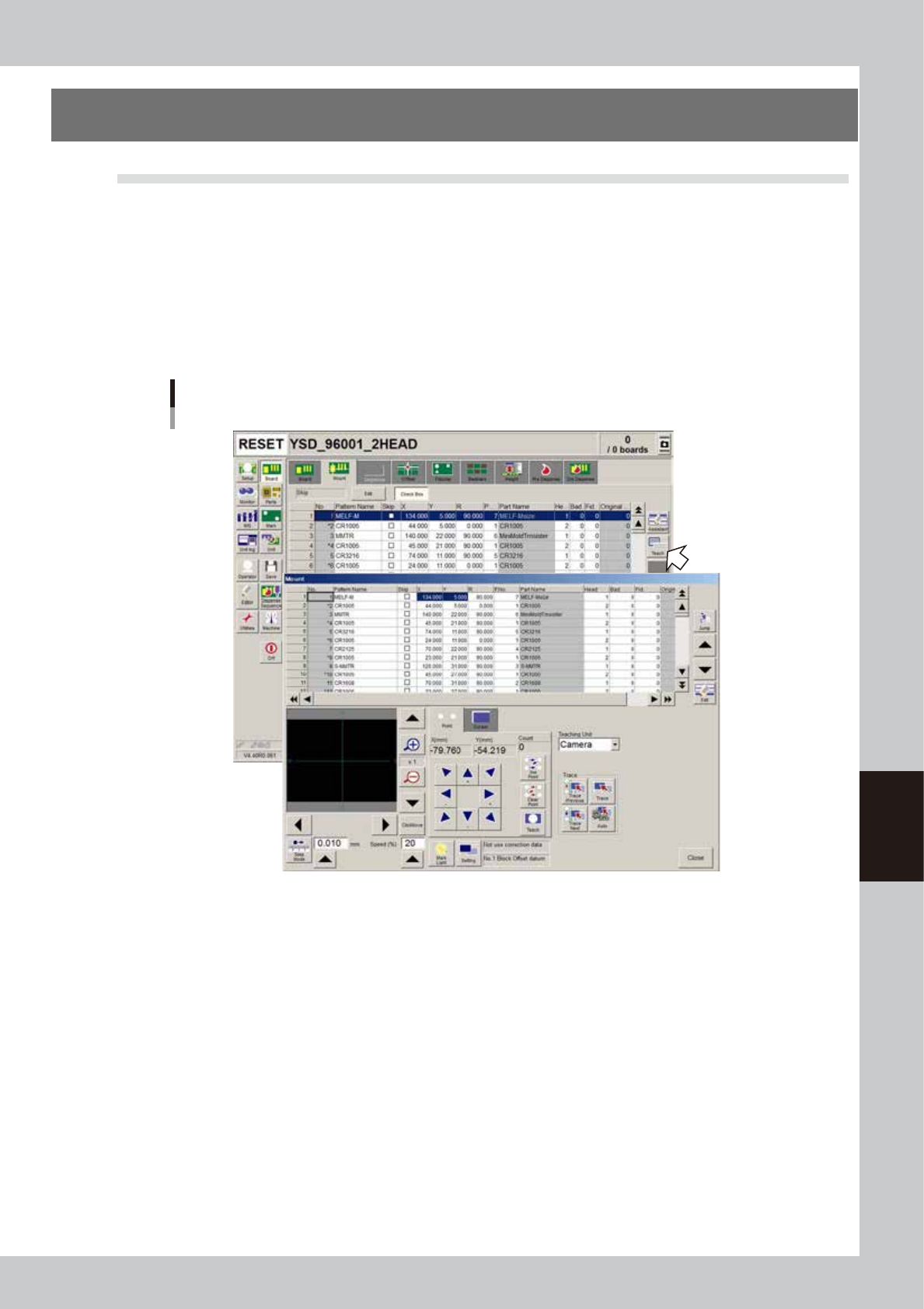
Press the [Teach] button to open the Teach (trace) screen.
A [Teach] button is available on the [Mount], [Offset], [Fiducial], [Badmark], [Height], [Pre Dispense] and
[Dot Dispense] tabs of the Board screen. Press the [Teach] button to open the Teach (trace) screen.
Opening the Teach (trace) screen
64402-N7-00
6-4
6
Using the advanced functions
3
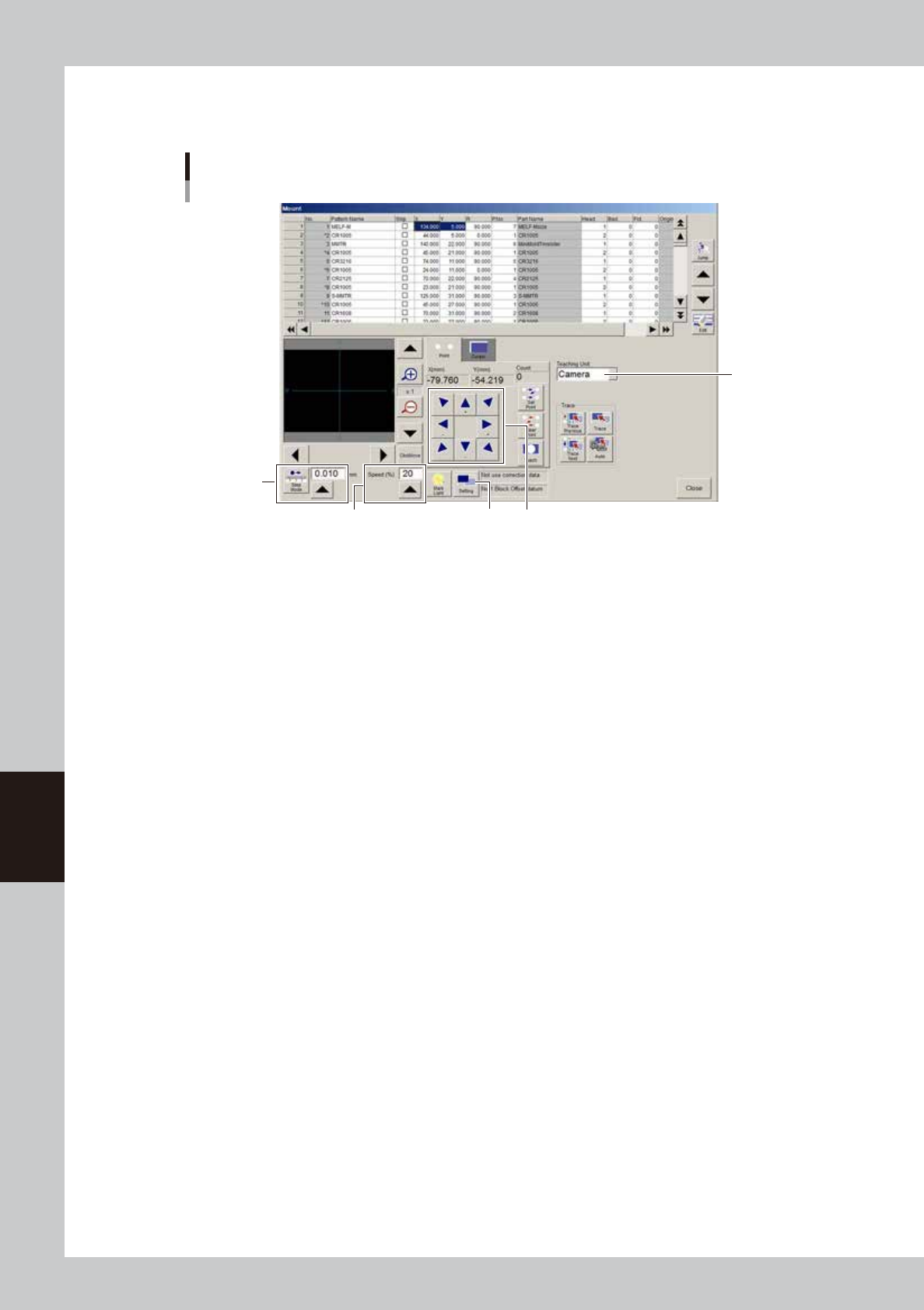
Set the trace conditions.
Refer to the following explanations to set the trace conditions.
Teach (trace) condition setting
1
3
Axis move keys
4
2
64403-N7-00
1. Teaching Unit
Select the teaching (trace) unit to move it to a target position, from "Camera", "First Head" or "Last
Head". Normally, select "Camera" to view the trace point on the vision monitor.
2. Step Mode (inching mode)
Use this mode to move the teaching (trace) unit in specified steps (mm). As long as the [Step Mode]
button is depressed, the inching mode takes priority over other motions so that continuous
movement will not change to high-speed movement even if an axis move key is held down.
[Step Mode] button
When this button is depressed, the teaching unit moves a specified distance (mm) each time you
press an axis move key. The inching distance can be set from 0.000 to 10.000 mm.
3. Speed
Set the speed (%) to move the teaching unit. This speed can be set from 1 to 100 by pressing the UP
arrow button. Press an axis move key to start moving the teaching unit at the specified speed.
Holding down the axis move key allows the teaching unit to move at a high speed. Using a slow
speed ("10" or "20") is recommended for safety, although you may at first feel the movement is slow.